
அறிமுகம்
The ADATA S102PRO is a high-performance USB 3.0 flash drive designed for fast and reliable data storage and transfer. Its durable design and high-speed interface make it ideal for everyday use, allowing you to carry important files, documents, photos, and videos with ease.
அமைவு
Follow these steps to begin using your ADATA S102PRO USB Flash Drive:
- USB போர்ட்டை அடையாளம் காணவும்: Locate an available USB port on your computer. For optimal performance, use a USB 3.0 port (often colored blue internally). The ADATA S102PRO is backward compatible with USB 2.0 ports, but data transfer speeds will be limited to USB 2.0 rates.
- தொப்பியை அகற்றவும்: Carefully remove the protective cap from the USB flash drive to expose the USB connector.
- இயக்ககத்தைச் செருகவும்: Insert the USB connector firmly into the USB port on your computer. Ensure it is inserted correctly; do not force it.
- கணினி அங்கீகாரம்: Your operating system (Windows, macOS, Linux) should automatically detect and install the necessary drivers. A notification may appear indicating that the device is ready for use. The drive will typically appear as a removable disk or volume in your file ஆய்வு செய்பவர்.
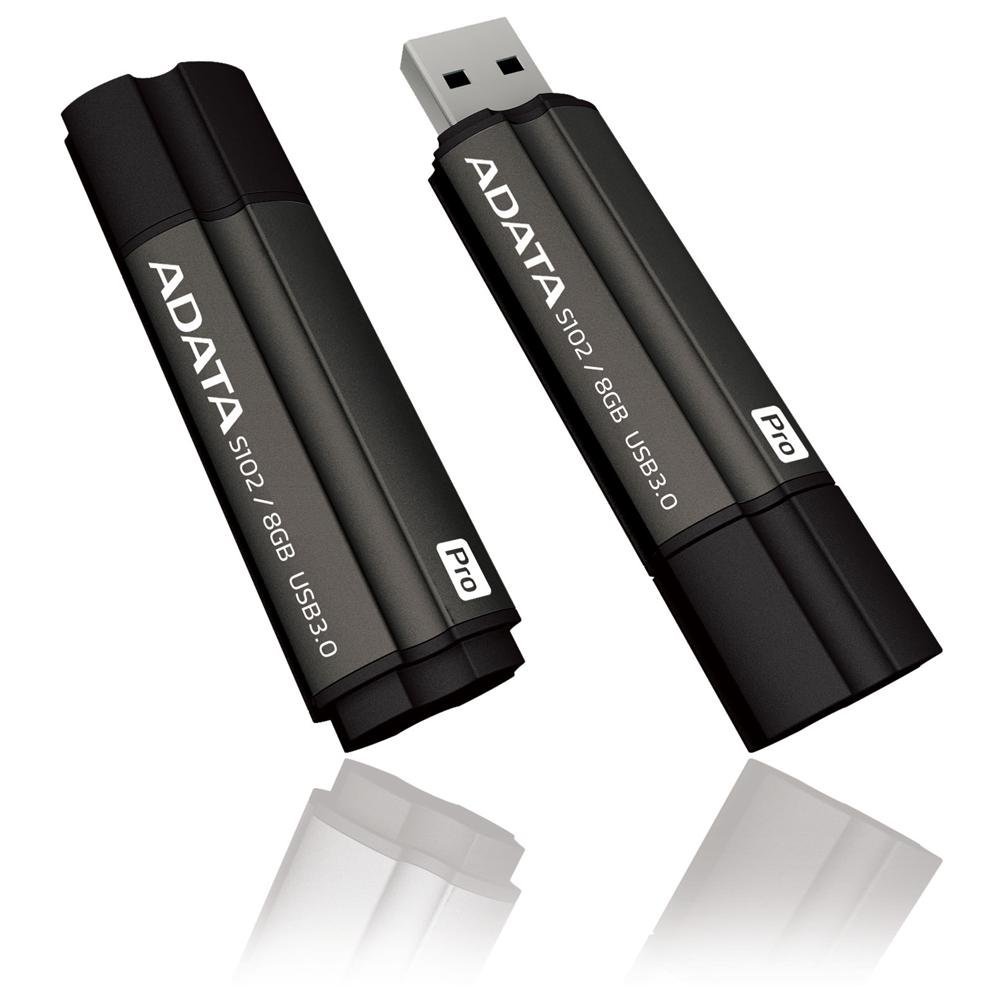
Image: The ADATA S102PRO USB Flash Drive shown with its protective cap on and with the cap removed, revealing the USB 3.0 connector. This illustrates the physical appearance and how to prepare the drive for insertion.
இயங்குகிறது
Once the ADATA S102PRO is recognized by your computer, you can begin transferring files:
- இயக்ககத்தை அணுகுதல்:
- விண்டோஸ்: Open "This PC" or "My Computer" and locate the drive listed under "Devices and drives" (e.g., "Removable Disk" or a drive letter like E:).
- MacOS: The drive icon will appear on your desktop or in the Finder sidebar under "Locations."
- இடமாற்றம் Files:
- நகலெடுக்க files செய்ய the flash drive, drag and drop them from your computer's folders into the flash drive's window.
- நகலெடுக்க files இருந்து the flash drive, drag and drop them from the flash drive's window to a folder on your computer.
- You can also use the standard copy (Ctrl+C / Command+C) and paste (Ctrl+V / Command+V) functions.
- இயக்ககத்தை பாதுகாப்பாக அகற்றுதல்: It is crucial to safely eject the flash drive before physically removing it to prevent data corruption.
- விண்டோஸ்: Click the "Safely Remove Hardware and Eject Media" icon in the system tray (bottom-right corner), then select your flash drive and click "Eject." Wait for the "Safe to Remove Hardware" message.
- MacOS: Drag the drive icon from the desktop to the Trash, or click the Eject button next to the drive name in the Finder sidebar. Wait for the icon to disappear before removing the drive.
பராமரிப்பு
Proper care will help ensure the longevity and reliability of your ADATA S102PRO USB Flash Drive:
- இணைப்பியைப் பாதுகாக்கவும்: Always keep the protective cap on the USB connector when the drive is not in use to prevent dust, dirt, and physical damage.
- தீவிர நிலைமைகளைத் தவிர்க்கவும்: Do not expose the drive to extreme temperatures, direct sunlight, high humidity, or strong magnetic fields.
- கவனத்துடன் கையாளவும்: Avoid dropping the drive or subjecting it to strong impacts.
- Do Not Remove During Transfer: Never unplug the drive while data is being read from or written to it. Always follow the safe removal procedure.
- வழக்கமான காப்புப்பிரதிகள்: While flash drives are reliable, it is always recommended to back up critical data to another storage device or cloud service.
சரிசெய்தல்
If you encounter issues with your ADATA S102PRO, try the following solutions:
- இயக்கி அங்கீகரிக்கப்படவில்லை:
- டிரைவ் USB போர்ட்டில் முழுமையாகச் செருகப்பட்டுள்ளதா என்பதை உறுதிப்படுத்தவும்.
- உங்கள் கணினியில் வேறு USB போர்ட்டை முயற்சிக்கவும்.
- Test the drive on another computer to rule out a computer-specific issue.
- Check your computer's Device Manager (Windows) or System Information (macOS) to see if the drive is listed, even if it doesn't appear in File Explorer/Finder.
- மெதுவான பரிமாற்ற வேகம்:
- Ensure you are connected to a USB 3.0 port for optimal performance. USB 2.0 ports will limit speeds.
- பல சிறியவற்றை மாற்றுதல் fileசில பெரியவற்றை மாற்றுவதை விட s மெதுவாக இருக்கலாம் files.
- Close other applications that might be using system resources or performing disk operations.
- எழுத முடியாது Fileஇயக்கத்திற்குச் செல்ல:
- டிரைவ் நிரம்பியுள்ளதா என சரிபார்க்கவும். தேவையற்றவற்றை நீக்கு. fileஅல்லது அவற்றை வேறு இடத்திற்கு மாற்றவும்.
- உறுதி செய்யவும் file system (e.g., FAT32, NTFS, exFAT) is compatible with your operating system and allows writing. If formatted as NTFS on macOS, you may only have read access without third-party software.
- Check for any software-based write protection or permissions issues on your computer.
விவரக்குறிப்புகள்
| பிராண்ட் | அடாடா |
| மாதிரி பெயர் | S102PRO |
| மாதிரி எண் | AT806-4G-CPK |
| நினைவக சேமிப்பு திறன் | 4 ஜிபி |
| வன்பொருள் இடைமுகம் | USB 3.0 (USB 2.0 உடன் பின்னோக்கி இணக்கமானது) |
| உற்பத்தியாளர் | A-DATA TECHNOLOGY (USA) CO. L |
| UPC | 842243005080 |
| ASIN | B004AVOGW8 |
உத்தரவாதம் மற்றும் ஆதரவு
For detailed warranty information, product registration, and technical support, please visit the official ADATA webதளம். நீங்கள் பொதுவாக ஆதரவு ஆதாரங்கள், அடிக்கடி கேட்கப்படும் கேள்விகள் மற்றும் வாடிக்கையாளர் சேவைக்கான தொடர்புத் தகவலை அங்கு காணலாம்.
ADATA Official Webதளம்: www.adata.com