
j5create FBA_JUA210
j5create USB 2.0 to VGA Display Adapter User Manual
Model: FBA_JUA210 | Brand: j5create
1. அறிமுகம்
The j5create USB 2.0 to VGA Display Adapter provides a convenient solution for adding an external VGA display to your computer via a USB 2.0 port. This adapter supports multiple display modes and is compatible with both Windows and Mac operating systems, allowing for enhanced productivity through extended or mirrored desktop environments.

Image 1.1: The j5create USB 2.0 to VGA Display Adapter, a compact silver device with a VGA port on one end and a USB cable on the other.
2 அம்சங்கள்
- ப்ளக்-அண்ட்-ப்ளே யூ.எஸ்.பி இணைப்பு: Easy driver installation for immediate use.
- பல கண்காணிப்பு ஆதரவு: Allows for up to 4 adapters in Windows and up to 2 adapters in Mac systems.
- Three Display Modes: Supports Primary, Extended, and Mirror display configurations.
- காட்சி சுழற்சி: Offers 0°, 90°, 180°, and 270° rotation (Windows only).
- நீடித்த கட்டுமானம்: Housed in a non-toxic and recyclable aluminum enclosure.
3. கணினி தேவைகள்
- USB 2.0 போர்ட் கிடைக்கிறது.
- VGA-compatible monitor or display.
- இயக்க முறைமை இணக்கத்தன்மை:
- Windows 8 and later.
- Mac OS X Panther and later.
- மேக் பயனர்களுக்கான குறிப்பு: Currently not compatible with macOS 11 Big Sur. Functionality may be limited with macOS High Sierra (e.g., extended mode with laptop closed). It is advised to delay updating to macOS 11 Big Sur or refer to j5create support for specific macOS version compatibility.
4 அமைவு
4.1 தொகுப்பு உள்ளடக்கம்
- j5create USB 2.0 to VGA Display Adapter (Model: FBA_JUA210)
- விரைவு நிறுவல் வழிகாட்டி (சேர்க்கப்பட்டிருந்தால்)
4.2 அடாப்டரை இணைத்தல்
- Connect one end of a VGA cable (not included) to the VGA port on your external monitor.
- Connect the other end of the VGA cable to the VGA port on the j5create USB 2.0 to VGA Display Adapter.
- Plug the USB connector of the j5create adapter into an available USB 2.0 port on your computer.
- The necessary drivers should install automatically (Plug-and-Play). If prompted, follow the on-screen instructions to complete the driver installation.

Image 4.1: The j5create USB 2.0 to VGA Display Adapter connected to a laptop's USB port, with the VGA port ready for a monitor connection.

படம் 4.2: ஒரு நெருக்கமான படம் view of the VGA port on the j5create adapter, showing the pin configuration and connection point for a VGA cable.
5. இயங்குகிறது
5.1 காட்சி முறைகள்
Once connected, your computer should detect the new display. You can configure the display settings through your operating system's display preferences.
- முதன்மை முறை: The external display acts as your main screen.
- விரிவாக்கப்பட்ட பயன்முறை: The external display extends your desktop, providing more screen space for multitasking.
- மிரர் பயன்முறை: The external display duplicates the content of your primary screen, ideal for presentations.

Image 5.1: A business meeting scenario where a laptop is connected to a large display via the j5create adapter, demonstrating mirror mode for presentations.
5.2 Multiple Adapters
The j5create USB 2.0 to VGA Display Adapter supports multiple units for expanded display setups:
- Up to 4 adapters can be used simultaneously on Windows systems.
- Up to 2 adapters can be used simultaneously on Mac systems.

Image 5.2: A workstation featuring a computer connected to three external monitors, illustrating the capability of the j5create adapter for multi-display setups.
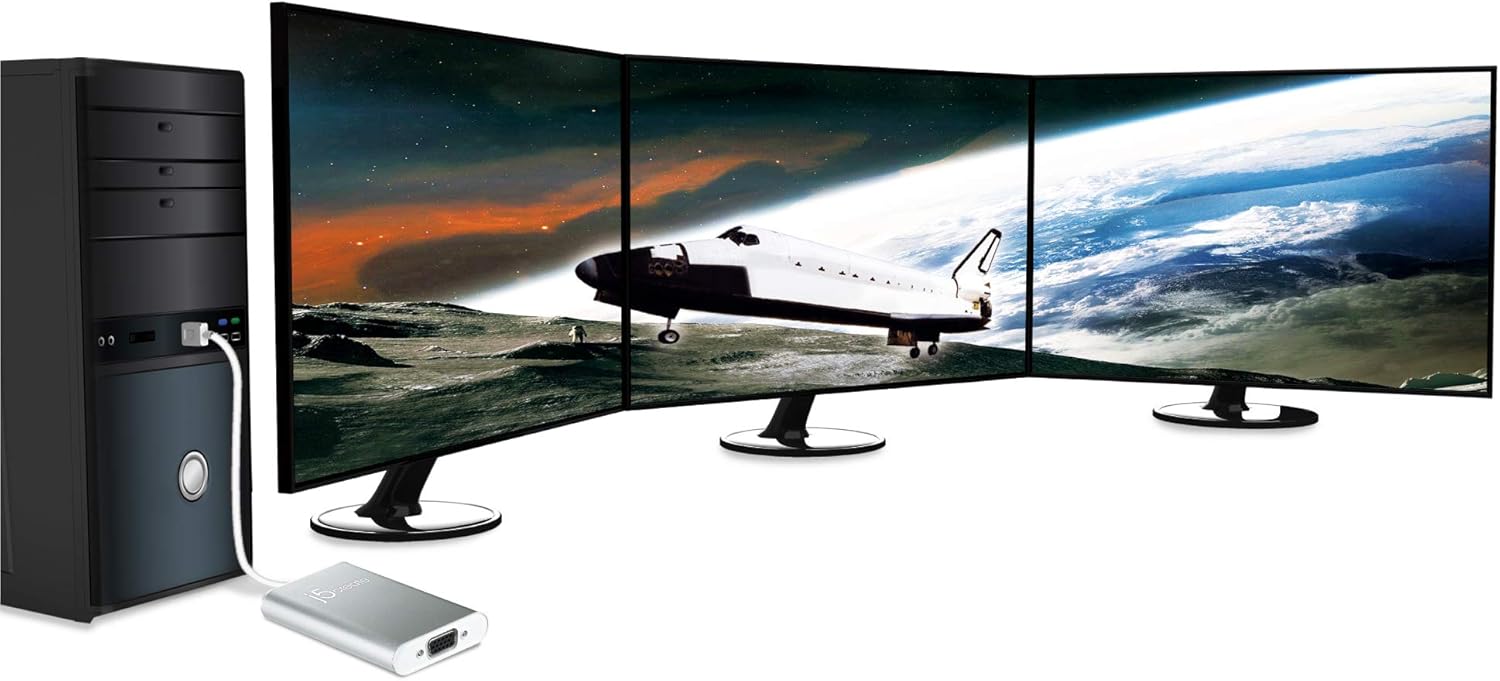
Image 5.3: A desktop computer tower connected to three external monitors, showcasing an advanced multi-display configuration possible with multiple j5create adapters.
5.3 Display Rotation (Windows Only)
On Windows operating systems, the display output can be rotated to 0°, 90°, 180°, or 270° through the display settings. This feature is not available on Mac operating systems.
6. பராமரிப்பு
To ensure optimal performance and longevity of your j5create USB 2.0 to VGA Display Adapter, follow these guidelines:
- Keep the adapter in a clean, dry environment, away from extreme temperatures and direct sunlight.
- Avoid exposing the adapter to liquids or excessive moisture.
- Do not attempt to disassemble or modify the adapter, as this will void the warranty and may cause damage.
- மென்மையான, உலர்ந்த துணியால் வெளிப்புறத்தை சுத்தம் செய்யவும். கடுமையான இரசாயனங்கள் அல்லது சிராய்ப்பு கிளீனர்களைப் பயன்படுத்த வேண்டாம்.
- Handle the cables and connectors gently to prevent bending or breaking.
7. சரிசெய்தல்
7.1 காட்சி வெளியீடு இல்லை
- இணைப்புகளைச் சரிபார்க்கவும்: Ensure all cables (USB, VGA) are securely connected to both the adapter, computer, and monitor.
- சக்தியைச் சரிபார்க்கவும்: Ensure your monitor is powered on and set to the correct input source (VGA).
- இயக்கி நிறுவல்: Confirm that the necessary drivers have been installed. If not, try disconnecting and reconnecting the adapter, or visit the j5create webஇயக்கி பதிவிறக்கங்களுக்கான தளம்.
- கணினியை மறுதொடக்கம்: A system restart can often resolve display detection issues.
- Test with Another Port/Computer: Try connecting the adapter to a different USB port on your computer, or test it on another computer to rule out port or system-specific issues.
7.2 Display Flickering or Poor Quality
- கேபிள் தரம்: Ensure you are using a high-quality VGA cable. Damaged or low-quality cables can cause signal degradation.
- தீர்மானம் அமைப்புகள்: Adjust the display resolution and refresh rate in your operating system's display settings to a supported value for your monitor and adapter.
- குறுக்கீடு: Keep the adapter and cables away from sources of electromagnetic interference.
7.3 Mac Specific Issues
- macOS Big Sur: The adapter is currently not compatible with macOS 11 Big Sur.
- மேகோஸ் உயர் சியரா: Limitations exist, particularly with extended mode when the laptop lid is closed. Ensure your macOS version is fully supported or consult j5create support for workarounds.
- இயக்கி மோதல்கள்: Avoid combining different brands of USB display adapters on a single Mac machine, as this can lead to software conflicts.
8. விவரக்குறிப்புகள்
| பிராண்ட் | j5உருவாக்கு |
| மாதிரி எண் | FBA_JUA210 |
| இணைப்பான் வகை | USB 2.0 (Input), VGA (Output) |
| இயக்க முறைமை ஆதரவு | Windows 8; Mac OS X Panther and later (with noted exceptions) |
| பொருளின் எடை | 2.56 அவுன்ஸ் (தோராயமாக 72.5 கிராம்) |
| தயாரிப்பு பரிமாணங்கள் (LxWxH) | 7.75 x 5 x 1.6 அங்குலம் (தோராயமாக 19.7 x 12.7 x 4.1 செ.மீ) |
| அடைப்பு பொருள் | அலுமினியம் |
9. உத்தரவாதத் தகவல்
For detailed warranty information regarding your j5create USB 2.0 to VGA Display Adapter, please refer to the warranty card included with your product or visit the official j5create webதளம். உத்தரவாத விதிமுறைகள் மற்றும் நிபந்தனைகள் பிராந்தியம் மற்றும் தயாரிப்பைப் பொறுத்து மாறுபடலாம்.
10. ஆதரவு
If you encounter any issues or have questions not covered in this manual, please contact j5create customer support. You can find support resources, FAQs, and contact information on the official j5create webதளம்:
Ask a question about this manual
Ask about setup, troubleshooting, compatibility, parts, safety, or missing instructions. Manuals+ will review the question and use this page’s manual context to help answer it.