
Epson P600
Epson SureColor P600 இன்க்ஜெட் பிரிண்டர் பயனர் கையேடு
Model: P600 (C11CE21201)
அறிமுகம்
This manual provides detailed instructions for the setup, operation, maintenance, and troubleshooting of your Epson SureColor P600 Inkjet Printer. Designed for professional-quality photo and fine art printing, this printer offers advanced features and versatile media handling capabilities.

படம் 1: முன் view of the Epson SureColor P600 Inkjet Printer.
அமைவு
திறத்தல் மற்றும் ஆரம்ப அமைப்பு
- Carefully remove the printer from its packaging. Retain all packing materials for future transport or storage.
- அச்சுப்பொறியின் வெளிப்புறம் மற்றும் உட்புறத்திலிருந்து அனைத்து பாதுகாப்பு நாடாக்கள் மற்றும் பேக்கிங் பொருட்களை அகற்றவும். குறிப்பிட்ட இடங்களுக்கு விரைவு தொடக்க வழிகாட்டியைப் பார்க்கவும்.
- Place the printer on a stable, flat surface with adequate space around it for operation and ventilation.
- மின் கேபிளை அச்சுப்பொறியுடன் இணைக்கவும், பின்னர் தரையிறக்கப்பட்ட மின் கடையுடன் இணைக்கவும்.
- Install the nine UltraChrome HD ink cartridges into their respective slots. Ensure each cartridge clicks into place.
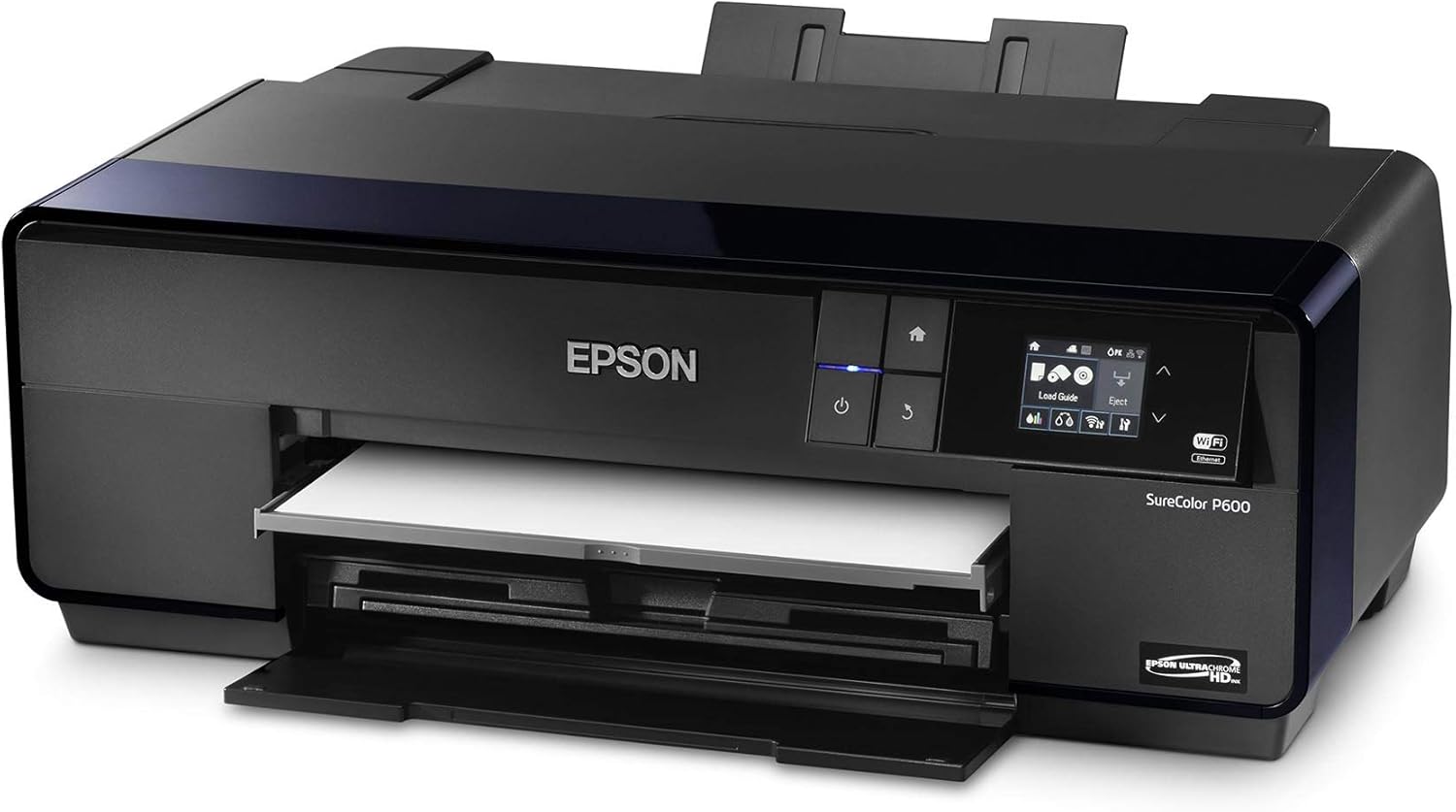
Figure 2: The front tray opened to access ink cartridge slots for installation.
மென்பொருள் மற்றும் இணைப்பு
- இயக்கி நிறுவல்: Insert the Printer Documentation CD-ROM into your computer or download the latest drivers and software from the official Epson support webதளம். நிறுவலுக்கு திரையில் உள்ள வழிமுறைகளைப் பின்பற்றவும்.
- பிணைய இணைப்பு:
- வைஃபை: Use the printer's 3.5-inch LCD control panel to navigate to the network settings. Select your Wi-Fi network and enter the password. The printer supports IEEE 802.11n.
- ஈதர்நெட்: Connect an Ethernet cable from your printer to your network router or switch.
- USB: Connect a USB 2.0 cable directly from your printer to your computer.
- மொபைல் சாதன அச்சிடுதல்: The printer supports Epson iPrint, Apple AirPrint, and Google Cloud Print for convenient printing from compatible mobile devices.
அச்சுப்பொறியை இயக்குதல்
Loading Paper and Media
The SureColor P600 supports a wide range of media types and sizes. Ensure you load the correct media for your printing needs.
- Standard Input Tray: Load up to 120 sheets of plain paper or photo paper (up to 13" x 19") into the rear auto-sheet feeder. Adjust the paper guides to fit the media width.
- கைமுறை ஊட்ட ஸ்லாட்: For thicker media like fine art paper or canvas, use the single-sheet manual feed slot.
- ரோல் பேப்பர்: Attach the optional roll paper holders and feed roll media through the designated path for panoramic prints.
- சிடி/டிவிடி தட்டு: Use the included CD/DVD tray for direct printing onto compatible discs.

Figure 3: Paper loaded into the rear auto-sheet feeder.

Figure 4: Printer with paper loaded and output trays extended, ready for printing.
ஆவணங்கள் மற்றும் புகைப்படங்களை அச்சிடுதல்
To achieve optimal print quality, configure your print settings according to the media type and desired output.
- உங்கள் கணினி அல்லது மொபைல் சாதனத்தில் அச்சிட விரும்பும் ஆவணம் அல்லது படத்தைத் திறக்கவும்.
- உங்கள் பயன்பாட்டிலிருந்து அச்சு விருப்பத்தைத் தேர்ந்தெடுக்கவும்.
- உங்கள் அச்சுப்பொறியாக Epson SureColor P600 ஐத் தேர்வுசெய்யவும்.
- Adjust print settings such as paper size, media type (e.g., Glossy Photo Paper, Fine Art Paper), print quality (up to 5760 x 1440 dpi), and duplex printing (automatic).
- Confirm settings and initiate the print job.

Figure 5: The Epson SureColor P600 in operation, producing a high-quality print.
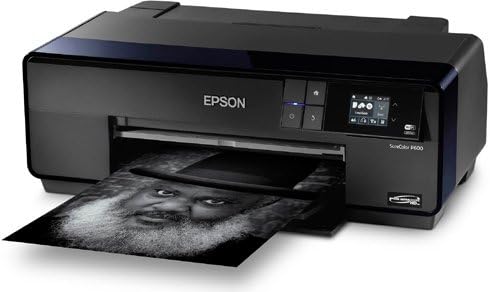
Figure 6: A black and white print being produced by the Epson SureColor P600, showcasing அதன் பல்துறை திறன்.

Figure 7: A selection of Epson Legacy Papers, demonstrating the printer's compatibility with diverse media types for professional results.
Official Product Video: Print Your Legacy
Video 1: "Print Your Legacy" - This video highlights the importance of creating physical prints to preserve photographic work and legacy. It showcases the quality and impact of prints made with Epson technology.
பராமரிப்பு
மை கெட்டி மாற்று
The printer uses nine individual UltraChrome HD ink cartridges. Replace cartridges when prompted by the printer's LCD screen or software.
- அச்சுப்பொறி இயக்கப்பட்டிருப்பதை உறுதிசெய்யவும்.
- மை கெட்டி அட்டையைத் திறக்கவும்.
- Press the tab on the empty cartridge to release it, then pull it straight out.
- Unpack the new cartridge and shake it gently before inserting it firmly into the correct slot until it clicks.
- Close the ink cartridge cover. The printer will begin initializing the new ink.
அச்சு தலை சுத்தம்
If you notice banding, missing colors, or blurry prints, perform a print head cleaning. This can be done via the printer's control panel or through the printer driver software on your computer.
- அச்சுப்பொறியிலிருந்து: Navigate to Maintenance or Setup on the LCD panel, then select Head Cleaning.
- கணினியிலிருந்து: Access printer properties/preferences, go to the Maintenance tab, and select Head Cleaning.
- Perform a Nozzle Check pattern print after cleaning to verify improvement. Repeat if necessary.
பொது சுத்தம்
மென்மையான, d துணியால் அச்சுப்பொறியின் வெளிப்புறத்தை தொடர்ந்து சுத்தம் செய்யவும்.amp, பஞ்சு இல்லாத துணி. சிராய்ப்பு கிளீனர்கள் அல்லது கரைப்பான்களைப் பயன்படுத்துவதைத் தவிர்க்கவும்.
சரிசெய்தல்
This section addresses common issues you might encounter with your Epson SureColor P600 printer.
| பிரச்சனை | சாத்தியமான காரணம் | தீர்வு |
|---|---|---|
| Faded or Streaky Prints | Clogged print head nozzles, low ink levels, incorrect media type setting. | Perform a Nozzle Check and Head Cleaning. Replace low ink cartridges. Verify media type setting in print driver. |
| காகித நெரிசல்கள் | Improper paper loading, too much paper loaded, foreign object in paper path. | Remove jammed paper carefully. Ensure paper is loaded correctly and not exceeding capacity. Check for obstructions. |
| அச்சுப்பொறி பதிலளிக்கவில்லை | Loose cable connection, incorrect network settings, printer offline. | Check USB/Ethernet cable connections. Verify Wi-Fi connection. Ensure printer is online and selected as default. Restart printer and computer. |
| "Ink Cartridge Not Recognized" Error | Cartridge not installed correctly, faulty cartridge. | Remove and reinsert the cartridge firmly. If the error persists, try a new genuine Epson cartridge. |
விவரக்குறிப்புகள்
| அம்சம் | விவரம் |
|---|---|
| அச்சிடும் தொழில்நுட்பம் | Advanced MicroPiezo AMC print head with ink-repelling coating technology |
| மை வகை | Epson UltraChrome HD pigment ink (9-color) |
| அதிகபட்ச அச்சுத் தீர்மானம் | 5760 x 1440 உகந்த dpi |
| Minimum Ink Droplet Size | 2.0 picoliters |
| அச்சு வேகம் (வண்ணம்) | Approx. 20 seconds for an 8" x 10" photo |
| ஊடக அளவுகள் ஆதரிக்கப்படுகின்றன | Up to 13" x 19" (Super B/A3+), Roll Paper (13" wide) |
| காகித திறன் | Rear auto-sheet feeder: 120 sheets (plain paper), 30 sheets (photo paper) |
| இரட்டை அச்சிடுதல் | Automatic (supports plain paper) |
| இணைப்பு | Hi-Speed USB 2.0, 100Base-T Ethernet, Wi-Fi (802.11n), Wi-Fi Direct |
| காட்சி | 3.5-இன்ச் வண்ண எல்சிடி |
| பரிமாணங்கள் (W x D x H) | 24.2" x 32" x 16.7" (printing) / 24.2" x 14.5" x 9.8" (storage) |
| எடை | 33.5 lb (41.3 lbs shipping weight) |
| மின் நுகர்வு | Printing: Approx. 21 W; Sleep Mode: Less than 3.5 W |
| இயக்க முறைமை ஆதரவு | Windows 8/7 (32-bit, 64-bit), Mac OS X 10.7.x, 10.8.x, 10.9.x |
உத்தரவாதம் மற்றும் ஆதரவு
உத்தரவாத தகவல்
Epson provides a limited warranty for the SureColor P600 printer. Specific warranty terms and conditions are typically included with your product documentation at the time of purchase. Please refer to the warranty card or contact Epson support for details regarding coverage, duration, and service procedures.
கூடுதல் வளங்கள்
- அதிகாரப்பூர்வ பயனர் வழிகாட்டி (PDF): For a more detailed and comprehensive guide, you can download the official PDF user guide from the Epson support website or access it via this direct link: Epson SureColor P600 User Guide
- எப்சன் ஆதரவு Webதளம்: அதிகாரப்பூர்வ எப்சன் ஆதரவைப் பார்வையிடவும் website for FAQs, driver downloads, software updates, and contact information for technical assistance.
Ask a question about this manual
Ask about setup, troubleshooting, compatibility, parts, safety, or missing instructions. Manuals+ will review the question and use this page’s manual context to help answer it.