
1. அறிமுகம்
The CHERRY KC 1000 is a reliable wired keyboard designed for professional office use and everyday computing. It features a full-size Italian QWERTY layout, a flat design, and quiet keystrokes for comfortable and efficient typing. This manual provides essential information for setting up, operating, maintaining, and troubleshooting your keyboard.
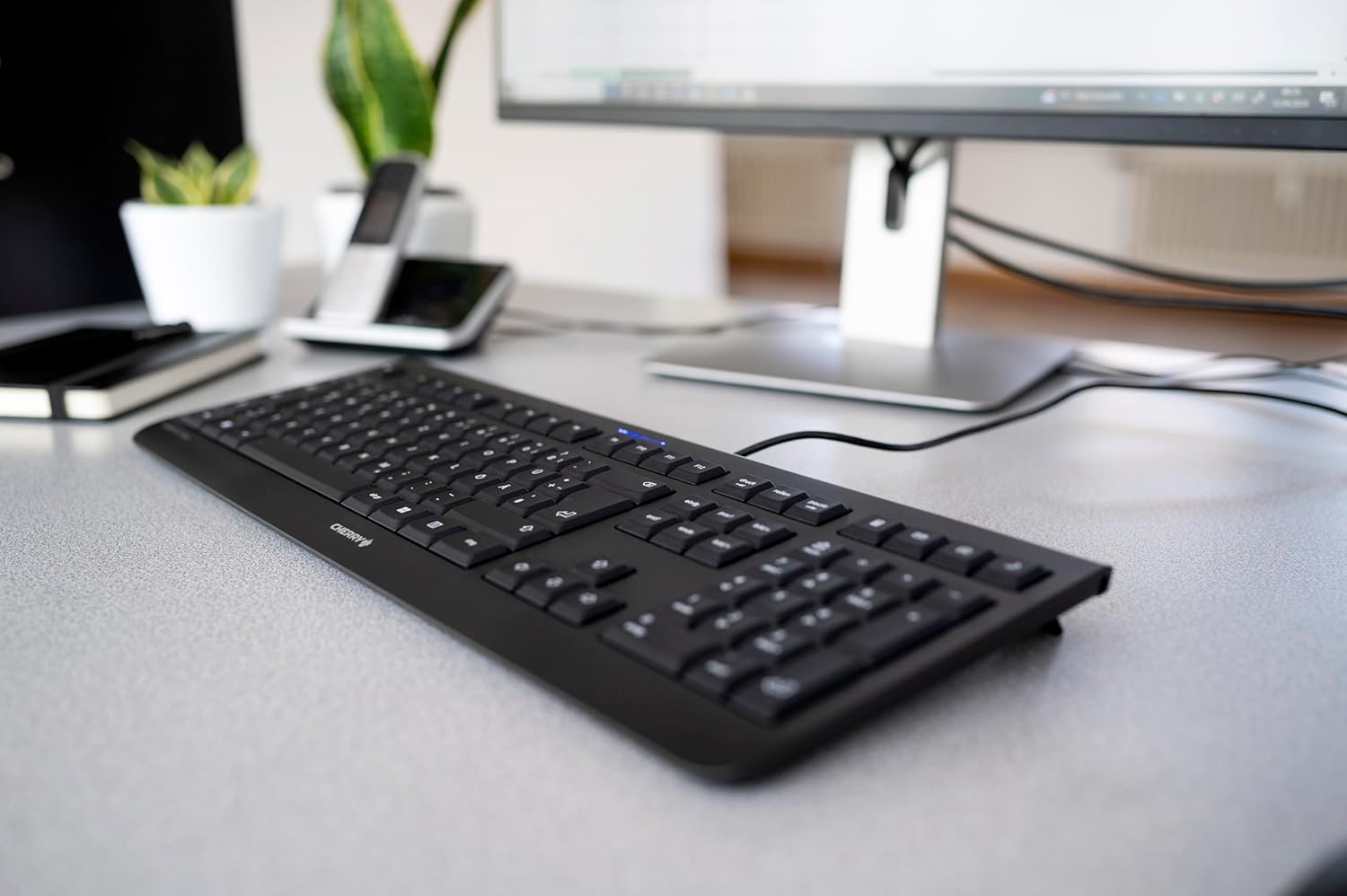
Image 1.1: The CHERRY KC 1000 keyboard in a typical office setup.
2 அமைவு
The CHERRY KC 1000 keyboard is designed for simple Plug & Play installation. No additional drivers are required for most operating systems.
2.1 விசைப்பலகையை இணைத்தல்
- Locate an available USB-A port on your computer (desktop PC, laptop, or compatible device).
- Insert the USB connector of the CHERRY KC 1000 keyboard into the USB-A port.
- Your operating system will automatically detect and install the necessary drivers. This process usually takes a few seconds.
- விசைப்பலகை இப்போது பயன்படுத்த தயாராக உள்ளது.
The keyboard features a 180 cm (approximately 5.9 feet) long cable, providing ample flexibility for desk arrangements.

Image 2.1: The USB cable connection of the CHERRY KC 1000 keyboard.
3. விசைப்பலகையை இயக்குதல்
The CHERRY KC 1000 offers a standard Italian QWERTY layout with additional function keys for enhanced productivity.
3.1 முக்கிய அமைப்பு மற்றும் செயல்பாடுகள்
The keyboard includes a full-size layout with a dedicated numeric keypad and cursor keys. The Italian QWERTY layout supports specific characters and symbols commonly used in the Italian language.

படம் 3.1: முடிந்ததுview of the CHERRY KC 1000 Italian QWERTY key layout.
3.2 Special Function Keys
The keyboard features 4 additional keys located above the numeric keypad for quick access to common functions:
- கால்குலேட்டர்: Opens the default calculator application.
- மின்னஞ்சல்: உங்கள் இயல்புநிலை மின்னஞ்சல் கிளையண்டைத் தொடங்குகிறது.
- உலாவி: உங்கள் இயல்புநிலையைத் திறக்கும் web உலாவி.
- தூக்க முறை: Puts your computer into sleep mode.
3.3 நிலை LED
Three blue status LEDs are located above the function keys to indicate the status of:
- கேப்ஸ் லாக்: Caps Lock இயக்கத்தில் இருக்கும்போது ஒளிரும்.
- NUM: Illuminates when Num Lock is active.
- உருட்டவும்: Illuminates when Scroll Lock is active.

Image 3.2: User interacting with the CHERRY KC 1000 keyboard.
4. பராமரிப்பு
Proper care and maintenance will ensure the longevity and optimal performance of your CHERRY KC 1000 keyboard.
4.1 விசைப்பலகையை சுத்தம் செய்தல்
- சுத்தம் செய்வதற்கு முன் உங்கள் கணினியிலிருந்து விசைப்பலகையைத் துண்டிக்கவும்.
- ஒரு மென்மையான, பஞ்சு இல்லாத துணியை சிறிது டி பயன்படுத்தவும்ampened with water or a mild cleaning solution (e.g., isopropyl alcohol) to wipe the keycaps and keyboard surface.
- Avoid using abrasive cleaners, solvents, or harsh chemicals, as these can damage the keyboard's finish or key legends.
- சாவிகளுக்கு இடையில் தூசி மற்றும் குப்பைகள் இருந்தால், அழுத்தப்பட்ட காற்று அல்லது சிறிய தூரிகையைப் பயன்படுத்தவும்.
- உங்கள் கணினியுடன் மீண்டும் இணைப்பதற்கு முன் விசைப்பலகை முற்றிலும் உலர்ந்திருப்பதை உறுதிசெய்யவும்.
4.2 பொது பராமரிப்பு
- Avoid spilling liquids on the keyboard.
- Do not expose the keyboard to extreme temperatures or direct sunlight for extended periods.
- விசைப்பலகையை பிரிக்க முயற்சிக்காதீர்கள், ஏனெனில் இது உத்தரவாதத்தை ரத்து செய்யக்கூடும்.
5. சரிசெய்தல்
If you encounter issues with your CHERRY KC 1000 keyboard, refer to the following common troubleshooting steps.
5.1 விசைப்பலகை பதிலளிக்கவில்லை
- யூ.எஸ்.பி இணைப்பைச் சரிபார்க்கவும்: Ensure the USB cable is securely plugged into both the keyboard and the computer's USB port. Try a different USB port.
- கணினியை மறுதொடக்கம்: சில நேரங்களில் ஒரு எளிய கணினி மறுதொடக்கம் இணைப்பு சிக்கல்களை தீர்க்கும்.
- மற்றொரு கணினியில் சோதனை: If possible, connect the keyboard to another computer to determine if the issue is with the keyboard or the original computer.
- இயக்கி மறு நிறுவல்: Although Plug & Play, sometimes reinstalling drivers can help. Disconnect the keyboard, restart the computer, and then reconnect the keyboard.
5.2 விசைகள் சரியாகச் செயல்படவில்லை.
- சுத்தமான விசைகள்: Dust or debris under the keycaps can cause keys to stick or not register. Refer to the cleaning instructions in Section 4.1.
- மென்பொருள் முரண்பாடுகள்: Ensure no other software or keyboard utilities are interfering with the keyboard's operation.
5.3 Status LEDs Not Working
- Verify that the corresponding lock function (Caps Lock, Num Lock, Scroll Lock) is activated.
- If the keyboard is otherwise functional, a minor software glitch might be preventing the LED from lighting up. A computer restart may resolve this.
6. விவரக்குறிப்புகள்
Below are the technical specifications for the CHERRY KC 1000 Wired Keyboard.
| அம்சம் | விவரம் |
|---|---|
| மாதிரி பெயர் | செர்ரி கேசி 1000 |
| மாதிரி எண் | JK-0800IT-2 |
| இணைப்பு | கம்பி USB-A |
| விசைப்பலகை தளவமைப்பு | Italian QWERTY |
| விசைகளின் எண்ணிக்கை | 109 |
| முக்கிய தொழில்நுட்பம் | Membrane or Rubber Dome |
| சிறப்பு அம்சங்கள் | Whisper-quiet keystroke, 4 additional function keys (Calculator, Email, Browser, Sleep Mode), 3 blue status LEDs |
| கேபிள் நீளம் | 1.8 மீட்டர் (5.9 அடி) |
| பொருள் | பிளாஸ்டிக் |
| நிறம் | கருப்பு |
| எடை | 530 கிராம் |
| இணக்கமான சாதனங்கள் | லேப்டாப், பிசி |
| சான்றிதழ்கள் | c-tick, cULus, CE, FCC, BSMI, TÜV/GS, Blue Angel eco-label |
7. உத்தரவாதம் மற்றும் ஆதரவு
CHERRY products are manufactured to high-quality standards. For information regarding warranty coverage, please refer to the warranty card included with your product or visit the official CHERRY website. For technical support or further assistance, please contact CHERRY customer service through their official channels.
The product package includes: 1 CHERRY KC 1000 keyboard and a printed instruction manual.