
லாஜிடெக் 960-001101
Logitech MeetUp Video Conferencing System User Manual
மாதிரி: 960-001101
அறிமுகம்
The Logitech MeetUp is a premier ConferenceCam designed for small conference rooms and huddle spaces. It features an Ultra HD 4K camera with a super-wide 120° field of view, ensuring every participant is clearly visible. Integrated audio with beamforming microphones and a custom-tuned speaker provides an exceptional sound experience. This manual provides detailed instructions for setting up, operating, and maintaining your MeetUp system.

Figure 1: Logitech MeetUp Video Conferencing System, front view.
பெட்டியில் என்ன இருக்கிறது
நிறுவலைத் தொடர்வதற்கு முன் அனைத்து கூறுகளும் உள்ளனவா என்பதைச் சரிபார்க்கவும்:
- Logitech® MeetUp Camera
- Table and wall mount
- RF தொலைநிலை
- 16 ft / 5 meter USB cable
- பயனர் கையேடு (இந்த ஆவணம்)
அமைவு மற்றும் நிறுவல்
The MeetUp system is designed for easy plug-and-play setup. Follow these steps for optimal performance:
1. வேலை வாய்ப்பு மற்றும் மவுண்டிங்
The MeetUp offers multiple mounting options to suit your room configuration:
- டேப்லெட் இடம்: Place the MeetUp on a credenza or table directly below or above your display.
- சுவர் பொருத்துதல்: Use the included wall mount to securely attach the MeetUp to a wall.
- TV Mount (Optional): An optional TV mount (sold separately) allows for secure placement directly above or below the in-room display.

Figure 2: Various mounting options including tabletop, wall, and display mounting.

Figure 3: MeetUp securely mounted below a display using an optional TV mount.
2. கணினியை இணைக்கிறது
Connect the MeetUp to your computer or room solution via the provided USB cable. For 4K video resolution, a high-speed internet connection and a special cable (not included) may be required.

படம் 4: பின்புறம் view of the MeetUp showing USB and power connections for simple plug-and-play setup.
The MeetUp is compatible with Windows 7, Windows 8.1, Windows 10, macOS 10.10 or higher, and Chrome OS Version 29.0.1547.70 and higher. A USB 2.0 port is required, with USB 3.0 recommended for 4K video.
இயக்க வழிமுறைகள்
1. Video Conferencing
The MeetUp functions as a USB conference camera, compatible with any video conferencing software application and cloud service. Its Ultra HD 4K sensor, wide 120° field of view, and 5x HD zoom provide clear video. Motorized pan/tilt extends the field of view 170° வரை.

Figure 5: The MeetUp system enabling video conferencing in a small room, highlighting its all-in-one design for easy setup.

Figure 6: The MeetUp serving as a versatile USB-based conference camera for dedicated meeting rooms or bring-your-own-device (BYOD) setups.
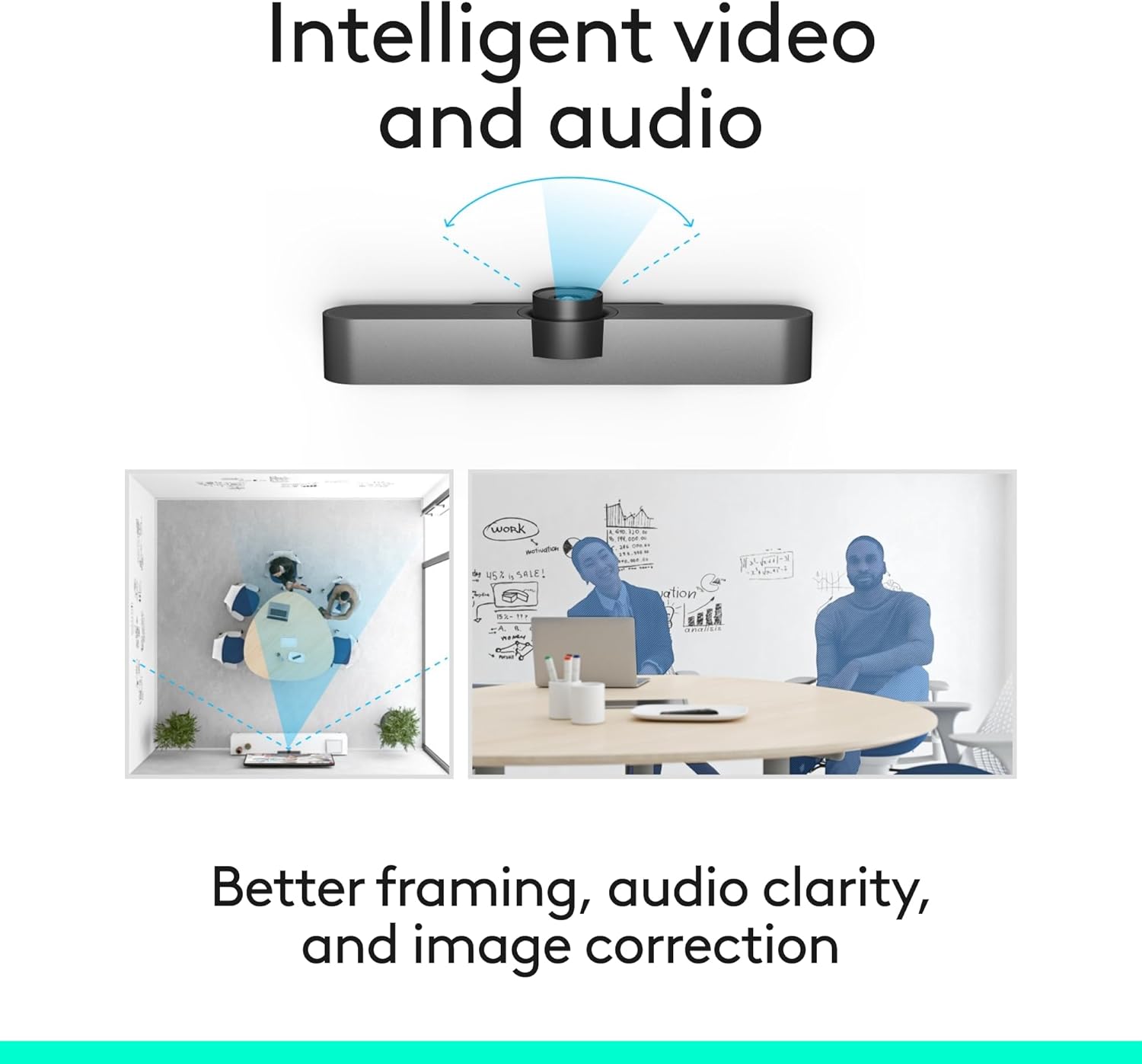
படம் 7: வரைபடம் காட்டுகிறதுasing the intelligent video and audio capabilities, including better framing, audio clarity, and image correction.
2. ஆடியோ அம்சங்கள்
MeetUp's integrated audio is optimized for huddle room acoustics. Three horizontally-aimed beamforming microphones capture voices up to 4 meters away. A custom-tuned speaker ensures clear audio output.
- Expansion Microphone: For larger conference rooms, an optional expansion microphone (sold separately) can extend the voice pickup range up to 5 meters.

Figure 8: The MeetUp system with an optional expansion microphone, allowing for extended voice capture in larger spaces.
3. ரிமோட் கண்ட்ரோல்
The included RF remote allows for convenient control of camera pan/tilt/zoom (PTZ) functions and volume adjustments from a distance.

Figure 9: The MeetUp system shown with its included remote control, enabling easy PTZ and volume adjustments.
பராமரிப்பு
To ensure the longevity and optimal performance of your Logitech MeetUp system, follow these simple maintenance guidelines:
- சுத்தம்: Use a soft, dry cloth to clean the camera lens and the body of the unit. Avoid abrasive cleaners or solvents.
- கேபிள் மேலாண்மை: சேதத்தைத் தடுக்க அனைத்து கேபிள்களும் நேர்த்தியாகச் செலுத்தப்படுவதையும், பதற்றத்தில் இல்லாமல் இருப்பதையும் உறுதிசெய்யவும்.
- மென்பொருள் புதுப்பிப்புகள்: Regularly check for and install firmware and software updates using Logitech Sync to ensure the best performance and access to new features.
சரிசெய்தல்
If you encounter issues with your MeetUp system, refer to the following common troubleshooting steps:
| பிரச்சனை | சாத்தியமான காரணம் | தீர்வு |
|---|---|---|
| No video output / Black screen | Loose USB connection, incorrect input selected on display, driver issue. |
|
| ஆடியோ இல்லை / மோசமான ஆடியோ தரம் | Microphone/speaker not selected as default, volume too low, environmental noise. |
|
| ரிமோட் கண்ட்ரோல் பதிலளிக்கவில்லை | Low battery, line of sight blocked, remote not paired. |
|
விவரக்குறிப்புகள்
| அம்சம் | விவரம் |
|---|---|
| தயாரிப்பு பரிமாணங்கள் | 3.82 x 6.1 x 6.1 அங்குலம் |
| பொருளின் எடை | 2.29 பவுண்டுகள் |
| மாதிரி எண் | 960-001101 |
| பிராண்ட் | லாஜிடெக் |
| புகைப்பட சென்சார் தொழில்நுட்பம் | பிஎஸ்ஐ சிஎம்ஓஎஸ் |
| வீடியோ பிடிப்பு தீர்மானம் | 1080p, 4K |
| அதிகபட்ச துளை | 4 f |
| வீடியோ பிடிப்பு வடிவம் | HDMI |
| ஆதரிக்கப்படும் ஆடியோ வடிவம் | ஏஏசி, எம்பி3 |
| இணைப்பு தொழில்நுட்பம் | புளூடூத், யு.எஸ்.பி |
| நிறம் | கருப்பு |
உத்தரவாதம் மற்றும் ஆதரவு
For warranty information and technical support, please refer to the official Logitech website or contact Logitech customer service. You can also find additional resources and FAQs on the product support page.
பயனர் கையேட்டின் PDF பதிப்பு பதிவிறக்கத்திற்குக் கிடைக்கிறது: பயனர் கையேடு (PDF)
Ask a question about this manual
Ask about setup, troubleshooting, compatibility, parts, safety, or missing instructions. Manuals+ will review the question and use this page’s manual context to help answer it.