
BenQ EX3501R
BenQ EX3501R Ultrawide Curved Gaming Monitor User Manual
Model: EX3501R
1 அமைவு
1.1 மானிட்டரைத் திறக்கிறது
பேக்கேஜிங்கிலிருந்து அனைத்து கூறுகளையும் கவனமாக அகற்றவும். கீழே பட்டியலிடப்பட்டுள்ள அனைத்து பொருட்களும் இருப்பதை உறுதிசெய்யவும்:
- BenQ EX3501R Monitor
- மானிட்டர் ஸ்டாண்ட் (அடித்தளம் மற்றும் கழுத்து)
- பவர் அடாப்டர்
- பவர் கார்ட்
- HDMI கேபிள்
- டிஸ்ப்ளே கேபிள்
- யூ.எஸ்.பி-சி கேபிள்
- பயனர் கையேடு (இந்த ஆவணம்)
1.2 ஸ்டாண்டை அசெம்பிள் செய்தல்
உங்கள் மானிட்டரில் ஸ்டாண்டை இணைக்க இந்தப் படிகளைப் பின்பற்றவும்:
- கீறல்களைத் தவிர்க்க, மானிட்டரின் முகத்தை மென்மையான, சுத்தமான துணியில் கீழே வைக்கவும்.
- மானிட்டரின் பின்புறத்தில் ஸ்டாண்ட் கழுத்தை இணைக்கவும். அது பாதுகாப்பாக இடத்தில் கிளிக் செய்வதை உறுதிசெய்யவும்.
- Connect the stand base to the neck, tightening any screws as indicated in the quick start guide.

படம் 1: முன் view of the BenQ EX3501R monitor with its stand.
1.3 இணைக்கும் கேபிள்கள்
Connect the necessary cables to the monitor and your computer. The monitor supports various input options:
- சக்தி: Connect the power adapter to the monitor and then to a power outlet.
- வீடியோ உள்ளீடு: Use either the HDMI, DisplayPort, or USB-C cable to connect your computer to the monitor.
- யூ.எஸ்.பி-சி: The USB-C port supports video, data transfer, and power delivery, allowing for a single-cable connection with compatible devices.
- USB 3.0 போர்ட்கள்: Utilize the integrated USB 3.0 ports for connecting peripherals.
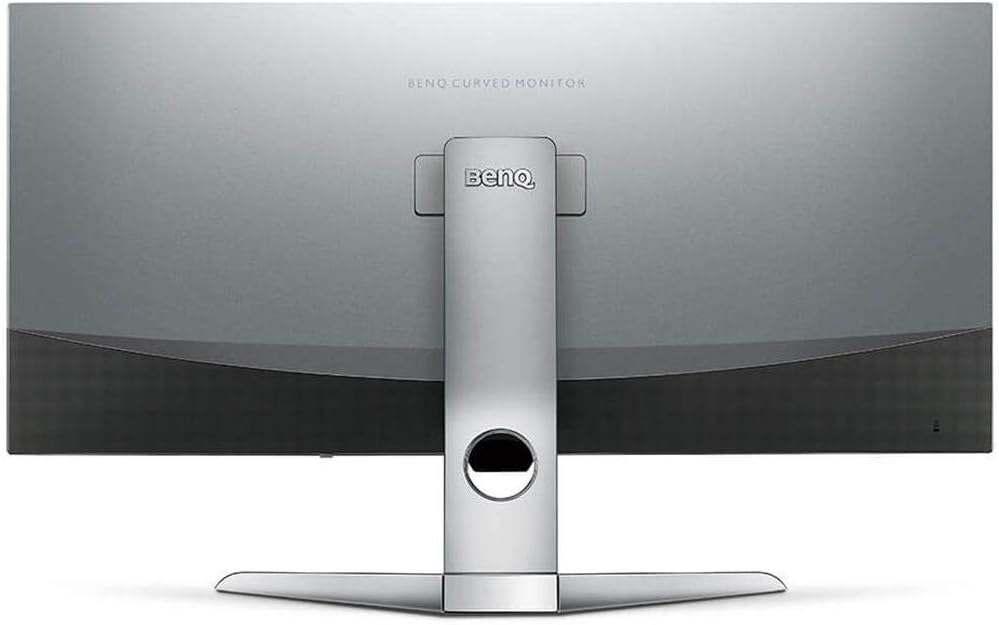
படம் 2: பின்புறம் view of the monitor displaying the connectivity ports.
2. மானிட்டரை இயக்குதல்
2.1 பவர் ஆன்/ஆஃப்
Press the power button, usually located on the bottom right side of the monitor, to turn it on or off. The power indicator light will illuminate when the monitor is active.
2.2 திரையில் காட்சி (OSD) வழிசெலுத்தல்
Use the joystick or buttons located on the monitor's underside to navigate the On-Screen Display (OSD) menu. This menu allows you to adjust various settings such as brightness, contrast, color modes, and input sources.
2.3 Display Features and Eye-Care Technology
The BenQ EX3501R incorporates several technologies designed to enhance viewing experience and reduce eye strain:
- பிரைட்னஸ் இன்டலிஜென்ஸ் பிளஸ் (BI+): This patented technology automatically senses ambient lighting conditions and adjusts the screen's brightness and color temperature to provide optimal viewing comfort and protect your eyes during extended use.
- குறைந்த நீல ஒளி: Filters out harmful blue light emissions to reduce eye fatigue. Multiple levels of blue light reduction are available.
- ZeroFlicker™: Eliminates screen flickering at all brightness levels, further reducing eye strain and discomfort.
- HDR (உயர் டைனமிக் ரேஞ்ச்): Offers enhanced brightness and contrast, bringing greater detail and vibrancy to HDR video content.
காணொளி 1: ஒரு ஓவர்view of BenQ's Eye-Care technology, including Low Blue Light, ZeroFlicker, and Brightness Intelligence Plus, demonstrating how these features work to reduce eye strain and adjust screen settings automatically based on ambient light.
2.4 Resolution and Refresh Rate
The monitor features a QHD (3440x1440) resolution and a 100Hz refresh rate, providing a smooth and detailed visual experience. The 21:9 ultrawide aspect ratio offers ample screen space for multitasking, such as viewing multiple documents side-by-side without needing a second monitor.
2.5 AMD FreeSync
For a fluid gaming experience, the monitor supports AMD FreeSync technology, which synchronizes the monitor's refresh rate with your graphics card's frame rate to eliminate screen tearing and stuttering.
3. பராமரிப்பு
3.1 மானிட்டரை சுத்தம் செய்தல்
To maintain optimal performance and appearance, regularly clean your monitor:
- திரை: மென்மையான, பஞ்சு இல்லாத துணியால் திரையை மெதுவாகத் துடைக்கவும். பிடிவாதமான கறைகளுக்கு, திரையில் நேரடியாகப் பயன்படுத்தாமல், துணியில் தடவப்பட்ட மானிட்டர்-குறிப்பிட்ட துப்புரவுக் கரைசலைப் பயன்படுத்தவும்.
- வெளிப்புறம்: Use a soft, dry cloth to wipe dust and debris from the monitor casing and stand.
சிராய்ப்பு கிளீனர்கள், மெழுகுகள் அல்லது கரைப்பான்களைப் பயன்படுத்துவதைத் தவிர்க்கவும், ஏனெனில் அவை மானிட்டரின் மேற்பரப்பை சேதப்படுத்தும்.
3.2 General Care Tips
- மானிட்டரில் காற்றோட்டம் திறப்புகளைத் தடுக்க வேண்டாம்.
- நேரடி சூரிய ஒளியில் அல்லது வெப்ப மூலங்களுக்கு அருகில் மானிட்டரை வைப்பதைத் தவிர்க்கவும்.
- உடல் ரீதியான சேதத்தைத் தடுக்க மானிட்டரை கவனமாகக் கையாளவும்.
4. சரிசெய்தல்
If you encounter issues with your BenQ EX3501R monitor, refer to the following common troubleshooting steps:
4.1 காட்சி அல்லது கருப்புத் திரை இல்லை
- மானிட்டர் மற்றும் பவர் அவுட்லெட் இரண்டிலும் பவர் கேபிள் பாதுகாப்பாக இணைக்கப்பட்டுள்ளதா என்பதை உறுதிப்படுத்திக் கொள்ளுங்கள்.
- வீடியோ கேபிள் (HDMI, DisplayPort, அல்லது USB-C) மானிட்டர் மற்றும் உங்கள் கணினி இரண்டுடனும் உறுதியாக இணைக்கப்பட்டுள்ளதா என்பதைச் சரிபார்க்கவும்.
- மானிட்டரின் OSD மெனுவில் சரியான உள்ளீட்டு மூலமானது தேர்ந்தெடுக்கப்பட்டுள்ளதா எனச் சரிபார்க்கவும்.
- உங்கள் கணினியை மறுதொடக்கம் செய்யுங்கள்.
4.2 மினுமினுப்பு அல்லது நிலையற்ற படம்
- Ensure the ZeroFlicker™ feature is enabled in the OSD menu.
- Check for loose video cable connections.
- உங்கள் கிராபிக்ஸ் கார்டு இயக்கிகளை சமீபத்திய பதிப்பிற்கு புதுப்பிக்கவும்.
- If using AMD FreeSync, ensure it is properly configured in your graphics card settings.
4.3 Color or Brightness Issues
- OSD மெனு வழியாக பிரகாசம், மாறுபாடு மற்றும் வண்ண அமைப்புகளை சரிசெய்யவும்.
- Enable or disable Brightness Intelligence Plus (B.I.+) to see if it resolves the issue.
- OSD மெனு மூலம் தொழிற்சாலை மீட்டமைப்பைச் செய்யவும்.
5. விவரக்குறிப்புகள்
Key technical specifications for the BenQ EX3501R monitor:
| அம்சம் | விவரக்குறிப்பு |
|---|---|
| திரை அளவு | 35 அங்குலம் |
| அதிகபட்ச திரை தெளிவுத்திறன் | 3440 x 1440 Pixels (QHD Ultrawide) |
| தோற்ற விகிதம் | 21:9 |
| புதுப்பிப்பு விகிதம் | 100 ஹெர்ட்ஸ் |
| வளைவு | 1800ஆர் |
| பேனல் வகை | VA (செங்குத்து சீரமைப்பு) |
| இணைப்பு | USB-C, HDMI, DisplayPort |
| சிறப்பு அம்சங்கள் | AMD FreeSync, Brightness Intelligence Plus, Low Blue Light, ZeroFlicker |
| பொருளின் எடை | 21.3 பவுண்டுகள் |
| தயாரிப்பு பரிமாணங்கள் | 6.88 x 3.47 x 12.93 அங்குலம் |
6. உத்தரவாதம் மற்றும் ஆதரவு
6.1 தயாரிப்பு உத்தரவாதம்
The BenQ EX3501R monitor typically comes with a 3-year manufacturer's warranty. Please refer to the warranty card included in your product packaging for specific terms and conditions, or visit the official BenQ webவிரிவான உத்தரவாத தகவல்களுக்கான தளம்.
6.2 வாடிக்கையாளர் ஆதரவு
For further assistance, technical support, or warranty claims, please contact BenQ customer service. You can find contact information and support resources on the official BenQ webதளம்: www.benq.com/en-us/support.html
Ask a question about this manual
Ask about setup, troubleshooting, compatibility, parts, safety, or missing instructions. Manuals+ will review the question and use this page’s manual context to help answer it.