
Logitech C922/960-001088
லாஜிடெக் எச்டி ப்ரோ Webcam C922 Instruction Manual
Model: C922 / 960-001088
அறிமுகம்
This manual provides detailed instructions for the setup, operation, maintenance, and troubleshooting of your Logitech HD Pro Webcam C922. Please read this manual thoroughly before using the product to ensure optimal performance and longevity.
The Logitech C922 HD Pro Webcam is designed for high-definition video calls and streaming, offering clear 1080p video capture and reliable performance.
தயாரிப்பு முடிந்துவிட்டதுview
Familiarize yourself with the components of your Logitech C922 Webகேம்.

படம் 1: முன் view of the Logitech C922 HD Pro Webcam, showing the lens and "HD 1080p" branding.

படம் 2: லாஜிடெக் சி 922 எச்டி புரோ Webcam with its adjustable clip extended, suitable for mounting on monitors or laptops.
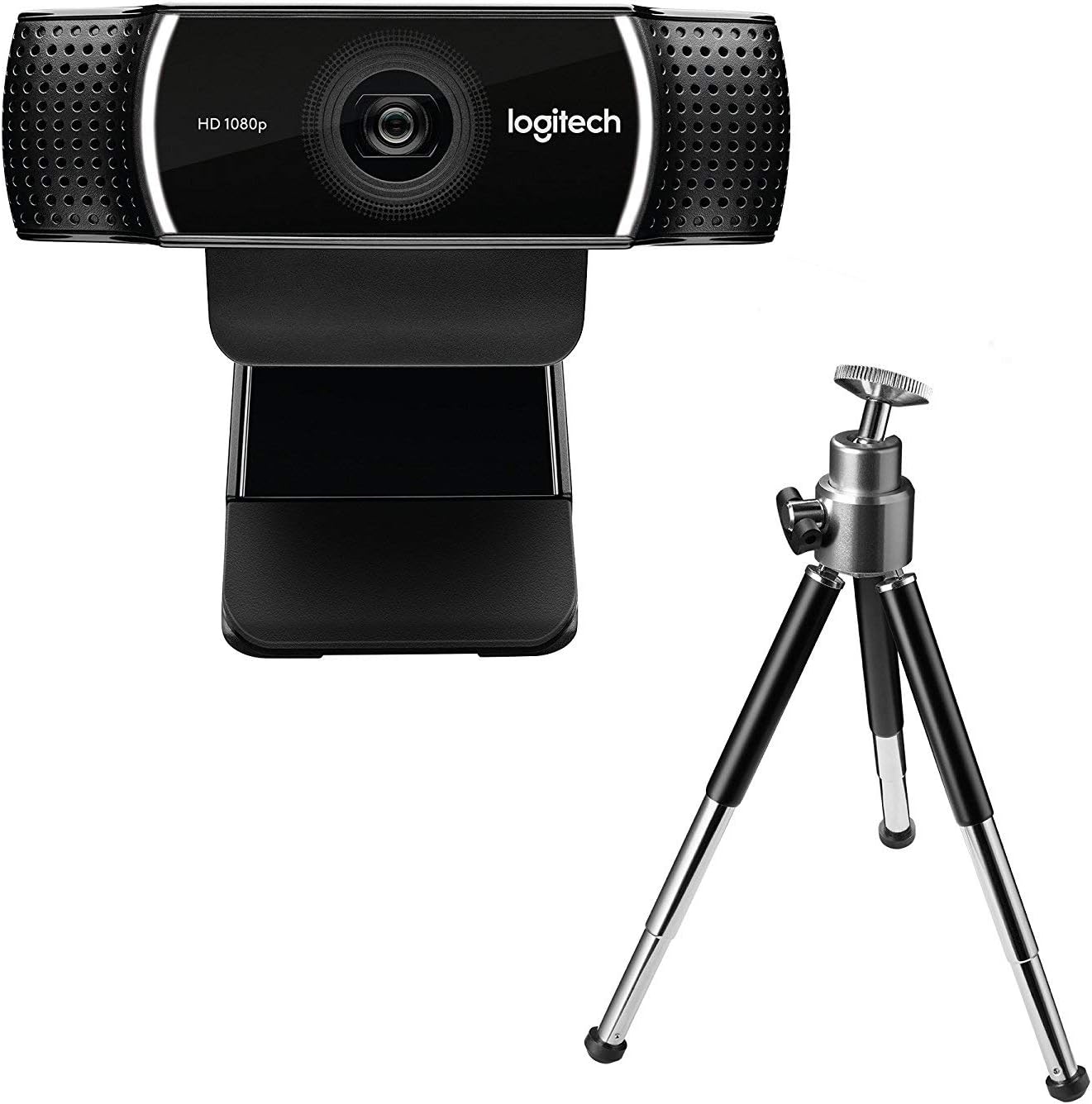
படம் 3: லாஜிடெக் சி 922 எச்டி புரோ Webcam shown with its included mini-tripod, offering alternative placement options.
அமைவு
கணினி தேவைகள்
- விண்டோஸ் 7 அல்லது அதற்குப் பிறகு
- macOS 10.10 அல்லது அதற்குப் பிறகு
- Chrome OS
- USB 2.0 போர்ட்
- மென்பொருள் பதிவிறக்கத்திற்கான இணைய இணைப்பு
நிறுவல் படிகள்
- திற Webகேம்: Carefully remove the C922 webcam and any accessories from its packaging.
- கணினியுடன் இணைக்கவும்: Plug the USB cable of the C922 webcam into an available USB 2.0 or 3.0 port on your computer.
- நிலை Webகேம்:
- ஒரு மானிட்டர்/லேப்டாப்பில்: Open the flexible clip base and place it over the top edge of your monitor or laptop screen. Adjust the front part of the clip so the webcam sits securely.
- ஒரு முக்காலியில்: If using the included tripod, screw the webcam onto the tripod mount. Place the tripod on a stable, flat surface.
- மென்பொருள் நிறுவல்: Your operating system should automatically detect and install basic drivers. For full functionality, including advanced settings and features, download and install the Logitech G HUB software from the official Logitech webதளம் (www.logitech.com/ghub).
- சோதிக்கவும் Webகேம்: Open a video conferencing application (e.g., Zoom, Skype, Google Meet) or your computer's camera application to verify the webகேம் சரியாக வேலை செய்கிறது.
இயக்க வழிமுறைகள்
அடிப்படை செயல்பாடு
- Once connected and drivers are installed, the C922 webcam is ready for use with most video applications.
- Select "Logitech C922 Pro Stream Webcam" as your video device within your chosen application's settings.
- The integrated dual microphones will automatically be selected as the audio input.
Using Logitech G HUB Software
The Logitech G HUB software provides advanced control over your C922 webகேம்:
- தெளிவுத்திறன் மற்றும் பிரேம் வீதம்: Adjust video resolution (up to 1080p) and frame rate (up to 60fps at 720p, 30fps at 1080p).
- புலம் View: புலத்தைத் தனிப்பயனாக்கு view.
- ஆட்டோஃபோகஸ்: Enable or disable autofocus.
- Exposure and White Balance: Manually adjust exposure, white balance, and other image settings for optimal lighting conditions.
- ChromaCam (Background Replacement): Utilize the ChromaCam feature for virtual background replacement (requires compatible system).
- ப்ரோfiles: தனிப்பயன் நிபுணரை உருவாக்கி சேமிக்கவும்files for different applications or lighting scenarios.
பராமரிப்பு
- லென்ஸை சுத்தம் செய்தல்: மெதுவாக துடைக்க ஒளியியலுக்காக பிரத்யேகமாக வடிவமைக்கப்பட்ட மென்மையான, பஞ்சு இல்லாத துணியைப் பயன்படுத்தவும். webcam lens. Avoid abrasive materials or harsh chemicals.
- உடலை சுத்தம் செய்தல்: உடலைத் துடைக்கவும் webமென்மையான, டி கொண்ட கேம்amp துணி. நீரில் மூழ்க வேண்டாம் webcam in water or use excessive moisture.
- சேமிப்பு: பயன்பாட்டில் இல்லாதபோது, சேமித்து வைக்கவும் webதீவிர வெப்பநிலை மற்றும் நேரடி சூரிய ஒளி படாத சுத்தமான, வறண்ட இடத்தில் கேமை வைக்கவும்.
- கேபிள் பராமரிப்பு: சேதத்தைத் தடுக்க USB கேபிளை அதிகமாக வளைப்பதையோ அல்லது சுருக்குவதையோ தவிர்க்கவும்.
சரிசெய்தல்
| பிரச்சனை | தீர்வு |
|---|---|
| Webகணினியால் கேமரா கண்டறியப்படவில்லை. |
|
| வீடியோ அல்லது கருப்புத் திரை இல்லை. |
|
| மோசமான வீடியோ தரம் (மங்கலானது, அடர் நிறமானது, துகள்கள் நிறைந்தது). |
|
| ஆடியோ இல்லை அல்லது மோசமான ஆடியோ தரம். |
|
விவரக்குறிப்புகள்
| அம்சம் | விவரம் |
|---|---|
| மாதிரி எண் | 960-001088 |
| பிராண்ட் | லாஜிடெக் |
| வீடியோ பிடிப்பு தீர்மானம் | 1080p (Full HD) at 30fps, 720p (HD) at 60fps |
| பட சென்சார் தொழில்நுட்பம் | CMOS |
| அதிகபட்ச துளை | 1.8 எஃப் |
| அதிகபட்ச குவிய நீளம் | 52 மில்லிமீட்டர் |
| இணைப்பு தொழில்நுட்பம் | USB 2.0 |
| ஆதரிக்கப்படும் ஆடியோ வடிவம் | AAC |
| வீடியோ பிடிப்பு வடிவம் | MP4 |
| நிறம் | கருப்பு |
| கப்பல் பரிமாணங்கள் | 12.8 x 8.6 x 5.2 செமீ; 162 கிராம் |
| முதல் கிடைக்கும் தேதி | பிப்ரவரி 11, 2019 |
Note: Some specifications from the source data (e.g., "Removable Memory Type: SD", "Connectivity Technology: Wi-Fi") appear to be generic or incorrect for this specific webcam model and have been omitted or corrected for accuracy. The C922 is a wired USB webகேம்.
உத்தரவாதம் மற்றும் ஆதரவு
Logitech products typically come with a limited hardware warranty. For specific warranty details, registration, and technical support, please visit the official Logitech support webதளம்:
You can also find FAQs, driver downloads, and community forums on their support page.
Ask a question about this manual
Ask about setup, troubleshooting, compatibility, parts, safety, or missing instructions. Manuals+ will review the question and use this page’s manual context to help answer it.