
TBI Pro Mechanoid X107 TBI (Model: X64Morvelli)
உண்மையான மெக்கானிக்கல் கேமிங் விசைப்பலகை மெக்கானாய்டு X107 TBI பயனர் கையேடு
Model: X64Morvelli
அறிமுகம்
The TBI Pro Mechanoid X107 is a high-performance mechanical gaming keyboard designed for professional gamers and everyday use. It features durable blue mechanical switches, customizable RGB LED backlighting, and dedicated multimedia controls for an enhanced user experience. This manual provides comprehensive instructions for setting up, operating, maintaining, and troubleshooting your keyboard.
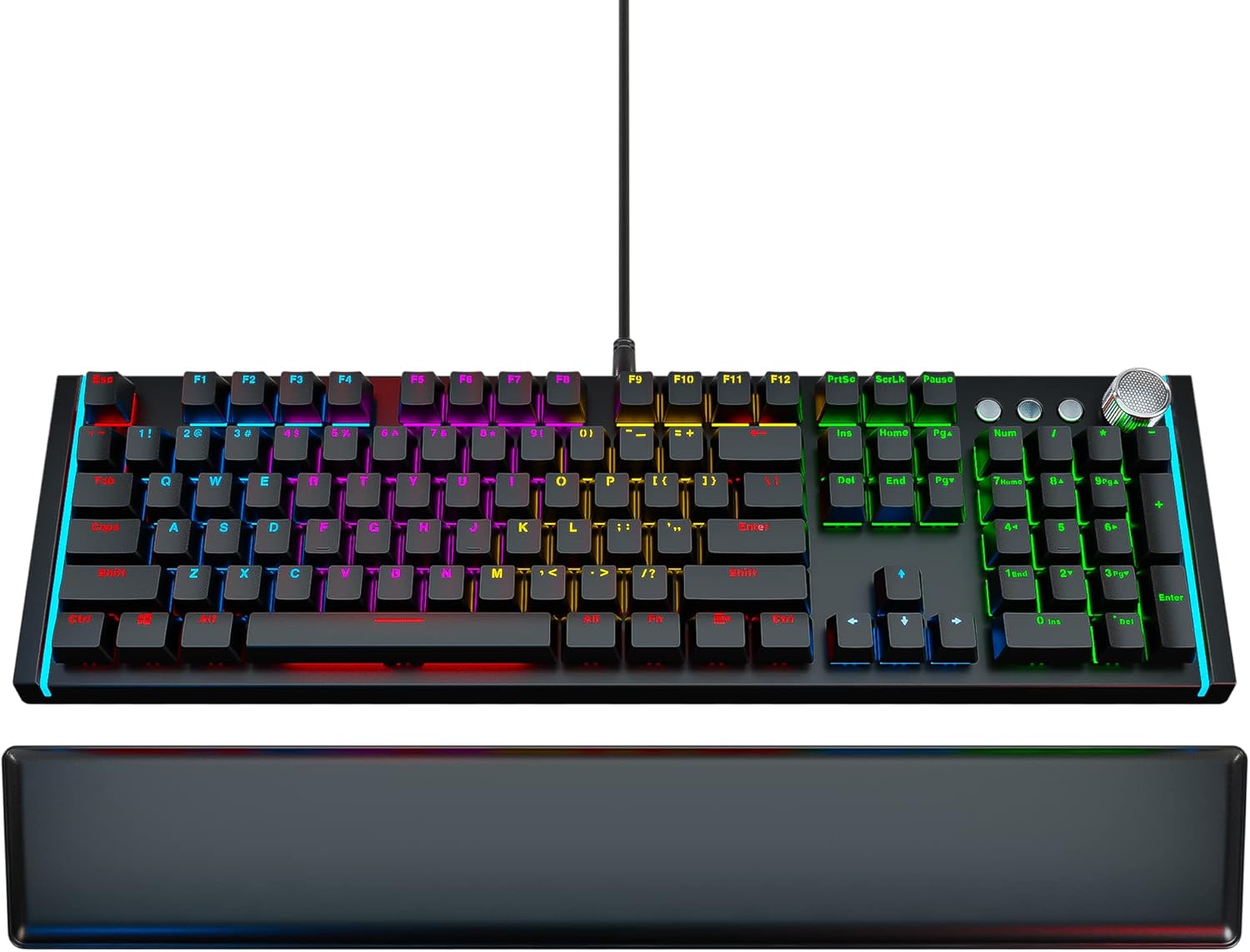
Image: The Mechanoid X107 TBI mechanical gaming keyboard, showcasing its full layout and the included ergonomic leather wrist rest.
பெட்டியில் என்ன இருக்கிறது
Upon unboxing your Mechanoid X107 TBI keyboard, please ensure all the following items are present:
- இயந்திர விசைப்பலகை
- தோல் மணிக்கட்டு ஓய்வு
- கீகாப் புல்லர்
- USB Cable (6.6ft)
- பயனர் கையேடு (இந்த ஆவணம்)
அமைவு
- விசைப்பலகையைத் திறக்கவும்: Carefully remove the keyboard and all accessories from their packaging.
- Connect the Wrist Rest: The ergonomic leather wrist rest attaches magnetically to the front edge of the keyboard. Align the wrist rest with the keyboard and allow the magnets to secure it in place.

படம்: நெருக்கமான படம் view showing the magnetic connection points for the leather wrist rest, ensuring easy attachment and detachment.
- கணினியுடன் இணைக்கவும்: Plug the USB cable from the keyboard into an available USB port on your computer. The keyboard is plug-and-play, requiring no additional drivers for basic functionality.
- ஆரம்ப பவர் ஆன்: The keyboard's RGB lighting will illuminate upon successful connection, indicating it is ready for use.
இயக்க வழிமுறைகள்
RGB LED பின்னொளி
The Mechanoid X107 features dynamic RGB backlighting with a wide range of customization options. You can adjust lighting modes, brightness, and colors directly from the keyboard without software.

Image: The keyboard illuminated with vibrant RGB lighting, demonstrating the customizable light effects.
- விளக்கு முறைகளை மாற்றுதல்: Use the dedicated lighting control keys (refer to the manual's specific key combinations, usually Fn + Insert, Home, Page Up, etc.) to cycle through various pre-set lighting effects such as breathing, wave, ripple, and static colors.
- பிரகாசத்தை சரிசெய்தல்: Typically, Fn + Up/Down arrow keys control the brightness level of the backlighting.
- Customizing Colors: The keyboard supports 65 million individual colors. Specific key combinations allow for per-key color customization or setting a uniform color across the keyboard. Refer to the included quick guide for detailed instructions on advanced color settings.

Image: A visual representation of the RGB color spectrum, indicating the ability to choose from 65 million individual colors for each key.
மல்டிமீடியா கட்டுப்பாடுகள்
The Mechanoid X107 features advanced separate multimedia buttons and a dedicated volume adjustment knob for convenient control over your audio and media playback.
- தொகுதி நாப்: Rotate the large knob located on the top right of the keyboard to adjust the system volume. Pressing the knob typically mutes/unmutes the audio.

Image: Close-up of the metallic volume control knob, highlighting its textured surface and prominent placement on the keyboard.
- Dedicated Media Buttons: Use the dedicated buttons next to the volume knob for Play/Pause, Fast Forward, and Rewind functions.

Image: Detail of the multimedia control section, showing the dedicated play/pause, track navigation buttons, and the volume knob.
Programmable Keys (Fn Combinations)
The keyboard features function keys that can be combined with the Fn key to access additional shortcuts and controls.
- Fn+F1: Opens the audio player.
- Fn+F2: Turns sound lower.
- Fn+F3: Turns sound higher.
- Fn+F4: ஆடியோவை முடக்கு/ஒலியை இயக்கு.
- Fn+F5: மீடியா பிளேபேக்கை நிறுத்து.
- Fn+F6: முந்தைய டிராக்.
- Fn+F7: மீடியாவை இயக்கு/இடைநிறுத்து.
- Fn+F8: அடுத்த ட்ராக்.
- Fn+F9: Opens default email client.
- Fn+F10: Opens default web browser (Homepage).
- Fn+F11: Lock/Unlock the keyboard.
- Fn+F12: Opens Calculator.

Image: Diagram illustrating the Fn key combinations for F1 through F4, showing their respective functions like opening audio player and volume control.

Image: Diagram illustrating the Fn key combinations for F5 through F8, showing their respective media control functions like stop, previous, play/pause, and next track.

Image: Diagram illustrating the Fn key combinations for F9 through F12, showing their respective functions like opening email, homepage, locking keyboard, and calculator.
பராமரிப்பு
Proper maintenance ensures the longevity and optimal performance of your Mechanoid X107 keyboard.
- விசைப்பலகையை சுத்தம் செய்தல்:
- சுத்தம் செய்வதற்கு முன் உங்கள் கணினியிலிருந்து விசைப்பலகையைத் துண்டிக்கவும்.
- சாவி மூடிகளுக்கு இடையில் உள்ள தூசி மற்றும் குப்பைகளை அகற்ற அழுத்தப்பட்ட காற்றின் கேனைப் பயன்படுத்தவும்.
- மென்மையான, லேசான d-துணியால் கீகேப்கள் மற்றும் விசைப்பலகை மேற்பரப்பைத் துடைக்கவும்.amp, பஞ்சு இல்லாத துணி. அதிகப்படியான ஈரப்பதத்தைத் தவிர்க்கவும்.
- For stubborn grime, a small amount of isopropyl alcohol on a cloth can be used, but avoid direct application to the keyboard.
- Cleaning the Wrist Rest: Wipe the leather wrist rest with a soft, damp cloth. For leather care, use a specialized leather cleaner if necessary.
- கீகேப் நீக்கம்: Use the included keycap puller to carefully remove keycaps for deeper cleaning or switch replacement (if applicable). Insert the puller onto the keycap and pull straight up.

படம்: நெருக்கமான படம் view of a blue mechanical switch with a keycap removed, illustrating the durable design and laser-engraved keycap text.
சரிசெய்தல்
| பிரச்சனை | சாத்தியமான காரணம் | தீர்வு |
|---|---|---|
| Keyboard not responding / No lights | Loose USB connection; Faulty USB port; Computer issue. | Ensure USB cable is securely plugged into both the keyboard and the computer. Try a different USB port. Restart your computer. |
| விசைகள் உள்ளீட்டைப் பதிவு செய்யவில்லை. | Dust/debris under keycap; Keyboard lock enabled (Fn+F11). | Clean under the affected keycap using compressed air or the keycap puller. Press Fn+F11 to unlock the keyboard. |
| RGB லைட்டிங் வேலை செய்யவில்லை அல்லது சிக்கிக்கொண்டது | Lighting mode error; Software conflict (unlikely for hardware control). | Cycle through lighting modes using the dedicated keys. Disconnect and reconnect the keyboard. |
| மல்டிமீடியா விசைகள் செயல்படவில்லை. | System settings; Application conflict. | Ensure your operating system's media key settings are default. Try in different applications. |
விவரக்குறிப்புகள்
| அம்சம் | விவரம் |
|---|---|
| பிராண்ட் | டிபிஐ ப்ரோ |
| மாதிரி எண் | X64Morvelli |
| விசைப்பலகை வகை | மெக்கானிக்கல் கேமிங் விசைப்பலகை |
| சுவிட்ச் வகை | Blue Mechanical Switches |
| முக்கிய ஆயுட்காலம் | >50 million clicks |
| விசைகளின் எண்ணிக்கை | 104 (standard) + 3 separate media keys + volume knob |
| பின்னொளி | RGB LED (65 million colors) |
| இணைப்பு | கம்பி USB |
| கேபிள் நீளம் | 6.6 அடி (2 மீட்டர்) |
| நிறம் | கருப்பு |
| பொருளின் எடை | 2.99 பவுண்டுகள் (தோராயமாக 1.36 கிலோ) |
| வன்பொருள் இயங்குதளம் | PC |
உத்தரவாதம் மற்றும் ஆதரவு
For warranty information and customer support, please refer to the documentation included with your purchase or visit the official TBI Pro website. You can also find additional support resources and FAQs there.
For further assistance, you may contact TBI Pro customer service through their official channels.
ஆன்லைன் ஆதாரங்கள்:
- TBI Pro Store on Amazon: https://www.amazon.com/stores/TBI+Pro/page/2EB70C71-31FD-407E-B344-FF8BD815BC2A
- பயனர் கையேடு (PDF): https://manuals.plus/m/21c052fadb51be02b7df77ed02b341d92d9b84a0b3cf76279943e80c9c350527
- நிறுவல் கையேடு (PDF): https://manuals.plus/m/0408a730270bfd311d0f6bba171f46608bb5c210b71eab68db3bb5ca1a26ea20
Ask a question about this manual
Ask about setup, troubleshooting, compatibility, parts, safety, or missing instructions. Manuals+ will review the question and use this page’s manual context to help answer it.