
அறிமுகம்
This manual provides instructions for the Speedlink PIAVO Wireless Ergonomic Vertical Mouse (Model SL-630019-BK-01). This ergonomic mouse is designed to promote a natural, relaxed wrist posture, reducing strain on the hand, arm, shoulder, and neck during extended computer use. It features 5 buttons, adjustable DPI settings, and wireless 2.4 GHz connectivity.

படம் 1: Speedlink PIAVO Wireless Ergonomic Vertical Mouse, front view. This image shows the overall ergonomic design of the mouse.
தொகுப்பு உள்ளடக்கங்கள்
தொகுப்பில் அனைத்து பொருட்களும் உள்ளதா என்பதை சரிபார்க்கவும்:
- Speedlink PIAVO Wireless Ergonomic Vertical Mouse
- USB-A ரிசீவர்
- Battery (pre-installed or included separately)
- அறிவுறுத்தல் கையேடு (இந்த ஆவணம்)

படம் 2: Packaging of the Speedlink PIAVO Wireless Ergonomic Vertical Mouse. The box indicates "Wireless Vertical Mouse" and "10m Range".
அமைவு
- பேட்டரியைச் செருகவும்: If the battery is not pre-installed, open the battery compartment on the underside of the mouse and insert the included battery, ensuring correct polarity.
- USB ரிசீவரை இணைக்கவும்: Locate an available USB-A port on your computer or laptop. Insert the USB-A receiver into the port.
- சுட்டியை இயக்கு: Locate the On/Off switch on the underside of the mouse. Slide the switch to the "On" position.
- இயக்கி நிறுவல்: The mouse is designed for plug-and-play operation. Your operating system (e.g., Windows) should automatically detect and install the necessary drivers. This process typically takes a few seconds.
- சோதனை: Once installed, move the mouse to test cursor movement. If the cursor does not respond, ensure the mouse is powered on and the USB receiver is securely connected.

படம் 3: Underside of the mouse, illustrating the battery compartment and the On/Off switch. Ensure the switch is in the 'On' position for operation.
இயக்க வழிமுறைகள்
The Speedlink PIAVO mouse features 5 buttons and adjustable DPI settings for optimal control.
- இடது கிளிக் பொத்தான்: நிலையான முதன்மை கிளிக் செயல்பாடு.
- வலது கிளிக் பொத்தான்: நிலையான இரண்டாம் நிலை கிளிக் செயல்பாடு.
- சுருள் சக்கரம்: For scrolling through documents and web பக்கங்கள். நடு-கிளிக் செயல்பாட்டிற்கும் அழுத்தலாம்.
- DPI ஸ்விட்ச் பட்டன்: Located near the scroll wheel. Press this button to cycle through the available DPI settings (800, 1200, 1600 DPI). This adjusts the cursor speed and sensitivity.
- முன்னோக்கி/பின்னோக்கி பொத்தான்கள்: Located on the side of the mouse, typically used for navigation in web உலாவிகள் அல்லது file ஆய்வாளர்கள்.
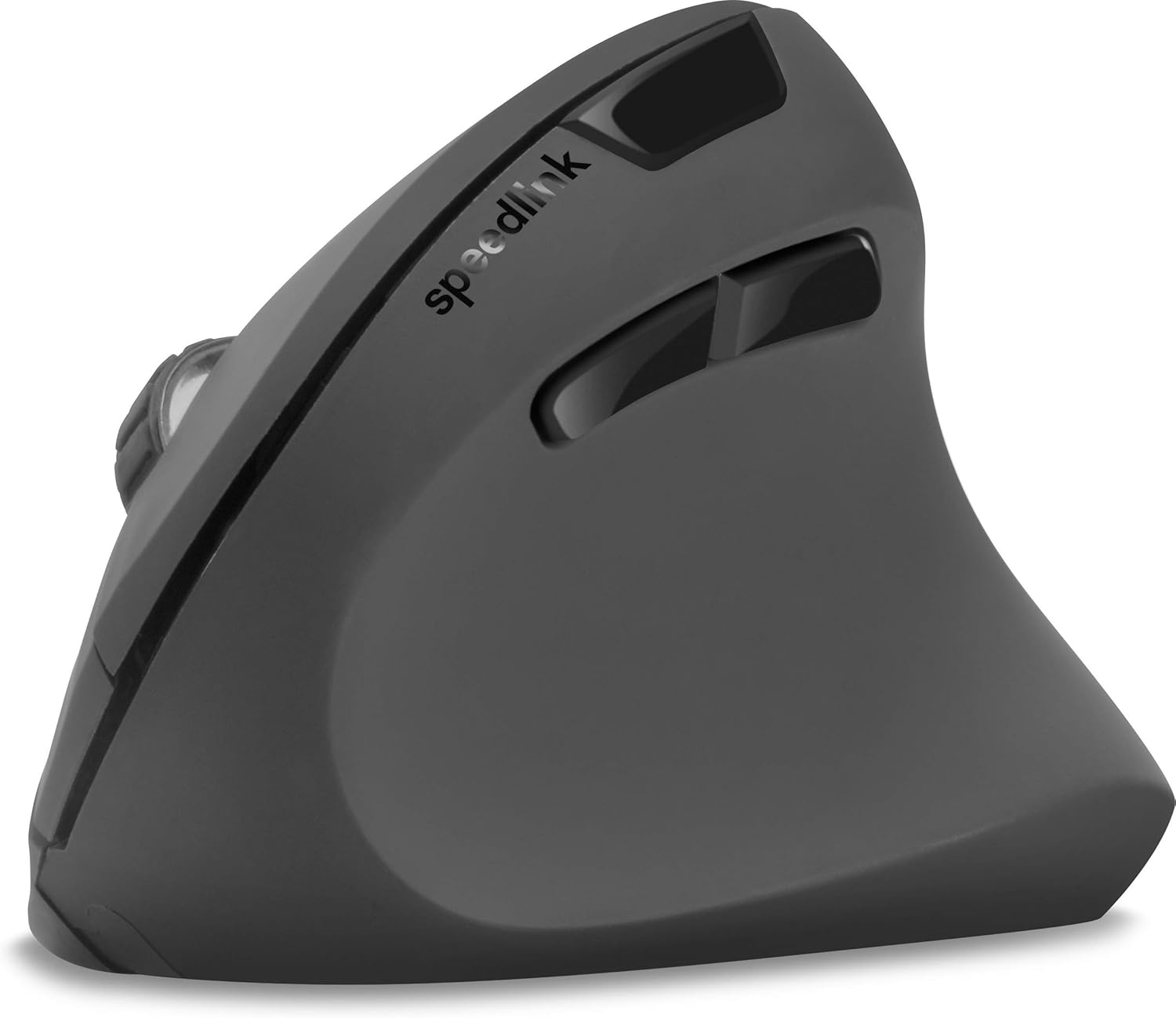
படம் 4: மேலிருந்து கீழ் view of the mouse, highlighting the left/right click buttons, scroll wheel, and DPI switch button.

படம் 5: பக்கம் view of the mouse, illustrating the ergonomic grip and the forward/backward navigation buttons.
ஆற்றல் சேமிப்பு முறை
The mouse features an energy-saving mode to conserve battery life. If the mouse is inactive for a period, it will enter a sleep state. To wake it up, simply move the mouse or press any button.
பராமரிப்பு
To ensure the longevity and optimal performance of your Speedlink PIAVO mouse, follow these maintenance guidelines:
- சுத்தம்: மவுஸின் வெளிப்புறத்தை சுத்தம் செய்ய மென்மையான, உலர்ந்த துணியைப் பயன்படுத்தவும். பிடிவாதமான அழுக்குகளுக்கு, சிறிது டி.amp cloth can be used, but ensure no moisture enters the mouse. Avoid using harsh chemicals or abrasive cleaners.
- சென்சார் சுத்தம்: Occasionally, dust or debris may accumulate around the optical sensor on the underside of the mouse. Use a soft brush or compressed air to gently clean the sensor area.
- பேட்டரி மாற்று: When the mouse performance degrades or it stops responding, it may be time to replace the battery. Open the battery compartment, remove the old battery, and insert a new one of the same type, observing polarity.
- சேமிப்பு: When not in use for extended periods, it is recommended to switch off the mouse using the On/Off switch to conserve battery life. Store the mouse and USB receiver in a dry, dust-free environment.
சரிசெய்தல்
| பிரச்சனை | சாத்தியமான காரணம் | தீர்வு |
|---|---|---|
| சுட்டி பதிலளிக்கவில்லை / கர்சர் நகரவில்லை. |
|
|
| ஒழுங்கற்ற கர்சர் இயக்கம். |
|
|
| DPI setting resets after sleep/reboot. | This is a known characteristic for some mice; the DPI setting may revert to default. | Press the DPI switch button to select your preferred sensitivity after waking the mouse or restarting the computer. |
விவரக்குறிப்புகள்
| மாதிரி எண் | SL-630019-BK-01 |
| இணைப்பு | Wireless 2.4 GHz via USB-A Receiver |
| இயக்கம் கண்டறிதல் | ஆப்டிகல் |
| பொத்தான்களின் எண்ணிக்கை | 5 |
| டிபிஐ அமைப்புகள் | 800, 1200, 1600 DPI (Adjustable) |
| கை நோக்குநிலை | வலது கை |
| வயர்லெஸ் வீச்சு | 10 மீட்டர் வரை |
| சக்தி ஆதாரம் | Battery-powered (Battery included) |
| இணக்கமான இயக்க முறைமைகள் | விண்டோஸ் |
| எடை | 106 கிராம் |
| நிறம் | கருப்பு |
உத்தரவாதம் மற்றும் ஆதரவு
Information regarding specific warranty terms and customer support contact details is not available in the provided product data. Please refer to the product packaging or the manufacturer's official website for the most current warranty information and support options.
மேலும் உதவிக்கு, நீங்கள் இங்கு வருகை தரலாம் Speedlink official webதளம்.