
1. அறிமுகம்
Welcome to the user manual for your new Alienware m15 R4 Gaming Laptop. This powerful machine is designed to deliver an immersive gaming experience with its high-performance components. Featuring an Intel Core i7-10870H processor, NVIDIA GeForce RTX 3070 graphics, a 15.6-inch Full HD 300Hz display, and a 1TB PCIe SSD, this laptop is built for speed and responsiveness. This manual provides essential information on setting up, operating, maintaining, and troubleshooting your device to ensure optimal performance and longevity.
2. பெட்டியில் என்ன இருக்கிறது
Upon unboxing your Alienware m15 R4, please verify that all the following items are included:
- Alienware m15 R4 Notebook
- பவர் கார்ட்
- பவர் அடாப்டர்
- பயனர் கையேடு (இந்த ஆவணம்)
3. தயாரிப்பு முடிந்துவிட்டதுview
Familiarize yourself with the key features and components of your Alienware m15 R4 gaming laptop.
3.1 முன்னணி View
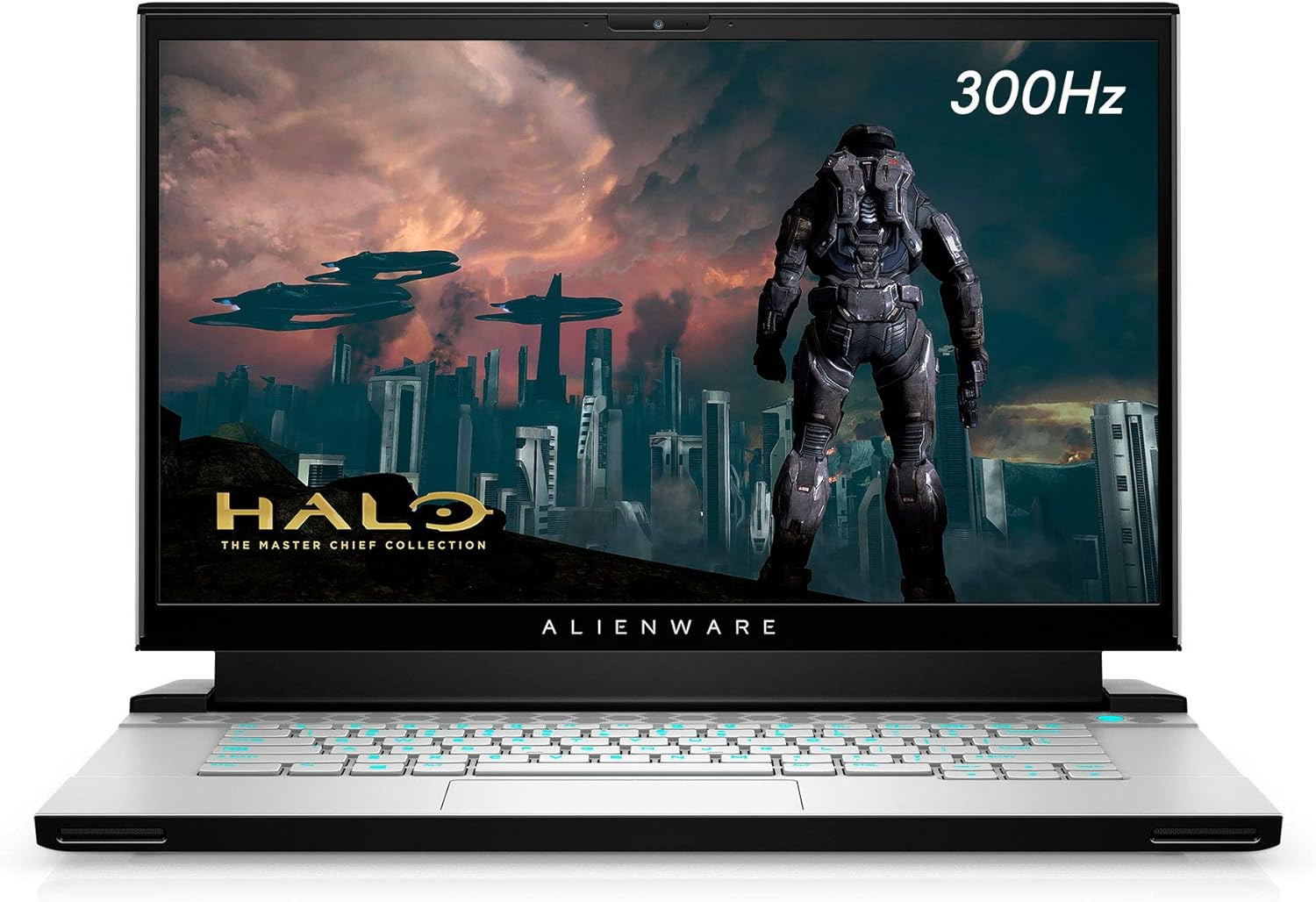
படம் 3.1: முன் view of the Alienware m15 R4 laptop, showcasing the 15.6-inch Full HD display with a 300Hz refresh rate, ideal for immersive gaming. The Alienware logo is visible below the screen.
3.2 இடது பக்க போர்ட்கள்

படம் 3.2: Left side of the laptop, featuring a USB 3.0 Type-A port, an Ethernet port for wired network connectivity, and a 3.5mm audio jack for headphones or headsets.
3.3 வலது பக்க போர்ட்கள்

படம் 3.3: Right side of the laptop, equipped with two USB 3.0 Type-A ports and an SD card reader for convenient data transfer from memory cards.
3.4 Rear Ports and Cooling

படம் 3.4: பின்புறம் view of the laptop, highlighting the robust cooling vents and essential ports including HDMI, Mini-DisplayPort, Thunderbolt 3 (USB-C), and the power adapter input. This design optimizes airflow and connectivity.
3.5 விசைப்பலகை மற்றும் டச்பேட்

படம் 3.5: மேலிருந்து கீழ் view of the Alienware m15 R4's keyboard and touchpad. The keyboard features per-key RGB lighting and a comfortable layout for gaming and typing. The precision touchpad offers smooth navigation.
3.6 Laptop Back and Alienware Logo

படம் 3.6: The back of the Alienware m15 R4 laptop, featuring the iconic illuminated Alienware head logo. The sleek design and Lunar Light finish are prominent.
3.7 முக்கிய அம்சங்கள்
- காட்சி: 15.6-inch FHD (1920 x 1080) 300Hz 3ms 300-nits 100% sRGB color gamut for fluid visuals.
- செயலி: 10th Generation Intel Core i7-10870H (8-Core, 16MB Cache, up to 5.0GHz Max Turbo Frequency).
- நினைவகம்: 16GB 2933MHz DDR4 RAM (Note: RAM is soldered and not user-upgradeable on some configurations).
- சேமிப்பு: 1TB PCIe SSD for fast boot times and game loading.
- கிராபிக்ஸ்: NVIDIA GeForce RTX 3070 8GB GDDR6 for high-fidelity gaming.
- இணைப்பு: Killer Wi-Fi 6 AX1650i 802.11ax 2x2 Wireless LAN + Bluetooth 5.1.
- இயக்க முறைமை: Windows 10 Home (upgradeable to Windows 11).
4. அமைவு வழிகாட்டி
Follow these steps to set up your Alienware m15 R4 for the first time.
- பவர் இணைக்கவும்: Plug the power adapter into the laptop's power input port (located at the rear) and then into a wall outlet.
- ஆரம்ப துவக்கம்: Open the laptop lid and press the power button (located on the top right of the keyboard deck). The Alienware logo will illuminate, and the system will begin its initial boot sequence.
- விண்டோஸ் அமைப்பு: Follow the on-screen instructions to complete the Windows 10 Home setup. This includes selecting your region, language, creating a user account, and connecting to a Wi-Fi network.
- இயக்கி புதுப்பிப்புகள்: After Windows setup, it is recommended to connect to the internet and allow Windows Update to download and install the latest drivers and security patches. You can also visit the official Alienware support website for the latest specific drivers for your model.
- Alienware Command Center: Explore the pre-installed Alienware Command Center software to customize lighting, power profiles, and monitor system performance.
5. இயக்க வழிமுறைகள்
This section covers basic operation and usage tips for your Alienware m15 R4.
5.1 சக்தி மேலாண்மை
- பவர் ஆன்/ஆஃப்: Press the power button to turn on the laptop. To turn off, go to Start > Power > Shut down in Windows.
- தூக்க முறை: Close the lid or select Sleep from the Start > Power menu to put the laptop into a low-power state.
- மறுதொடக்கம்: Select Restart from the Start > Power menu to reboot the system.
5.2 விசைப்பலகை மற்றும் டச்பேட்
- விசைப்பலகை பின்னொளி: Customize the per-key RGB lighting effects using the Alienware Command Center.
- செயல்பாட்டு விசைகள்: பயன்படுத்தவும் Fn key in combination with the F1-F12 keys for quick access to features like volume control, screen brightness, and external display switching.
- டச்பேட் சைகைகள்: துல்லியமான டச்பேட், ஸ்க்ரோலிங், ஜூம் செய்தல் மற்றும் பயன்பாடுகளை மாற்றுவதற்கான மல்டி-டச் சைகைகளை ஆதரிக்கிறது. தனிப்பயனாக்கத்திற்கு விண்டோஸ் அமைப்புகளைப் பார்க்கவும்.
5.3 கேமிங் செயல்திறன்
- விளையாட்டு முறை: Windows 10 includes a Game Mode feature that optimizes system resources for gaming. Enable it via Windows Settings > Gaming > Game Mode.
- Alienware Command Center: Utilize the Command Center to create custom performance profiles for your games, manage fan speeds, and monitor temperatures.
- வெளிப்புற காட்சி: For an enhanced gaming experience, connect to an external high-refresh-rate monitor using the HDMI or Mini-DisplayPort.
6. பராமரிப்பு
வழக்கமான பராமரிப்பு உங்கள் மடிக்கணினியின் நீண்ட ஆயுளையும் உகந்த செயல்திறனையும் உறுதி செய்ய உதவுகிறது.
- சுத்தம்:
- திரை மற்றும் வெளிப்புறத்தை சுத்தம் செய்ய மென்மையான, பஞ்சு இல்லாத துணியைப் பயன்படுத்தவும். கடுமையான இரசாயனங்களைத் தவிர்க்கவும்.
- Use compressed air to clear dust from cooling vents periodically to maintain airflow.
- மென்பொருள் புதுப்பிப்புகள்:
- Regularly check for Windows Updates to ensure your operating system is secure and up-to-date.
- Update graphics drivers (NVIDIA GeForce Experience) and other system drivers (Alienware Update or Dell SupportAssist) for best performance.
- பேட்டரி பராமரிப்பு:
- பேட்டரியை அடிக்கடி முழுமையாக சார்ஜ் செய்வதைத் தவிர்க்கவும்.
- மடிக்கணினியை நீண்ட நேரம் சேமித்து வைத்திருந்தால், பேட்டரி சுமார் 50-80% வரை சார்ஜ் செய்யப்பட்டுள்ளதா என்பதை உறுதிப்படுத்திக் கொள்ளுங்கள்.
- சேமிப்பு மேலாண்மை: தேவையற்றவற்றை அவ்வப்போது சுத்தம் செய்யுங்கள். files and uninstall unused programs to free up disk space and maintain system speed.
7. சரிசெய்தல்
This section addresses common issues you might encounter with your Alienware m15 R4.
7.1 Performance Issues (Lag, Slowdowns)
- Check Background Processes: வள-தீவிர பயன்பாடுகளை அடையாளம் கண்டு மூட, பணி மேலாளரை (Ctrl+Shift+Esc) திறக்கவும்.
- இயக்கிகளைப் புதுப்பிக்கவும்: Ensure your graphics drivers and chipset drivers are up-to-date.
- குளிர்ச்சி: Ensure cooling vents are not obstructed. Excessive heat can lead to performance throttling. Consider using Alienware Command Center to adjust fan profiles.
- பவர் பயன்முறை: Ensure the laptop is set to a "High Performance" or "Balanced" power plan, especially when gaming.
7.2 அதிக வெப்பம்
- காற்றோட்டம்: Ensure the laptop is on a hard, flat surface to allow proper airflow. Avoid using it on soft surfaces like beds or couches.
- சுத்தமான துவாரங்கள்: Use compressed air to clear dust from the intake and exhaust vents.
- மின்விசிறி வேகம்: Adjust fan curves in Alienware Command Center to increase cooling during intense workloads.
7.3 காட்சி சிக்கல்கள் (படம் இல்லை, மினுமினுப்பு)
- வெளிப்புற கண்காணிப்பு: Connect an external monitor to check if the issue is with the laptop's display or the graphics card.
- இயக்கி மறு நிறுவல்: Reinstall graphics drivers.
- பிரகாசம்: Ensure display brightness is not set to minimum.
7.4 Keyboard/Touchpad Unresponsive
- மறுதொடக்கம்: A simple restart can often resolve temporary unresponsiveness.
- ஓட்டுனர் சோதனை: Ensure keyboard and touchpad drivers are correctly installed and up-to-date in Device Manager.
- வெளிப்புற சாதனங்கள்: Disconnect any external keyboards or mice to rule out conflicts.
8. விவரக்குறிப்புகள்
Detailed technical specifications for the Alienware m15 R4 (Model: AWM15R4-7689WHT-PUS).
| அம்சம் | விவரக்குறிப்பு |
|---|---|
| பிராண்ட் | ஏலியன்வேர் |
| மாதிரி பெயர் | ஏலியன்வேர் எம்15 ஆர்4 |
| பொருள் மாதிரி எண் | AWM15R4-7689WHT-PUS |
| திரை அளவு | 15.6 அங்குலம் |
| திரை தெளிவுத்திறன் | 1920 x 1080 பிக்சல்கள் (FHD) |
| காட்சி புதுப்பிப்பு விகிதம் | 300 ஹெர்ட்ஸ் |
| செயலி | Intel Core i7-10870H (8-Core, up to 5.0GHz) |
| ரேம் | 16 ஜிபி DDR4 (2933 மெகா ஹெர்ட்ஸ்) |
| ஹார்ட் டிரைவ் | 1 TB PCIe SSD |
| கிராபிக்ஸ் கோப்ராசசர் | என்விடியா ஜியிபோர்ஸ் ஆர்டிஎக்ஸ் 3070 |
| கிராபிக்ஸ் கார்டு ரேம் அளவு | 8 ஜிபி GDDR6 |
| இயக்க முறைமை | விண்டோஸ் 10 முகப்பு |
| வயர்லெஸ் வகை | Killer Wi-Fi 6 AX1650i 802.11ax, Bluetooth 5.1 |
| USB 3.0 போர்ட்கள் | 3 |
| பொருளின் எடை | 5.5 பவுண்டுகள் |
| தயாரிப்பு பரிமாணங்கள் (LxWxH) | 14.19 x 10.86 x 0.78 அங்குலம் |
| நிறம் | Lunar Light (White) |
| பேட்டரிகள் | 1 லித்தியம் அயன் பேட்டரி (சேர்க்கப்பட்டுள்ளது) |
9. உத்தரவாதம் மற்றும் ஆதரவு
Your Alienware m15 R4 laptop comes with a standard manufacturer's warranty. For detailed information regarding warranty coverage, terms, and conditions, please refer to the warranty documentation included with your purchase or visit the official Dell/Alienware support webதளம்.
தொழில்நுட்ப ஆதரவு:
- For technical assistance, driver downloads, and troubleshooting guides, please visit the டெல் ஆதரவு webதளம்.
- You can also contact Alienware customer support directly through their webதனிப்பயனாக்கப்பட்ட உதவிக்கான தளம்.
Please have your service tag or express service code ready when contacting support, as this will help expedite the process.