
அறிமுகம்
This manual provides essential instructions for setting up, operating, maintaining, and troubleshooting your Nyko 86158 Core Wireless Controller for Xbox One. Please read this manual thoroughly before use to ensure optimal performance and longevity of your device.
தொகுப்பு உள்ளடக்கங்கள்
கீழே பட்டியலிடப்பட்டுள்ள அனைத்து பொருட்களும் உங்கள் தொகுப்பில் சேர்க்கப்பட்டுள்ளதா என்பதை சரிபார்க்கவும்:
- Nyko 86158 Core Wireless Controller
- USB Wireless Receiver Dongle
- USB சார்ஜிங் கேபிள்
- பயனர் கையேடு (இந்த ஆவணம்)
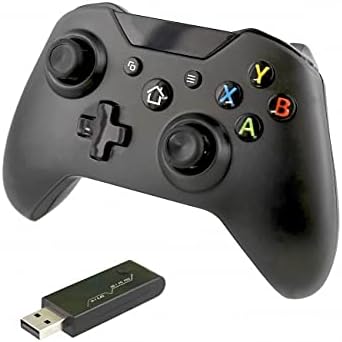
Image: Nyko 86158 Core Wireless Controller shown alongside its USB wireless receiver dongle. This illustrates the main components included in the package.

படம்: நெருக்கமான படம் view of the USB wireless receiver dongle. This dongle is essential for establishing a wireless connection between the controller and the Xbox One console or PC.

Image: The USB charging cable provided with the controller. This cable is used to recharge the controller's internal battery.
கட்டுப்படுத்தி தளவமைப்பு
Familiarize yourself with the buttons and features of your Nyko Core Wireless Controller.
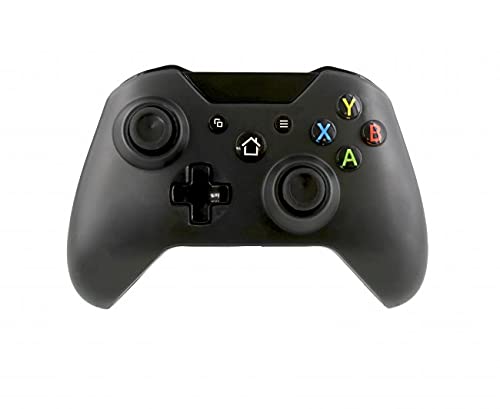
படம்: முன்பக்கம் view of the Nyko 86158 Core Wireless Controller, showing the two analog sticks, D-pad, A/B/X/Y buttons, View button, Menu button, Xbox button, and Share button.
- இடது அனலாக் ஸ்டிக்: இயக்கம் மற்றும் கேமரா கட்டுப்பாட்டிற்கு.
- வலது அனலாக் ஸ்டிக்: கேமரா கட்டுப்பாடு மற்றும் குறிவைப்புக்காக.
- டி-பேட்: Directional input for menu navigation and specific game actions.
- A/B/X/Y பொத்தான்கள்: Primary action buttons.
- View பொத்தான்: Accesses additional in-game information or menus.
- மெனு பட்டன்: Opens game menus or system options.
- எக்ஸ்பாக்ஸ் பட்டன்: Powers on the controller, accesses the Xbox Guide, or returns to the home screen.
- பகிர்வு பொத்தான்: Captures screenshots or video clips (functionality may vary by console/game).

படம்: மேல் view of the Nyko 86158 Core Wireless Controller, highlighting the Left and Right Bumpers (LB, RB), Left and Right Triggers (LT, RT), and the micro-USB charging port located at the front.
- Left Bumper (LB) / Right Bumper (RB): விளையாட்டில் பல்வேறு செயல்களுக்கான தோள்பட்டை பொத்தான்கள்.
- Left Trigger (LT) / Right Trigger (RT): Analog triggers for precise input, often used for acceleration or aiming.
- மைக்ரோ-யூஎஸ்பி போர்ட்: Used for charging the controller.

படம்: பின்பக்கம் view of the Nyko 86158 Core Wireless Controller, showing the battery compartment cover. This is where the batteries are inserted or the rechargeable battery pack is housed.
அமைவு வழிமுறைகள்
1. கட்டுப்படுத்தியை இயக்குதல்
The Nyko 86158 Core Wireless Controller requires batteries to operate wirelessly. It is compatible with standard AA batteries or a rechargeable battery pack (sold separately).
- கட்டுப்படுத்தியின் பின்புறத்தில் பேட்டரி பெட்டியைக் கண்டறியவும்.
- டேப்பை கீழே அழுத்தி பேட்டரி அட்டையை கழற்றவும்.
- Insert two (2) AA batteries, ensuring correct polarity (+/-). If using a rechargeable pack, insert it as directed by the pack's instructions.
- பேட்டரி அட்டையை மாற்றவும்.
2. Connecting to Xbox One
To connect your wireless controller to an Xbox One console:
- Insert the USB Wireless Receiver Dongle into an available USB port on your Xbox One console.
- உங்கள் Xbox One கன்சோலை இயக்கவும்.
- அழுத்திப் பிடிக்கவும் எக்ஸ்பாக்ஸ் பொத்தான் on the controller until it powers on. The Xbox button will flash.
- The controller will automatically attempt to pair with the USB receiver. Once connected, the Xbox button on the controller will glow solid.
- If the controller does not connect automatically, press the small pairing button on the USB receiver dongle, then press and hold the எக்ஸ்பாக்ஸ் பொத்தான் on the controller until it pairs.
3. Connecting to PC (Optional)
The controller can also be used with a PC. Ensure your PC has an available USB port for the wireless receiver.
- Insert the USB Wireless Receiver Dongle into an available USB port on your PC.
- The PC should automatically install the necessary drivers. This may take a few moments.
- அழுத்திப் பிடிக்கவும் எக்ஸ்பாக்ஸ் பொத்தான் on the controller until it powers on.
- The controller will connect to the receiver. The Xbox button will glow solid once connected.
இயக்க வழிமுறைகள்
ஆன்/ஆஃப்
- இயக்க: அழுத்திப் பிடிக்கவும் எக்ஸ்பாக்ஸ் பொத்தான் until the controller vibrates and the light turns on.
- அணைப்பதற்கு: அழுத்திப் பிடிக்கவும் எக்ஸ்பாக்ஸ் பொத்தான் for 5-10 seconds until the controller powers down. The controller will also automatically turn off after a period of inactivity to conserve battery life.
கன்ட்ரோலரை சார்ஜ் செய்கிறது
If using a rechargeable battery pack (not included) or if the controller has a built-in rechargeable battery:
- Connect the small end of the USB Charging Cable to the micro-USB port on the front of the controller.
- Connect the larger end of the USB Charging Cable to an available USB port on your Xbox One console or a USB wall adapter (5V, 1A recommended).
- The indicator light on the controller (usually the Xbox button) will show charging status (e.g., flashing while charging, solid when fully charged).
- சார்ஜ் முடிந்ததும் கேபிளைத் துண்டிக்கவும்.
பராமரிப்பு
- சுத்தம்: Use a soft, dry cloth to clean the controller. Do not use harsh chemicals or abrasive materials.
- சேமிப்பு: நேரடி சூரிய ஒளி மற்றும் தீவிர வெப்பநிலையிலிருந்து விலகி, குளிர்ந்த, உலர்ந்த இடத்தில் கட்டுப்படுத்தியை சேமிக்கவும்.
- பேட்டரி பராமரிப்பு: If not using the controller for an extended period, remove the AA batteries to prevent leakage.
- சொட்டு மருந்துகளைத் தவிர்க்கவும்: உட்புற கூறுகளை சேதப்படுத்தும், சொட்டுகள் மற்றும் தாக்கங்களிலிருந்து கட்டுப்படுத்தியைப் பாதுகாக்கவும்.
சரிசெய்தல்
Controller Not Turning On
- சரியான துருவமுனைப்புடன் பேட்டரிகள் சரியாகச் செருகப்பட்டுள்ளதா என்பதை உறுதிப்படுத்தவும்.
- Replace old batteries with new ones, or fully charge the rechargeable battery pack.
Controller Not Connecting to Xbox One/PC
- Ensure the USB Wireless Receiver Dongle is securely plugged into an active USB port.
- வேறு USB போர்ட்டை முயற்சிக்கவும்.
- கட்டுப்படுத்தி இயக்கப்பட்டிருப்பதை உறுதிசெய்யவும்.
- Re-attempt the pairing process: press the pairing button on the dongle, then press and hold the Xbox button on the controller.
- உங்கள் Xbox One கன்சோல் அல்லது PC ஐ மறுதொடக்கம் செய்யுங்கள்.
Input Lag or Disconnections
- Ensure the controller is within range of the USB receiver (typically up to 30 feet/9 meters).
- Minimize interference from other wireless devices (e.g., Wi-Fi routers, cordless phones).
- Ensure the controller has sufficient battery charge.
விவரக்குறிப்புகள்
| பிராண்ட் | நிக்கோ |
| மாதிரி எண் | 86158 |
| இணக்கமான சாதனங்கள் | Xbox One, PC |
| கட்டுப்படுத்தி வகை | வயர்லெஸ் கேம் கன்ட்ரோலர் |
| இணைப்பு தொழில்நுட்பம் | Wireless (2.4GHz via USB dongle) |
| சக்தி ஆதாரம் | Batteries (AA or rechargeable pack) |
| பரிமாணங்கள் (L x W x H) | 8.3 x 18.4 x 15.2 செ.மீ (தோராயமாக 3.27 x 7.24 x 5.98 அங்குலம்) |
| UPC | 743840861584 |
| ASIN | B09BD8813T |
உத்தரவாதம் மற்றும் ஆதரவு
For warranty information or technical support, please refer to the documentation included with your purchase or visit the official Nyko webஉத்தரவாதக் கோரிக்கைகளுக்கு உங்கள் வாங்கியதற்கான ஆதாரத்தை வைத்திருங்கள்.