
1. அறிமுகம்
The eero Max 7 mesh WiFi system is designed to provide high-speed, reliable internet connectivity throughout your home or office. Utilizing advanced Wi-Fi 7 technology, it supports internet plans up to 10 Gbps, offers extensive coverage, and can connect hundreds of devices simultaneously. This manual will guide you through the setup, operation, maintenance, and troubleshooting of your eero Max 7 system.

படம் 1.1: முன் மற்றும் பின் view of the eero Max 7 mesh WiFi system, showcasing its sleek design and port configuration.
2. அமைவு வழிகாட்டி
Setting up your eero Max 7 system is a straightforward process primarily managed through the eero mobile application. Ensure you have a compatible iOS or Android device and an active internet service.
2.1 பெட்டியில் என்ன இருக்கிறது
- eero Max 7 router(s)
- 45W USB-C power adapter(s)
- CAT6a Ethernet cable(s)
2.2 Initial Installation Steps
- ஈரோ செயலியைப் பதிவிறக்கவும்: தேடுங்கள் 'eero' in your device's app store and download the official eero application.
- உங்கள் முதல் ஈரோவை இணைக்கவும்:
- Unplug your modem (if applicable).
- Connect one of your eero Max 7 units to your modem using the provided Ethernet cable. Use one of the 10 GbE ports for the primary internet connection.
- Plug in the eero Max 7 power adapter and connect it to a power outlet.
- Plug your modem back in.
- பயன்பாட்டில் உள்ள வழிமுறைகளைப் பின்பற்றவும்: Open the eero app and follow the on-screen prompts to create your eero account, set up your first eero, and add additional eero units to expand your mesh network. The app will guide you through optimal placement for maximum coverage.
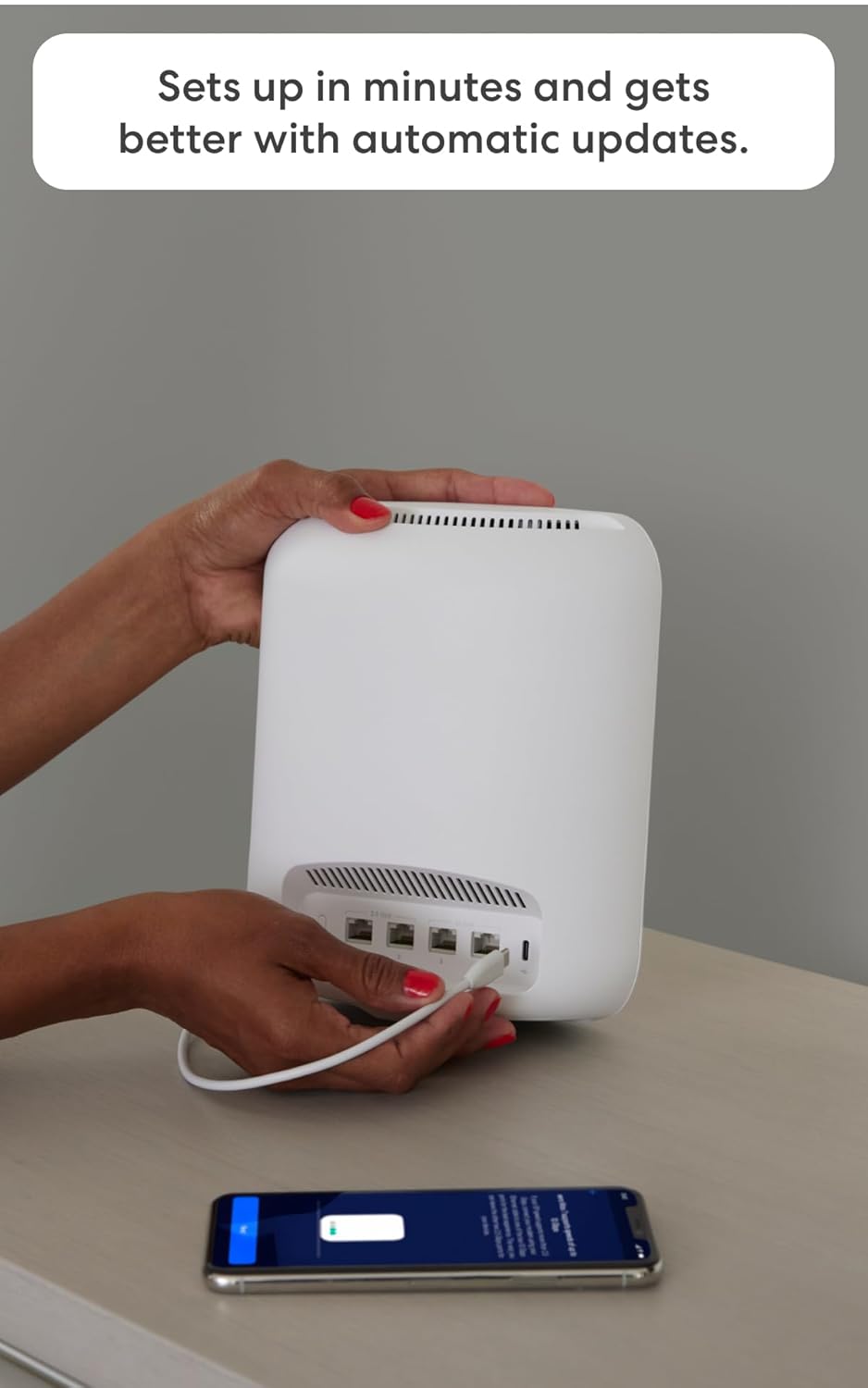
Image 2.1: A user connecting an Ethernet cable to the eero Max 7, with the eero app visible on a smartphone, illustrating the setup process.

படம் 2.2: விரிவானது view of the eero Max 7's connectivity options, featuring two 2.5 GbE ports and two 10 GbE ports for versatile wired connections.
3. Operating Your eero Max 7 System
The eero app serves as your central control panel for managing your mesh WiFi network.
3.1 பிணைய மேலாண்மை
- டாஷ்போர்டு: View your network status, connected devices, and internet speed.
- விருந்தினர் அணுகல்: Easily create a separate guest network with a unique password for visitors.
- சாதனக் கட்டுப்பாடு: குறிப்பிட்ட சாதனங்கள் அல்லது நிபுணர்களுக்கான இணைய அணுகலை இடைநிறுத்துங்கள்.files, manage bandwidth, and prioritize devices for critical tasks like gaming or streaming.
- மேம்பட்ட அமைப்புகள்: Access advanced network configurations such as port forwarding, DNS settings, and IP reservations.
3.2 Smart Home Hub Functionality
The eero Max 7 acts as a smart home hub, allowing you to connect and control various smart devices directly from your network.
- நூல்: Supports Thread devices for a more robust and responsive smart home network.
- விஷயம்: Functions as a Matter controller, enabling seamless integration with Matter-certified devices.
- ஜிக்பீ: Operates as a Zigbee controller, allowing you to connect compatible Zigbee devices.
- அலெக்ஸாவுடன் இணைந்து செயல்படுகிறது: Integrate with Alexa devices to manage network access and other functions using voice commands.

Image 3.1: The eero Max 7 supporting high-performance applications like gaming, demonstrating its capability for demanding network activities.

Image 3.2: The eero Max 7 seamlessly integrated into a modern living space, providing Wi-Fi 7 connectivity for entertainment and smart home devices.
4. பராமரிப்பு
The eero Max 7 system is designed for minimal maintenance, with several features ensuring optimal performance without constant user intervention.
4.1 Automatic Software Updates
eero devices automatically receive software updates to improve performance, add new features, and enhance security. Ensure your eero devices remain connected to the internet to receive these updates.
4.2 பொது பராமரிப்பு
- Keep your eero devices in well-ventilated areas to prevent overheating.
- Avoid placing eero devices near large metal objects, thick walls, or other electronics that may cause interference.
- Clean the exterior of your eero devices with a soft, dry cloth as needed. Do not use liquid cleaners.
5. சரிசெய்தல்
If you encounter issues with your eero Max 7 system, try the following troubleshooting steps before contacting support.
5.1 பொதுவான சிக்கல்கள் மற்றும் தீர்வுகள்
- இணைய இணைப்பு இல்லை:
- உங்கள் மோடம் சரியாக வேலை செய்கிறதா என்று சரிபார்க்கவும்.
- Ensure all Ethernet cables are securely connected to your eero and modem.
- Restart your modem and then your eero devices by unplugging them for 30 seconds and plugging them back in.
- மெதுவான வேகங்கள்:
- Run a speed test through the eero app to verify your internet speed.
- Ensure your eero devices are optimally placed and not too far apart.
- Check for any devices consuming excessive bandwidth and consider pausing them temporarily.
- சாதனம் இணைக்கப்படவில்லை:
- Ensure the device's Wi-Fi is enabled and it is within range of an eero unit.
- பிரச்சனைக்குரிய சாதனத்தை மறுதொடக்கம் செய்யுங்கள்.
- உள்ளிட்ட வைஃபை கடவுச்சொல் சரியானதா என்பதைச் சரிபார்க்கவும்.
5.2 eero App Diagnostics
The eero app provides diagnostic tools and network insights that can help identify and resolve issues. Check the app for alerts or recommendations.
6. விவரக்குறிப்புகள்
Detailed technical specifications for the eero Max 7 mesh WiFi system:
| அம்சம் | விவரம் |
|---|---|
| Wifi standards | வைஃபை 7 (IEEE802.11a/b/g/n/ac/ax/be) |
| Number of radios | 3; ட்ரை-பேண்ட் |
| ஆதரிக்கப்படும் சேனல்கள் | 2.4 GHz: 1-13; 5 GHz: 36-64, 100-144, 149-165; 6 GHz: 1-233 |
| MIMO | 2x2/4x4/4x4 MU/SU-MIMO |
| இடம் சார்ந்த நீரோடைகள் | 10 |
| சேனல் அகலம் | 20, 40, 80, 160, 240, 320 மெகா ஹெர்ட்ஸ் |
| நெட்வொர்க் பாதுகாப்பு மற்றும் சேவைகள் | WPA2-PSK, WPA3-Personal transition mode |
| Other Wi-Fi features | WMM, Tx Beamforming, OFDMA |
| BE rating | BE20800 |
| சேனல் தேர்வு | தானியங்கி சேனல் தேர்வு |
| பேண்ட் ஸ்டீயரிங் | ஆம் |
| Device/profile இடைநிறுத்தம் | ஆம் |
| Easy password sharing for guest and home network | ஆம் |
| ஸ்மார்ட் ஹோம் ஹப் | ஆம் |
| நூல் | ஆம் |
| புளூடூத் | புளூடூத் குறைந்த ஆற்றல் 5.0 |
| ஜிக்பீ | Yes (as a controller only) |
| அலெக்ஸாவுடன் இணைந்து பணியாற்றுகிறார் | Yes: With eero Max 7 and an Alexa device (not included), you can easily manage wifi access for family profiles. |
| விஷயம் | Yes (controller only) |
| ஆண்டெனா | 2.4 GHz: 2x2, 5 GHz: 4x4, 6 GHz: 4x4 |
| அதிர்வெண் பட்டைகள் | ISM (2.4-2.484 GHz), UNII 1: 5.15 - 5.25 GHz, UNII 2A: 5.25 - 5.35 GHz, UNII 2C: 5.47 - 5.725 GHz, UNII 3: 5.725 - 5.850 GHz, UNII 5: 5.925 - 6.425 GHz, UNII 6: 6.425 - 6.525 GHz, UNII 7: 6.525 - 6.875 GHz, UNII 8: 6.875 - 7.125 GHz |
| Types of modulation | OFDM |
| ஈதர்நெட் | Two auto-sensing 10 GbE ports and two auto-sensing 2.5 GbE ports for WAN and/or LAN connectivity |
| செயலி | குவாட்-கோர் A73 செயலி |
| நினைவகம் | 2ஜிபி ரேம் |
| சேமிப்பு | 4ஜிபி ஃபிளாஷ் சேமிப்பு |
| அளவு | 7.24 x 8.73 x 3.54 அங்குலம் (183.90 x 221.89 x 89.90 மிமீ) |
| இயக்க வெப்பநிலை | 32°F–104°F (0°C–40°C) |
| மின் தேவை | 100-240 வி ஏசி, 50/60 ஹெர்ட்ஸ் |
| ஏசி சப்ளை | 45W external USB-PD |
| OS support for eero app | iOS/Android பயன்பாடு |
| அமைப்பதற்குத் தேவை | Supported iOS or Android device and internet service (with cable, DSL, or fiber ONT modem, if required). |
7. உத்தரவாதம் மற்றும் ஆதரவு
eero provides comprehensive support and warranty coverage for your Max 7 mesh WiFi system.
7.1 உத்தரவாதத் தகவல்
The eero Max 7 comes with a 3 வருட வரையறுக்கப்பட்ட உத்தரவாதம். For detailed warranty information, privacy policy, terms of service, and trial/subscription terms, please visit eero.com/legal.
7.2 வாடிக்கையாளர் ஆதரவு
If you require assistance with setup, troubleshooting, or any other issues, the eero support team is available to help.
- மின்னஞ்சல் ஆதரவு: support@eero.com
- தொலைபேசி ஆதரவு: +1-877-659-2347