
1. அறிமுகம்
This manual provides detailed instructions for the installation, operation, and maintenance of your j5create USB-C Dual HDMI Docking Station (Model JCD542). This docking station is designed to expand the connectivity of your USB-C enabled laptop, offering dual display output, multiple USB ports, network connectivity, and power delivery.
சரியான செயல்பாட்டை உறுதி செய்வதற்கும் சேதத்தைத் தடுப்பதற்கும் தயாரிப்பைப் பயன்படுத்துவதற்கு முன் இந்த கையேட்டை முழுமையாகப் படிக்கவும்.
2. தயாரிப்பு முடிந்துவிட்டதுview
2.1 தொகுப்பு உள்ளடக்கம்
- j5create USB-C Dual HDMI Docking Station (JCD542)
- அறிவுறுத்தல் கையேடு
2.2 சாதன அமைப்பு மற்றும் போர்ட்கள்
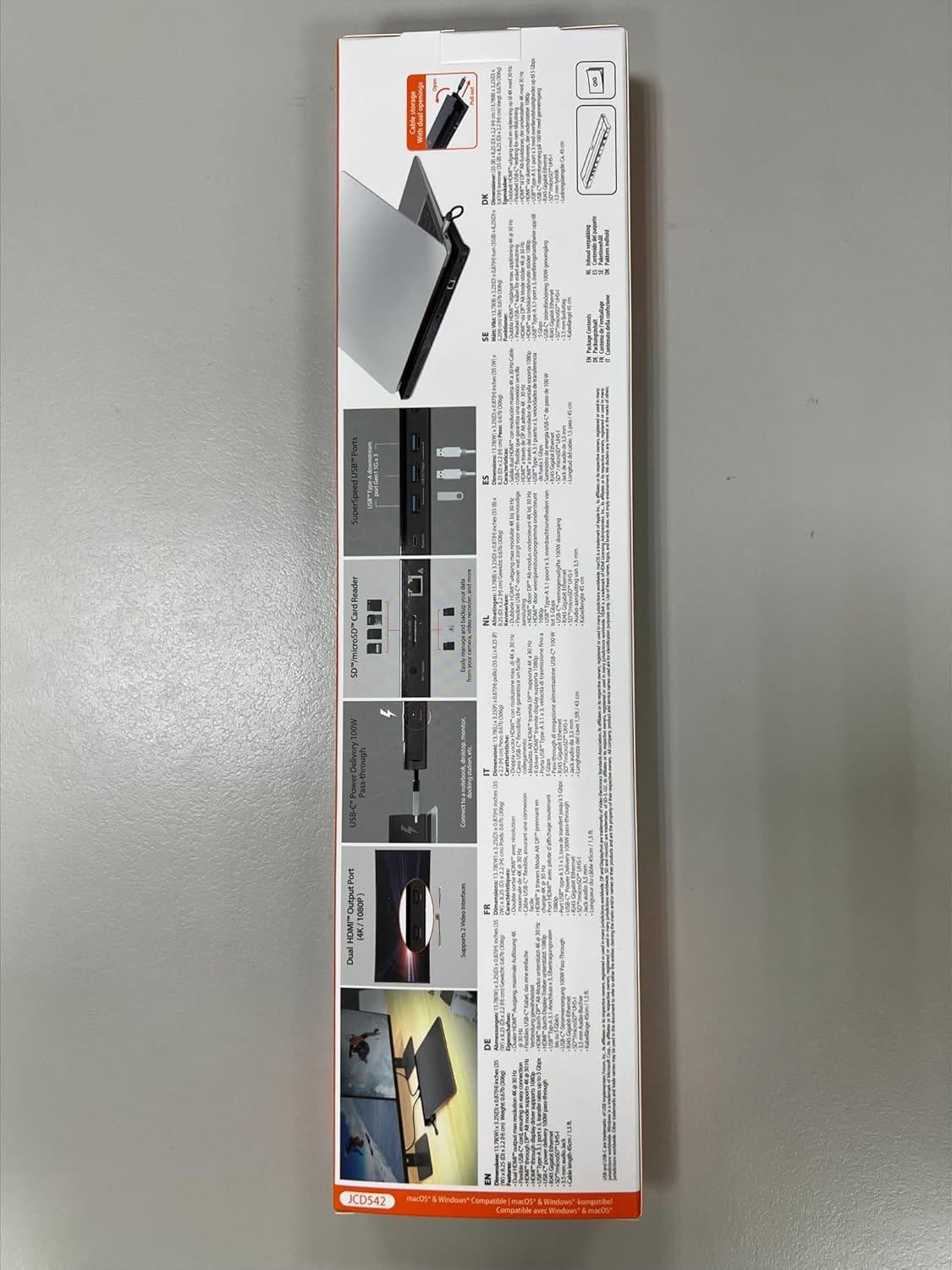
The JCD542 docking station features a comprehensive array of ports to enhance your workstation. Refer to the images below for a visual guide to the port layout.

படம் 1: மேலிருந்து கீழ் view of the j5create JCD542 USB-C Dual HDMI Docking Station, showcasing its sleek design and various ports.

Image 2: Diagram illustrating the 10 available ports on the j5create JCD542 docking station, including USB-C Power In, USB 3.0, Mic/Speaker, SD/microSD, Gigabit Ethernet, 4K HDMI, HDMI, and Security Slot.
- USB-C ஹோஸ்ட் இணைப்பான்: Connects to your laptop's USB-C port.
- USB-C Power In (PD 3.0): Supports up to 100W Power Delivery for charging your laptop.
- HDMI 1 (4K): Connects to a display for up to 4K (3840 x 2160) resolution.
- HDMI2: Connects to a display for up to 2K (2048 x 1152) or 1080p resolution.
- USB 3.0 (5Gbps) x3: Connects to USB peripherals such as keyboards, mice, or external drives.
- RJ45 கிகாபிட் ஈதர்நெட்: நிலையான கம்பி வலையமைப்பு இணைப்பை வழங்குகிறது.
- SD கார்டு ரீடர்: நிலையான SD மெமரி கார்டுகளைப் படிக்க.
- மைக்ரோ எஸ்டி கார்டு ரீடர்: மைக்ரோ எஸ்டி மெமரி கார்டுகளைப் படிக்க.
- Combo Audio Jack (Mic/Speaker): Connects to headphones or speakers with a microphone.
- Security Lock Slot: For attaching a security cable to prevent theft.
3 அமைவு
3.1 கணினி தேவைகள்
- Available USB-C port with DisplayPort Alternate Mode (Alt Mode) support.
- Windows 10 / 8.1 / 7 or macOS X 10.8 or later (macOS 11 & 12 supported).
- For Mac users, driver installation is required for display functionality. Please visit the j5create webசமீபத்திய இயக்கிகளுக்கான தளம்.
- For Power Delivery, your laptop must support USB-C Power Delivery.
3.2 டாக்கிங் ஸ்டேஷனை இணைத்தல்
- Connect the integrated USB-C host cable from the docking station to an available USB-C port on your laptop.
- If you wish to charge your laptop via the docking station, connect your laptop's USB-C power adapter to the USB-C Power In port on the docking station.
- Connect your external monitors to the HDMI ports on the docking station using HDMI cables.
- Connect any USB peripherals (keyboard, mouse, external hard drive) to the USB 3.0 ports.
- For a wired network connection, connect an Ethernet cable from your router/modem to the RJ45 Gigabit Ethernet port.
- Insert SD or microSD cards into the respective card reader slots if needed.
- Connect headphones or speakers to the Combo Audio Jack.

Image 3: A laptop connected to the j5create JCD542 docking station via its integrated USB-C cable, demonstrating a typical setup.

Image 4: Illustration showing compatibility with both Windows and Mac operating systems, highlighting the need for driver installation for Mac users.
4. இயக்க வழிமுறைகள்
4.1 Dual Display Configuration
The docking station supports extending your laptop's display to two external monitors. One HDMI port supports up to 4K (3840 x 2160) resolution, and the other supports up to 2K (2048 x 1152) or 1080p. You can also use your laptop screen for a total of three displays.

Image 5: A workstation demonstrating a dual-monitor setup connected via the j5create JCD542 docking station, enhancing productivity.
After connecting your monitors, you may need to configure display settings in your operating system (Windows Display Settings or macOS System Preferences > Displays) to extend or mirror your desktop.
4.2 பவர் டெலிவரி
The USB-C Power In port allows you to charge your laptop while using the docking station, supporting up to 100W Power Delivery. Ensure your laptop's original power adapter is connected to this port for charging.

Image 6: A USB-C power cable connected to the 'Power In' port of the j5create JCD542 docking station, indicating support for up to 100W Power Delivery to the connected laptop.
4.3 Data Transfer and Peripherals
The three USB 3.0 ports provide SuperSpeed 5Gbps data transfer rates for connecting various USB peripherals. The RJ45 Gigabit Ethernet port ensures a reliable and fast wired internet connection, while the SD and microSD card readers allow for convenient access to memory card data.

படம் 7: நெருக்கமான படம் view of the three SuperSpeed USB 3.0 ports on the j5create JCD542 docking station, with a USB device connected.

படம் 8: நெருக்கமான படம் view of the RJ45 Gigabit Ethernet port on the j5create JCD542 docking station, showing an Ethernet cable connected for a stable network connection.

படம் 9: நெருக்கமான படம் view of the SD and microSD card reader slots on the j5create JCD542 docking station, with a memory card being inserted.

படம் 10: நெருக்கமான படம் view of the combo audio jack (Mic/Speaker) on the j5create JCD542 docking station, with a 3.5mm audio plug inserted.
படம் 11: நெருக்கமான படம் view of the security lock slot on the j5create JCD542 docking station, showing a security cable being attached.
5. பராமரிப்பு
உங்கள் டாக்கிங் ஸ்டேஷனின் நீண்ட ஆயுளையும் உகந்த செயல்திறனையும் உறுதிசெய்ய, இந்த பராமரிப்பு வழிகாட்டுதல்களைப் பின்பற்றவும்:
- மென்மையான, உலர்ந்த துணியால் துடைப்பதன் மூலம் சாதனத்தை சுத்தமாக வைத்திருங்கள். திரவ கிளீனர்கள் அல்லது கரைப்பான்களைப் பயன்படுத்துவதைத் தவிர்க்கவும்.
- அதிக வெப்பநிலை, ஈரப்பதம் அல்லது நேரடி சூரிய ஒளியில் சாதனத்தை வெளிப்படுத்த வேண்டாம்.
- வலுவான தாக்கங்களுக்கு சாதனத்தை கைவிடுவதையோ அல்லது உட்படுத்துவதையோ தவிர்க்கவும்.
- Ensure proper ventilation around the docking station to prevent overheating.
6. சரிசெய்தல்
If you encounter issues with your j5create JCD542 docking station, refer to the following common problems and solutions:
- காட்சி வெளியீடு இல்லை:
- உங்கள் மடிக்கணினியின் USB-C போர்ட் DisplayPort Alt பயன்முறையை ஆதரிக்கிறதா என்பதை உறுதிப்படுத்திக் கொள்ளுங்கள்.
- Verify that all HDMI cables are securely connected to both the docking station and the monitors.
- For Mac users, ensure the necessary display drivers are installed. Visit the j5create support webஇயக்கி பதிவிறக்கங்களுக்கான தளம்.
- Check your operating system's display settings to ensure monitors are detected and configured correctly (extended or mirrored).
- Try disconnecting and reconnecting the docking station from your laptop.
- மடிக்கணினி சார்ஜ் ஆகவில்லை:
- Confirm that your laptop supports USB-C Power Delivery.
- Ensure your laptop's original USB-C power adapter is connected to the USB-C Power In port on the docking station.
- Verify the power adapter is functioning correctly and connected to a power outlet.
- USB Peripherals Not Working:
- டாக்கிங் ஸ்டேஷன் உங்கள் மடிக்கணினியுடன் சரியாக இணைக்கப்பட்டுள்ளதா என்பதை உறுதிப்படுத்திக் கொள்ளுங்கள்.
- Try connecting the peripheral directly to your laptop to confirm it is functional.
- Test the peripheral in a different USB 3.0 port on the docking station.
- ஈதர்நெட் வழியாக இணைய இணைப்பு இல்லை:
- ஈதர்நெட் கேபிள் டாக்கிங் ஸ்டேஷன் மற்றும் உங்கள் ரூட்டர்/மோடம் இரண்டுடனும் பாதுகாப்பாக இணைக்கப்பட்டுள்ளதா என சரிபார்க்கவும்.
- Check your network settings in your operating system.
- உங்கள் ரூட்டர்/மோடம் சரியாகச் செயல்படுவதை உறுதிசெய்து கொள்ளுங்கள்.
- Docking Station Feels Warm:
- It is normal for the docking station to generate some heat during operation, especially when multiple ports are in use or when charging a laptop. Ensure it has adequate ventilation and is not covered.
7. விவரக்குறிப்புகள்
| மாதிரி எண் | ஜே.சி.டி .542 |
| தயாரிப்பு பரிமாணங்கள் | 13.78 x 3.25 x 0.86 அங்குலம் (350 x 82.5 x 21.8 மிமீ) |
| பொருளின் எடை | 14.3 அவுன்ஸ் (405 கிராம்) |
| ஹோஸ்ட் இடைமுகம் | USB-C |
| வீடியோ வெளியீடு | 2 x HDMI (1x 4K, 1x 2K/1080p) |
| USB போர்ட்கள் | 3 x USB 3.0 (5Gbps) |
| ஈதர்நெட் | RJ45 கிகாபிட் ஈதர்நெட் |
| கார்டு ரீடர் | SD / microSD |
| ஆடியோ | Combo Audio Jack (Mic/Speaker) |
| பவர் டெலிவரி | Up to 100W via USB-C Power In port |
| இணக்கத்தன்மை | Windows 10/8.1/7, macOS X 10.8 or later (macOS 11 & 12) |
8. உத்தரவாதம் மற்றும் ஆதரவு
j5create products are designed and manufactured with quality in mind. For warranty information and technical support, please refer to the official j5create webதளம் அல்லது அவர்களின் வாடிக்கையாளர் சேவையை தொடர்பு கொள்ளவும்.
உற்பத்தியாளர்: j5உருவாக்கு
தொடர்பு தகவல்:
கைஜெட் டெக்னாலஜி இன்டர்நேஷனல் பி.வி
Address: Zomerdroom 20, 3068 MZ Rotterdam, Netherlands
Phone Number: +31 (0)6-2880 2882
மின்னஞ்சல்: service@j5create.com
உத்திரவாதக் கோரிக்கைகளுக்காக உங்கள் வாங்கியதற்கான ஆதாரத்தை வைத்துக் கொள்ளவும்.