
1. அறிமுகம்
This manual provides comprehensive instructions for the setup, operation, and maintenance of your Cherry MW 9100 Wireless Rechargeable Mouse. The MW 9100 is a compact, versatile mouse offering dual connectivity options (Bluetooth or 2.4 GHz USB receiver) and a convenient rechargeable battery.
முக்கிய அம்சங்கள் அடங்கும்:
- Compact design with charging functionality.
- Flexible operation: use while charging via USB-C cable.
- Dual connectivity: Bluetooth or 2.4 GHz USB receiver.
- Magnetic storage for the USB receiver, ideal for travel.
- Adjustable DPI settings for varied usage.
2. தொகுப்பு உள்ளடக்கங்கள்
தொகுப்பில் அனைத்து பொருட்களும் உள்ளதா என சரிபார்க்கவும்:
- Cherry MW 9100 Wireless Rechargeable Mouse
- USB-C சார்ஜிங் கேபிள்
- 2.4 GHz USB ரிசீவர்
- பாதுகாப்பு பை
- அறிவுறுத்தல் கையேடு (இந்த ஆவணம்)
3 அமைவு
3.1 மவுஸை சார்ஜ் செய்தல்
The Cherry MW 9100 mouse features a built-in rechargeable battery. Before initial use, or when the battery is low, connect the included USB-C cable to the mouse and to a USB power source (e.g., computer USB port, USB wall adapter). The mouse can be used normally while charging.

படம் 3.1: மேல் view of the Cherry MW 9100 mouse, showing the charging indicator light.
3.2 சுட்டியை இணைத்தல்
The MW 9100 offers two connection methods: 2.4 GHz wireless via USB receiver or Bluetooth.
3.2.1 2.4 GHz வயர்லெஸ் இணைப்பு
- Locate the USB receiver. It is magnetically stored in a compartment on the underside of the mouse.
- உங்கள் கணினியில் கிடைக்கும் USB போர்ட்டில் USB ரிசீவரைச் செருகவும்.
- On the underside of the mouse, slide the switch to the "RF" position.
- சுட்டி தானாகவே உங்கள் கணினியுடன் இணைக்கப்பட வேண்டும்.
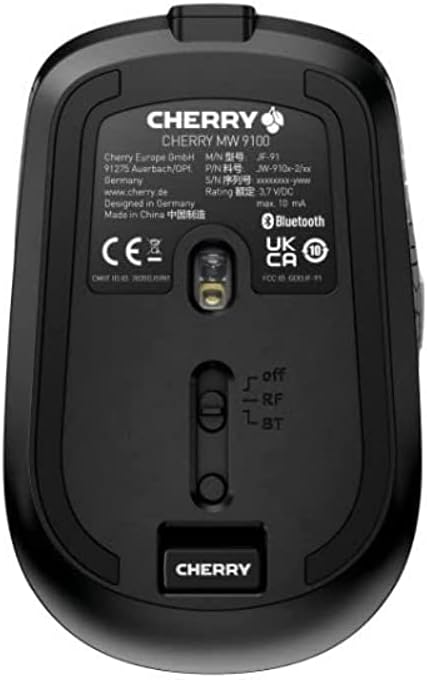
படம் 3.2: Underside of the Cherry MW 9100 mouse, highlighting the USB receiver storage and the connection mode switch.
3.2.2 புளூடூத் இணைப்பு
- On the underside of the mouse, slide the switch to the "BT" (Bluetooth) position.
- Press and hold the small pairing button located near the connection switch on the underside of the mouse until the LED indicator on the mouse starts blinking, indicating pairing mode.
- உங்கள் கணினி அல்லது சாதனத்தில், புளூடூத் அமைப்புகளைத் திறந்து புதிய சாதனங்களைத் தேடுங்கள்.
- Select "Cherry MW 9100" from the list of available devices to complete the pairing process.
4. இயக்க வழிமுறைகள்
4.1 அடிப்படை செயல்பாடுகள்
The Cherry MW 9100 mouse features standard left and right click buttons, a scroll wheel (which also functions as a middle click button), and two side buttons for navigation (typically forward/back).
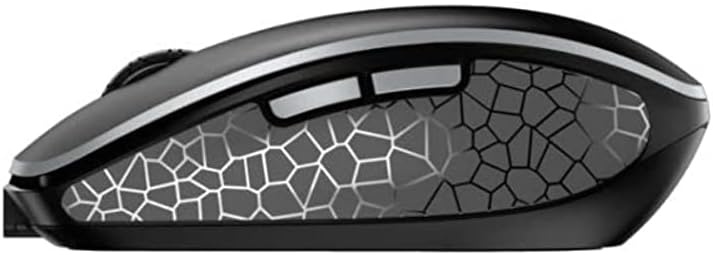
படம் 4.1: பக்கம் view of the Cherry MW 9100 mouse, illustrating the ergonomic design and side buttons.
4.2 DPI சரிசெய்தல்
The mouse includes a DPI (Dots Per Inch) button, usually located near the scroll wheel, allowing you to adjust the cursor sensitivity. Press this button to cycle through different DPI settings to match your preference or task requirements.

படம் 4.2: A hand demonstrating the comfortable grip on the Cherry MW 9100 mouse during use.
5. பராமரிப்பு
To ensure optimal performance and longevity of your Cherry MW 9100 mouse:
- சுத்தம்: Use a soft, dry cloth to clean the mouse surface. For stubborn dirt, a slightly damp துணியைப் பயன்படுத்தலாம், ஆனால் ஈரப்பதம் சாதனத்திற்குள் நுழையாமல் பார்த்துக் கொள்ளுங்கள். கடுமையான இரசாயனங்கள் அல்லது சிராய்ப்புப் பொருட்களைத் தவிர்க்கவும்.
- சேமிப்பு: When not in use, especially during travel, store the mouse in the provided protective pouch to prevent scratches and damage.
- பேட்டரி பராமரிப்பு: Avoid fully discharging the battery frequently. Recharge the mouse when the low battery indicator appears.
6. சரிசெய்தல்
| பிரச்சனை | சாத்தியமான காரணம் | தீர்வு |
|---|---|---|
| சுட்டி பதிலளிக்கவில்லை | Low battery, incorrect connection mode, USB receiver not connected, Bluetooth not paired. |
|
| Intermittent connection (Bluetooth) | Interference, device driver issues, distance from device. |
|
| கர்சர் இயக்கம் ஒழுங்கற்றது அல்லது மெதுவாக உள்ளது. | Dirty optical sensor, low battery, incorrect DPI setting. |
|
7. விவரக்குறிப்புகள்
| அம்சம் | விவரம் |
|---|---|
| பிராண்ட் | செர்ரி |
| மாதிரி எண் | JW-9100US-2 |
| இணைப்பு தொழில்நுட்பம் | Bluetooth, 2.4 GHz USB Wireless |
| இயக்கம் கண்டறிதல் | ஆப்டிகல் |
| சிறப்பு அம்சங்கள் | Lightweight, Portable, Rechargeable |
| தயாரிப்பு பரிமாணங்கள் | 4 x 3 x 2 அங்குலம் |
| பொருளின் எடை | 6.4 அவுன்ஸ் |
| நிறம் | கருப்பு |
8. உத்தரவாதம் மற்றும் ஆதரவு
For warranty information and technical support, please refer to the official Cherry website or contact Cherry customer service directly. Keep your proof of purchase for warranty claims.
உற்பத்தியாளர்: செர்ரி
Webதளம்: www.cherry.de