
1. அறிமுகம்
Thank you for choosing the Pantum BP5100DN Monochrome Laser Printer. This manual provides essential information for the safe and efficient use of your printer. Please read it thoroughly before operating the device and keep it for future reference.
The Pantum BP5100DN is designed for high-speed, high-quality monochrome printing, featuring automatic two-sided printing and versatile connectivity options including USB and Ethernet.
2. பாதுகாப்பு தகவல்
- அச்சுப்பொறியை எப்போதும் நிலையான, சமதளப் பரப்பில் வைக்கவும்.
- அச்சுப்பொறி அதிக வெப்பமடைவதைத் தடுக்க, அதைச் சுற்றி சரியான காற்றோட்டத்தை உறுதி செய்யவும்.
- பிரிண்டரை தண்ணீருக்கு அல்லது அதிக ஈரப்பதத்திற்கு வெளிப்படுத்த வேண்டாம்.
- Use only the specified power supply and connect to a grounded outlet.
- செயல்பாட்டின் போது கைகள் மற்றும் தளர்வான ஆடைகளை நகரும் பாகங்களிலிருந்து விலக்கி வைக்கவும்.
- பியூசர் அலகைத் தொடுவதைத் தவிர்க்கவும், ஏனெனில் அது மிகவும் சூடாக இருக்கும்.
- Do not attempt to service the printer yourself. Refer to qualified service personnel.
3. பெட்டியில் என்ன இருக்கிறது
கீழே பட்டியலிடப்பட்டுள்ள அனைத்து பொருட்களும் உங்கள் தொகுப்பில் சேர்க்கப்பட்டுள்ளதா என்பதை சரிபார்க்கவும்:
- Pantum BP5100DN Monochrome Laser Printer
- பவர் கார்டு
- USB இடைமுக கேபிள்
- விரைவான அமைவு வழிகாட்டி
- Starter cartridge (3000 pages)
- Starter drum (30000 pages)

Figure 3.1: Package Contents. This image displays the Pantum BP5100DN printer along with its accessories: power cord, USB interface cable, quick setup guide, starter toner cartridge, and starter drum unit.
4. தயாரிப்பு முடிந்துவிட்டதுview
4.1. அச்சுப்பொறி கூறுகள்
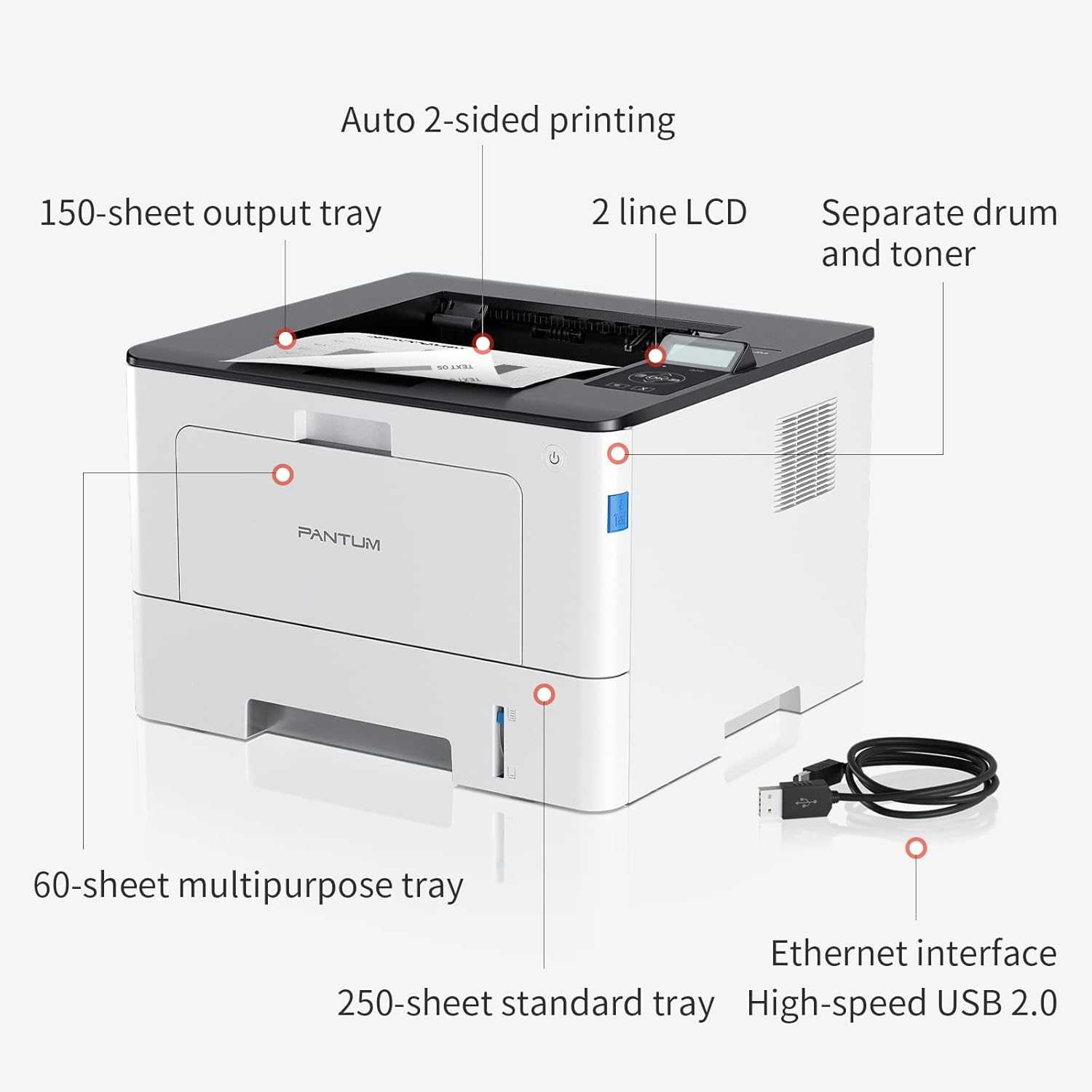
Figure 4.1: Printer Components. Key features include a 150-sheet output tray, a 2-line LCD display, separate drum and toner units, a 60-sheet multipurpose tray, a 250-sheet standard tray, an Ethernet interface, and a High-speed USB 2.0 port.
4.2. பரிமாணங்கள்

Figure 4.2: Printer Dimensions. The printer measures approximately 14.33 inches (W) x 10.12 inches (H) x 13.54 inches (D).
4.3. கண்ட்ரோல் பேனல்

Figure 4.3: Control Panel. The control panel includes a 2-line LCD display for status messages and menu navigation, along with buttons for OK, arrow controls, and cancel functions.
5 அமைவு
5.1. பிரித்தல் மற்றும் இடம் அமைத்தல்
- அச்சுப்பொறியை அதன் பேக்கேஜிங்கிலிருந்து கவனமாக அகற்றவும்.
- அச்சுப்பொறியிலிருந்து அனைத்து பாதுகாப்பு நாடாக்கள் மற்றும் பேக்கிங் பொருட்களையும் அகற்றவும்.
- Place the printer on a firm, level surface with adequate space for ventilation.
5.2. Toner and Drum Installation
- அச்சுப்பொறியின் முன் அட்டையைத் திறக்கவும்.
- Unpack the drum unit and toner cartridge.
- Insert the toner cartridge into the drum unit until it clicks into place.
- Insert the combined drum and toner unit into the printer.
- முன் அட்டையை மூடு.
5.3 காகித ஏற்றுதல்
- Pull out the standard paper tray or open the multipurpose tray.
- உங்கள் காகிதத்தின் அளவிற்கு காகித வழிகாட்டிகளை சரிசெய்யவும்.
- Load paper into the tray, ensuring it is flat and not exceeding the maximum capacity (250 sheets for standard tray, 60 sheets for multipurpose tray).
- காகிதத் தட்டில் மூடு.
5.4. Power and Connectivity
- பவர் கார்டை பிரிண்டருடன் இணைக்கவும், பின்னர் தரையிறக்கப்பட்ட மின் நிலையத்துடன் இணைக்கவும்.
- For USB connection: Connect the provided USB 2.0 cable from the printer to your computer.
- For Ethernet connection: Connect an Ethernet cable from the printer to your network router or switch.
- அச்சுப்பொறியை இயக்க ஆற்றல் பொத்தானை அழுத்தவும்.
6. இயக்க வழிமுறைகள்
6.1. இயக்கி நிறுவல்
For optimal performance, install the printer drivers from the official Pantum website or the provided installation media. The printer supports easy one-step installation for quick setup.
6.2. Printing a Document
- உங்கள் கணினி அல்லது மொபைல் சாதனத்தில் அச்சிட விரும்பும் ஆவணத்தைத் திறக்கவும்.
- உங்கள் பயன்பாட்டிலிருந்து அச்சு விருப்பத்தைத் தேர்ந்தெடுக்கவும்.
- Choose the Pantum BP5100DN from the list of available printers.
- தேவைக்கேற்ப அச்சு அமைப்புகளை சரிசெய்யவும் (எ.கா., பிரதிகளின் எண்ணிக்கை, காகித அளவு, இரட்டை அச்சிடுதல்).
- 'அச்சிடு' என்பதைக் கிளிக் செய்யவும்.
The printer offers fast printing speeds of up to 40 pages per minute (A4) / 42 pages per minute (Letter) in black and white. It also supports automatic two-sided printing to save paper.
6.3. மொபைல் பிரிண்டிங்
The Pantum BP5100DN supports direct printing of office documents from mobile devices. Ensure your mobile device and printer are connected to the same network or via USB OTG (if supported by your device and printer).
7. பராமரிப்பு
7.1. Replacing Toner Cartridge and Drum Unit
When the toner is low or the drum unit reaches its end of life, the printer's display will show a message. Refer to the instructions provided with the replacement consumables for proper installation. The starter toner cartridge yields approximately 3000 pages, and the starter drum unit yields approximately 30000 pages.
7.2 அச்சுப்பொறியை சுத்தம் செய்தல்
- சுத்தம் செய்வதற்கு முன் அச்சுப்பொறியை அணைத்துவிட்டு மின் கம்பியைத் துண்டிக்கவும்.
- மென்மையான, பஞ்சு இல்லாத துணியால் அச்சுப்பொறியின் வெளிப்புறத்தைத் துடைக்கவும்.
- Use a dry cloth to clean the paper path and rollers if paper jams occur frequently.
- சிராய்ப்பு கிளீனர்கள் அல்லது கரைப்பான்களைப் பயன்படுத்த வேண்டாம்.
8. சரிசெய்தல்
If you encounter issues with your printer, refer to the following common solutions:
- அச்சுப்பொறி பதிலளிக்கவில்லை: Check power connections, USB/Ethernet cable connections, and ensure the printer is turned on. Restart both the printer and your computer.
- காகித நெரிசல்கள்: Open all covers and carefully remove any jammed paper. Ensure paper is loaded correctly and not creased or damaged.
- மோசமான அச்சு தரம்: Check toner levels. If print quality is faded, especially with cut and paste text, ensure you are using the correct print settings and consider replacing the toner cartridge or drum unit if they are near end-of-life.
- இணைப்புச் சிக்கல்கள்: For Ethernet, verify network cable connection and IP address settings. For USB, try a different USB port or cable.
- பிழைச் செய்திகள்: Consult the printer's display for specific error codes and refer to the quick setup guide or online support for detailed solutions.
For persistent issues, please contact customer service for support.
9. விவரக்குறிப்புகள்
| அம்சம் | விவரக்குறிப்பு |
|---|---|
| மாதிரி பெயர் | BP5100DN |
| அச்சிடும் தொழில்நுட்பம் | லேசர் |
| அச்சுப்பொறி வெளியீடு | ஒரே வண்ணமுடையது |
| அதிகபட்ச அச்சு வேகம் (ஒற்றை வண்ணம்) | 40 ppm (A4) / 42 ppm (Letter) |
| அதிகபட்ச அச்சுத் தீர்மானம் | 1200 x 1200 டிபிஐ |
| இரட்டை பக்க அச்சிடுதல் | ஆம் (தானியங்கி) |
| இணைப்பு தொழில்நுட்பம் | ஈதர்நெட், USB 2.0 |
| அதிகபட்ச உள்ளீட்டு தாள் திறன் | 250 sheets (Standard Tray), 60 sheets (Multipurpose Tray) |
| அச்சு ஊடகம் | காகிதம் (வெற்று) |
| தாள் அளவு | A4, Letter, etc. |
| இணக்கமான சாதனங்கள் | Smartphones, PCs |
| வாட்tage | 650 வாட்ஸ் |
| பொருளின் எடை | 9.07 கிலோ (தோராயமாக 9 கிலோ 70 கிராம்) |
| உற்பத்தியாளர் | பாண்டம் |
10. உத்தரவாதம் மற்றும் ஆதரவு
The Pantum BP5100DN Monochrome Laser Printer comes with a 1-year warranty from the date of purchase. For warranty claims, technical support, or any inquiries, please refer to the contact information provided in your quick setup guide or visit the official Pantum webதளம்.
For a better experience, please kindly refer to the user manual or contact customer service for support.