
அறிமுகம்
This manual provides essential information for setting up, operating, maintaining, and troubleshooting your CUPEISI 7-inch Android 14 Tablet. Please read this guide thoroughly to ensure proper use and to maximize your tablet's performance and longevity.
பெட்டியில் என்ன இருக்கிறது
பெட்டியை வெளியே எடுக்கும்போது அனைத்து பொருட்களும் இருப்பதை உறுதிசெய்யவும்:
- CUPEISI 7-inch Android 14 Tablet
- டைப்-சி கேபிள்
- பயனர் கையேடு (இந்த ஆவணம்)
தயாரிப்பு முடிந்துவிட்டதுview
The CUPEISI Q2S tablet features a 7-inch HD IPS display, powered by a 1.6GHz Quad-core processor and running Android 14. It includes 8GB RAM (4GB physical + 4GB virtual) and 32GB internal storage, expandable up to 1TB via microSD card. The tablet is equipped with dual cameras and supports Wi-Fi and Bluetooth connectivity.
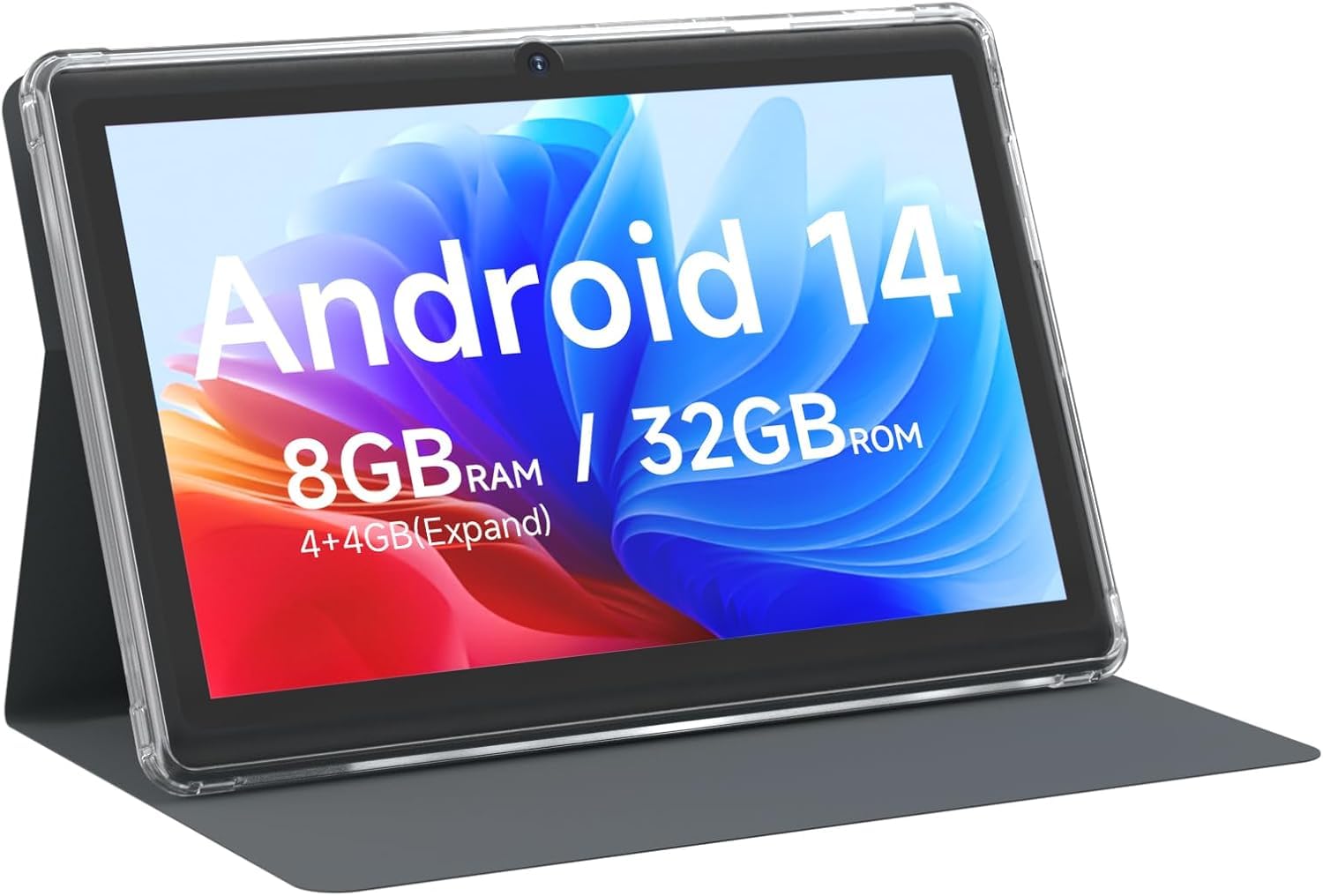
CUPEISI 7-inch Android 14 Tablet, front view.

முடிந்துவிட்டதுview of CUPEISI 7-inch Android 14 Tablet features including OS, CPU, RAM, ROM, Screen, Camera, Battery, and WiFi.
அமைவு
1. டேப்லெட்டை சார்ஜ் செய்தல்
Before first use, fully charge the tablet. Connect the provided Type-C cable to the tablet's charging port and the other end to a compatible USB power adapter (not included) or a computer's USB port. The battery indicator on the screen will show charging status.
2. பவர் ஆன் மற்றும் ஆரம்ப அமைப்பு
- திரை ஒளிரும் வரை பவர் பொத்தானை அழுத்திப் பிடிக்கவும்.
- Follow the on-screen prompts to select your language, region, and other initial settings.
3. Wi-Fi உடன் இணைக்கிறது
- செல்க அமைப்புகள் > நெட்வொர்க் & இணையம் > Wi-Fi.
- வைஃபையை நிலைமாற்று On.
- பட்டியலிலிருந்து உங்களுக்கு விருப்பமான வைஃபை நெட்வொர்க்கைத் தேர்ந்தெடுக்கவும்.
- கேட்கப்பட்டால் நெட்வொர்க் கடவுச்சொல்லை உள்ளிட்டு, பின்னர் தட்டவும் இணைக்கவும்.
4. Google Account Setup
A Google account is required to download apps from Google Play Store and access Google services. You can sign in with an existing account or create a new one during the initial setup or later via அமைப்புகள் > கணக்குகள்.
உங்கள் டேப்லெட்டை இயக்குதல்
1. அடிப்படை வழிசெலுத்தல் மற்றும் சைகைகள்
- தட்டவும்: ஒரு பொருளைத் தேர்ந்தெடுக்கவும் அல்லது ஒரு பயன்பாட்டைத் திறக்கவும்.
- ஸ்வைப்: திரைகள் அல்லது பட்டியல்களை உருட்டவும்.
- கிள்ளுதல்: படங்களை பெரிதாக்கவும் அல்லது குறைக்கவும் மற்றும் web பக்கங்கள்.
- நீண்ட பத்திரிகை: சூழல் மெனுக்களை அணுகவும் அல்லது ஐகான்களை நகர்த்தவும்.
2. பயன்பாடுகளை நிர்வகித்தல்

Tablet screen showing various application icons, illustrating the 8GB RAM and 32GB ROM storage capacity.
- பயன்பாடுகளை நிறுவவும்: Open the Google Play Store app, search for your desired app, and tap நிறுவவும்.
- பயன்பாடுகளை நிறுவல் நீக்கவும்: Long-press an app icon on the home screen or app drawer, then drag it to the நிறுவல் நீக்கவும் option, or go to அமைப்புகள் > பயன்பாடுகள் > பயன்பாட்டைத் தேர்ந்தெடுக்கவும் > நிறுவல் நீக்கவும்.
3. சேமிப்பு மேலாண்மை
The tablet has 32GB of internal storage. You can expand this by inserting a microSD card (up to 1TB) into the designated slot. To manage storage, go to அமைப்புகள் > சேமிப்பு.
4. கேமராவைப் பயன்படுத்துதல்
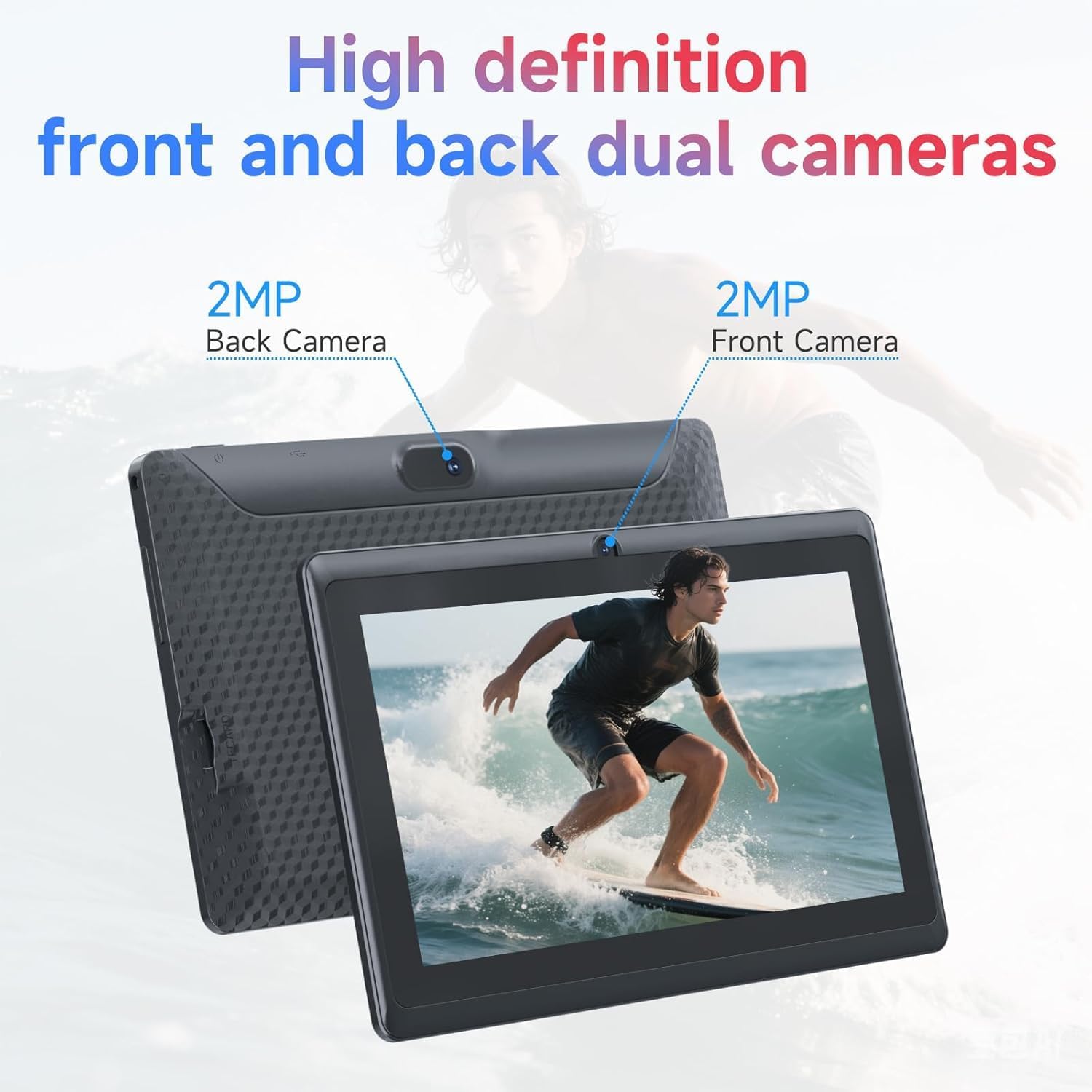
Illustration of the tablet's dual cameras, featuring a 5MP front camera and an 8MP rear camera.
இந்த டேப்லெட்டில் 5MP முன் கேமரா மற்றும் 8MP பின்புற கேமரா உள்ளது. திறக்கவும் கேமரா app to take photos or record videos. Tap the camera icon to switch between front and rear cameras.
5. இணைப்பு (புளூடூத்)
புளூடூத் சாதனங்களை இணைக்க:
- செல்க அமைப்புகள் > இணைக்கப்பட்ட சாதனங்கள் > புளூடூத்.
- புளூடூத்தை நிலைமாற்று On.
- தேர்ந்தெடு புதிய சாதனத்தை இணைக்கவும் மற்றும் பட்டியலிலிருந்து உங்கள் சாதனத்தைத் தேர்ந்தெடுக்கவும்.
6. Eye Protection Mode

The 7-inch IPS HD screen of the tablet displaying a colorful image, highlighting its 1024x600 resolution.
The tablet's display is designed to reduce blue light emission for eye comfort. You can enable or adjust eye protection settings in அமைப்புகள் > காட்சி.

A user engaged in a video conference on the tablet, demonstrating its suitability for work and study.
பராமரிப்பு
1. சுத்தம் மற்றும் பராமரிப்பு
- டேப்லெட்டின் திரை மற்றும் உடலை சுத்தம் செய்ய மென்மையான, பஞ்சு இல்லாத துணியைப் பயன்படுத்தவும்.
- கடுமையான இரசாயனங்கள் அல்லது சிராய்ப்புப் பொருட்களைப் பயன்படுத்துவதைத் தவிர்க்கவும்.
- டேப்லெட்டை தீவிர வெப்பநிலை, நேரடி சூரிய ஒளி மற்றும் ஈரப்பதத்திலிருந்து விலக்கி வைக்கவும்.

An image depicting the tablet's drop protection feature, showing it withstands impacts.
2. மென்பொருள் புதுப்பிப்புகள்
உகந்த செயல்திறன் மற்றும் பாதுகாப்பை உறுதிசெய்ய மென்பொருள் புதுப்பிப்புகளை தவறாமல் சரிபார்த்து நிறுவவும். செல்லவும் அமைப்புகள் > அமைப்பு > கணினி மேம்படுத்தல்.
3. பேட்டரி உகப்பாக்கம்
- To prolong battery life, reduce screen brightness, disable Wi-Fi/Bluetooth when not in use, and close background apps.
- பேட்டரியை அடிக்கடி முழுமையாக சார்ஜ் செய்வதைத் தவிர்க்கவும்.
சரிசெய்தல்
| பிரச்சினை | சாத்தியமான தீர்வு |
|---|---|
| டேப்லெட் இயக்கப்படவில்லை. | டேப்லெட் சார்ஜ் செய்யப்பட்டுள்ளதா என்பதை உறுதிப்படுத்திக் கொள்ளுங்கள். மீண்டும் பவர் ஆன் செய்ய முயற்சிக்கும் முன், ஒரு மின் மூலத்துடன் இணைத்து சில நிமிடங்கள் காத்திருக்கவும். |
| வைஃபை இணைப்புச் சிக்கல்கள் | Check if Wi-Fi is enabled in settings. Restart your router and the tablet. Ensure you have entered the correct password. |
| மெதுவான செயல்திறன் | Close unnecessary background applications. Clear cache from apps in Settings > Apps. Consider performing a factory reset if issues persist (back up data first). |
| செயலிழப்பது அல்லது உறைவது போன்ற பயன்பாடுகள் | Update the app to the latest version. Clear the app's cache and data in Settings > Apps. Reinstall the app. |
விவரக்குறிப்புகள்
| பிராண்ட் | CUPEISI |
| மாதிரி எண் | Q2S |
| இயக்க முறைமை | ஆண்ட்ராய்டு 14 |
| செயலி | 1.6 GHz Quad-core (ARM Cortex) |
| ரேம் | 8 GB (4GB fixed + 4GB virtual) |
| உள் சேமிப்பு | 32 ஜிபி |
| விரிவாக்கக்கூடிய சேமிப்பு | மைக்ரோ எஸ்டி கார்டு வழியாக 1 டெசிபைட் வரை |
| திரை அளவு | 7 அங்குலம் |
| காட்சித் தீர்மானம் | 1024 x 600 Pixels IPS HD |
| முன் கேமரா | 5 எம்.பி |
| பின்புற கேமரா | 8 எம்.பி |
| பேட்டரி திறன் | 3000 mAh |
| சராசரி பேட்டரி ஆயுள் | 6 மணிநேரம் |
| இணைப்பு | வைஃபை (802.11 கிராம்), புளூடூத் |
| இடைமுகம் | USB வகை-C |
| பரிமாணங்கள் (L x W x Th) | 7.5" x 4.3" x 0.3" |
| பொருளின் எடை | 0.38 கிலோகிராம் |
உத்தரவாத தகவல்
The CUPEISI Q2S Tablet comes with a 1-year limited warranty from the date of purchase. This warranty covers manufacturing defects and workmanship under normal use. It does not cover damage caused by misuse, accidents, unauthorized modifications, or external factors. Please retain your proof of purchase for warranty claims.
வாடிக்கையாளர் ஆதரவு
For further assistance, technical support, or warranty inquiries, please refer to the contact information provided with your product packaging or visit the official CUPEISI website. When contacting support, please have your tablet model number (Q2S) and proof of purchase ready.