
1. அறிமுகம்
நன்றி, நன்றி.asing the Yifeng Wireless Keyboard. This keyboard offers versatile connectivity options, supporting both 2.4 GHz USB wireless and Bluetooth connections. It is designed for multi-device use, allowing simultaneous pairing with up to four devices and quick switching between them. Featuring a comfortable scissor-switch mechanism and an integrated stand, it enhances productivity across various platforms including Windows, iOS, and Android devices.
2. பாதுகாப்பு தகவல்
- விசைப்பலகையை திரவங்கள் அல்லது தீவிர வெப்பநிலைக்கு வெளிப்படுத்த வேண்டாம்.
- சாதனத்தை நீங்களே பிரிப்பதையோ அல்லது சரிசெய்ய முயற்சிப்பதையோ தவிர்க்கவும்.
- குழந்தைகளுக்கு எட்டாத இடத்தில் வைக்கவும்.
- சார்ஜ் செய்ய வழங்கப்பட்ட USB கேபிளை மட்டும் பயன்படுத்தவும்.
3. தொகுப்பு உள்ளடக்கங்கள்
அனைத்து பொருட்களும் உள்ளனவா என்பதை சரிபார்க்கவும்:
- Yifeng Wireless Keyboard
- USB சார்ஜிங் கேபிள்
- 2.4 GHz USB Receiver (may be stored in the keyboard's battery compartment)
- பயனர் கையேடு (இந்த ஆவணம்)
4 அமைவு
4.1. 2.4 GHz USB Wireless Connection
- Locate the 2.4 GHz USB receiver. It is often stored in a dedicated slot on the keyboard.
- உங்கள் கணினி அல்லது சாதனத்தில் கிடைக்கும் USB போர்ட்டில் USB ரிசீவரைச் செருகவும்.
- Turn on the keyboard using the power switch (usually located on the side or back).
- The keyboard should automatically connect to your device. If not, press the dedicated 2.4GHz connection key (often labeled with a '4' or '2.4G' icon) to activate pairing mode.
4.2. புளூடூத் இணைப்பு
- விசைப்பலகை சார்ஜ் செய்யப்பட்டு இயக்கப்பட்டிருப்பதை உறுதிசெய்யவும்.
- Press and hold one of the Bluetooth channel keys (e.g., புளூடூத் 1, புளூடூத் 2, அல்லது புளூடூத் 3) for 3-5 seconds until the indicator light flashes, indicating pairing mode.
- On your device (tablet, smartphone, PC), go to Bluetooth settings and enable Bluetooth.
- தேடுங்கள் available devices. The keyboard should appear as "Yifeng Keyboard" or similar.
- Select the keyboard to pair. Follow any on-screen prompts, such as entering a pairing code.
- Once paired, the indicator light will stop flashing and remain solid for a few seconds.
4.3. Multi-Device Pairing
This keyboard supports connecting up to 4 devices simultaneously: one via 2.4 GHz USB and three via Bluetooth. Follow the steps above to pair each device to a different channel (2.4GHz, Bluetooth 1, Bluetooth 2, Bluetooth 3).
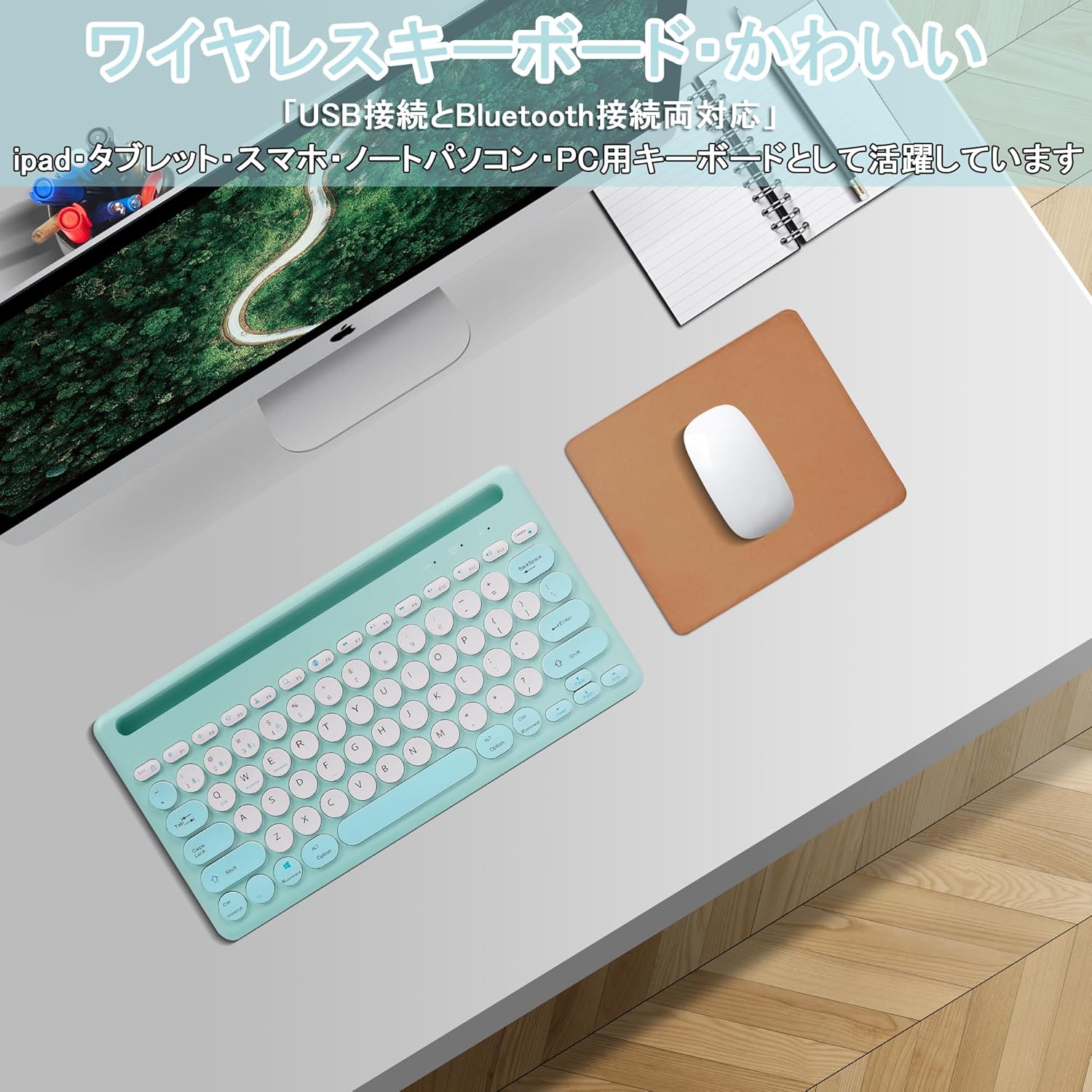
Image: The Yifeng Wireless Keyboard connected to a tablet, smartphone, and laptop, demonstrating its multi-device pairing capability.
5. இயக்க வழிமுறைகள்
5.1. இணைக்கப்பட்ட சாதனங்களுக்கு இடையில் மாறுதல்
To switch between your paired devices, simply press the corresponding connection key:
- அழுத்தவும் புளூடூத் 1 to switch to the first Bluetooth device.
- அழுத்தவும் புளூடூத் 2 to switch to the second Bluetooth device.
- அழுத்தவும் புளூடூத் 3 to switch to the third Bluetooth device.
- அழுத்தவும் 2.4GHz key (often labeled with a '4' or '2.4G' icon) to switch to the USB wireless device.
5.2. System Compatibility Switching
The keyboard supports Windows, iOS, and Android operating systems. Use the dedicated system keys to optimize key functions for your current device:
- அழுத்தவும் Fn + Q iOS க்கு.
- அழுத்தவும் Fn + W Android க்கான.
- அழுத்தவும் Fn + E விண்டோஸுக்கு.
5.3. விசைப்பலகையை சார்ஜ் செய்தல்
The keyboard features a built-in rechargeable lithium-ion battery. A single full charge provides approximately 30 days of continuous use.
- Connect the included USB charging cable to the charging port on the keyboard.
- Plug the other end of the USB cable into a USB power source (e.g., computer USB port, USB wall adapter).
- சார்ஜ் ஆகும்போது சார்ஜிங் இண்டிகேட்டர் லைட் ஒளிரும், முழுமையாக சார்ஜ் ஆனதும் அணைந்துவிடும்.

Image: The Yifeng Wireless Keyboard connected to a power strip via its USB charging cable, indicating the rechargeable feature.
5.4. ஒருங்கிணைந்த நிலைப்பாட்டைப் பயன்படுத்துதல்
The keyboard includes an integrated stand slot at the top, designed to hold your tablet or smartphone upright. This allows for comfortable viewing and typing, making it ideal for document creation, chatting, or watching media while commenting.
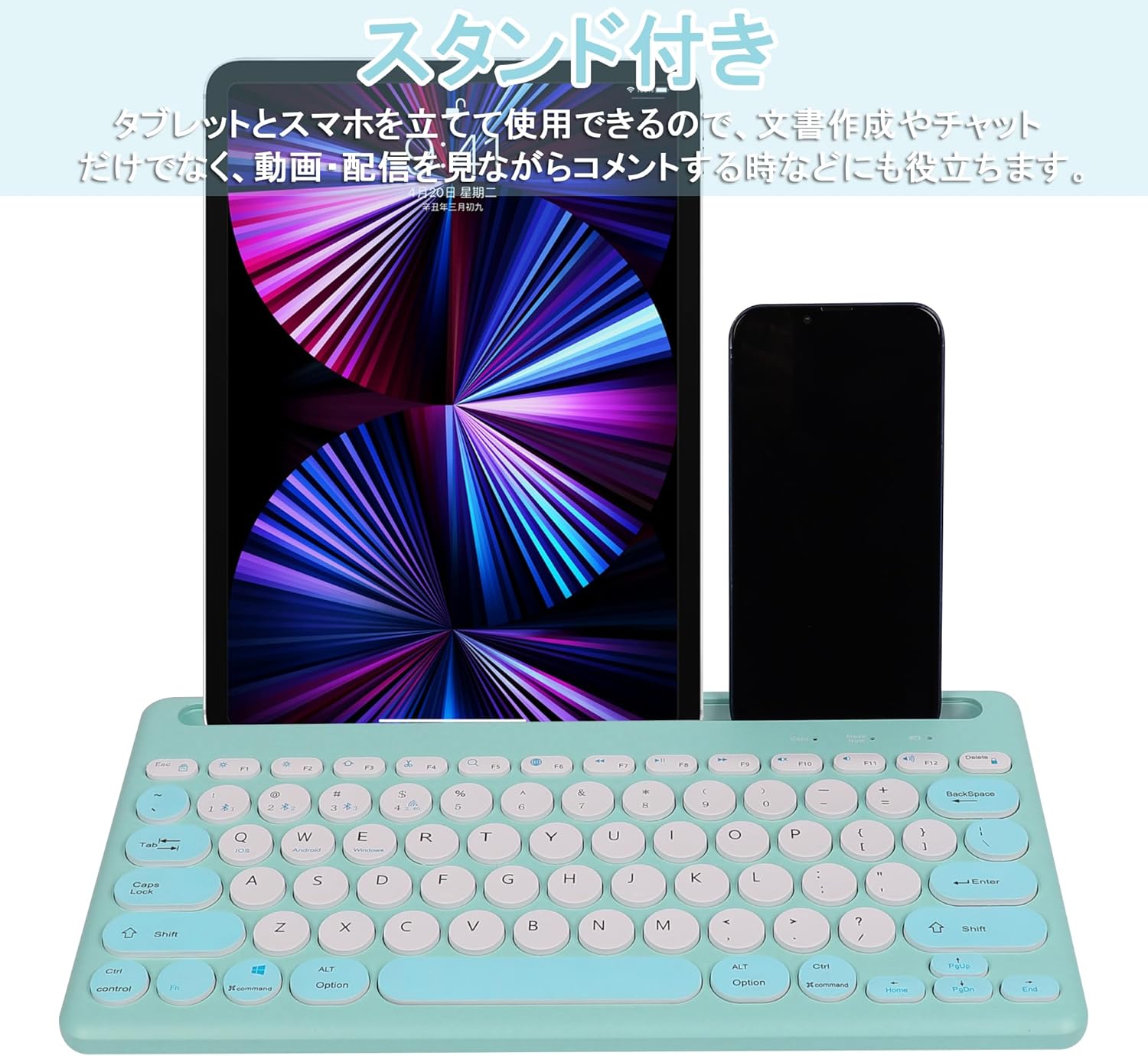
Image: The Yifeng Wireless Keyboard with a tablet and smartphone securely positioned in its integrated stand, demonstrating its utility for multi-device setups.
6. பராமரிப்பு
- Clean the keyboard regularly with a soft, dry cloth. For stubborn dirt, a slightly damp cloth can be used, ensuring no moisture enters the keyboard.
- கடுமையான இரசாயனங்கள் அல்லது சிராய்ப்பு கிளீனர்களைப் பயன்படுத்துவதைத் தவிர்க்கவும்.
- Store the keyboard in a cool, dry place when not in use.
- The keyboard features anti-slip pads on the back for stable use. Ensure these pads are clean and intact for optimal stability.

Image: The underside of the Yifeng Wireless Keyboard, highlighting the four anti-slip pads designed for stable placement on various surfaces.
7. சரிசெய்தல்
7.1. விசைப்பலகை இணைக்கப்படவில்லை
- சக்தியை சரிபார்க்கவும்: விசைப்பலகை இயக்கப்பட்டிருப்பதையும் போதுமான பேட்டரி சார்ஜ் இருப்பதையும் உறுதிசெய்யவும்.
- மறு ஜோடி: For Bluetooth, delete the keyboard from your device's Bluetooth list and attempt to pair again. For 2.4 GHz USB, try plugging the receiver into a different USB port.
- சேனல்களை மாற்றவும்: Ensure you have selected the correct channel (Bluetooth 1/2/3 or 2.4GHz) for your device.
- சாதன புளூடூத்: Verify that Bluetooth is enabled on your device and that it is discoverable.
7.2. விசைகள் பதிலளிக்கவில்லை
- பேட்டரி நிலை: Recharge the keyboard if the battery is low.
- கணினி முறை: Ensure the keyboard is set to the correct operating system mode (Windows, iOS, Android) using Fn + கே/வெ/இ.
- குறுக்கீடு: விசைப்பலகையை உங்கள் சாதனத்திற்கு அருகில் நகர்த்தி, குறுக்கீட்டை ஏற்படுத்தக்கூடிய பிற வயர்லெஸ் சாதனங்களிலிருந்து விலகி வைக்கவும்.
7.3. சார்ஜிங் சிக்கல்கள்
- கேபிள் சோதனை: Ensure the USB charging cable is securely connected to both the keyboard and the power source.
- சக்தி ஆதாரம்: வேறு USB போர்ட் அல்லது சுவர் அடாப்டரை முயற்சிக்கவும்.
- காட்டி ஒளி: If the charging indicator light does not turn on, the cable or power source may be faulty.
8. விவரக்குறிப்புகள்
| பிராண்ட் | Yifeng |
| மாதிரி எண் | AMWS0584A-L |
| இணைப்பு தொழில்நுட்பம் | Bluetooth, 2.4 GHz Wireless (USB) |
| இணக்கமான சாதனங்கள் | Tablets, Smartphones, PCs, Laptops (Windows, iOS, Android) |
| விசைப்பலகை தளவமைப்பு | QWERTY (US Layout) |
| முக்கிய வழிமுறை | கத்தரிக்கோல்-சுவிட்ச் |
| சிறப்பு அம்சம் | Rechargeable, Integrated Stand, Multi-Pairing (4 devices) |
| பேட்டரி வகை | 1 லித்தியம் அயன் பேட்டரி (சேர்க்கப்பட்டுள்ளது) |
| பேட்டரி ஆயுள் | தோராயமாக 30 நாட்கள் (கட்டணத்திற்கு) |
| பரிமாணங்கள் | 33.7 x 16.7 x 2.9 செ.மீ |
| எடை | 820 கிராம் |
| உள்ளிட்ட கூறுகள் | USB கேபிள் |
9. உத்தரவாதம் மற்றும் ஆதரவு
இந்த தயாரிப்பு ஒரு உடன் வருகிறது 1 வருட தர உத்தரவாதம் from the date of purchase. In case of initial defects or malfunctions occurring within the warranty period, we offer return or exchange services.
Should you encounter any issues or require assistance, please contact us directly through your purchase platform:
- உன்னிடம் செல் ஆர்டர் வரலாறு.
- Select the order for this product.
- கிளிக் செய்யவும் விற்பனையாளரை தொடர்புகொள்ளுங்கள்.
Our support team will be happy to assist you.