
1. அறிமுகம்
This manual provides essential information for the safe and efficient operation of your DUODUOGO S2 10-inch Android WiFi Tablet. Please read it thoroughly before using the device and keep it for future reference.
2. பாதுகாப்பு தகவல்
- டேப்லெட்டை தீவிர வெப்பநிலை, நேரடி சூரிய ஒளி அல்லது அதிக ஈரப்பதத்திற்கு வெளிப்படுத்த வேண்டாம்.
- டேப்லெட்டை கீழே போடுவதையோ அல்லது வலுவான தாக்கங்களுக்கு ஆளாக்குவதையோ தவிர்க்கவும்.
- சாதனத்துடன் வழங்கப்பட்ட அசல் சார்ஜர் மற்றும் பாகங்களை மட்டும் பயன்படுத்தவும்.
- டேப்லெட்டை நீங்களே பிரிக்கவோ அல்லது சரிசெய்யவோ முயற்சிக்காதீர்கள். உதவிக்கு வாடிக்கையாளர் ஆதரவைத் தொடர்பு கொள்ளவும்.
- மாத்திரையை தண்ணீர் மற்றும் பிற திரவங்களிலிருந்து விலக்கி வைக்கவும்.
- உள்ளூர் விதிமுறைகளின்படி பேட்டரி மற்றும் சாதனத்தை அப்புறப்படுத்துங்கள்.
3. தொகுப்பு உள்ளடக்கங்கள்
தொகுப்பில் அனைத்து பொருட்களும் உள்ளதா என சரிபார்க்கவும்:
- DUODUOGO S2 Tablet
- யூ.எஸ்.பி டைப்-சி கேபிள்
- பவர் அடாப்டர்
- பயனர் கையேடு (இந்த ஆவணம்)
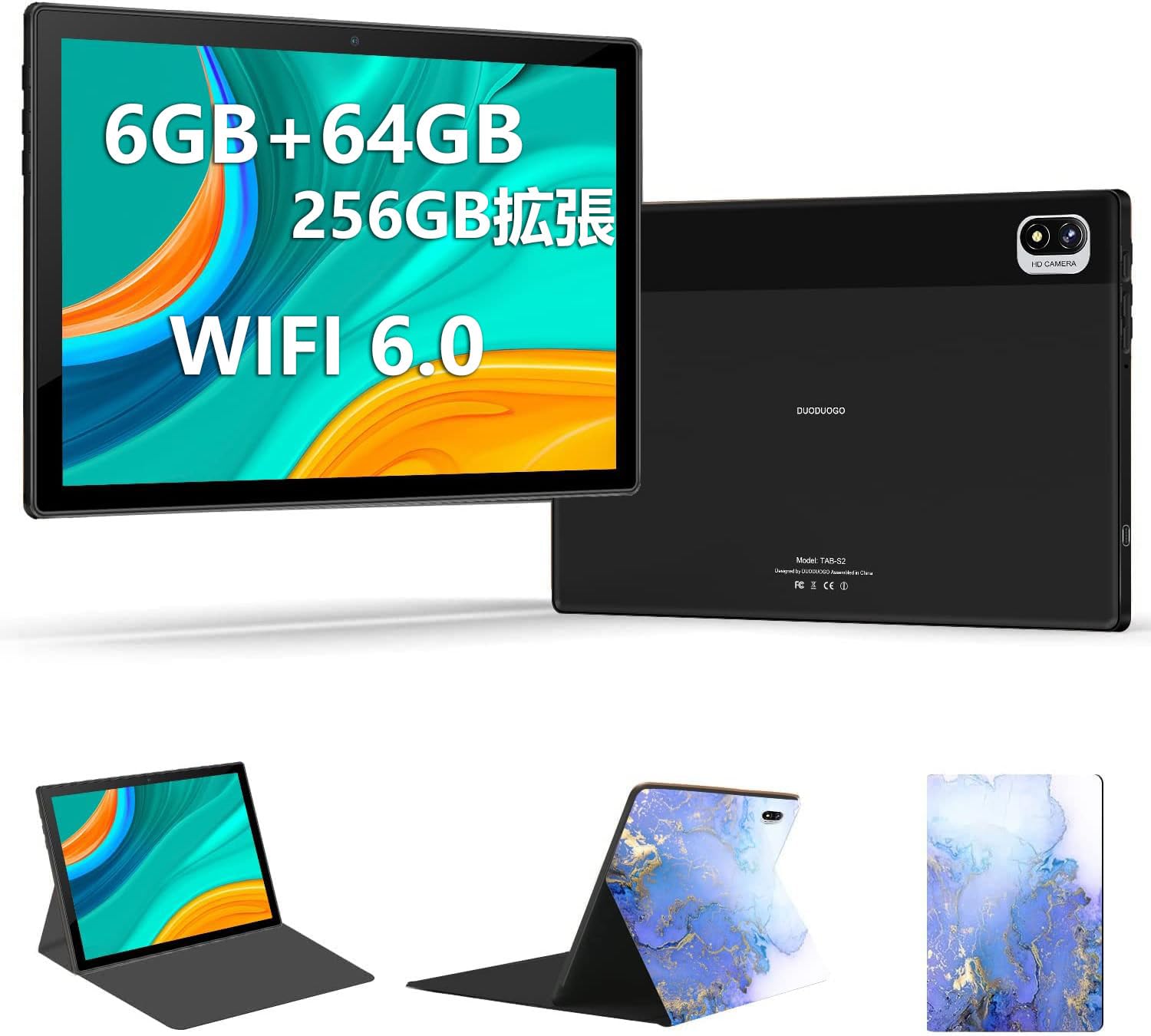
Image: DUODUOGO S2 Tablet and included accessories.
4 சாதன தளவமைப்பு
Familiarize yourself with the physical features and ports of your DUODUOGO S2 tablet.

Image: Diagram showing the tablet's side view with labels for the power button, volume buttons (Vol+, Vol-), Type-C port, headphone jack, and TF card slot. The front and rear cameras are also indicated.
- பவர் பட்டன்: பவரை ஆன்/ஆஃப் செய்ய அல்லது மறுதொடக்கம் செய்ய அழுத்திப் பிடிக்கவும். திரையை ஆன்/ஆஃப் செய்ய சுருக்கமாக அழுத்தவும்.
- Volume Buttons (Vol+, Vol-): ஆடியோ ஒலியளவை சரிசெய்யவும்.
- டைப்-சி போர்ட்: சார்ஜிங் மற்றும் டேட்டா பரிமாற்றத்திற்கு.
- தலையணி ஜாக்: 3.5 மிமீ ஹெட்ஃபோன்களை இணைக்கவும்.
- TF அட்டை ஸ்லாட்: Insert a microSD card for expandable storage (up to 256GB).
- முன் கேமரா: வீடியோ அழைப்புகள் மற்றும் செல்ஃபிக்களுக்கான 5MP கேமரா.
- பின்புற கேமரா: 8MP camera for photos and videos.
- இரட்டை பேச்சாளர்கள்: Located on the sides for enhanced audio output.
5 அமைவு
5.1 ஆரம்ப கட்டணம்
Before first use, fully charge the tablet using the provided USB Type-C cable and power adapter. The battery indicator on the screen will show charging progress.
5.2 பவர் ஆன்/ஆஃப்
- பவர் ஆன் செய்ய: Press and hold the Power Button until the DUODUOGO logo appears.
- பவர் ஆஃப் செய்ய: Press and hold the Power Button, then select "Power Off" from the options on the screen.
- மறுதொடக்கம் செய்ய: Press and hold the Power Button, then select "Restart" from the options.
5.3 தொடக்க அமைவு வழிகாட்டி
முதல் முறையாக பவர்-ஆன் செய்யும்போது, டேப்லெட் ஆரம்ப அமைவு செயல்முறையின் மூலம் உங்களை வழிநடத்தும். இதில் பின்வருவன அடங்கும்:
- மொழி தேர்வு
- வைஃபை நெட்வொர்க் இணைப்பு
- Google account setup (optional, but recommended for app downloads)
- தேதி மற்றும் நேர அமைப்புகள்
5.4 Wi-Fi உடன் இணைக்கிறது
வைஃபை நெட்வொர்க்குடன் இணைக்க:
- செல்க அமைப்புகள் > நெட்வொர்க் & இணையம் > Wi-Fi.
- வைஃபையை இயக்கவும்.
- பட்டியலிலிருந்து உங்களுக்கு விருப்பமான நெட்வொர்க்கைத் தேர்ந்தெடுக்கவும்.
- கேட்கப்பட்டால் கடவுச்சொல்லை உள்ளிட்டு தட்டவும் இணைக்கவும்.

Image: The tablet screen showing a video playback, highlighting its dual-band 2.4G/5G WiFi capability for stable internet connection.
6. இயக்க வழிமுறைகள்
6.1 ஆண்ட்ராய்டு இடைமுகத்தை வழிசெலுத்தல்
The DUODUOGO S2 runs on Android 11. Common gestures include:
- தட்டவும்: ஒரு பொருளைத் தேர்ந்தெடுக்கவும் அல்லது ஒரு பயன்பாட்டைத் திறக்கவும்.
- ஸ்வைப்: திரைகள் அல்லது பட்டியல்களை உருட்டவும்.
- கிள்ளுதல்: படங்களை பெரிதாக்கவும் அல்லது குறைக்கவும் மற்றும் web பக்கங்கள்.
- நீண்ட பத்திரிகை: சூழல் மெனுக்களை அணுகவும் அல்லது ஐகான்களை நகர்த்தவும்.

Image: The tablet displaying the Android 11 home screen with various application icons, demonstrating the user interface.
6.2 பயன்பாடுகளை நிறுவுதல்
You can download and install applications from the Google Play Store. Ensure you are logged in with a Google account.
- திற Play Store பயன்பாடு.
- தேடுங்கள் விரும்பிய செயலி.
- தட்டவும் நிறுவவும்.
6.3 கேமரா செயல்பாடு
The tablet features a 5MP front camera and an 8MP rear camera.
- திற கேமரா பயன்பாடு.
- புகைப்படம் எடுக்க ஷட்டர் பொத்தானைத் தட்டவும்.
- கேமரா சுவிட்ச் ஐகானைப் பயன்படுத்தி முன் மற்றும் பின் கேமராக்களுக்கு இடையில் மாறவும்.

Image: The tablet displaying a high-resolution image, illustrating the 10.1-inch IPS HD screen and indicating the 5MP front and 8MP rear camera capabilities.
6.4 சேமிப்பு மேலாண்மை
The tablet comes with 64GB of internal storage. You can expand this by inserting a TF (microSD) card up to 256GB.
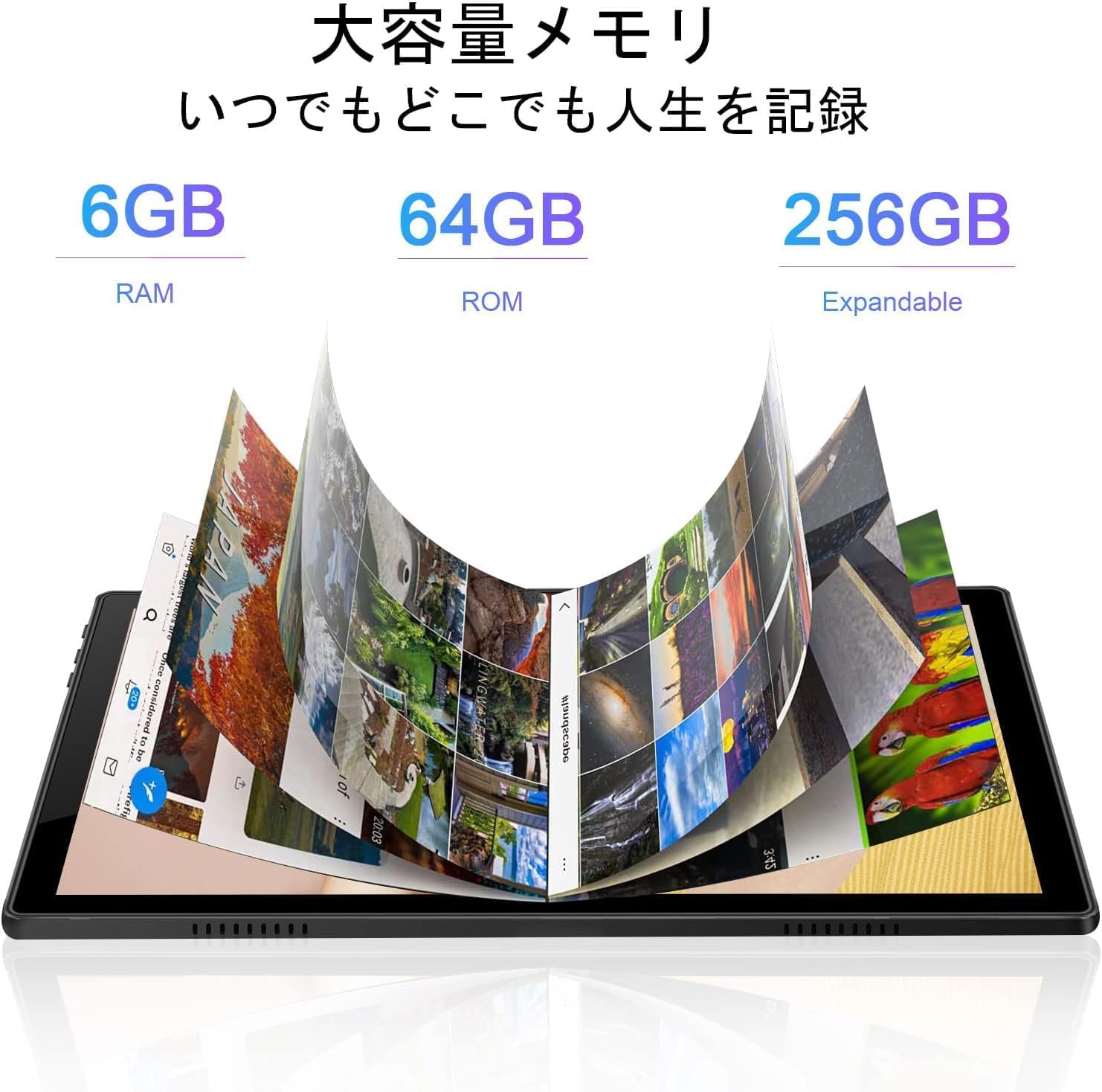
Image: A visual representation of the tablet's memory, showing 6GB RAM, 64GB internal storage (ROM), and the option to expand storage up to 256GB with a TF card.
7. பராமரிப்பு
- சுத்தம்: Use a soft, lint-free cloth to clean the screen and body of the tablet. Do not use abrasive cleaners or solvents.
- மென்பொருள் புதுப்பிப்புகள்: உகந்த செயல்திறன் மற்றும் பாதுகாப்பை உறுதிசெய்ய, கணினி புதுப்பிப்புகளை தொடர்ந்து சரிபார்த்து நிறுவவும். செல்க அமைப்புகள் > அமைப்பு > கணினி மேம்படுத்தல்.
- பேட்டரி பராமரிப்பு: To prolong battery life, avoid fully discharging the battery frequently. Charge the tablet when the battery level is low.
- சேமிப்பக உகப்பாக்கம்: தேவையற்றவற்றை அவ்வப்போது அழிக்கவும் files and uninstall unused apps to free up storage space and improve performance.
8. சரிசெய்தல்
| பிரச்சனை | சாத்தியமான தீர்வு |
|---|---|
| டேப்லெட் இயக்கப்படவில்லை. | Ensure the battery is charged. Connect the charger and wait a few minutes before attempting to power on again. If it still doesn't turn on, perform a forced restart by holding the power button for 10-15 seconds. |
| திரை செயல்படவில்லை. | டேப்லெட்டை மறுதொடக்கம் செய்யுங்கள். சிக்கல் தொடர்ந்தால், திரை சுத்தமாகவும் குப்பைகள் இல்லாமல் இருப்பதையும் உறுதிசெய்யவும். |
| Wi-Fi உடன் இணைக்க முடியவில்லை. | Check if Wi-Fi is enabled in settings. Ensure the Wi-Fi password is correct. Restart your router and the tablet. Try connecting to a different Wi-Fi network to isolate the issue. |
| பயன்பாடுகள் செயலிழக்கின்றன அல்லது மெதுவாக இயங்குகின்றன. | Close background applications. Clear app cache (அமைப்புகள் > பயன்பாடுகள் > பயன்பாட்டைத் தேர்ந்தெடுக்கவும் > சேமிப்பகம் & தற்காலிக சேமிப்பு > தேக்ககத்தை அழிக்கவும்). போதுமான சேமிப்பிடம் இருப்பதை உறுதிசெய்து கொள்ளுங்கள். டேப்லெட்டை மீண்டும் தொடங்கவும். |
| பேட்டரி விரைவாக தீர்ந்துவிடும். | Reduce screen brightness. Close unused apps. Turn off Wi-Fi or Bluetooth when not in use. Check battery usage in அமைப்புகள் > பேட்டரி அதிகார வெறி கொண்ட பயன்பாடுகளை அடையாளம் காண. |
9. விவரக்குறிப்புகள்
| அம்சம் | விவரம் |
|---|---|
| பிராண்ட் | DUODUOGO |
| மாதிரி | S2 |
| இயக்க முறைமை | ஆண்ட்ராய்டு 11 |
| செயலி | 8-கோர், 2.0 GHz |
| ரேம் | 6 ஜிபி |
| உள் சேமிப்பு | 64 ஜிபி |
| விரிவாக்கக்கூடிய சேமிப்பு | Up to 256 GB via TF (microSD) card |
| திரை அளவு | 10.1 அங்குலம் |
| காட்சி வகை | ஐபிஎஸ் எச்டி |
| தீர்மானம் | 1280 x 800 பிக்சல்கள் |
| பின்புற கேமரா | 8 எம்.பி |
| முன் கேமரா | 5 எம்.பி |
| இணைப்பு | Wi-Fi (2.4G/5G, 802.11a/b/g/n), Bluetooth 4.3 |
| பேட்டரி திறன் | 6000 mAh லித்தியம் பாலிமர் |
| துறைமுகங்கள் | USB Type-C, 3.5mm Headphone Jack, TF Card Slot |

படம்: ஒரு ஓவர்view of the DUODUOGO S2 tablet, visually summarizing its main features and specifications.
10. உத்தரவாதம் மற்றும் ஆதரவு
DUODUOGO is committed to providing quality products and user experience. If you encounter any issues or have questions regarding your DUODUOGO S2 tablet, please contact our customer support.
- வாடிக்கையாளர் ஆதரவு: Refer to the contact information provided with your purchase or on the official DUODUOGO webதளம்.
- உத்தரவாதம்: This product comes with a standard manufacturer's warranty. Please retain your proof of purchase for warranty claims.
Our support team aims to respond within 24 hours to assist you with any concerns.