
1. அறிமுகம்
This manual provides detailed instructions for the setup, operation, and maintenance of your edaiser Swivel Keyboard Case. Please read this manual thoroughly before using the product to ensure proper function and longevity. This keyboard case is designed to enhance your iPad mini experience by providing a physical keyboard and trackpad, along with robust protection and versatile viewing கோணங்கள்.
2. தொகுப்பு உள்ளடக்கங்கள்
- edaiser Swivel Keyboard Case
- USB-C சார்ஜிங் கேபிள்
- பயனர் கையேடு
3. இணக்கத்தன்மை
இந்த விசைப்பலகை பெட்டி பின்வரும் ஐபேட் மாடல்களுக்காக பிரத்யேகமாக வடிவமைக்கப்பட்டுள்ளது:
- 2021 iPad mini 6th Generation (8.3-inch): Model Numbers A2567, A2568, A2569
- 2024 iPad mini 7th Generation (8.3-inch): Model Numbers A2993, A2995, A2996
To verify your iPad model number, check the back of your iPad or go to Settings > General > About > Model Number.

Image: Compatible iPad models and their model numbers.
4. தயாரிப்பு அம்சங்கள்
4.1 சுழல் மற்றும் சுழற்சி
The keyboard case features a 360-degree rotatable hinge and 180-degree fold, allowing for multiple viewing and typing modes:
- மடிக்கணினி முறை: Standard laptop-like setup for typing.
- நிலைப்பாடு முறை: Ideal for watching videos or presentations.
- கூடார முறை: Suitable for touch-based interactions or drawing.
- டேப்லெட் பயன்முறை: Fold the keyboard back for a traditional tablet experience.

Image: iPad mini in laptop mode, demonstrating swivel and rotation.

Image: Different usage modes of the keyboard case.
4.2 RGB Backlit Keyboard and Trackpad
The integrated keyboard features RGB backlighting for comfortable typing in low-light conditions. The precision trackpad supports multi-touch gestures for enhanced navigation within iPadOS.
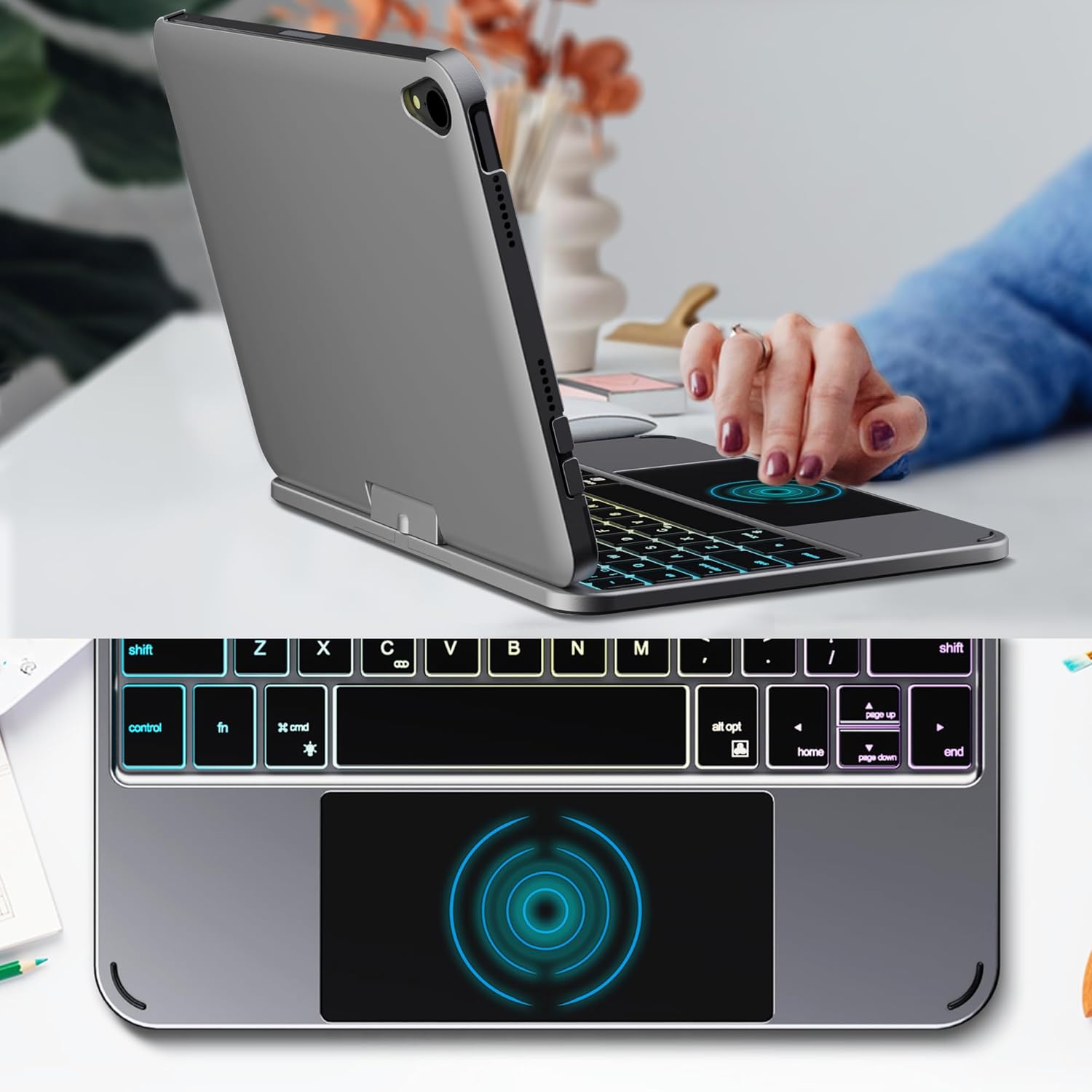
Image: Backlit keyboard and trackpad in use.

Image: Keycap and touchpad dimensions, and available colors.
4.3 Protection and Design
The case provides comprehensive protection for your iPad mini, safeguarding it from scratches and minor impacts. It features precise cutouts for the camera, charging port, and speakers.

Image: Case features and drop protection illustration.
5. அமைவு வழிமுறைகள்
5.1 Installing Your iPad mini
- Gently align your iPad mini with the case.
- Press the iPad firmly into the case until it is securely seated. Ensure all edges are properly covered and ports/buttons are accessible.
Video: Demonstrates the installation of the iPad mini into the keyboard case, followed by usage in laptop mode, trackpad interaction, and backlight activation.
5.2 ப்ளூடூத் இணைத்தல்
- விசைப்பலகையை இயக்கவும்: Locate the power button on the keyboard and press it to turn on the device.
- Activate Bluetooth on the keyboard: Press the "Fn" key and the "C" key simultaneously to activate Bluetooth pairing mode. The Bluetooth indicator light will flash.
- Open iPad Settings: உங்கள் iPad-ல், இங்கு செல்லவும் அமைப்புகள் > புளூடூத்.
- இணைக்க: In the Bluetooth device list, find "iPad keyboard" and tap to connect. A pairing request may appear; confirm it.
- The Bluetooth indicator light on the keyboard will stop flashing once successfully paired.
Video: Demonstrates the rotation of the iPad within the case, various usage modes, and the Bluetooth pairing process for the keyboard.
6. இயக்க வழிமுறைகள்
6.1 விசைப்பலகை செயல்பாடுகள்
The keyboard includes standard keys and function keys specific to iPadOS:
- Fn + C: Activates Bluetooth pairing mode.
- Fn + Light Bulb icon: Toggles keyboard backlight on/off and cycles through brightness levels.
- Fn + RGB icon: Changes backlight color (if multiple colors are supported).
- வீட்டு சாவி: Returns to the iPad home screen.
- தேடல் விசை: Activates iPad search.
- தொகுதி விசைகள்: Adjusts iPad volume.
- மீடியா கட்டுப்பாட்டு விசைகள்: Play/Pause, Previous Track, Next Track.
6.2 Trackpad Gestures
The trackpad supports various multi-touch gestures for efficient navigation:
- ஒற்றை விரலால் தட்டவும்: Left-click.
- இரண்டு விரல் தட்டு: Right-click (context menu).
- இரண்டு விரல் சுருள்: Scroll up/down or left/right.
- மூன்று விரல் மேல்நோக்கி ஸ்வைப் செய்யவும்: Go to the home screen.
- Three-finger swipe up and hold: Open the App Switcher.
- Three-finger swipe left/right: Switch between open apps.
- பெரிதாக்க பிஞ்ச்: Zoom in/out on content.
7. சார்ஜிங் மற்றும் பேட்டரி
The keyboard case is powered by a built-in rechargeable battery. Use the provided USB-C cable to charge the keyboard.
- பேட்டரி திறன்: 500mAh
- காத்திருப்பு நேரம்: 90 நாட்கள் வரை
- வேலை நேரம்: Up to 180 hours (without backlight)
- சார்ஜிங் காட்டி: The LED indicator will show charging status.
Connect the USB-C cable to the charging port on the keyboard and the other end to a USB power adapter (not included).

Image: Battery specifications and charging port location.
8. பராமரிப்பு
- Keep the keyboard case away from liquids and extreme temperatures.
- Clean the case and keyboard with a soft, damp துணி. கடுமையான இரசாயனங்கள் தவிர்க்கவும்.
- தயாரிப்பை பிரிக்க முயற்சிக்காதீர்கள்.
9. சரிசெய்தல்
9.1 விசைப்பலகை புளூடூத் வழியாக இணைக்கப்படவில்லை.
- விசைப்பலகை இயக்கப்பட்டு முழுமையாக சார்ஜ் செய்யப்பட்டுள்ளதா என்பதை உறுதிப்படுத்தவும்.
- உங்கள் iPad இல் Bluetooth இயக்கப்பட்டிருப்பதை உறுதிசெய்யவும்.
- Press "Fn" + "C" on the keyboard to enter pairing mode.
- உங்கள் iPad இன் புளூடூத் அமைப்புகளில் சாதனத்தை மறந்துவிட்டு மீண்டும் இணைக்க முயற்சிக்கவும்.
- உங்கள் ஐபாட் மற்றும் விசைப்பலகை இரண்டையும் மறுதொடக்கம் செய்யுங்கள்.
9.2 விசைகள் பதிலளிக்கவில்லை
- Check the battery level of the keyboard.
- விசைப்பலகை புளூடூத் வழியாக சரியாக இணைக்கப்பட்டுள்ளதா என்பதை உறுதிப்படுத்தவும்.
- ஏதேனும் குப்பைகளை அகற்ற சாவிகளைச் சுற்றி சுத்தம் செய்யவும்.
9.3 டிராக்பேட் வேலை செய்யவில்லை
- விசைப்பலகை புளூடூத் வழியாக இணைக்கப்பட்டுள்ளதா என்பதை உறுதிப்படுத்தவும்.
- Check iPad settings: அமைப்புகள் > பொது > Trackpad & Mouse to ensure it's enabled and sensitivity is adjusted.
- உங்கள் ஐபாட் மற்றும் விசைப்பலகை இரண்டையும் மறுதொடக்கம் செய்யுங்கள்.
10. விவரக்குறிப்புகள்
| அம்சம் | விவரக்குறிப்பு |
|---|---|
| பிராண்ட் | edaiser |
| மாதிரி எண் | edaiser Swivel 83ATS |
| இணக்கமான மாதிரிகள் | Apple iPad mini 6th Gen (8.3-inch), iPad mini 7th Gen (A17 Pro) |
| இணைப்பு | புளூடூத் |
| விசைப்பலகை வகை | Compact with RGB Backlight |
| டிராக்பேட் | Integrated, Multi-touch |
| சக்தி ஆதாரம் | பேட்டரி மூலம் இயங்கும் |
| பேட்டரி திறன் | 500mAh |
| காத்திருப்பு நேரம் | 90 நாட்கள் வரை |
| வேலை நேரம் | 180 மணி நேரம் வரை (பின்னொளி இல்லாமல்) |
| சார்ஜிங் போர்ட் | USB-C |
| விசைகளின் எண்ணிக்கை | 64 |
| Keycap Size | 11.5 மிமீ x 12.9 மிமீ |
| Touchpad Size | 98.4 மிமீ x 49.7 மிமீ |
11. உத்தரவாதம் மற்றும் ஆதரவு
For warranty information and customer support, please refer to the official edaiser webதளத்தில் அல்லது அவர்களின் வாடிக்கையாளர் சேவையை நேரடியாகத் தொடர்பு கொள்ளவும். உத்தரவாதக் கோரிக்கைகளுக்கு உங்கள் கொள்முதல் ரசீதை வைத்திருங்கள்.