
A4TECH FG20
A4TECH FG20 2.4G Wireless Mouse User Manual
Model: FG20 | Brand: A4TECH
அறிமுகம்
This manual provides comprehensive instructions for the setup, operation, maintenance, and troubleshooting of your A4TECH FG20 2.4G Wireless Mouse. Please read this manual carefully before using the product to ensure optimal performance and longevity.
தொகுப்பு உள்ளடக்கங்கள்
- A4TECH FG20 2.4G Wireless Mouse
- USB நானோ ரிசீவர்
- AA பேட்டரி (முன்கூட்டியே நிறுவப்பட்டிருக்கலாம் அல்லது தனித்தனியாக சேர்க்கப்படலாம்)
- பயனர் கையேடு (இந்த ஆவணம்)
அமைவு வழிகாட்டி
Follow these steps to set up your A4TECH FG20 Wireless Mouse:
- பேட்டரியை நிறுவவும்: Locate the battery compartment on the underside of the mouse. Open the cover and insert the AA battery, ensuring the polarity (+/-) matches the diagram inside the compartment. Close the battery cover securely.
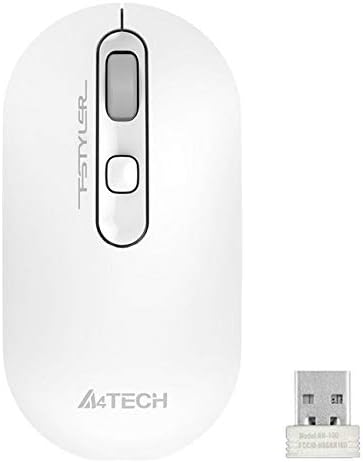
Image: A4TECH FG20 Wireless Mouse shown alongside its USB Nano Receiver. This illustrates the two main components required for operation.
- USB நானோ ரிசீவரை இணைக்கவும்: Remove the USB Nano Receiver from its storage slot, usually located within the battery compartment or near it. Plug the receiver into an available USB port on your computer.

Image: A schematic diagram depicting the wireless connection between the mouse and a computer via the USB receiver. This visual aid helps understand the connection process.
- சுட்டியை இயக்கு: If your mouse has an On/Off switch, slide it to the "On" position. The mouse should automatically connect to the receiver.
- இயக்கி நிறுவல்: Your computer's operating system (Windows, Linux) should automatically detect and install the necessary drivers. No manual driver installation is typically required.
இயக்க வழிமுறைகள்
The A4TECH FG20 Wireless Mouse is designed for intuitive use. Here are its primary functions:
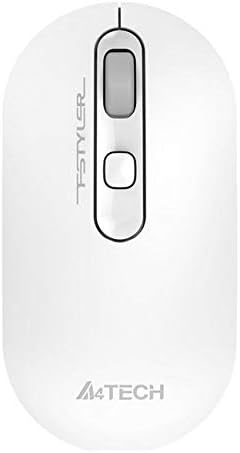
படம்: மேலிருந்து கீழ் view of the A4TECH FG20 Wireless Mouse, highlighting its ergonomic shape and button layout.
- இடது கிளிக்: பொருட்களைத் தேர்ந்தெடுக்கவும், திறக்கவும் பயன்படுகிறது. files, மற்றும் செயல்பாடுகளை செயல்படுத்துதல்.
- வலது கிளிக்: Opens context menus, providing additional options for selected items.
- சுருள் சக்கரம்: ஆவணங்கள் வழியாக மேலே அல்லது கீழே உருட்டவும் மற்றும் web pages. The scroll wheel can also function as a middle click button.
- DPI சரிசெய்தல் பொத்தான்: (If applicable, typically located near the scroll wheel) This button allows you to cycle through different cursor speeds (DPI settings) to suit your preference and task.
- பணிச்சூழலியல் வடிவமைப்பு: The mouse features an ergonomic design for comfortable use during extended periods.
பராமரிப்பு
Proper maintenance ensures the longevity and performance of your mouse:
- சுத்தம்: மவுஸின் மேற்பரப்பை சுத்தம் செய்ய மென்மையான, உலர்ந்த துணியைப் பயன்படுத்தவும். பிடிவாதமான அழுக்குகளுக்கு, சிறிது dampதுணியை தண்ணீர் அல்லது லேசான துப்புரவு கரைசலில் நனைக்கவும். கடுமையான இரசாயனங்கள் அல்லது சிராய்ப்பு பொருட்களைத் தவிர்க்கவும்.
- சென்சார் சுத்தம்: Occasionally, clean the optical sensor on the underside of the mouse with a cotton swab to ensure accurate tracking.
- பேட்டரி மாற்று: When the mouse performance degrades or it stops responding, replace the AA battery with a fresh one.
- சேமிப்பு: When not in use for extended periods, turn off the mouse to conserve battery life. Store the USB Nano Receiver in its designated slot to prevent loss.
சரிசெய்தல்
If you encounter issues with your A4TECH FG20 Wireless Mouse, refer to the following common solutions:
- சுட்டி பதிலளிக்கவில்லை:
- சுட்டி இயக்கப்பட்டிருப்பதை உறுதிசெய்யவும்.
- பேட்டரி சரியாக நிறுவப்பட்டுள்ளதா மற்றும் போதுமான சார்ஜ் உள்ளதா என சரிபார்க்கவும். தேவைப்பட்டால் மாற்றவும்.
- Verify the USB Nano Receiver is securely plugged into a working USB port on your computer. Try a different USB port.
- உங்கள் கணினியை மறுதொடக்கம் செய்யுங்கள்.
- Lagging or Erratic Cursor Movement:
- சுட்டியின் அடிப்பகுதியில் உள்ள ஆப்டிகல் சென்சாரை சுத்தம் செய்யவும்.
- நீங்கள் சுட்டியை பொருத்தமான மேற்பரப்பில் (பிரதிபலிக்காத, ஒளிபுகா) பயன்படுத்துவதை உறுதிசெய்து கொள்ளுங்கள்.
- Move the mouse closer to the USB Nano Receiver to reduce interference.
- குறுக்கீட்டை ஏற்படுத்தக்கூடிய பிற வயர்லெஸ் சாதனங்களைச் சரிபார்க்கவும்.
- இணைப்புச் சிக்கல்கள்:
- If the mouse loses connection frequently, try re-pairing it (if a pairing button is available, otherwise, simply unplug and replug the receiver).
- Ensure no large metal objects are between the mouse and the receiver.
விவரக்குறிப்புகள்

படம்: சைடு ப்ரோfile view of the A4TECH FG20 Wireless Mouse, illustrating its slim and ergonomic contour.
| அம்சம் | விவரம் |
|---|---|
| மாதிரி | FG20 |
| இணைப்பு தொழில்நுட்பம் | 2.4G Wireless (Infrared) |
| இயக்கம் கண்டறிதல் | லேசர் |
| பொத்தான் அளவு | 3 |
| கை நோக்குநிலை | இருதரப்பு |
| சிறப்பு அம்சங்கள் | பணிச்சூழலியல் வடிவமைப்பு |
| நிறம் | வெள்ளை |
| இணக்கமான சாதனங்கள் | தனிப்பட்ட கணினி |
| இயக்க முறைமை இணக்கத்தன்மை | லினக்ஸ், விண்டோஸ் 7, விண்டோஸ் எக்ஸ்பி |
| உற்பத்தியாளர் | A4TECH |
| பிறப்பிடமான நாடு | சீனா |
உத்தரவாதம் மற்றும் ஆதரவு
The A4TECH FG20 Wireless Mouse is manufactured to high-quality standards. For information regarding the manufacturer's warranty, please refer to the documentation provided with your purchase or visit the official A4TECH webதளம்.
Extended warranty options may be available from third-party providers, such as the 1-Year or 2-Year Extended Warranty by Salama Care. These are separate from the manufacturer's warranty.
For technical support or further assistance, please contact the retailer where you purchased the product or visit the official A4TECH support channels.
Ask a question about this manual
Ask about setup, troubleshooting, compatibility, parts, safety, or missing instructions. Manuals+ will review the question and use this page’s manual context to help answer it.