
அறிமுகம்
Thank you for choosing the Hecate G3m Pro Wireless Bluetooth Gaming Mouse. This manual provides detailed instructions for setting up, operating, and maintaining your new gaming mouse. Designed for performance and versatility, the G3m Pro offers three-mode connectivity, a high-precision sensor, and a lightweight, silent design to enhance your gaming experience.
தயாரிப்பு முடிந்துவிட்டதுview
The Hecate G3m Pro features a robust design with multiple buttons and connectivity options. Familiarize yourself with the mouse components before use.
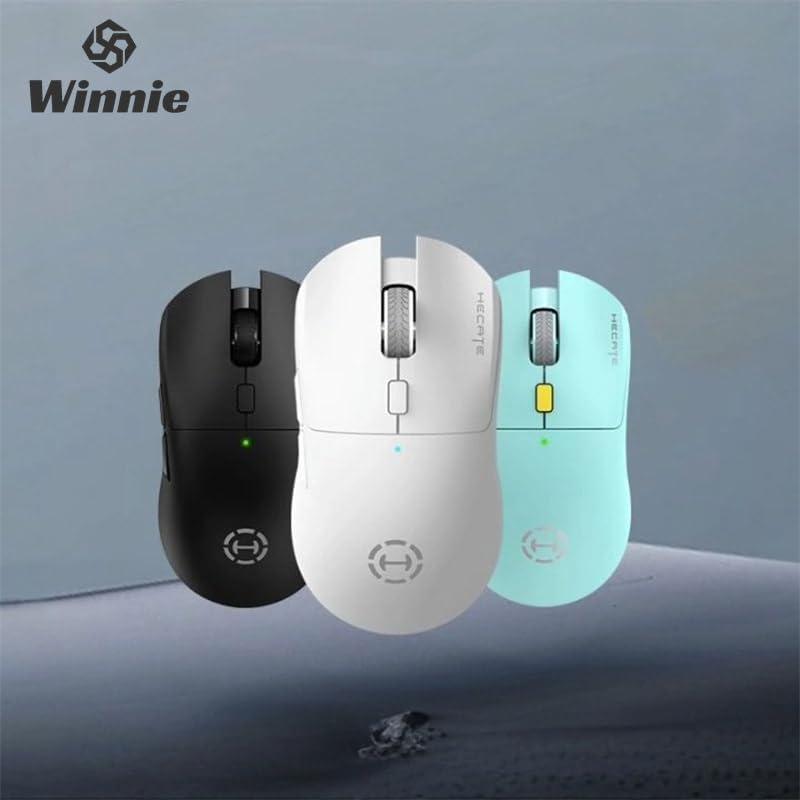
Figure 1: Hecate G3m Pro Wireless Gaming Mouse (Black)
- இடது/வலது கிளிக் பொத்தான்கள்: நிலையான சுட்டி செயல்பாடுகள்.
- சுருள் சக்கரம்: For scrolling and middle-click functionality.
- DPI சுழற்சி பொத்தான்: Adjusts the mouse sensitivity (DPI) on the fly.
- பக்க பொத்தான்கள்: Programmable for various in-game actions or navigation.
- Connectivity Mode Switch: Located on the underside, allows switching between 2.4GHz, Bluetooth, and Wired modes.
- யூ.எஸ்.பி-சி போர்ட்: கம்பி இணைப்பு மற்றும் சார்ஜிங்கிற்கு.
அமைவு
Follow these steps to set up your Hecate G3m Pro mouse.
1. மவுஸை சார்ஜ் செய்தல்
Before first use, ensure the mouse is fully charged. Connect the provided USB-C cable to the mouse's USB-C port and the other end to a USB power source (e.g., computer, wall adapter). The LED indicator will show charging status.
2. 2.4GHz வயர்லெஸ் (USB டாங்கிள்) வழியாக இணைத்தல்
- Locate the USB 2.4GHz receiver (dongle) usually stored in a compartment on the underside of the mouse.
- உங்கள் கணினியில் கிடைக்கும் USB போர்ட்டில் USB ரிசீவரைச் செருகவும்.
- Switch the connectivity mode selector on the mouse to the '2.4G' position.
- The mouse should automatically connect to your computer. The LED indicator may flash briefly and then become solid to indicate a successful connection.
3. புளூடூத் வழியாக இணைக்கிறது
- Switch the connectivity mode selector on the mouse to the 'BT' (Bluetooth) position.
- உங்கள் கணினி அல்லது சாதனத்தில், புளூடூத் அமைப்புகளுக்குச் சென்று புளூடூத்தை இயக்கவும்.
- The mouse LED indicator will start flashing, indicating it is in pairing mode.
- Select 'Hecate G3m Pro' from the list of available Bluetooth devices on your computer/device to pair.
- இணைக்கப்பட்டவுடன், LED காட்டி திடமாக மாறும்.
4. Connecting via Wired Mode
- Connect the provided USB-C cable to the mouse's USB-C port.
- USB-C கேபிளின் மறுமுனையை உங்கள் கணினியில் கிடைக்கும் USB போர்ட்டுடன் இணைக்கவும்.
- Switch the connectivity mode selector on the mouse to the 'Wired' position.
- The mouse will function as a wired mouse and will also charge its internal battery.
இயக்க வழிமுறைகள்
Understand the functions of your mouse for optimal use.
DPI சரிசெய்தல்
Press the DPI cycle button (usually located behind the scroll wheel) to cycle through different DPI settings. Each press will change the sensitivity, often indicated by a change in the LED color or a specific number of flashes. The mouse supports up to 26000 DPI.
பயன்முறை மாறுதல்
Use the switch on the underside of the mouse to select your preferred connection mode: 2.4GHz, Bluetooth, or Wired. Switch modes according to your device and usage scenario.
தனிப்பயனாக்கும் பொத்தான்கள்
For advanced customization of buttons and macros, it is recommended to download the official Hecate software (if available) from the manufacturer's website. This software allows you to reassign button functions, create profiles, and fine-tune performance settings.
பராமரிப்பு
Proper maintenance ensures the longevity and performance of your mouse.
சுத்தம் செய்தல்
- சுட்டியின் மேற்பரப்பைத் துடைக்க மென்மையான, உலர்ந்த துணியைப் பயன்படுத்தவும்.
- பிடிவாதமான அழுக்குக்கு, சிறிது dampதுணியை தண்ணீர் அல்லது லேசான துப்புரவு கரைசலில் நனைக்கவும். கடுமையான இரசாயனங்களைத் தவிர்க்கவும்.
- சுட்டியின் உள் கூறுகளுக்குள் திரவங்கள் நுழைய அனுமதிக்காதீர்கள்.
- துல்லியமான கண்காணிப்பை உறுதிசெய்ய, ஆப்டிகல் சென்சாரின் அடிப்பகுதியை அவ்வப்போது பருத்தி துணியால் சுத்தம் செய்யவும்.
பேட்டரி பராமரிப்பு
- பேட்டரியை அடிக்கடி முழுமையாக சார்ஜ் செய்வதைத் தவிர்க்கவும்.
- Charge the mouse when the battery indicator suggests low power.
- If storing the mouse for an extended period, charge it to about 50% and store it in a cool, dry place.
சேமிப்பு
Store the mouse in a clean, dry environment away from extreme temperatures and direct sunlight. Keep it away from dust and moisture.
சரிசெய்தல்
If you encounter issues with your Hecate G3m Pro mouse, refer to the following common solutions.
சுட்டி பதிலளிக்கவில்லை
- பேட்டரியை சரிபார்க்கவும்: மவுஸ் சார்ஜ் செய்யப்பட்டுள்ளதா என்பதை உறுதிப்படுத்திக் கொள்ளுங்கள். சார்ஜ் செய்ய USB-C கேபிள் வழியாக அதை இணைக்கவும்.
- இணைப்பு பயன்முறையைச் சரிபார்க்கவும்: Verify that the mode switch on the underside of the mouse is set to the correct mode (2.4G, BT, or Wired) for your connection type.
- 2.4GHz இணைப்பு: USB ரிசீவர் செயல்படும் USB போர்ட்டில் பாதுகாப்பாக செருகப்பட்டுள்ளதா என்பதை உறுதிப்படுத்திக் கொள்ளுங்கள். வேறு USB போர்ட்டை முயற்சிக்கவும்.
- புளூடூத் இணைப்பு: Re-pair the mouse with your device. Go to Bluetooth settings, remove the mouse, and then add it again. Ensure your device's Bluetooth is enabled.
- கம்பி இணைப்பு: Ensure the USB-C cable is securely connected to both the mouse and the computer. Try a different USB port or cable.
Inconsistent Tracking or Cursor Movement
- சுத்தமான சென்சார்: சுட்டியின் அடிப்பகுதியில் உள்ள ஆப்டிகல் சென்சாரை சுத்தம் செய்யவும்.
- மவுஸ் பேட்: Use the mouse on a clean, uniform surface or a high-quality mouse pad. Avoid reflective or glass surfaces.
- டிபிஐ அமைப்பு: Adjust the DPI setting using the DPI cycle button to find a comfortable sensitivity.
பொத்தான்கள் வேலை செய்யவில்லை
- மென்பொருள் குறுக்கீடு: நீங்கள் தனிப்பயன் மென்பொருளைப் பயன்படுத்தினால், பொத்தான் ஒதுக்கீடுகளை இயல்புநிலைக்கு மீட்டமைக்க முயற்சிக்கவும்.
- வேறொரு சாதனத்தில் சோதிக்கவும்: Connect the mouse to another computer to determine if the issue is with the mouse or the original device's settings.
விவரக்குறிப்புகள்
Detailed technical specifications for the Hecate G3m Pro Wireless Bluetooth Gaming Mouse.
| அம்சம் | விளக்கம் |
|---|---|
| மாதிரி | G3m Pro |
| பிராண்ட் | Hecate |
| இணைப்பு தொழில்நுட்பம் | 2.4GHz Wireless, Bluetooth, Wired (USB-C) |
| இயக்கம் கண்டறிதல் | Optical (Paw3395 Sensor) |
| DPI (ஒரு அங்குலத்திற்கு புள்ளிகள்) | 26000 DPI வரை |
| முடுக்கம் | 50ஜி |
| ஐபிஎஸ் (வினாடிக்கு அங்குலம்) | 600 |
| பொத்தான்களின் எண்ணிக்கை | 6 |
| உருளைகளின் எண்ணிக்கை | 1 (Scroll Wheel) |
| கை நோக்குநிலை | இருதரப்பு |
| சிறப்பு அம்சம் | Lightweight (Approx. 63g) |
| சக்தி வகை | ரிச்சார்ஜபிள் பேட்டரி |
| பரிந்துரைக்கப்பட்ட பயன்பாடு | கேமிங் |
| இணக்கமான சாதனங்கள் | Personal Computer, Laptop, Game Console |
| இயக்க முறைமைகள் | Linux, Windows XP (and newer versions) |
உத்தரவாதம் மற்றும் ஆதரவு
Your Hecate G3m Pro Wireless Bluetooth Gaming Mouse comes with a warranty and dedicated support.
உத்தரவாத தகவல்
All products are covered by a 12 மாத உத்தரவாதம் வாங்கிய தேதியிலிருந்து. இந்த உத்தரவாதமானது உற்பத்தி குறைபாடுகள் மற்றும் சாதாரண பயன்பாட்டிலிருந்து எழும் சிக்கல்களை உள்ளடக்கியது.
வாடிக்கையாளர் ஆதரவு
If you encounter any problems with your product, such as defective or incorrect items, please do not hesitate to contact us. We are committed to providing prompt assistance and will respond to your inquiries within 24 hours. Please refer to your purchase documentation for specific contact details or visit the official Hecate support webதளம்.