
1. அறிமுகம்
This manual provides comprehensive instructions for the TIMBOOTECH Wireless HDMI Transmitter and 2 Receivers. This device allows for wireless transmission of HDMI signals from a source device to multiple display units, supporting high-definition video and audio.
2. தொகுப்பு உள்ளடக்கங்கள்
கீழே பட்டியலிடப்பட்டுள்ள அனைத்து பொருட்களும் உங்கள் தொகுப்பில் சேர்க்கப்பட்டுள்ளதா என்பதை சரிபார்க்கவும்:
- 1x Wireless HDMI Transmitter
- 2x Wireless HDMI Receivers
- 3x HDMI கேபிள்கள்
- 3x USB-C Charging Cables
- 2x Mini/Micro HDMI Adapters
- 1x பயனர் கையேடு

Image: All components included in the TIMBOOTECH Wireless HDMI Transmitter and 2 Receivers package.
3. தயாரிப்பு முடிந்துவிட்டதுview
The TIMBOOTECH Wireless HDMI system consists of a transmitter (TX) and multiple receivers (RX). It operates on a 5.8G chip for stable, low-latency transmission.
3.1 முக்கிய அம்சங்கள்
- Real-Time Sharing: Supports sharing to 2 TVs and up to 6 mobile devices simultaneously.
- உயர் தெளிவுத்திறன்: 4K input decoding and 1080P@60Hz output for clear visuals.
- ப்ளக் அண்ட் பிளே: Pre-paired units require no Wi-Fi or Bluetooth setup.
- பல பெறுநர் ஆதரவு: One transmitter can connect to up to 8 receivers or touchscreens.
- பயன்பாட்டின் செயல்பாடு: Use a dedicated app to turn iOS/Android devices into wireless monitors.
- விரிவாக்கப்பட்ட வரம்பு: Transmits up to 165ft (50m) with minimal delay.
- பரந்த இணக்கத்தன்மை: Works with various devices including laptops, PCs, cameras, and game consoles.

Image: The TIMBOOTECH Wireless HDMI Transmitter (TX) and Receivers (RX).
4. அமைவு வழிமுறைகள்
The devices are pre-paired at the factory for a plug-and-play experience. Follow these steps for initial setup:
4.1 அடிப்படை இணைப்பு
- Connect Transmitter (TX): Plug the HDMI end of the transmitter into the HDMI output port of your source device (e.g., laptop, PC, camera). Connect a USB-C charging cable to the transmitter and a power source (e.g., USB port on your device or a USB power adapter).
- இணைப்பு பெறுநர் (RX): For each receiver, plug its HDMI end into an HDMI input port on your display device (e.g., TV, monitor, projector). Connect a USB-C charging cable to the receiver and a power source.
- பவர் ஆன்: Ensure both the transmitter and all receivers are powered on.
- தானியங்கி பிரதிபலிப்பு: Wait approximately 5 seconds for the screen to automatically mirror from the source device to the displays.

Image: Visual guide for connecting the transmitter and receivers to source and display devices.
4.2 Re-pairing or Adding Multiple Receivers
If the connection is abnormal or you wish to add more receivers (up to 8 total), follow these steps:
- Connect and Power TX: Connect the TX (Transmitter) to your HDMI output device and ensure it is powered.
- Connect and Power RX: Connect the RX (Receiver) to your HDMI input device and ensure it is powered.
- ஆரம்ப இணைத்தல்: Long press the RX button for 5 seconds, then press the TX button for 10 seconds. Wait for the devices to pair.
- இணைப்பைச் சரிபார்க்கவும்: After successful pairing, the screen should display the mirrored content.

Image: Visual steps for re-pairing or adding additional receivers.
5. இயக்க வழிமுறைகள்
5.1 Multi-Screen Display
The system supports displaying content from one transmitter to multiple receivers simultaneously, allowing for multi-screen setups in various environments.
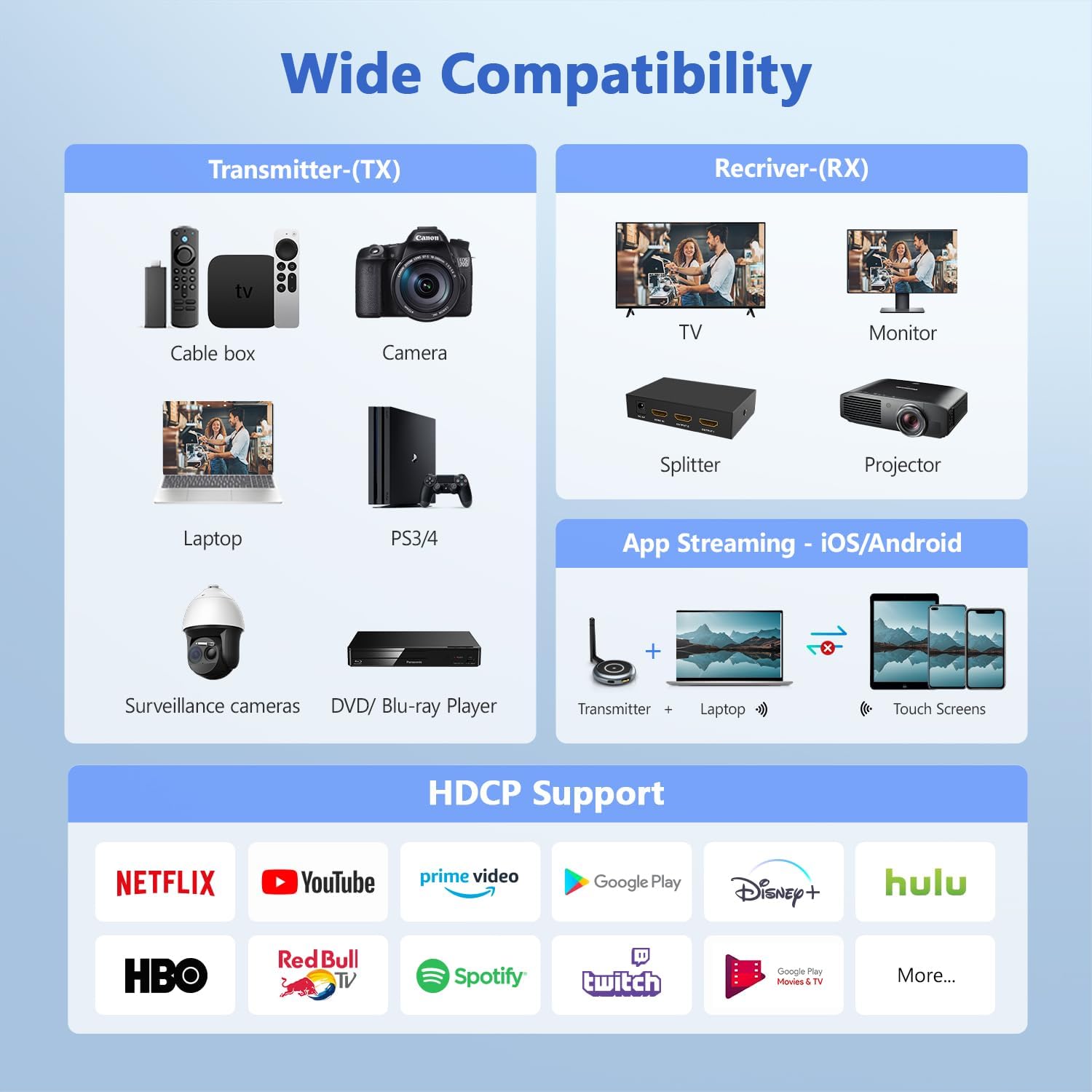
Image: A laptop transmitting to four separate display screens.
5.2 App Functionality (iOS/Android)
Utilize the dedicated app to extend your display to iOS or Android mobile devices. This feature is ideal for monitoring camera feeds or sharing content with nearby users.
- Connect TX: Connect the transmitter to your HDMI output device and power it.
- பயன்பாட்டை நிறுவவும்: Download and install the "TuTuLink" app on your iOS/Android device.
- Wi-Fi உடன் இணைக்கவும்: Open the app, connect to the Wi-Fi hotspot broadcast by the transmitter (SSID and password usually provided on the screen or manual).
- ஸ்ட்ரீமிங்கைத் தொடங்கு: Open the app again, and it should automatically sync and display the content.

Image: Guide for using the TuTuLink app to mirror content to mobile devices.
5.3 Adjusting Wireless Channels
In environments with heavy Wi-Fi traffic, you can adjust the wireless channel via the app for optimal performance and signal stability.

Image: Adjusting wireless channels via the app for improved signal.
6. இணக்கத்தன்மை
The TIMBOOTECH Wireless HDMI system offers broad compatibility with various devices and supports HDCP.
6.1 Compatible Source Devices (Transmitter - TX)
- மடிக்கணினிகள்
- பிசிக்கள்
- Cameras (DSLR, Surveillance)
- ப்ளூ-ரே பிளேயர்கள்
- Set-top Boxes / Cable Boxes / Fire TV Stick
- Game Consoles (PS3/4, PS5)
6.2 Compatible Display Devices (Receiver - RX)
- தொலைக்காட்சிகள்
- கண்காணிப்பாளர்கள்
- ப்ரொஜெக்டர்கள்
- HDMI பிரிப்பான்கள்
- iOS/Android Touch Screens (via App)
6.3 Model Compatibility Note
This system is compatible only with the latest TIMBOOTECH receiver models (ASIN: B0DNF72YK1 for blue interface version, B0CSFS69XF for black interface version).

படம்: முடிந்ததுview of compatible devices for both transmitter and receiver, including app functionality.
7. சரிசெய்தல்
நீங்கள் சிக்கல்களை எதிர்கொண்டால், பின்வரும் பொதுவான தீர்வுகளைப் பார்க்கவும்:
- No Signal/Connection:
- Ensure both transmitter and receivers are properly powered via their USB-C cables.
- Verify HDMI cables are securely connected to both source and display devices.
- Perform the re-pairing process (Section 4.2) if devices are not connecting automatically.
- Check if the HDMI input on your display is set to the correct port.
- Intermittent Signal/Poor Quality:
- Ensure there are no major physical obstructions (walls, large furniture) between the transmitter and receivers.
- Adjust the wireless channel via the TuTuLink app to avoid interference from other Wi-Fi networks (Section 5.3).
- Ensure devices are within the recommended 165ft (50m) transmission range.
- Check for strong electromagnetic interference from other electronic devices.
- Audio/Video Sync Issues:
- Restart both the transmitter and receivers.
- அனைத்து கேபிள்களும் பாதுகாப்பாக இணைக்கப்பட்டுள்ளதை உறுதி செய்யவும்.
- பயன்பாட்டு இணைப்புச் சிக்கல்கள்:
- Ensure your mobile device is connected to the correct Wi-Fi hotspot broadcast by the transmitter.
- Verify the Wi-Fi password (usually provided on the screen or manual).
- Restart the app and the transmitter.
Video: Official TIMBOOTECH video demonstrating smooth and stable wireless HDMI to multiple screens, highlighting the product's functionality.
8. விவரக்குறிப்புகள்
| அம்சம் | விவரம் |
|---|---|
| பிராண்ட் | டிம்பூடெக் |
| மாதிரி எண் | G70 |
| இணைப்பு தொழில்நுட்பம் | வயர்லெஸ் (5.8G) |
| உள்ளீட்டுத் தீர்மானம் | 4 ஆயிரம் வரை |
| வெளியீடு தீர்மானம் | 1080P@60Hz |
| பரிமாற்ற வரம்பு | 165 அடி (50 மீ) வரை |
| தாமதம் | Low (approx. 0.1s) |
| Multi-Receiver Support | Up to 8 receivers/touchscreens |
| HDCP ஆதரவு | ஆம் |
| பொருளின் எடை | 7 அவுன்ஸ் |
| தயாரிப்பு பரிமாணங்கள் | 1.97 x 1.57 x 1.18 அங்குலம் |
9. உத்தரவாதம் மற்றும் ஆதரவு
TIMBOOTECH offers 24/7 support for a worry-free experience. Please contact customer service for any issues.
- ஆதரவு: 24/7 வாடிக்கையாளர் ஆதரவு கிடைக்கிறது.
- பணம் திரும்பப் பெறும் உத்தரவாதம்: 30-day money-back return and refund guarantee.
- உத்தரவாதம்: 1-year free replacement.
Video: Official TIMBOOTECH video demonstrating the RScreen App for touchscreen devices, showcasing additional features and support.