
1. அறிமுகம்
Thank you for choosing the CHiQ 22F650 22-inch FHD Monitor. This manual provides essential information for setting up, operating, and maintaining your monitor. Please read it thoroughly before use to ensure optimal performance and safety.
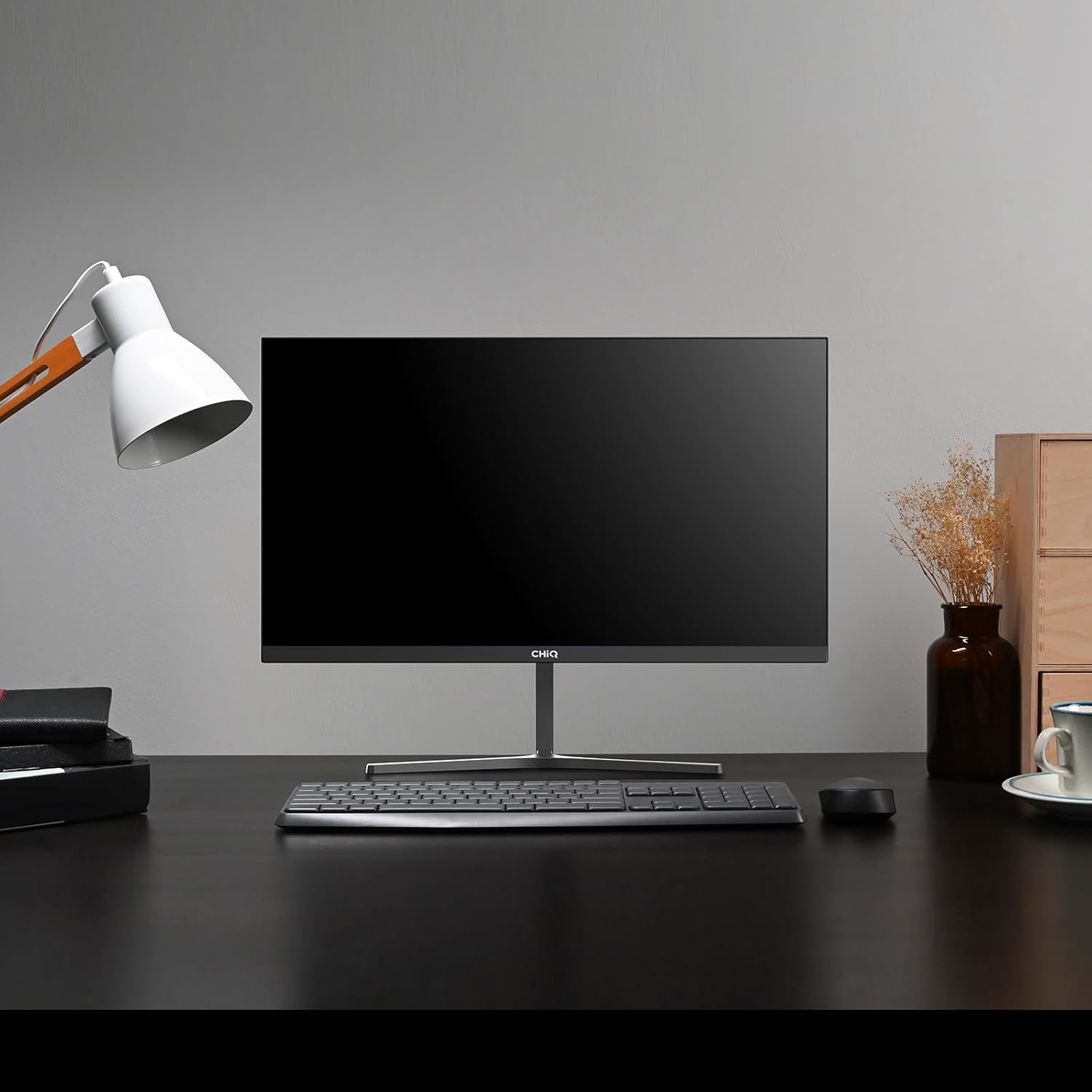
Image 1.1: The CHiQ 22F650 monitor set up on a desk.
The CHiQ 22F650 monitor features a 22-inch Full HD (1920 x 1080) display with a 100Hz refresh rate and AMD FreeSync technology for smooth visuals. Its ultra-thin, borderless design offers an immersive viewing experience, complemented by 100% sRGB color gamut and DC dimming for eye comfort.
2. பாதுகாப்பு தகவல்
Please observe the following safety precautions to prevent damage to the monitor and ensure your safety:
- மழை, ஈரப்பதம் அல்லது அதிக வெப்பநிலைகளுக்கு மானிட்டரை வெளிப்படுத்த வேண்டாம்.
- மானிட்டரைச் சுற்றி சரியான காற்றோட்டத்தை உறுதி செய்யுங்கள். காற்றோட்ட திறப்புகளைத் தடுக்க வேண்டாம்.
- உற்பத்தியாளரால் வழங்கப்பட்ட அல்லது பரிந்துரைக்கப்பட்ட பவர் அடாப்டர் மற்றும் கேபிள்களை மட்டும் பயன்படுத்தவும்.
- பவர் கார்டில் கனமான பொருட்களை வைப்பதை தவிர்க்கவும்.
- மானிட்டர் நீண்ட நேரம் பயன்படுத்தப்படாவிட்டால், அவுட்லெட்டிலிருந்து பவர் பிளக்கைத் துண்டிக்கவும்.
- மானிட்டரை நீங்களே சரிசெய்ய முயற்சிக்காதீர்கள். அனைத்து சேவைகளையும் தகுதிவாய்ந்த பணியாளர்களிடம் பரிந்துரைக்கவும்.
3. தொகுப்பு உள்ளடக்கங்கள்
உங்கள் தொகுப்பில் அனைத்து பொருட்களும் உள்ளதா என சரிபார்க்கவும்:
- CHiQ 22F650 Monitor
- மானிட்டர் ஸ்டாண்ட் (அடித்தளம் மற்றும் கழுத்து)
- பவர் அடாப்டர் மற்றும் கேபிள்
- HDMI கேபிள்
- பயனர் கையேடு (இந்த ஆவணம்)
4. சட்டசபை மற்றும் அமைப்பு
4.1 ஸ்டாண்டை அசெம்பிள் செய்தல்
- திரையைப் பாதுகாப்பாக வைத்திருக்க, மானிட்டரை அதன் பேக்கேஜிங்கிலிருந்து கவனமாக அகற்றவும்.
- ஸ்டாண்ட் கழுத்தை மானிட்டர் பேனலுடன் இணைக்கவும்.
- கொடுக்கப்பட்டுள்ள திருகு பயன்படுத்தி ஸ்டாண்ட் அடிப்பகுதியை ஸ்டாண்ட் கழுத்தில் பாதுகாப்பாக இணைக்கவும்.
The monitor features a quick detachable Y-shaped metal stand for easy assembly.
4.2 மானிட்டரை இணைக்கிறது
Connect the monitor to your computer or other devices using the available ports:
- , HDMI: Connect an HDMI cable from your computer's HDMI output to the monitor's HDMI input.
- விஜிஏ: Connect a VGA cable from your computer's VGA output to the monitor's VGA input.
- ஆடியோ: Connect headphones or external speakers to the 3.5mm headphone output jack.
- சக்தி: Connect the power adapter to the monitor's DC input and then plug it into a power outlet.

Image 4.1: Monitor connectivity ports (HDMI, VGA, Headphone Output).
4.3 Adjusting the Monitor Angle
The monitor's stand allows for tilt adjustment from +5° to -15° to achieve an optimal viewing கோணம்.

Image 4.2: Monitor tilt adjustment and VESA mount points.
4.4 VESA சுவர் பொருத்துதல்
The monitor is compatible with VESA 75x75mm wall mounts. To mount the monitor on a wall, remove the stand and attach a compatible VESA bracket (sold separately) to the mounting holes on the back of the monitor.
5. இயக்க வழிமுறைகள்
5.1 பவர் ஆன்/ஆஃப்
மானிட்டரை இயக்க அல்லது அணைக்க அதன் பின்புறத்தில் அமைந்துள்ள ஆற்றல் பொத்தானை அழுத்தவும்.
5.2 திரையில் காட்சி (OSD) மெனு
The monitor features joystick-type buttons on the rear for navigating the OSD menu. Use these buttons to adjust various display settings:
- பிரகாசம்/மாறுபாடு: ஒளி மற்றும் இருண்ட பகுதிகளுக்கு இடையிலான ஒட்டுமொத்த ஒளிர்வு மற்றும் வேறுபாட்டை சரிசெய்யவும்.
- வண்ண அமைப்புகள்: வண்ண வெப்பநிலை, காமா மற்றும் தனிப்பட்ட RGB மதிப்புகளை மாற்றவும்.
- உள்ளீடு மூலம்: HDMI மற்றும் VGA உள்ளீடுகளுக்கு இடையே கைமுறையாகத் தேர்ந்தெடுக்கவும்.
- பட முறை: Choose from preset display modes (e.g., Standard, Game, Movie).
- ஆடியோ: Adjust volume for the headphone output.

Image 5.1: Visual features of the CHiQ 22F650 monitor, including 100% sRGB and DC Dimming.
5.3 FreeSync Technology
The CHiQ 22F650 monitor supports AMD FreeSync technology, which synchronizes the monitor's refresh rate with your graphics card's frame rate. This helps eliminate screen tearing and stuttering, providing a smoother gaming and viewing experience. FreeSync is typically enabled automatically when connected to a compatible AMD graphics card.
Video 5.1: This video demonstrates the smooth performance of the CHiQ 22F650 monitor, highlighting features like 100Hz refresh rate and FreeSync technology, and its ultra-thin design.
6. பராமரிப்பு
6.1 மானிட்டரை சுத்தம் செய்தல்
- சுத்தம் செய்வதற்கு முன்பு எப்போதும் மானிட்டரை மின் இணைப்பிலிருந்து துண்டிக்கவும்.
- மென்மையான, பஞ்சு இல்லாத துணியை லேசாக பயன்படுத்தவும்ampதண்ணீர் அல்லது லேசான, சிராய்ப்பு இல்லாத திரை கிளீனரால் பூசப்பட்டது.
- திரையில் நேரடியாக கிளீனரை தெளிக்க வேண்டாம்.
- தூசி மற்றும் கறைகளை அகற்ற திரையை மெதுவாக துடைக்கவும்.
- மானிட்டருக்கு casing, மென்மையான, உலர்ந்த துணியைப் பயன்படுத்தவும்.
6.2 சேமிப்பு
If storing the monitor for an extended period, place it in its original packaging in a dry, cool environment to protect it from dust and damage.
7. சரிசெய்தல்
உங்கள் மானிட்டரில் சிக்கல்கள் ஏற்பட்டால், பின்வரும் பொதுவான சிக்கல்கள் மற்றும் தீர்வுகளைப் பார்க்கவும்:
| பிரச்சனை | சாத்தியமான காரணம் | தீர்வு |
|---|---|---|
| திரையில் படம் இல்லை | Power cable disconnected, video cable loose/disconnected, incorrect input source selected. | Check power and video cable connections. Ensure the correct input source (HDMI/VGA) is selected in the OSD menu. |
| படம் மங்கலாகவோ அல்லது சிதைந்தோ உள்ளது. | Incorrect resolution, faulty video cable. | Set the display resolution to 1920 x 1080. Try a different video cable. |
| நிறங்கள் தவறானவை | Color settings in OSD, faulty video cable. | Adjust color settings in the OSD menu. Try a different video cable. |
| திரை மினுமினுப்பு | Refresh rate mismatch, FreeSync issue, faulty cable. | Ensure your graphics card output matches the monitor's 100Hz refresh rate. Check FreeSync settings. Try a different video cable. |
| No audio from headphone output | Volume too low, incorrect audio output selected on computer. | Adjust volume in OSD. Ensure the monitor is selected as the audio output device on your computer. |
8. விவரக்குறிப்புகள்
Detailed technical specifications for the CHiQ 22F650 monitor:
| அம்சம் | விவரக்குறிப்பு |
|---|---|
| பிராண்ட் | CHIQ |
| மாதிரி எண் | 22F650 |
| உற்பத்தியாளர் | சாங்ஹாங் |
| திரை அளவு | 22 அங்குலம் |
| தீர்மானம் | FHD 1080p (1920 x 1080 பிக்சல்கள்) |
| தோற்ற விகிதம் | 16:9 |
| திரை மேற்பரப்பு | Anti-glare / Anti-slip |
| மாறுபாடு விகிதம் | 3000:1 |
| பதில் நேரம் | 6 மில்லி விநாடிகள் |
| புதுப்பிப்பு விகிதம் | 100 ஹெர்ட்ஸ் |
| தழுவல் ஒத்திசைவு | FreeSync |
| காட்சி வகை | எல்சிடி |
| Viewing கோணம் | 178 டிகிரி |
| பிரகாசம் | 250 candelas per square meter |
| படத்தை மேம்படுத்துதல் | DC Dimming, Anti-glare coating |
| பரிமாணங்கள் (D x W x H) | 13.9 x 49.3 x 37.7 செ.மீ |
| எடை | 1.92 கிலோகிராம் |
| இணைப்பு | 1x HDMI, 1x VGA, 1x Headphone Output |
| வெசா மவுண்ட் | Wall mount (75x75mm) |
| தொகுதிtage | 220 வோல்ட் |
| நிறம் | கருப்பு |
Image 8.1: Product Information Sheet with technical data. For more details, visit the EPREL தரவுத்தளம்.
Image 8.2: EU Energy Label for the CHiQ 22F650 monitor. For more details, visit the EPREL தரவுத்தளம்.
9. உத்தரவாதம் மற்றும் ஆதரவு
9.1 உத்தரவாதத் தகவல்
CHiQ monitors are protected by a 3 வருட உத்தரவாதம்உத்தரவாதக் கோரிக்கைகளுக்கு உங்கள் வாங்கியதற்கான ஆதாரத்தை வைத்திருங்கள்.
9.2 வாடிக்கையாளர் ஆதரவு
If you encounter any problems or have questions regarding your CHiQ 22F650 monitor, please do not hesitate to contact CHiQ customer service. An online hotline managed by professional staff is available on weekdays to assist you.
For further assistance, please visit the official CHiQ webதளத்தில் அல்லது உங்கள் தயாரிப்பு ஆவணங்களுடன் வழங்கப்பட்ட தொடர்புத் தகவலைப் பார்க்கவும்.