
எப்சன் எக்ஸ்பி-8800
எப்சன் எக்ஸ்பிரஷன் போட்டோ XP-8800 வயர்லெஸ் பிரிண்டர் பயனர் கையேடு
மாடல்: XP-8800 | பிராண்ட்: எப்சன்
அறிமுகம்
The Epson Expression Photo XP-8800 is a versatile all-in-one wireless printer designed for high-quality photo and document printing, scanning, and copying. It features a 6-color Claria Photo HD ink system for vibrant, professional-quality borderless prints up to 8.5" x 11". Its compact design and intuitive 4.3" color touchscreen make it suitable for various home and creative projects. This manual provides essential information for setting up, operating, maintaining, and troubleshooting your printer.
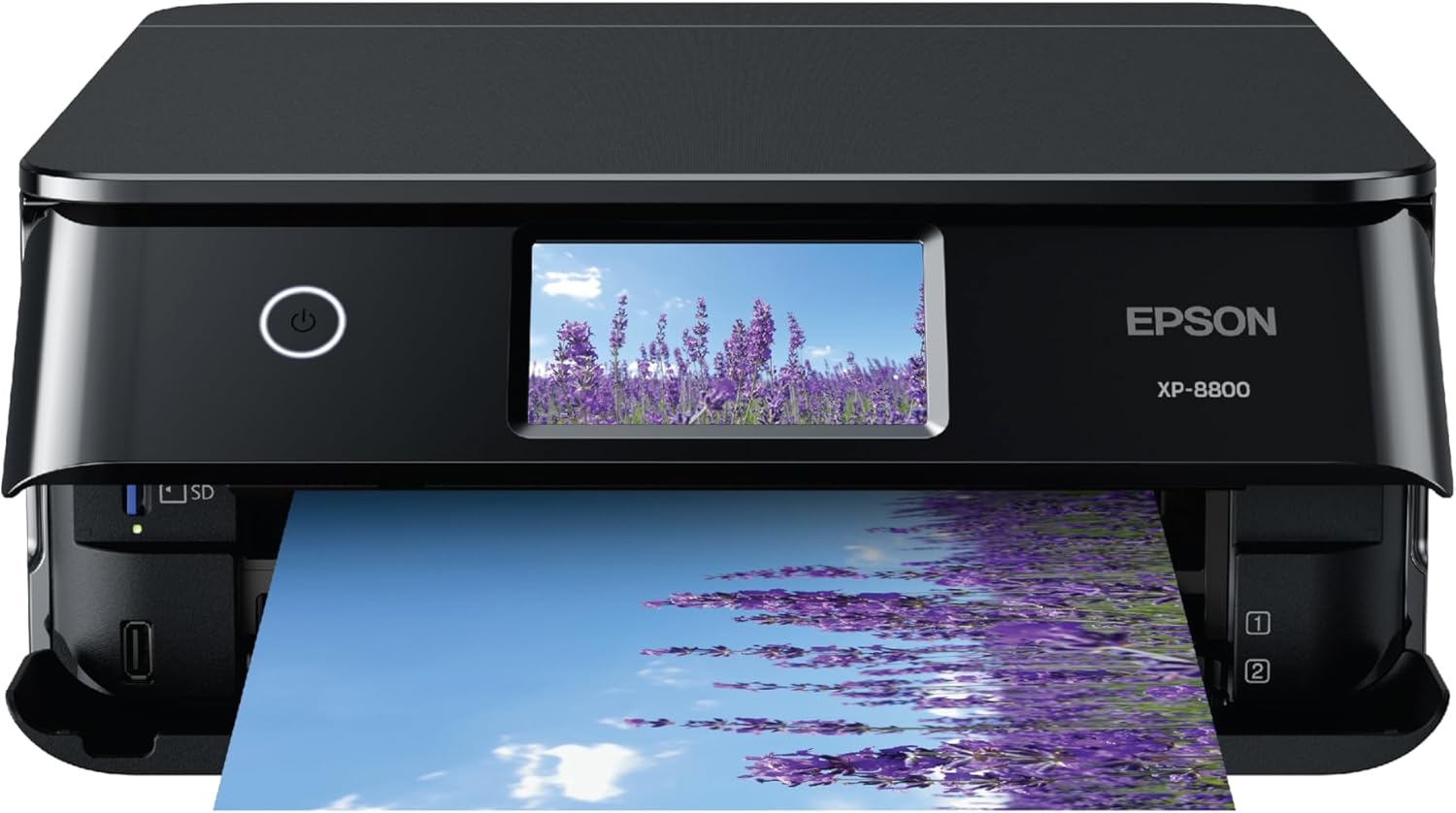
படம்: முன்பக்கம் view of the Epson Expression Photo XP-8800 Wireless Printer with a photo of lavender fields being printed.
ஒரு பார்வையில் முக்கிய அம்சங்கள்
- Lab-quality photos and prints: Utilizes 6-color Claria Photo HD ink for stunning borderless prints up to 8.5" x 11".
- Fast photo printing: Produces 4" x 6" borderless photos in as fast as 10 seconds.
- வசதியான செயல்பாடு: Features a 4.3" color touchscreen with an Easy Mode for simplified navigation.
- Versatile paper handling: Includes separate trays for plain and photo paper, plus a rear feed for specialty media.
- Easy wireless printing: Print from laptops, desktops, smartphones, or tablets, with Wi-Fi Direct for router-free printing.
- Built-in scanner and copier: High-resolution flatbed scanner for crisp scans and copies.
- Epson Smart Panel app: Control your printer and access smart setup features from your smart device.
- Creative Print mobile app: Create custom cards, stationery, and more.
- Photo adjustment tools: Includes features for red-eye removal and photo restoration.
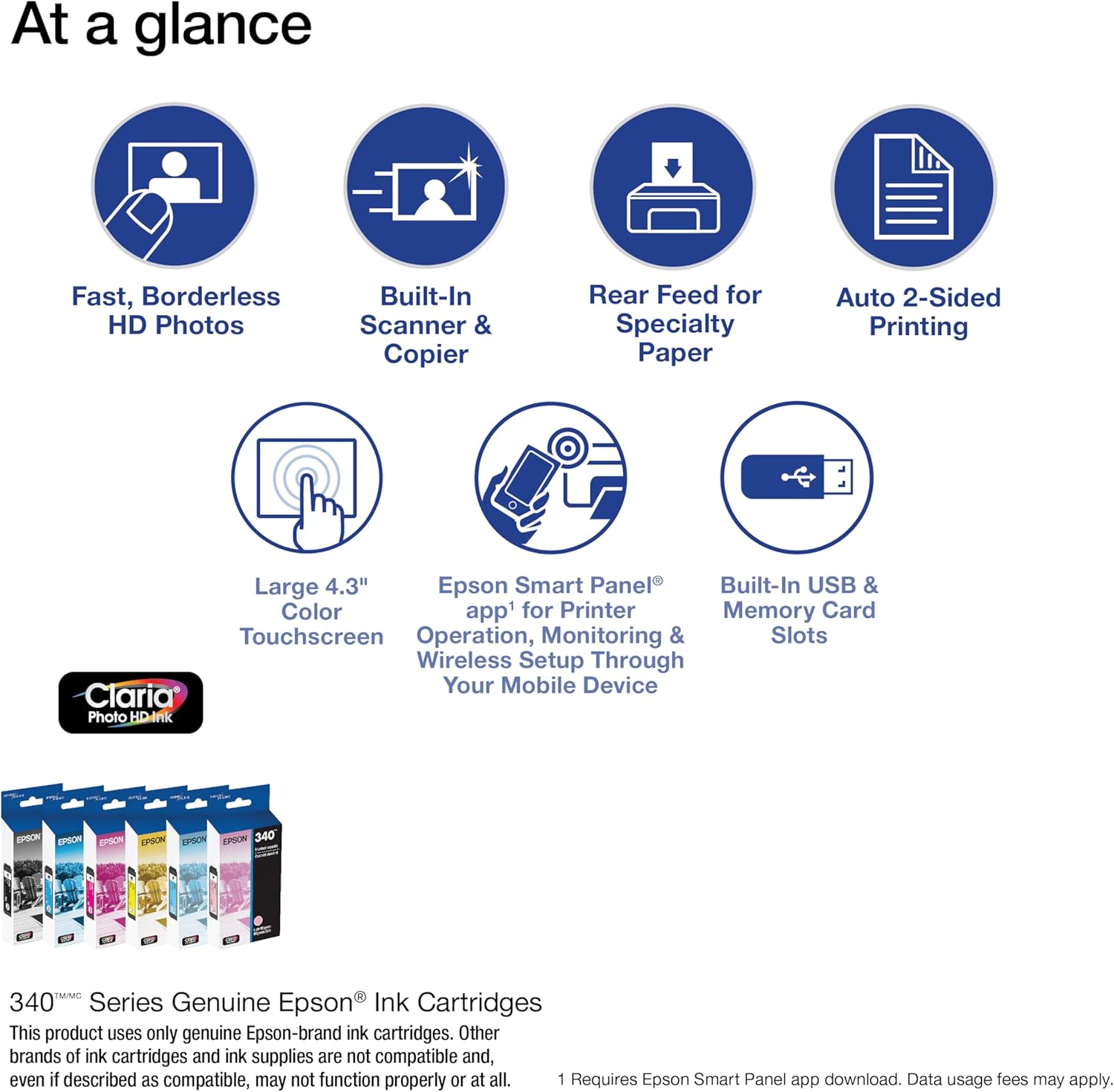
Image: Visual representation of key features including fast HD photos, built-in scanner/copier, rear feed, auto 2-sided printing, touchscreen, Smart Panel app, and USB/memory card slots.
பெட்டியில் என்ன இருக்கிறது
Upon unboxing your Epson Expression Photo XP-8800, verify that all the following components are included:
- Expression Photo XP-8800 All-in-One printer
- CD-ROM for product setup (drivers and software)
- பவர் கார்டு
- 6x Claria Photo HD Ink cartridges (1x Black, 1x Cyan, 1x Magenta, 1x Yellow, 1x Light Cyan, 1x Light Magenta)
Note: A USB cable is not included and may be required for certain setup or connection methods.

Image: Diagram showing the printer, ink cartridges, and power cord, indicating what is included in the package.
அமைவு வழிகாட்டி
1. பிரித்தல் மற்றும் இடம் அமைத்தல்
- அச்சுப்பொறியிலிருந்து அனைத்து பாதுகாப்பு பொருட்கள் மற்றும் டேப்பை அகற்றவும்.
- Place the printer on a flat, stable surface with adequate space around it for ventilation and paper trays.
2. மின் இணைப்பு
- பவர் கார்டை பிரிண்டருடன் இணைக்கவும், பின்னர் தரையிறக்கப்பட்ட மின் நிலையத்துடன் இணைக்கவும்.
- அச்சுப்பொறியை இயக்க ஆற்றல் பொத்தானை அழுத்தவும்.
3. Initial Ink Cartridge Installation
- Follow the on-screen instructions on the 4.3" color touchscreen to install the initial set of 6 Claria Photo HD ink cartridges.
- Ensure each cartridge is securely seated to prevent printing issues.
Important: This Epson printer is designed to work only with Epson Genuine Cartridges. Use of non-genuine ink could cause damage not covered under the printer's limited warranty.

Image: Epson Genuine Ink Promise logo, emphasizing the use of authentic Epson ink cartridges.
4 மென்பொருள் மற்றும் இயக்கி நிறுவல்
- Insert the provided CD-ROM into your computer and follow the on-screen instructions to install the necessary drivers and software.
- Alternatively, visit the official Epson support webதளம் (www.epson.com/support) to download the latest software for your operating system.
5. Network Connection (Wireless)
- On the printer's touchscreen, navigate to the Wi-Fi setup menu.
- பட்டியலிலிருந்து உங்கள் வயர்லெஸ் நெட்வொர்க்கை (SSID) தேர்ந்தெடுத்து பிணைய கடவுச்சொல்லை உள்ளிடவும்.
- Confirm the connection. The printer supports Wi-Fi Direct for router-free printing.

Image: A smartphone displaying the Epson Smart Panel app, connected wirelessly to the printer, demonstrating wireless printing capabilities.
அச்சுப்பொறியை இயக்குதல்
ஆவணங்கள் மற்றும் புகைப்படங்களை அச்சிடுதல்
- ஏற்றுதல் காகிதம்: Load paper into the appropriate tray (plain paper tray or photo paper tray). The rear feed can be used for specialty paper.
- கணினியிலிருந்து: Open the document or photo you wish to print. Select "Print" from the application's menu. Choose your Epson XP-8800 printer, adjust print settings (paper type, size, quality, borderless options), and click "Print".
- From Smart Device: Download the Epson Smart Panel app or Creative Print mobile app. Select the photo or document, choose your printer, and adjust settings before printing.
- எல்லையற்ற அச்சிடுதல்: The printer supports borderless printing up to 8.5" x 11" for photos. Ensure your paper size and print settings are configured for borderless output.

Image: The printer with numbered callouts highlighting features like fast photo printing, lab-quality borderless photos, rear feed, touchscreen, built-in scanner/copier, and tablet/smartphone printing.
ஆவணங்கள் மற்றும் புகைப்படங்களை ஸ்கேன் செய்தல்
- ஆவணம் அல்லது புகைப்படத்தை ஸ்கேனர் கிளாஸில் முகம் கீழே வைக்கவும்.
- From the printer's touchscreen, select "Scan". Choose your scan destination (e.g., computer, cloud service).
- தெளிவுத்திறன், வண்ண முறை போன்ற ஸ்கேன் அமைப்புகளை சரிசெய்யவும், file format. Initiate the scan.
ஆவணங்களை நகலெடுக்கிறது
- ஆவணத்தை ஸ்கேனர் கிளாஸில் முகம் கீழே வைக்கவும்.
- From the printer's touchscreen, select "Copy".
- Choose settings like number of copies, color or black & white, and paper size. Press "Copy" to begin.
பராமரிப்பு
மை கார்ட்ரிட்ஜ்களை மாற்றுதல்
- When an ink cartridge is low or empty, a message will appear on the printer's screen.
- Open the printer cover and remove the empty cartridge by squeezing the tab and lifting it out.
- Unpack a new genuine Epson ink cartridge, shake it gently, and insert it into the correct slot until it clicks into place.
- Close the printer cover. The printer will automatically begin charging the ink.
அச்சு தலை சுத்தம்
- If print quality declines (e.g., missing lines, faded prints), perform a print head cleaning.
- Access this function through the printer's control panel or the printer utility software on your computer.
- Run a nozzle check pattern after cleaning to verify improvement. Repeat if necessary.
அச்சு தலை சீரமைப்பு
- If prints appear blurry or misaligned, perform a print head alignment.
- This function is also available via the printer's control panel or utility software.
சரிசெய்தல்
பொதுவான சிக்கல்கள் மற்றும் தீர்வுகள்
| பிரச்சினை | சாத்தியமான காரணம் மற்றும் தீர்வு |
|---|---|
| அச்சுப்பொறி பதிலளிக்கவில்லை. |
|
| மோசமான அச்சுத் தரம் (கோடுகள், மங்கலான நிறங்கள்) |
|
| காகித நெரிசல்கள் |
|
| Wi-Fi உடன் இணைக்க முடியவில்லை |
|
For more detailed troubleshooting, refer to the full electronic manual on the Epson support webதளத்தில் அல்லது எப்சன் வாடிக்கையாளர் ஆதரவைத் தொடர்பு கொள்ளவும்.
விவரக்குறிப்புகள்
| அம்சம் | விவரம் |
|---|---|
| மாதிரி பெயர் | Expression Photo XP-8800 |
| தயாரிப்பு பரிமாணங்கள் | 20.8"டி x 13.7"அடி x 7.2"ஹெட் |
| பொருளின் எடை | 14.6 பவுண்டுகள் |
| அச்சிடும் தொழில்நுட்பம் | இன்க்ஜெட் |
| மை வகை | 6-color Claria Photo HD Ink (Dye-based) |
| அதிகபட்ச அச்சுத் தீர்மானம் | 5760 x 1440 டிபிஐ |
| அதிகபட்ச மீடியா அளவு | 8.5 x 14 inch (Borderless up to 8.5" x 11") |
| அச்சு வேகம் (வண்ணம்) | 9 பிபிஎம் (ஐஎஸ்ஓ) |
| அச்சு வேகம் (ஒற்றை வண்ணம்) | 9.5 பிபிஎம் (ஐஎஸ்ஓ) |
| ஸ்கேனர் வகை | பிளாட்பெட் |
| Color Depth (Scan) | 48-bit input, 24-bit output |
| காட்சி வகை | 4.3" வண்ண தொடுதிரை எல்சிடி |
| இணைப்பு தொழில்நுட்பம் | Wi-Fi, USB |
| இரட்டை பக்க அச்சிடுதல் | Automatic (Duplex) |
| அதிகபட்ச உள்ளீட்டு தாள் திறன் | 120 தாள்கள் |
| மின் நுகர்வு | 20 வாட்ஸ் (ஆன்-மோட்) |
| இணக்கமான கார்ட்ரிட்ஜ் | T340 series |
உத்தரவாதம் மற்றும் ஆதரவு
The Epson Expression Photo XP-8800 comes with a Limited Warranty. For specific terms and conditions, please refer to the warranty documentation included with your product or visit the official Epson support webதளம்.
You can also download the Epson Smart Panel app for convenient control and setup features directly from your smart device.
Ask a question about this manual
Ask about setup, troubleshooting, compatibility, parts, safety, or missing instructions. Manuals+ will review the question and use this page’s manual context to help answer it.