
NIMO Nimo N156
NIMO 15.6" FHD Business Laptop User Manual
Model: Nimo N156
அறிமுகம்
This user manual provides comprehensive instructions for setting up, operating, maintaining, and troubleshooting your NIMO 15.6" FHD Business Laptop. Please read this manual carefully before using your device to ensure optimal performance and longevity. Keep this manual for future reference.
பெட்டியில் என்ன இருக்கிறது
தொகுப்பில் அனைத்து பொருட்களும் உள்ளதா என சரிபார்க்கவும்:
- 1 x Nimo N156 Laptop
- 1 x Type-C 100W PD Fast Charger
- 1 x பயனர் கையேடு (இந்த ஆவணம்)
- விண்டோஸ் 11 முகப்பு (முன்பே நிறுவப்பட்டது)
- 2 Years Warranty, 90 Days Return information
தயாரிப்பு முடிந்துவிட்டதுview
Familiarize yourself with the key components of your NIMO laptop.

படம் 1: முன் view of the NIMO 15.6 inch FHD Business Laptop, showcasing its full HD IPS display, Intel Core i5 processor, fingerprint reader, Type-C PD charger port, and backlit keyboard.

படம் 2: Close-up of the NIMO laptop's backlit full keyboard, highlighting the integrated webcam shield, fingerprint sensor, and numeric keypad for enhanced productivity and security.

படம் 3: Diagram illustrating the multiple ports on the NIMO laptop, including Micro SD slot, USB 2.0, USB 3.0, Headphone Jack, Kensington lock, Type-C (multifunction), Type-C (PD Charger Only), HDMI, and Charge LED.
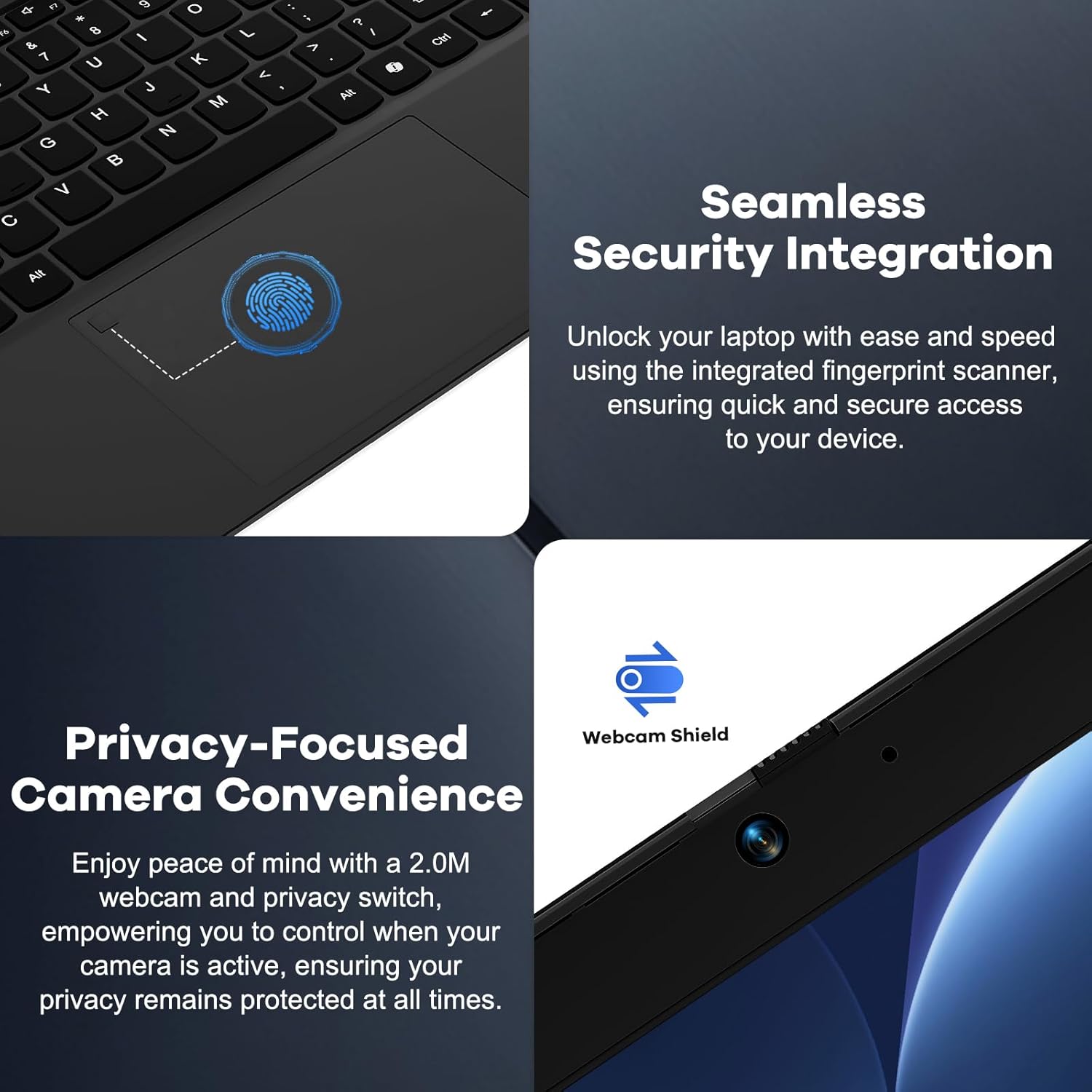
படம் 4: Details on the seamless security integration with the fingerprint sensor for quick login and the privacy-focused camera convenience with a built-in webcam shield.

படம் 5: The compact 100W GaN Type-C PD Fast Charger included with the NIMO laptop, capable of charging to 50% in 15 minutes and compatible with various devices.
அமைவு
1. ஆரம்ப பவர் ஆன்
- திறக்கவும்: மடிக்கணினி மற்றும் அதன் அனைத்து பாகங்களையும் பேக்கேஜிங்கிலிருந்து கவனமாக அகற்றவும்.
- பவர் இணைக்கவும்: Plug the 100W GaN Type-C PD Fast Charger into a power outlet and connect the USB-C cable to the laptop's Type-C charging port. The Charge LED will illuminate.
- முதல் துவக்கம்: Open the laptop lid. The system may power on automatically or you may need to press the power button (located on the top right of the keyboard).
- விண்டோஸ் அமைப்பு: விண்டோஸ் 11 முகப்பு அமைவு செயல்முறையை முடிக்க திரையில் உள்ள வழிமுறைகளைப் பின்பற்றவும். இதில் உங்கள் பகுதி, மொழி, வைஃபை நெட்வொர்க்குடன் இணைத்தல் மற்றும் பயனர் கணக்கை உருவாக்குதல் ஆகியவை அடங்கும்.
2. பெரிஃபெரல்களை இணைக்கிறது
Your NIMO laptop offers various ports for connecting external devices:
- USB சாதனங்கள்: Connect USB flash drives, external hard drives, mice, or keyboards to the USB 2.0 or USB 3.0 ports.
- வெளிப்புற காட்சி: வெளிப்புற மானிட்டர் அல்லது ப்ரொஜெக்டரை இணைக்க HDMI போர்ட்டைப் பயன்படுத்தவும்.
- ஆடியோ: Plug headphones or external speakers into the 3.5mm Headphone Jack.
- நினைவக அட்டைகள்: Insert a Micro SD card into the Micro SD slot for additional storage.
இயக்க வழிமுறைகள்
1. அடிப்படை செயல்பாடு
- பவர் ஆன்/ஆஃப்: Press the power button to turn the laptop on. To shut down, click the Start button in Windows, then Power > Shut down.
- தூக்க முறை: Close the lid or click the Start button, then Power > Sleep to put the laptop into sleep mode.
- Fingerprint Login: Utilize the integrated fingerprint sensor for quick and secure login to Windows. Register your fingerprints through Windows Settings > Accounts > Sign-in options.
- பின்னொளி விசைப்பலகை: The keyboard features backlighting for low-light conditions. Use the dedicated function key (Fn + F key combination, typically F3 or F4) to toggle or adjust the backlight brightness.
- Webcam Privacy: The laptop includes a physical webcam shield. Slide the switch next to the webதனியுரிமைக்காக கேமரா லென்ஸை மறைக்க அல்லது வெளிக்கொணர கேமரா.
2. Windows 11 Features
Your laptop comes with Windows 11 Home pre-installed. Explore its features for enhanced productivity and entertainment:
- ஸ்னாப் தளவமைப்புகள்: Easily organize open windows on your screen.
- சாளரம்: தனிப்பயனாக்கப்பட்ட தகவல்களை ஒரே பார்வையில் அணுகலாம்.
- மைக்ரோசாஃப்ட் ஸ்டோர்: பயன்பாடுகளைப் பதிவிறக்கி நிறுவவும்.
- பாதுகாப்பு: Windows Defender provides built-in antivirus and firewall protection.
பராமரிப்பு
- சுத்தம்: திரை மற்றும் சேசிஸை சுத்தம் செய்ய மென்மையான, பஞ்சு இல்லாத துணியைப் பயன்படுத்தவும். பிடிவாதமான கறைகளுக்கு, சிறிது dampதுணியை தண்ணீர் அல்லது திரை சுத்தம் செய்யும் கரைசலில் நனைக்கவும். கடுமையான இரசாயனங்களைத் தவிர்க்கவும்.
- பேட்டரி பராமரிப்பு: To prolong battery life, avoid fully discharging the battery frequently. It is recommended to keep the battery charge between 20% and 80% when possible. Store the laptop in a cool, dry place if not used for extended periods.
- மென்பொருள் புதுப்பிப்புகள்: கணினி நிலைத்தன்மை மற்றும் பாதுகாப்பை உறுதிசெய்ய விண்டோஸ் புதுப்பிப்புகள் மற்றும் இயக்கி புதுப்பிப்புகளை தவறாமல் சரிபார்த்து நிறுவவும். விண்டோஸ் அமைப்புகள் > விண்டோஸ் புதுப்பிப்பு என்பதற்குச் செல்லவும்.
- சேமிப்பு மேலாண்மை: தேவையற்றவற்றை அவ்வப்போது சுத்தம் செய்யுங்கள். files and applications to free up storage space and improve performance.
சரிசெய்தல்
| பிரச்சனை | சாத்தியமான காரணம் | தீர்வு |
|---|---|---|
| மடிக்கணினி இயக்கப்படவில்லை. | குறைந்த பேட்டரி அல்லது பவர் அடாப்டர் பிரச்சனை. | Ensure the charger is properly connected and the power outlet is working. Allow the laptop to charge for at least 30 minutes before attempting to power on again. |
| காட்சி காலியாகவோ அல்லது மினுமினுப்பாகவோ உள்ளது. | Incorrect display settings or driver issue. | Try connecting an external monitor to check if the issue is with the laptop's display. Update graphics drivers. Restart the laptop. |
| வைஃபை இணைப்புச் சிக்கல்கள். | Incorrect network settings or driver issue. | Ensure Wi-Fi is enabled. Restart your router and laptop. Update Wi-Fi drivers. Forget and reconnect to the network. |
| விசைப்பலகை பின்னொளி வேலை செய்யவில்லை. | Backlight feature is off or driver issue. | Press the Fn + F key combination (e.g., F3 or F4) to toggle the backlight. Check keyboard settings in Windows. |
If the problem persists, please refer to the Warranty and Support section for assistance.
விவரக்குறிப்புகள்
| அம்சம் | விவரம் |
|---|---|
| பிராண்ட் | NIMO |
| மாதிரி பெயர் | Nimo N156 |
| திரை அளவு | 15.6 அங்குலம் |
| திரை தெளிவுத்திறன் | 1920 x 1080 பிக்சல்கள் (FHD IPS) |
| செயலி | இன்டெல் கோர் i5-12450H (8 கோர்கள், 4.4 GHz வரை) |
| ரேம் | 8 GB DDR4 (Upgradable) |
| ஹார்ட் டிரைவ் | 256 GB PCIe SSD (Upgradable) |
| கிராபிக்ஸ் கோப்ராசசர் | ஒருங்கிணைந்த இன்டெல் கிராபிக்ஸ் |
| இயக்க முறைமை | விண்டோஸ் 11 முகப்பு |
| வயர்லெஸ் வகை | 802.11a/b/g/n/ac (WiFi 6) |
| புளூடூத் | BT5.2 |
| துறைமுகங்கள் | 1x USB 2.0, 3x USB 3.0, Type-C (PD Charger Only), Type-C (Multifunction), HDMI, Headphone Jack, Micro SD Slot |
| பவர் அடாப்டர் | 100W GaN Type-C PD Fast Charger |
| சராசரி பேட்டரி ஆயுள் | 5 Hours (54Wh Smart Battery for up to 9 Hours Standby) |
| பொருளின் எடை | 3.8 பவுண்டுகள் |
| தயாரிப்பு பரிமாணங்கள் | 14.07 x 8.98 x 0.76 அங்குலம் |
| சிறப்பு அம்சங்கள் | Backlit Keyboard, Fingerprint Reader, HD Audio, Memory Card Slot, Numeric Keypad, Webcam Shield |
உத்தரவாதம் மற்றும் ஆதரவு
NIMO stands behind the quality of its products. Your NIMO laptop comes with the following:
- 2 ஆண்டு உத்தரவாதம்: A 2-Year Warranty from NIMO Direct Inc. covers manufacturing defects and hardware failures.
- 90-Day Hassle-Free Returns: Enjoy a 90-day return policy for your peace of mind.
- 24/7 Dedicated Support: For any issues or inquiries, dedicated support is available to provide instant resolution.
For warranty claims or technical assistance, please contact NIMO customer support through the contact information provided on the official NIMO webதளம் அல்லது உங்கள் கொள்முதல் ஆவணங்கள்.
வீடியோ: ஒரு ஓவர்view of the NIMO laptop, highlighting its features, performance, and the comprehensive 90-day return policy and 2-year warranty, demonstrating NIMO's commitment to customer satisfaction.
Ask a question about this manual
Ask about setup, troubleshooting, compatibility, parts, safety, or missing instructions. Manuals+ will review the question and use this page’s manual context to help answer it.