
அறிமுகம்
This manual provides detailed instructions for the setup, operation, and maintenance of your HANNspree HT240CUA 23.8-inch Multitouch Monitor. Please read this manual thoroughly before using the product to ensure proper functionality and to prevent damage.
தொகுப்பு உள்ளடக்கங்கள்
Verify that all items listed below are included in your product package. If any items are missing or damaged, please contact your retailer.
- HANNspree HT240CUA Multitouch Monitor
- பவர் சப்ளை
- பவர் கேபிள் (1.5 மீ)
- HDMI கேபிள்
- USB AC கேபிள்
- உத்தரவாத அட்டை
- விரைவு தொடக்க வழிகாட்டி
தயாரிப்பு முடிந்துவிட்டதுview
The HANNspree HT240CUA is a 23.8-inch multitouch monitor designed for versatile use in various environments. It features PCAP touch technology with 10 touch points, Full HD resolution, optical bonding, and a durable 7H tempered glass surface.
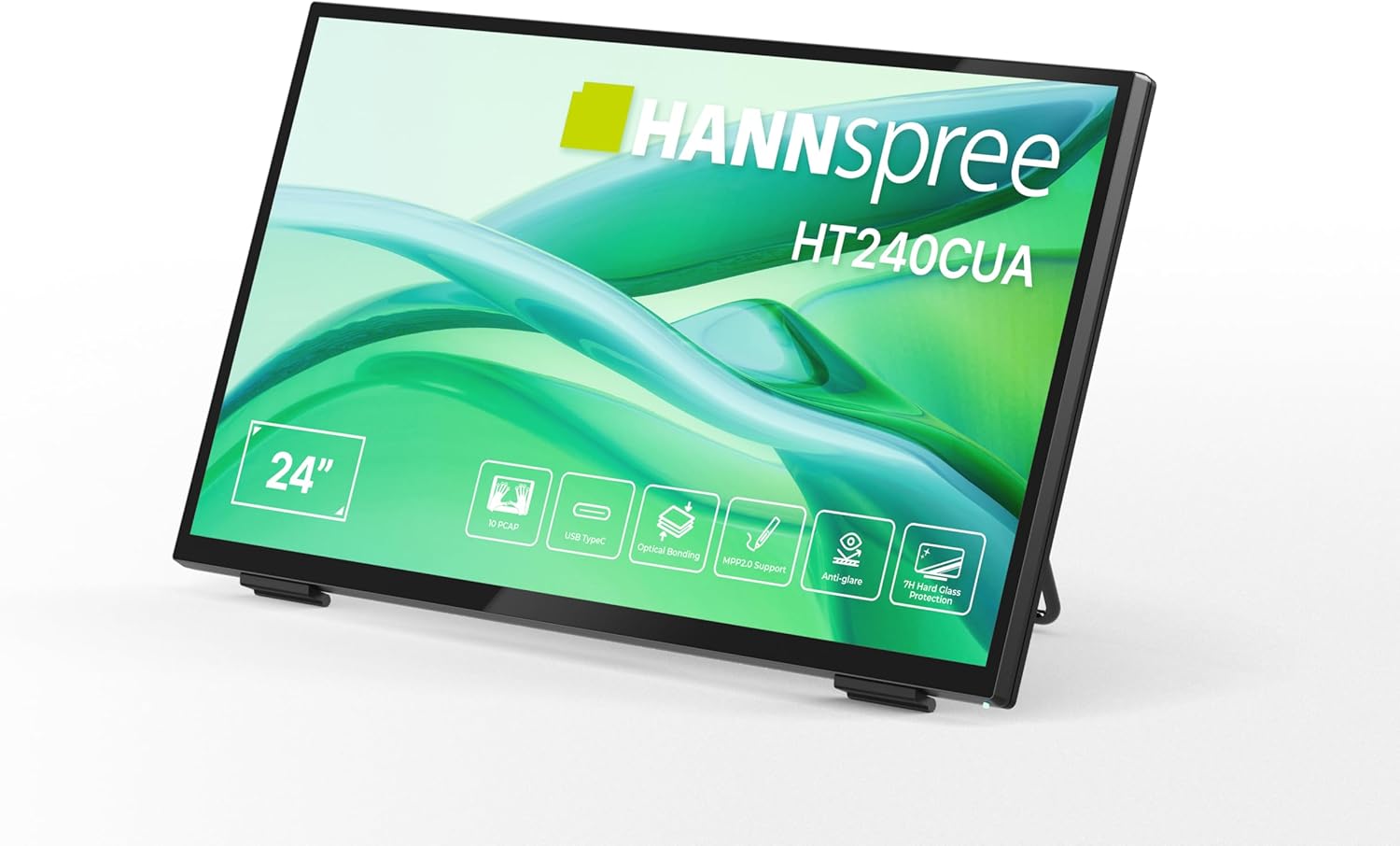
முன் view of the HANNspree HT240CUA monitor, showcasing its sleek design and 24-inch display.

பின்புறம் view of the HANNspree HT240CUA monitor, highlighting the various input/output ports including USB Type-C, HDMI, and DisplayPort.
அமைவு
- Unpacking the Monitor: பேக்கேஜிங்கிலிருந்து மானிட்டரையும் அனைத்து ஆபரணங்களையும் கவனமாக அகற்றவும். மானிட்டரை ஒரு நிலையான, தட்டையான மேற்பரப்பில் வைக்கவும்.
- சக்தியை இணைத்தல்:
- மின் கேபிளை மின்சார விநியோகத்துடன் இணைக்கவும்.
- Plug the power supply into the DC IN port on the back of the monitor.
- மின் கேபிளின் மறுமுனையை தரையிறக்கப்பட்ட மின் நிலையத்தில் செருகவும்.
- கணினியுடன் இணைத்தல்:
- USB வகை-C இணைப்பு: For video, audio, and touch functionality with a single cable, connect the supplied USB A-C cable to the USB Type-C port on the monitor and to a compatible USB Type-C port on your computer.
- HDMI இணைப்பு: HDMI கேபிளின் ஒரு முனையை மானிட்டரில் உள்ள HDMI போர்ட்டுடனும், மறு முனையை உங்கள் கணினியில் உள்ள HDMI அவுட்புட் போர்ட்டுடனும் இணைக்கவும்.
- டிஸ்ப்ளே போர்ட் இணைப்பு: Connect a DisplayPort cable (not included) to the DP port on the monitor and to the DisplayPort output on your computer.
- VGA இணைப்பு: Connect a VGA cable (not included) to the VGA port on the monitor and to the VGA output on your computer.

Diagram illustrating the versatile connectivity options available on the HANNspree HT240CUA monitor, including USB-C, DisplayPort, HDMI, and VGA.
- Adjusting the Stand: The monitor features an ergonomically adjustable stand with a tilt angle of 15-70 degrees. Adjust the stand to your preferred viewing கோணம்.
- VESA மவுண்டிங் (விரும்பினால்): The monitor supports VESA mount 100 x 100 mm for alternative mounting solutions, such as wall mounts or mini PC attachments.
இயக்க வழிமுறைகள்
பவர் ஆன்/ஆஃப்
Press the power button located on the side of the monitor to turn it on or off.
Using the Multitouch Functionality
The HT240CUA supports 10-point PCAP multitouch. Ensure your operating system is configured for touch input.

Image showing the HANNspree HT240CUA monitor in use with 10-point multitouch functionality, allowing for smooth and precise interactions.
MPP 2.0 Stylus Support
The monitor supports MPP 2.0 compatible styluses (pen not included) for a pen-like writing and drawing experience with precise accuracy and low latency.
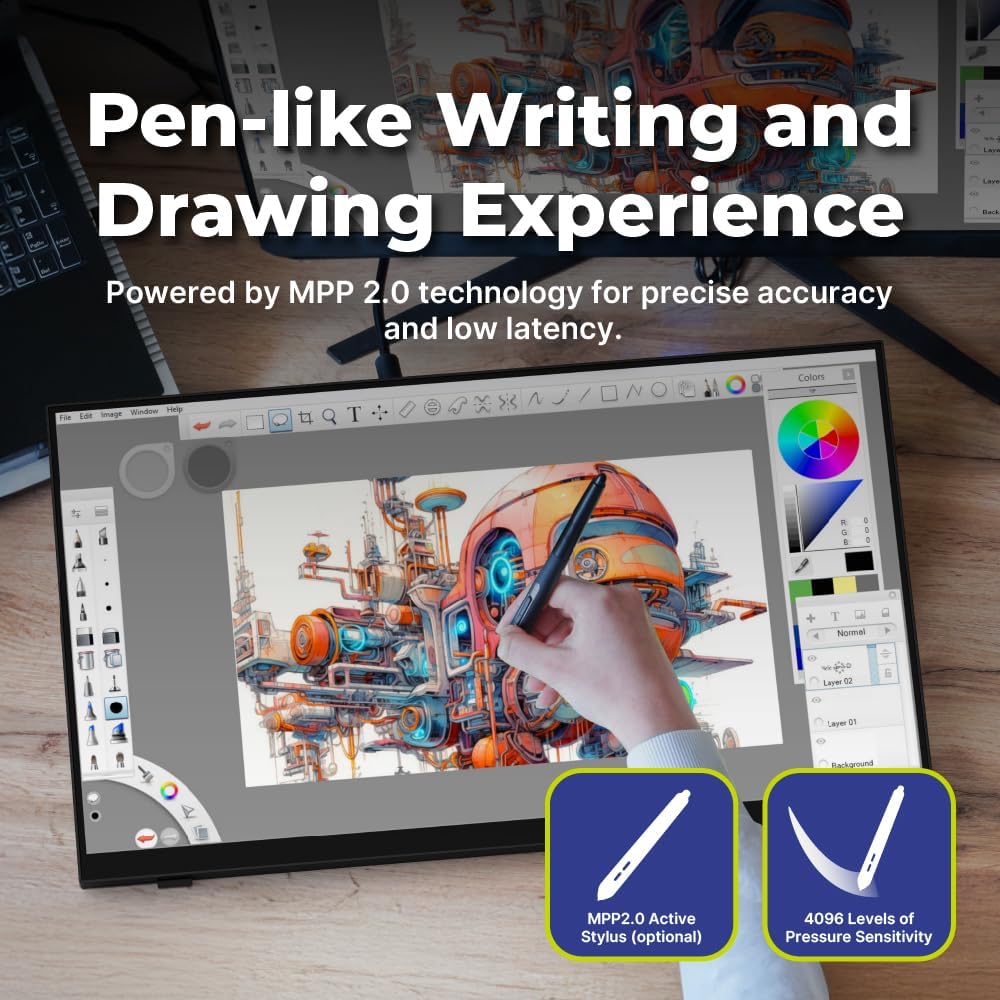
Illustration of the HANNspree HT240CUA monitor's support for MPP 2.0 styluses, enabling a natural writing and drawing experience.
ஆன்-ஸ்கிரீன் டிஸ்ப்ளே (OSD) மெனு
Use the buttons on the side of the monitor to navigate and adjust settings in the OSD menu. Common settings include brightness, contrast, input source selection, and color temperature.
- மெனு பட்டன்: OSD மெனுவைத் திறக்கிறது.
- மேல்/கீழ் பொத்தான்கள்: மெனு விருப்பங்கள் மூலம் செல்லவும்.
- பொத்தானை உள்ளிடவும்: ஒரு விருப்பத்தைத் தேர்ந்தெடுக்கிறது அல்லது ஒரு அமைப்பை உறுதிப்படுத்துகிறது.
- வெளியேறு பொத்தான்: Exits the current menu or the OSD.
பராமரிப்பு
மானிட்டரை சுத்தம் செய்தல்
மானிட்டர் திரையை சுத்தம் செய்ய மற்றும் casing:
- மானிட்டரை அணைத்துவிட்டு மின் கேபிளைத் துண்டிக்கவும்.
- மென்மையான, பஞ்சு இல்லாத துணியை லேசாக பயன்படுத்தவும்ampதண்ணீர் அல்லது சிராய்ப்பு இல்லாத திரை கிளீனரால் பூசப்பட்டது.
- திரையை மெதுவாகத் துடைத்து, சி.asing. Avoid applying excessive pressure.
- Do not use alcohol, benzene, thinners, or other harsh chemicals, as these may damage the screen surface or casing.
சேமிப்பு
When storing the monitor for an extended period, ensure it is powered off, unplugged, and stored in a cool, dry place away from direct sunlight and extreme temperatures.
சரிசெய்தல்
உங்கள் மானிட்டரில் சிக்கல்களை எதிர்கொண்டால், பின்வரும் பொதுவான சிக்கல்கள் மற்றும் தீர்வுகளைப் பார்க்கவும்.
சக்தி இல்லை
- Ensure the power cable is securely connected to the monitor and the electrical outlet.
- மற்றொரு சாதனத்தை இணைப்பதன் மூலம் மின் நிலையம் சரியாக செயல்படுகிறதா என்பதை சரிபார்க்கவும்.
- பவர் அடாப்டரில் ஏதேனும் காணக்கூடிய சேதம் உள்ளதா எனச் சரிபார்க்கவும்.
திரையில் படம் இல்லை
- Confirm that the monitor is powered on.
- Check the video cable (HDMI, DisplayPort, USB-C, VGA) connections at both the monitor and the computer.
- மானிட்டரின் OSD மெனுவில் சரியான உள்ளீட்டு மூலத்தைத் தேர்ந்தெடுக்கவும்.
- Test the monitor with another computer or video source if possible.
தொடுதல் செயல்பாடு வேலை செய்யவில்லை
- For USB Type-C connections, ensure the cable supports data transfer for touch.
- If using HDMI/DP/VGA, ensure a separate USB cable is connected from the monitor's USB upstream port to your computer for touch data.
- Check your computer's operating system settings for touch screen calibration or driver issues.
- Restart both the monitor and the computer.
படத்தின் தர சிக்கல்கள்
- OSD மெனு வழியாக பிரகாசம், மாறுபாடு மற்றும் வண்ண அமைப்புகளை சரிசெய்யவும்.
- Ensure the display resolution on your computer is set to the monitor's native resolution (1920 x 1080).
- திரை அல்லது கேபிள்களுக்கு ஏதேனும் உடல் ரீதியான சேதம் ஏற்பட்டுள்ளதா எனச் சரிபார்க்கவும்.
விவரக்குறிப்புகள்
| அம்சம் | விவரக்குறிப்பு |
|---|---|
| திரை அளவு | 23.8 அங்குலம் |
| தீர்மானம் | 1920 x 1080 (முழு எச்டி) |
| தோற்ற விகிதம் | 16:9 |
| தொடு தொழில்நுட்பம் | PCAP, 10-point multitouch |
| மேற்பரப்பு கடினத்தன்மை | 7H டெம்பர்டு கிளாஸ் |
| பிரகாசம் | 270 cd/m² |
| இணைப்பு | USB Type-C (Video/Audio/Touch), HDMI, DisplayPort, VGA, USB Hub 3.0 (2x) |
| பேச்சாளர்கள் | ஒருங்கிணைக்கப்பட்டது |
| சாய்வு கோணம் | 15-70 டிகிரி |
| வெசா மவுண்ட் | 100 x 100 மிமீ |
| ஸ்டைலஸ் ஆதரவு | MPP 2.0 (pen not included) |
| தயாரிப்பு பரிமாணங்கள் (L x W x H) | 21.65 x 13.12 x 1.94 அங்குலம் |
| பொருளின் எடை | 12.39 பவுண்டுகள் |
உத்தரவாதம் மற்றும் ஆதரவு
For warranty information, please refer to the included Warranty Card in your package. For technical support or service inquiries, please visit the official HANNspree webதளம் அல்லது அவர்களின் வாடிக்கையாளர் சேவைத் துறையைத் தொடர்புகொள்ளவும்.
Keep your purchase receipt and product serial number (found on the back of the monitor) readily available when contacting support.