
1. முக்கியமான பாதுகாப்பு தகவல்
Please read all instructions carefully before using this monitor. Keep this manual for future reference.
- மழை, ஈரப்பதம் அல்லது அதிக வெப்பநிலைகளுக்கு மானிட்டரை வெளிப்படுத்த வேண்டாம்.
- அதிக வெப்பத்தைத் தடுக்க மானிட்டரைச் சுற்றி சரியான காற்றோட்டத்தை உறுதிப்படுத்தவும்.
- Use only the power adapter provided with the monitor.
- பவர் கார்டு அல்லது மானிட்டரில் கனமான பொருட்களை வைப்பதைத் தவிர்க்கவும்.
- மானிட்டர் நீண்ட நேரம் பயன்படுத்தப்படாவிட்டால், அவுட்லெட்டிலிருந்து பவர் பிளக்கைத் துண்டிக்கவும்.
- மானிட்டரை நீங்களே சர்வீஸ் செய்ய முயற்சிக்காதீர்கள். அனைத்து சர்வீசிங்கையும் தகுதிவாய்ந்த பணியாளர்களிடம் பரிந்துரைக்கவும்.
2. தொகுப்பு உள்ளடக்கங்கள்
உங்கள் தொகுப்பில் அனைத்து பொருட்களும் உள்ளதா என சரிபார்க்கவும்:
- 27-inch QHD 210Hz Monitor (1 unit)
- Monitor Stand (1 unit)
- Quick Start Guide (QSG) (1 unit)
- DP Cable (1 unit)
- Power Adaptor (1 unit)
- பவர் கார்டு (1 யூனிட்)
- Shielding Hood (2 units)

Video: KTC 27M1 27 Inch 210Hz Gaming Monitor. This video provides a visual overview of the monitor and its features.
3. அமைவு வழிமுறைகள்
3.1 மானிட்டர் ஸ்டாண்டை அசெம்பிள் செய்தல்
- பேக்கேஜிங்கிலிருந்து மானிட்டர் மற்றும் ஸ்டாண்ட் கூறுகளை கவனமாக அகற்றவும்.
- Attach the stand base to the stand arm using the provided screw.
- Align the stand arm with the mounting slot on the back of the monitor and push until it clicks into place.
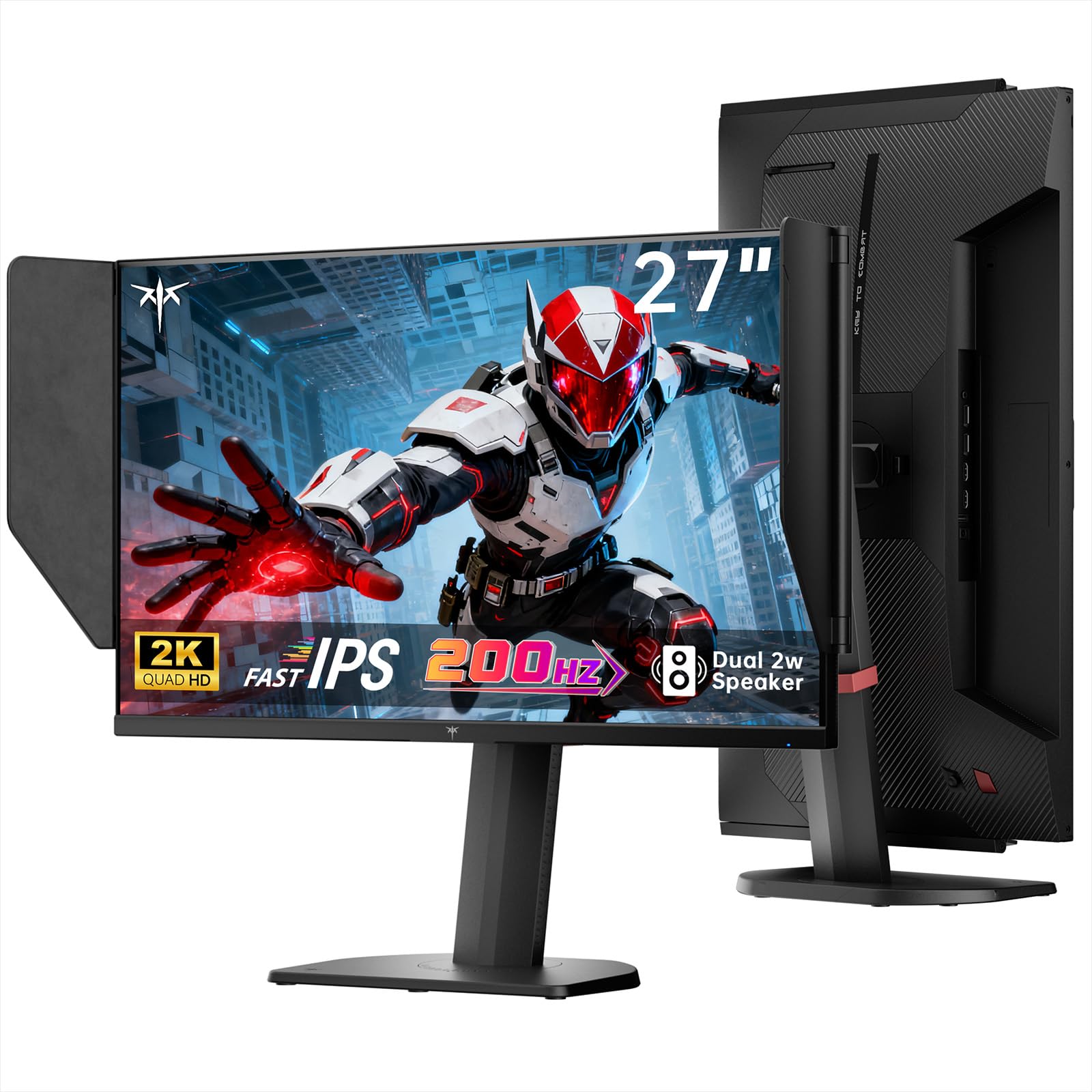
Image: The KTC 27M1 monitor with its stand fully assembled, ready for use.
3.2 Attaching the Shielding Hood
The shielding hood helps reduce glare and reflections for an optimal viewஅனுபவம்.
- Locate the two shielding hood pieces.
- Align each piece with the designated slots on the sides of the monitor and gently slide them into place until secure.

Image: The KTC 27M1 monitor shown with the shielding hood attached, designed to block reflected light.
3.3 இணைக்கும் கேபிள்கள்
பொருத்தமான கேபிள்களைப் பயன்படுத்தி உங்கள் கணினி அல்லது பிற சாதனங்களுடன் மானிட்டரை இணைக்கவும்:
- டிஸ்ப்ளே போர்ட் (டிபி): For 200Hz (overclockable to 210Hz) refresh rates, connect the DP cable from your graphics card to the monitor's DP 1.4 port.
- , HDMI: For 144Hz refresh rates, connect an HDMI 2.0 cable from your device to one of the monitor's HDMI ports.
- சக்தி: Connect the power adapter to the DC input on the monitor, then plug the power cord into a wall outlet.
- ஆடியோ: Connect headphones or external speakers to the 3.5mm earphone jack if desired.

படம்: நெருக்கமான படம் view of the KTC 27M1 monitor's rear ports, including HDMI, DisplayPort, USB, and earphone jack.
4. இயக்க வழிமுறைகள்
4.1 பவர் ஆன்/ஆஃப்
Press the 5-way navigation joystick located on the back of the monitor to power it on or off.
4.2 OSD மெனு வழிசெலுத்தல்
The 5-way navigation joystick is used to access and navigate the On-Screen Display (OSD) menu:
- OSD மெனுவைத் திறக்க ஜாய்ஸ்டிக்கை அழுத்தவும்.
- Move the joystick Up/Down/Left/Right to navigate through menu options.
- ஒரு விருப்பத்தைத் தேர்ந்தெடுக்க அல்லது அமைப்பை உறுதிப்படுத்த ஜாய்ஸ்டிக்கை மீண்டும் அழுத்தவும்.
- Move the joystick Left to go back to the previous menu or exit the OSD.
4.3 காட்சி அமைப்புகளை சரிசெய்தல்
Within the OSD menu, you can adjust various display settings:
- பிரகாசம்/மாறுபாடு: ஒட்டுமொத்த ஒளிர்வு மற்றும் மாறுபாடு நிலைகளை சரிசெய்யவும்.
- வண்ண அமைப்புகள்: Modify color temperature (Warm, Cool, User), gamma, hue, and saturation. The monitor offers 130% sRGB color gamut and ΔE<2 for accurate color reproduction.
- கேமிங் அமைப்பு: Enable/disable Adaptive Sync (FreeSync/G-Sync Compatible), adjust Overdrive (Ultra Fast recommended for gaming), and activate Game Assist features.
- மேம்பட்ட அமைப்புகள்: Toggle HDR (Auto/Off) and OverClock (to achieve 210Hz refresh rate).
- உள்ளீடு: Manually select the input source (DP, HDMI1, HDMI2).
- சிஸ்டம் செட்: Change OSD language, LED indicator, audio volume, and other system preferences.
4.4 பணிச்சூழலியல் சரிசெய்தல்கள்
The monitor stand supports multiple ergonomic adjustments for comfortable viewing:
- உயரம் சரிசெய்தல்: Adjust the monitor height by 150±5mm.
- சாய்: Tilt the screen from -5° to 35°.
- சுழல்: Swivel the monitor ±60°.
- பிவட்: Pivot the screen from -5° to 90° for vertical orientation.

Image: Visual representation of the KTC 27M1 monitor's tilt, swivel, elevate, and pivot adjustments.
5 அம்சங்கள்
- காட்சி: 27-inch QHD (2560x1440) Fast IPS panel.
- புதுப்பிப்பு விகிதம்: 200Hz, overclockable to 210Hz.
- பதில் நேரம்: 1ms (MPRT) for sharp visuals.
- வண்ண துல்லியம்: 130% sRGB color gamut, 99% DCI-P3 coverage, ΔE<2, 450 cd/m² brightness, 1.07 Billion Colors, 1000:1 Contrast Ratio.
- தழுவல் ஒத்திசைவு: FreeSync and G-Sync Compatible to eliminate screen tearing.
- கண் பராமரிப்பு: Flicker-free and low blue light modes for extended comfortable viewing.
- ஆடியோ: Built-in dual 2W speakers.
- இணைப்பு: 2x HDMI 2.0 ports, 1x DisplayPort 1.4 port, 1x USB 2.0 port, 1x Earphone jack.
- மவுண்டிங்: 100x100mm VESA mount compatible.
- வடிவமைப்பு: Includes a detachable shielding hood to block reflected light.

Image: The KTC 27M1 monitor displaying vibrant colors, highlighting its color accuracy and brightness features.
6. விவரக்குறிப்புகள்
| அம்சம் | விவரக்குறிப்பு |
|---|---|
| பிராண்ட் | கே.டி.சி. |
| மாதிரி எண் | H27T8 (Marketed as 27M1) |
| திரை அளவு | 27 அங்குலம் |
| நேட்டிவ் ரெசல்யூஷன் | 2560x1440 (QHD) |
| காட்சி தொழில்நுட்பம் | வேகமான ஐ.பி.எஸ் |
| புதுப்பிப்பு விகிதம் | 200 Hz (Overclockable to 210 Hz) |
| பதில் நேரம் | 1 Millisecond (MPRT) |
| பிரகாசம் | 450 கேண்டெலா (cd/m²) |
| மாறுபாடு விகிதம் | 1000:1 |
| வண்ண வரம்பு | 130% sRGB, 99% DCI-P3 |
| Viewing கோணம் | 178 டிகிரி |
| HDR ஆதரவு | ஆம் |
| தழுவல் ஒத்திசைவு | FreeSync, G-Sync Compatible |
| உள்ளமைக்கப்பட்ட ஒலிபெருக்கிகள் | 2x 2W Speakers |
| இணைப்பு | 2x HDMI 2.0, 1x DisplayPort 1.4, 1x USB 2.0, 1x Earphone |
| வெசா மவுண்ட் | 100x100 மிமீ |
| பணிச்சூழலியல் | உயரம், சாய்வு, சுழல், சுழல் சரிசெய்தல் |
| மின் நுகர்வு | 48 வாட்ஸ் |
7. பராமரிப்பு மற்றும் பராமரிப்பு
- திரையை சுத்தம் செய்தல்: மென்மையான, பஞ்சு இல்லாத துணியால் திரையை மெதுவாகத் துடைக்கவும். பிடிவாதமான அடையாளங்களுக்கு, dampen the cloth with a mild, non-abrasive screen cleaner.
- C-ஐ சுத்தம் செய்தல்asing: மானிட்டரை சுத்தம் செய்ய மென்மையான, உலர்ந்த துணியைப் பயன்படுத்தவும் casing. வலுவான சவர்க்காரம் அல்லது சிராய்ப்பு கிளீனர்களைப் பயன்படுத்துவதைத் தவிர்க்கவும்.
- காற்றோட்டம்: Ensure the ventilation openings on the monitor are clear and unobstructed to prevent overheating.
- சேமிப்பு: மானிட்டரை நீண்ட நேரம் சேமித்து வைத்திருந்தால், அதை மின் இணைப்பிலிருந்து துண்டித்து, குளிர்ந்த, உலர்ந்த இடத்தில் சேமிக்கவும்.
8. சரிசெய்தல்
8.1 சக்தி இல்லை
- Check if the power cord is securely connected to the monitor and the power outlet.
- மற்றொரு சாதனத்தை இணைப்பதன் மூலம் மின் நிலையம் சரியாக செயல்படுகிறதா என்பதை சரிபார்க்கவும்.
- பவர் அடாப்டர் சரியாக இணைக்கப்பட்டுள்ளதா என்பதை உறுதிப்படுத்தவும்.
8.2 No Signal/Blank Screen
- Confirm that the video cable (DP or HDMI) is securely connected to both the monitor and your computer/device.
- Press the OSD joystick to open the menu and manually select the correct input source.
- Ensure your computer/device is powered on and not in sleep mode.
- Try using a different video cable or port to rule out cable/port issues.
8.3 Flickering/Distorted Image
- ஏதேனும் சேதம் அல்லது தளர்வான இணைப்புகளுக்கு வீடியோ கேபிளைச் சரிபார்க்கவும்.
- Adjust the refresh rate in your computer's display settings to match the monitor's native refresh rate (200Hz or 210Hz if overclocked).
- Enable Adaptive Sync (FreeSync/G-Sync Compatible) in the monitor's OSD menu and your graphics card settings.
- உங்கள் கிராபிக்ஸ் அட்டை இயக்கிகள் புதுப்பித்த நிலையில் இருப்பதை உறுதிசெய்யவும்.
8.4 No Sound from Built-in Speakers/Earphone Jack
- Check the volume settings in the monitor's OSD menu and your computer's operating system.
- உங்கள் கணினியின் ஒலி அமைப்புகளில் சரியான ஆடியோ வெளியீட்டு சாதனம் தேர்ந்தெடுக்கப்பட்டுள்ளதா என்பதை உறுதிப்படுத்தவும்.
- Verify that the audio cable (if using external speakers) or headphones are properly connected.
9. உத்தரவாதம் மற்றும் ஆதரவு
KTC is committed to providing quality service and support for your monitor.
- உத்தரவாதம்: This product comes with a 3-year quality guarantee.
- தொழில்நுட்ப ஆதரவு: Lifetime technical support is available for all KTC products.
- எங்களை தொடர்பு கொள்ளவும்: If you have any questions or encounter issues, please contact KTC customer support. Solutions will be provided within 24 hours.