
1. அறிமுகம்
This manual provides essential information for the proper setup, operation, and maintenance of your MESWAO 15.6-inch Android 14 Tablet (Model MES-B3). Please read this manual thoroughly before using the device to ensure optimal performance and longevity. Keep this manual for future reference.
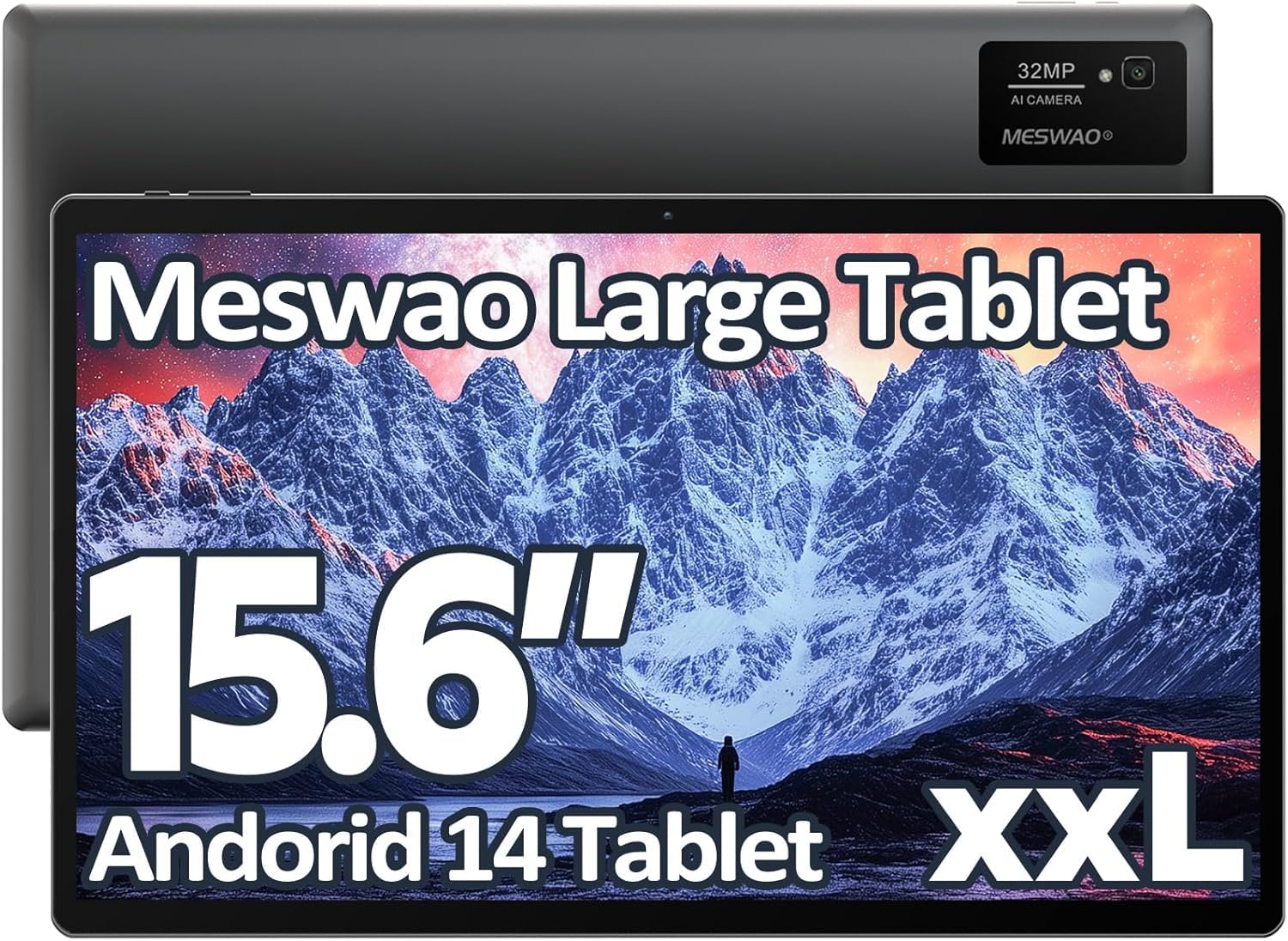
Image: The MESWAO 15.6-inch Android 14 Tablet, showcasing அதன் பெரிய காட்சி மற்றும் நேர்த்தியான வடிவமைப்பு.
2 அமைவு
2.1 பெட்டியை வெளியே எடுத்தல் மற்றும் ஆரம்ப ஆய்வு
பேக்கேஜிங்கிலிருந்து அனைத்து கூறுகளையும் கவனமாக அகற்றவும். தொகுப்பின் உள்ளடக்கங்களில் பட்டியலிடப்பட்டுள்ள அனைத்து பொருட்களும் உள்ளனவா மற்றும் சேதமடையவில்லையா என்பதைச் சரிபார்க்கவும். ஏதேனும் பொருட்கள் காணவில்லை அல்லது சேதமடைந்திருந்தால், உடனடியாக வாடிக்கையாளர் ஆதரவைத் தொடர்பு கொள்ளவும்.
2.2 டேப்லெட்டை சார்ஜ் செய்தல்
Before first use, fully charge the tablet. Connect the provided USB-C cable to the tablet's charging port and the other end to the power adapter. Plug the power adapter into a wall outlet. The charging indicator will illuminate. A full charge typically takes approximately 3 hours with the 30W fast charging capability.
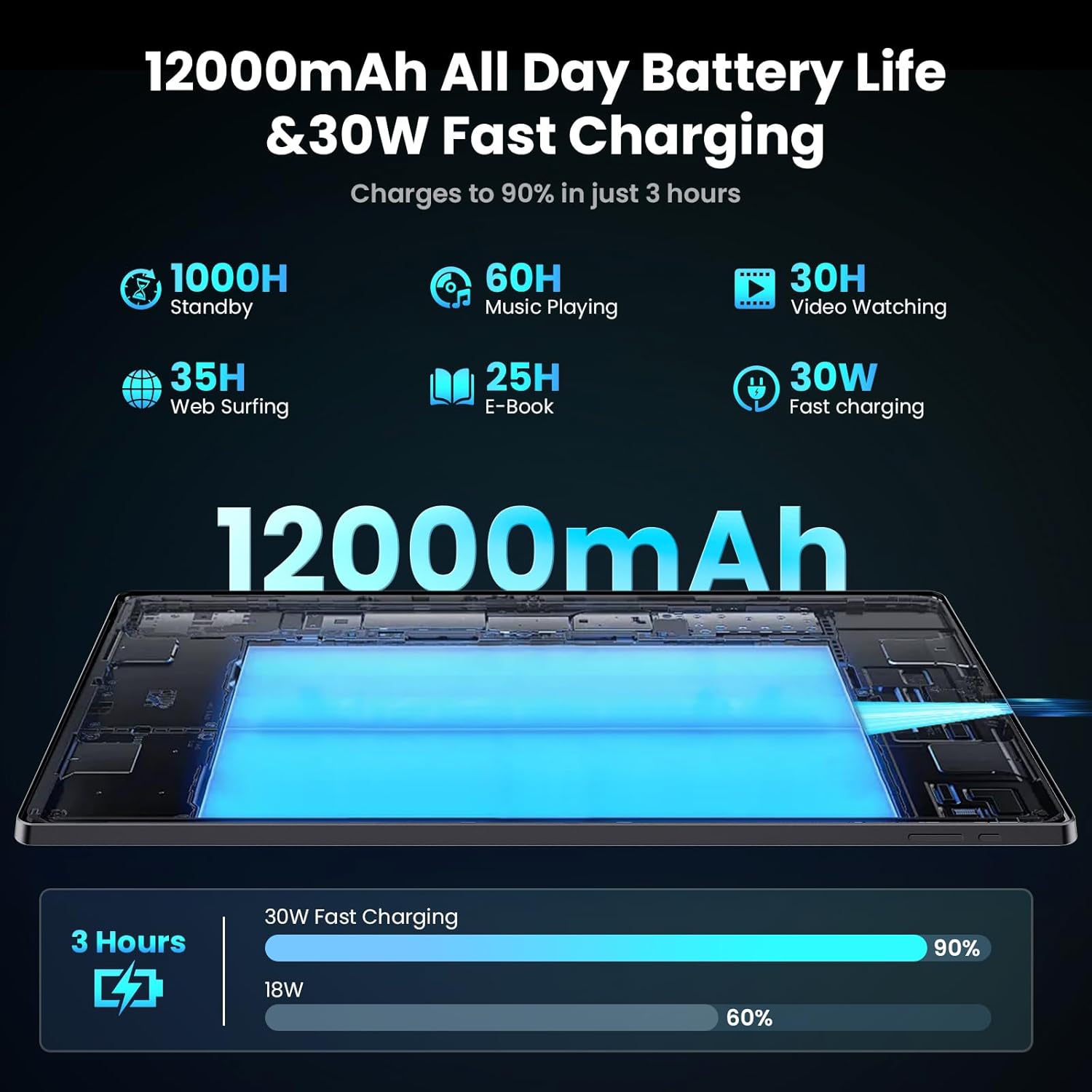
Image: Diagram illustrating the 12000mAh battery capacity and 30W fast charging feature, showing a charge to 90% in 3 hours.
2.3 பவர் ஆன் மற்றும் ஆரம்ப கட்டமைப்பு
- Press and hold the Power button until the MESWAO logo appears.
- உங்கள் மொழி, பிராந்தியத்தைத் தேர்ந்தெடுத்து வைஃபை நெட்வொர்க்குடன் இணைக்க, திரையில் தோன்றும் வழிமுறைகளைப் பின்பற்றவும்.
- Google Play Store மற்றும் பிற சேவைகளை அணுக உங்கள் Google கணக்கில் உள்நுழையவும் அல்லது புதிய ஒன்றை உருவாக்கவும்.
- Complete any remaining setup steps, such as setting up a screen lock (PIN, pattern, or password) and reviewதனியுரிமை அமைப்புகளை சரிசெய்தல்.
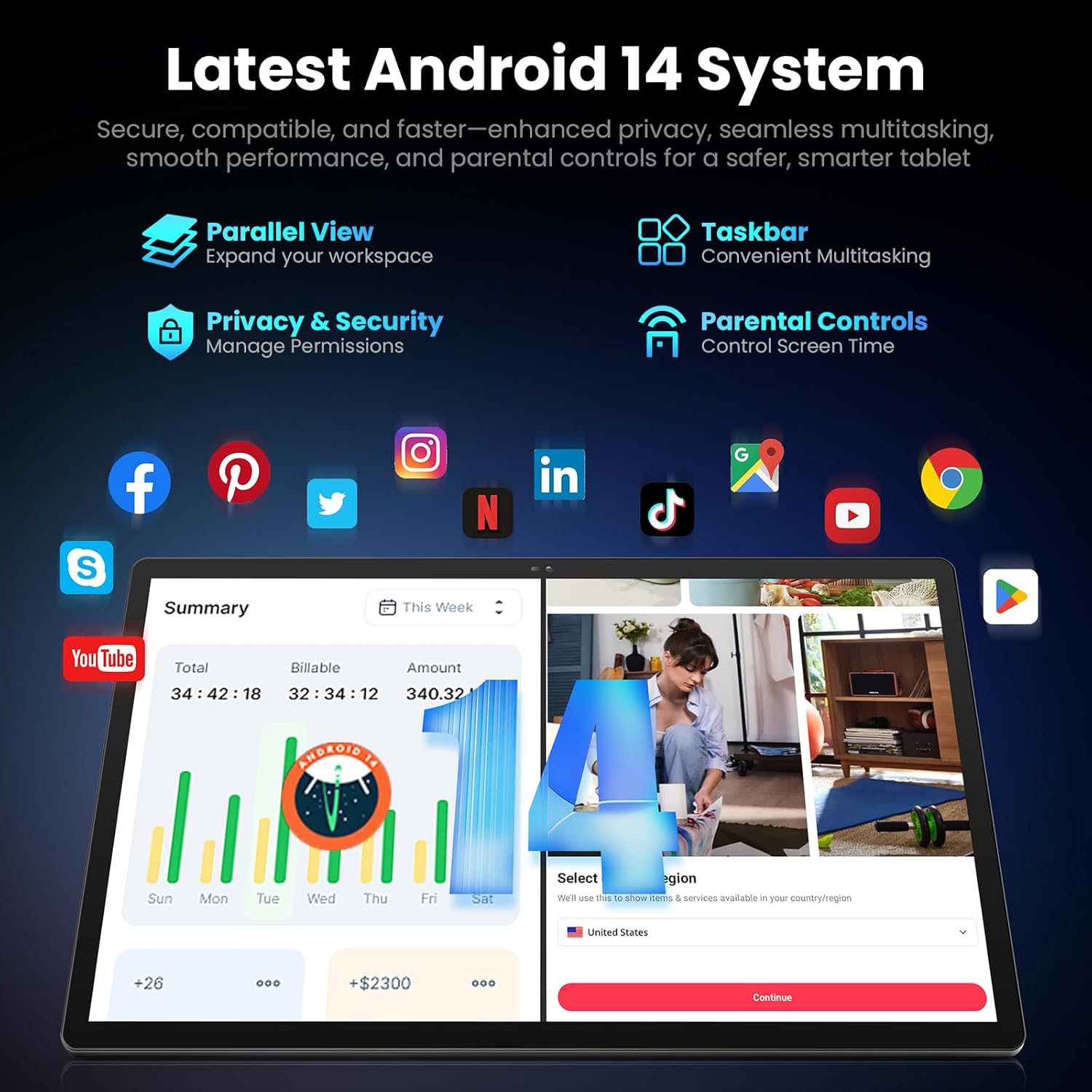
Image: Screenshot of the Android 14 system interface on the MESWAO tablet, highlighting features like Parallel View, Taskbar, Privacy & Security, and Parental Controls.
3. இயக்க வழிமுறைகள்
3.1 அடிப்படை வழிசெலுத்தல்
- தொடு சைகைகள்: தேர்ந்தெடுக்க தட்டவும், உருட்ட ஸ்வைப் செய்யவும், பெரிதாக்க பின்ச் செய்யவும்.
- முகப்புத் திரை: பயன்பாடுகள், விட்ஜெட்டுகள் மற்றும் அறிவிப்புகளை அணுகவும்.
- அறிவிப்பு குழு: திரையின் மேலிருந்து கீழே ஸ்வைப் செய்யவும் view அறிவிப்புகள் மற்றும் விரைவு அமைப்புகள்.
- ஆப் டிராயர்: நிறுவப்பட்ட அனைத்து பயன்பாடுகளையும் அணுக திரையின் கீழிருந்து மேல்நோக்கி ஸ்வைப் செய்யவும்.
3.2 காட்சி மற்றும் காட்சி அனுபவம்
The 15.6-inch Full HD (1920x1080) IPS display offers vivid colors and wide viewing angles. Adjust brightness and display settings in the Settings menu under "Display" for optimal viewing comfort. The large screen is ideal for multitasking and immersive media consumption.

Image: The MESWAO tablet displaying a high-definition image, emphasizing the 1920x1080P Full HD IPS display with eye protection features.
3.3 செயல்திறன் மற்றும் சேமிப்பு
Equipped with an Octa-Core Helio G99 processor and Android 14, the tablet provides smooth performance for various applications. It includes 8GB RAM and 256GB internal storage, expandable up to 1TB via a TF (microSD) card. To insert a TF card, locate the card slot on the side of the tablet, open the tray, and carefully place the card into the designated slot before reinserting the tray.
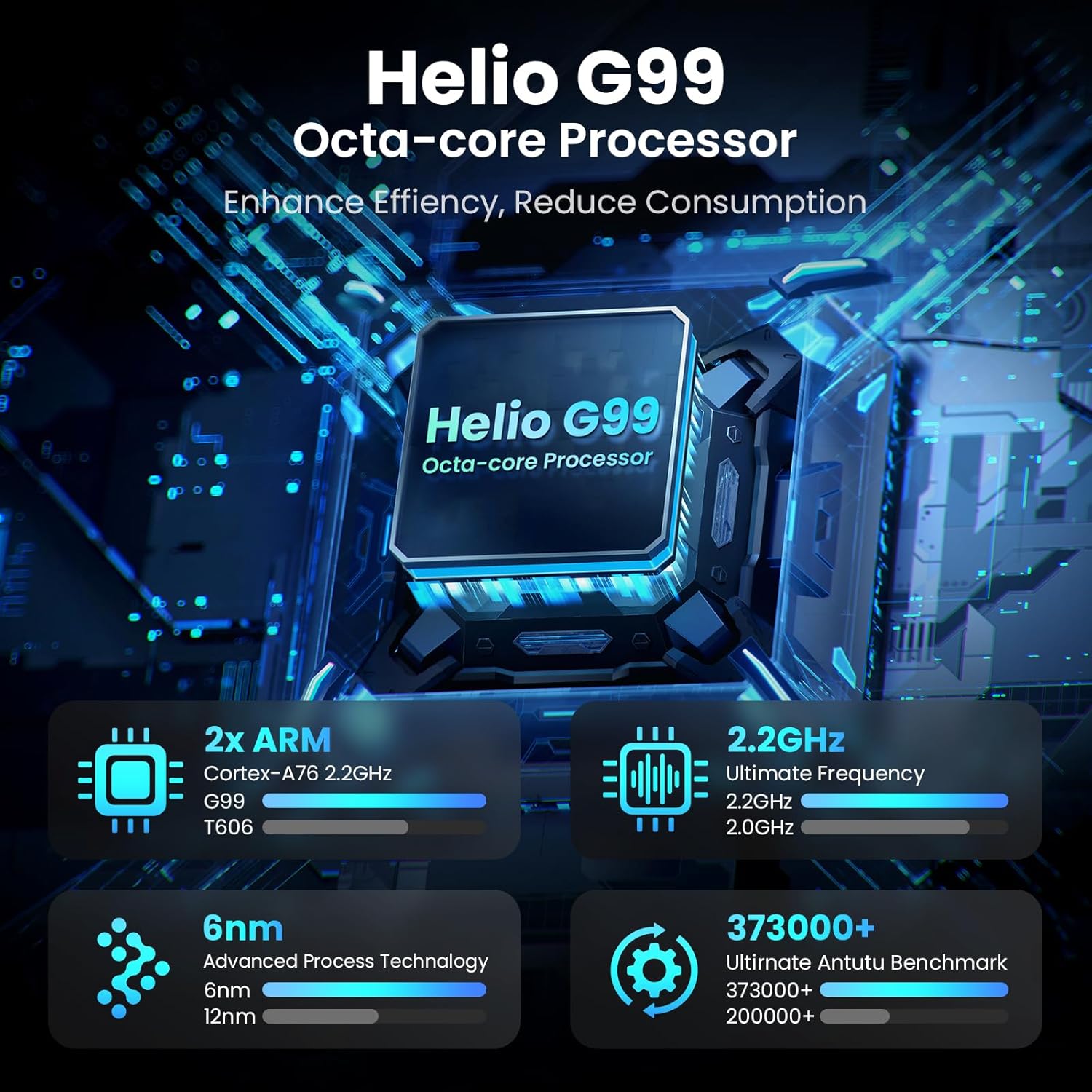
Image: Visual representation of the Helio G99 Octa-core Processor, detailing its architecture and performance metrics like 2.2GHz frequency and 6nm process technology.

Image: The MESWAO tablet screen showing multiple open applications and storage capacity details: 8GB RAM, 256GB ROM, and support for up to 1TB external storage.
3.4 கேமரா பயன்பாடு
The tablet features a 32MP rear camera with flash and a 5MP front camera. Open the Camera application to capture photos, record videos, or engage in video calls. Ensure good lighting for best results.

Image: A visual demonstrating the MESWAO tablet's 5MP front camera and 32MP rear camera, showing a family photo being taken and a video call in progress.
3.5 இணைப்பு
The tablet supports dual-band Wi-Fi (2.4GHz & 5GHz) for stable internet connectivity. Bluetooth is also available for connecting wireless accessories. Access these settings via the Notification Panel or the main Settings app.
4. பராமரிப்பு
4.1 டேப்லெட்டை சுத்தம் செய்தல்
டேப்லெட்டின் திரை மற்றும் உடலை சுத்தம் செய்ய மென்மையான, பஞ்சு இல்லாத துணியைப் பயன்படுத்தவும். பிடிவாதமான கறைகளுக்கு, சிறிது dampதுணியை தண்ணீரில் அல்லது திரை-பாதுகாப்பான துப்புரவு கரைசலில் நனைக்கவும். கடுமையான இரசாயனங்கள் அல்லது சிராய்ப்பு பொருட்களைப் பயன்படுத்துவதைத் தவிர்க்கவும்.
4.2 மென்பொருள் புதுப்பிப்புகள்
உங்கள் டேப்லெட்டில் சமீபத்திய அம்சங்கள், பாதுகாப்பு இணைப்புகள் மற்றும் செயல்திறன் மேம்பாடுகள் இருப்பதை உறுதிசெய்ய, சிஸ்டம் புதுப்பிப்புகளை தொடர்ந்து சரிபார்த்து நிறுவவும். செல்லவும் அமைப்புகள் > சிஸ்டம் > சிஸ்டம் புதுப்பிப்பு புதுப்பிப்புகளைச் சரிபார்க்க.
4.3 பேட்டரி பராமரிப்பு
- தீவிர வெப்பநிலையைத் தவிர்க்கவும், ஏனெனில் அவை பேட்டரி ஆயுளைக் குறைக்கும்.
- பேட்டரியை அடிக்கடி முழுவதுமாக காலியாக விடாதீர்கள்.
- வழங்கப்பட்ட சார்ஜர் அல்லது சான்றளிக்கப்பட்ட இணக்கமான சார்ஜரை மட்டும் பயன்படுத்தவும்.
5. சரிசெய்தல்
5.1 Tablet Not Powering On
- Ensure the tablet is sufficiently charged. Connect it to the charger for at least 30 minutes before attempting to power on again.
- கட்டாய மறுதொடக்கம் செய்ய பவர் பட்டனை 10-15 வினாடிகள் அழுத்திப் பிடிக்கவும்.
5.2 வைஃபை இணைப்புச் சிக்கல்கள்
- Check if Wi-Fi is enabled in the Quick Settings or Settings menu.
- உங்கள் வைஃபை ரூட்டர் மற்றும் டேப்லெட்டை மறுதொடக்கம் செய்யுங்கள்.
- வைஃபை அமைப்புகளில் நெட்வொர்க்கை மறந்துவிட்டு மீண்டும் இணைக்கவும்.
- நீங்கள் வைஃபை சிக்னலின் வரம்பிற்குள் இருப்பதை உறுதிசெய்து கொள்ளுங்கள்.
5.3 மெதுவான செயல்திறன்
- தேவையற்ற பின்னணி பயன்பாடுகளை மூடு.
- Clear cache data for frequently used apps (அமைப்புகள் > பயன்பாடுகள் > [பயன்பாட்டு பெயர்] > சேமிப்பகம் & தற்காலிக சேமிப்பு > தற்காலிக சேமிப்பை அழி).
- Ensure sufficient free storage space. Delete unused fileகள் அல்லது பயன்பாடுகள்.
- டேப்லெட்டை அவ்வப்போது மறுதொடக்கம் செய்யுங்கள்.
5.4 திரை பதிலளிக்கவில்லை
- Perform a forced restart (hold Power button for 10-15 seconds).
- திரை சுத்தமாகவும் ஈரப்பதம் அல்லது குப்பைகள் இல்லாமல் இருப்பதையும் உறுதிசெய்யவும்.
6. விவரக்குறிப்புகள்
| அம்சம் | விவரம் |
|---|---|
| மாதிரி பெயர் | எம்இஎஸ்-பி3 |
| காட்சி அளவு | 15.6 அங்குலம் |
| அதிகபட்ச திரை தெளிவுத்திறன் | 1920 x 1080 Pixels (Full HD IPS) |
| இயக்க முறைமை | ஆண்ட்ராய்டு 14 |
| செயலி | Octa-Core Helio G99 (up to 2.2 GHz) |
| ரேம் | 8 ஜிபி |
| உள் சேமிப்பு (ROM) | 256 ஜிபி |
| விரிவாக்கக்கூடிய சேமிப்பு | 1TB வரை (TF கார்டு) |
| பேட்டரி திறன் | 12000mAh |
| சார்ஜ் செய்கிறது | 30W ஃபாஸ்ட் சார்ஜிங் |
| பின்புற கேமரா | ஃபிளாஷ் உடன் 32MP |
| முன் கேமரா | 5 எம்.பி |
| இணைப்பு | Dual-band Wi-Fi (2.4GHz & 5GHz), Bluetooth |
| பரிமாணங்கள் (LxWxH) | 14.53 x 8.78 x 0.43 அங்குலம் |
| பொருளின் எடை | 3.84 பவுண்டுகள் |
7. உத்தரவாதம் மற்றும் ஆதரவு
7.1 உத்தரவாதத் தகவல்
MESWAO products are covered by a limited warranty. Please refer to the warranty card included in your product packaging for specific terms and conditions. Keep your proof of purchase for warranty claims.
7.2 வாடிக்கையாளர் ஆதரவு
For technical assistance, troubleshooting, or warranty inquiries, please contact MESWAO customer support. Contact information can typically be found on the official MESWAO webதளத்தில் அல்லது உத்தரவாத அட்டையில்.
Online resources such as FAQs and support forums may also be available on the MESWAO webதளம்.