அறிமுகம்
This manual provides essential information for setting up, operating, and maintaining your HP F3510 e-All-in-One printer. The HP F3510 is a versatile device designed for printing, scanning, and copying everyday documents and photos. It features wireless connectivity for convenient use within your network.
பாதுகாப்பு தகவல்
தீ அல்லது மின்சார அதிர்ச்சியிலிருந்து காயம் ஏற்படும் அபாயத்தைக் குறைக்க இந்த தயாரிப்பைப் பயன்படுத்தும் போது எப்போதும் அடிப்படை பாதுகாப்பு முன்னெச்சரிக்கைகளைப் பின்பற்றவும்.
- இந்த கையேட்டில் உள்ள அனைத்து வழிமுறைகளையும் படித்து புரிந்து கொள்ளுங்கள்.
- Use only the power cord and adapter supplied with the printer.
- Do not place the printer in a location where the cord can be damaged.
- Keep the printer away from water or moist environments.
- பிரிண்டரை நீங்களே சர்வீஸ் செய்ய முயற்சிக்காதீர்கள். அனைத்து சர்வீசிங்கையும் தகுதிவாய்ந்த சர்வீஸ் பணியாளர்களிடம் பரிந்துரைக்கவும்.
பெட்டியில் என்ன இருக்கிறது
அமைப்பைத் தொடர்வதற்கு முன் அனைத்து கூறுகளும் உள்ளனவா என்பதைச் சரிபார்க்கவும்.
- HP F3510 e-All-in-One Printer
- பவர் கார்ட்
- Setup Ink Cartridges (Black and Tri-color)
- Software CD (may vary by region)
- அமைவு வழிகாட்டி
- உறைகள்
அமைவு
1. பிரிண்டரை அன்பேக் செய்தல்
Carefully remove the printer from its packaging. Remove all packing materials, tapes, and protective films from the exterior and interior of the printer. Open the cartridge access door to ensure all internal packing materials are removed.
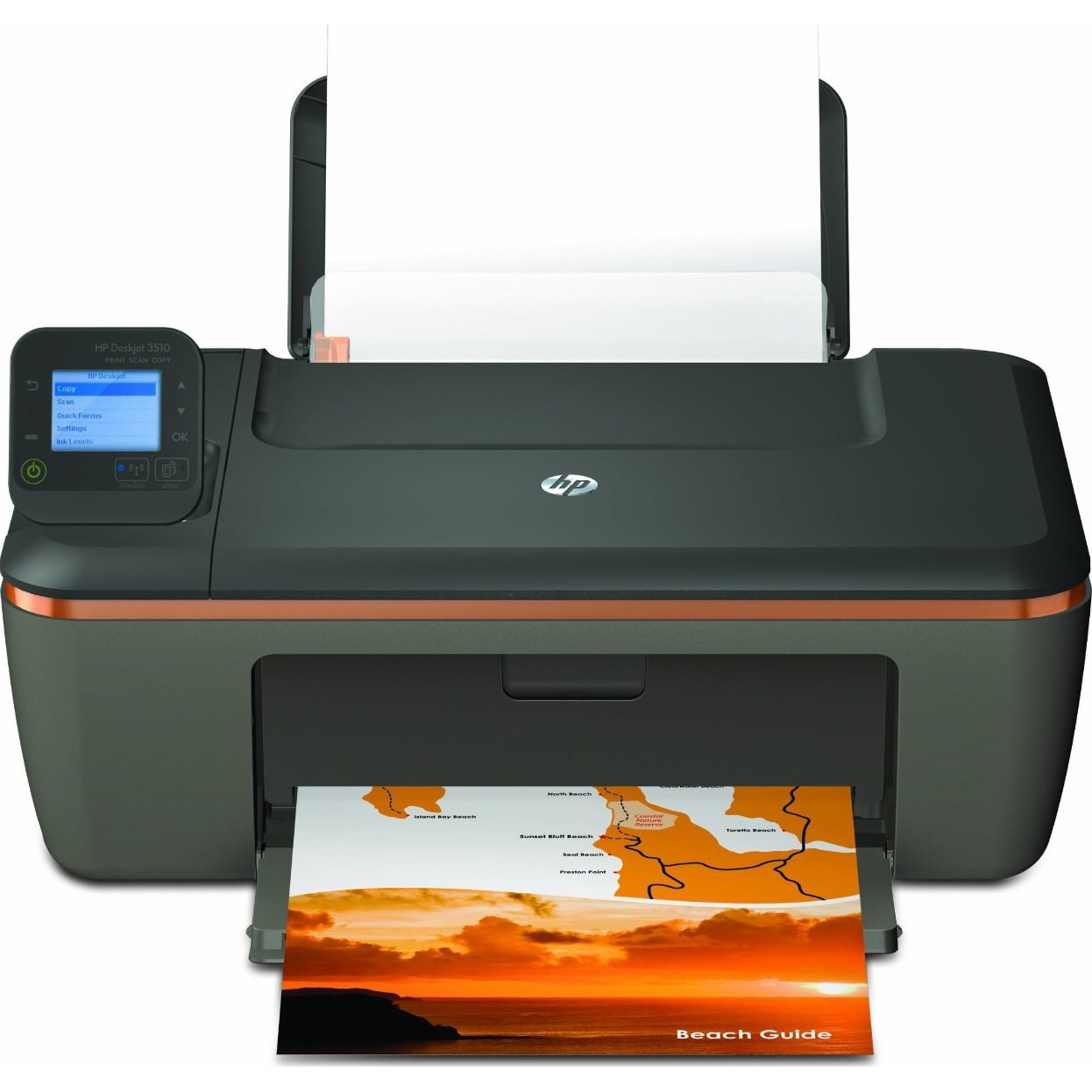
Image: The HP F3510 printer, showing its compact design with the paper input tray visible at the back and the output tray extended at the front. The scanner lid is closed on top.
2. சக்தியுடன் இணைக்கிறது
Connect the power cord to the back of the printer and then plug the other end into a grounded electrical outlet. Press the Power button to turn on the printer.
3. மை தோட்டாக்களை நிறுவுதல்
- இங்க் கார்ட்ரிட்ஜ் அணுகல் கதவைத் திறக்கவும். வண்டி மையத்திற்கு நகரும்.
- வண்டி செயலற்றதாகவும் அமைதியாகவும் இருக்கும் வரை காத்திருங்கள்.
- Gently press down on the cartridge to release it, then pull it out of its slot.
- Remove the new cartridge from its packaging. Pull the orange pull tab to remove the protective tape. Do not touch the copper-colored contacts or ink nozzles.
- Slide the new cartridge into its slot until it clicks into place. Ensure the color cartridge goes into the left slot and the black cartridge into the right slot.
- Close the ink cartridge access door. The printer will perform an alignment page print.
4. ஏற்றுதல் காகிதம்
Load plain white paper into the input tray. Adjust the paper guides to fit the paper size snugly. The printer supports standard letter size (8.5 x 11 inches).
5. வயர்லெஸ் அமைப்பு
The HP F3510 features HP Auto Wireless Connect, simplifying the process of connecting to your wireless network.
- Install the printer software on your computer using the provided CD or by downloading it from the official HP support webதளம்.
- During the software installation, select the "Wireless" connection option.
- Follow the on-screen prompts. The HP Auto Wireless Connect feature will attempt to automatically connect your printer to your wireless network.
- If prompted, enter your network name (SSID) and password (WPA key or WEP key).
- Once connected, the wireless indicator light on the printer will be solid blue.
For mobile printing, you can use HP ePrint. Register your printer with HP ePrint to assign it an email address, allowing you to print documents by sending them to the printer's email address from any internet-connected device.
இயக்க வழிமுறைகள்
ஆவணங்களை அச்சிடுதல்
- கணினியிலிருந்து: Open the document or image you wish to print. Select "Print" from the application's File menu. Choose your HP F3510 printer, adjust settings (e.g., paper size, print quality, color/grayscale), and click "Print".
- வயர்லெஸ் பிரிண்டிங்: Ensure your computer or mobile device is connected to the same wireless network as your printer. Use the HP ePrint app or other compatible mobile printing solutions for direct printing from smartphones and tablets.
- Automatic 2-sided Printing: The HP F3510 supports automatic duplex printing. In your print settings, look for an option to print on both sides of the paper and select it. This feature helps reduce paper consumption.
ஆவணங்கள் மற்றும் புகைப்படங்களை ஸ்கேன் செய்தல்
- Place the original document or photo face-down on the scanner glass, aligning it with the guide.
- ஸ்கேனர் மூடியை மூடு.
- On your computer, open the HP printer software or a scanning application.
- Select "Scan a Document or Photo" and choose your desired settings (e.g., document type, resolution, destination).
- Click "Scan" to begin the process. The scanned image will appear on your computer.
ஆவணங்களை நகலெடுக்கிறது
- அசல் ஆவணத்தை ஸ்கேனர் கிளாஸில் முகம் கீழே வைக்கவும்.
- ஸ்கேனர் மூடியை மூடு.
- On the printer's control panel, press the "Black Copy" button for a black and white copy or the "Color Copy" button for a color copy.
- To make multiple copies, press the respective copy button multiple times or use the control panel options if available to specify the number of copies.
பராமரிப்பு
மை கார்ட்ரிட்ஜ்களை மாற்றுதல்
When an ink cartridge runs low or is empty, replace it promptly to ensure optimal print quality. Refer to the "Installing Ink Cartridges" section in Setup for detailed steps. Use genuine HP ink cartridges for best results.
அச்சுப்பொறியை சுத்தம் செய்தல்
- வெளிப்புறம்: Wipe the exterior surfaces of the printer with a soft, lint-free cloth. Do not use abrasive cleaners.
- ஸ்கேனர் கண்ணாடி: Clean the scanner glass with a soft cloth lightly dampகண்ணாடி கிளீனரால் நிரப்பப்பட்டது. கண்ணாடி மீது நேரடியாக கிளீனரை தெளிப்பதைத் தவிர்க்கவும்.
- அச்சுத் தலை சுத்தம் செய்தல்: If print quality issues (streaks, faded colors) occur, use the printer software to initiate a printhead cleaning cycle. This helps clear clogged nozzles.
சரிசெய்தல்
This section addresses common issues you might encounter with your HP F3510 printer.
அச்சுப்பொறி பதிலளிக்கவில்லை
- அச்சுப்பொறி இயக்கப்பட்டிருப்பதையும், வேலை செய்யும் மின் நிலையத்துடன் இணைக்கப்பட்டுள்ளதையும் உறுதிசெய்யவும்.
- Check the USB cable connection (if using USB) or wireless network connection.
- அச்சுப்பொறி மற்றும் உங்கள் கணினி/ரௌட்டர் இரண்டையும் மறுதொடக்கம் செய்யுங்கள்.
- உங்கள் கணினியின் அச்சு உரையாடலில் சரியான அச்சுப்பொறி தேர்ந்தெடுக்கப்பட்டுள்ளதா என்பதைச் சரிபார்க்கவும்.
வயர்லெஸ் இணைப்பு சிக்கல்கள்
- Confirm your router is on and broadcasting a signal.
- Check the wireless indicator light on the printer; if it's blinking, it's not connected.
- Run the Wireless Setup Wizard from the printer's control panel or through the HP software.
- அச்சுப்பொறி உங்கள் வயர்லெஸ் ரூட்டரின் வரம்பிற்குள் இருப்பதை உறுதிசெய்யவும்.
மோசமான அச்சு தரம்
- மை அளவை சரிபார்த்து, குறைந்த அல்லது காலியான தோட்டாக்களை மாற்றவும்.
- Perform a printhead cleaning cycle and print an alignment page using the printer software.
- உங்கள் அச்சு வேலைக்கு பொருத்தமான காகிதத்தைப் பயன்படுத்துவதை உறுதிப்படுத்திக் கொள்ளுங்கள்.
- Check print settings to ensure they match your desired quality (e.g., "Best" quality for photos).
காகித நெரிசல்கள்
- அச்சுப்பொறியை அணைத்துவிட்டு, அதைத் துண்டிக்கவும்.
- Carefully remove any jammed paper from the input tray, output tray, or inside the printer. Pull paper slowly and evenly to avoid tearing.
- Ensure paper is loaded correctly and not overfilled in the input tray.
- காகிதப் பாதையிலிருந்து ஏதேனும் வெளிநாட்டுப் பொருட்களை அகற்றவும்.
விவரக்குறிப்புகள்
| அம்சம் | விவரக்குறிப்பு |
|---|---|
| மாதிரி எண் | F3510 |
| செயல்பாடுகள் | அச்சு, ஸ்கேன், நகல் |
| அச்சிடும் தொழில்நுட்பம் | இன்க்ஜெட் |
| இணைப்பு | வயர்லெஸ் (வை-ஃபை), யூ.எஸ்.பி 2.0 |
| அதிகபட்ச அச்சு வேகம் (கருப்பு) | 14 பிபிஎம் வரை |
| அதிகபட்ச அச்சு வேகம் (நிறம்) | 16 பிபிஎம் வரை |
| Maximum Print Resolution (Black) | 300 டிபிஐ |
| அதிகபட்ச அச்சு தெளிவுத்திறன் (வண்ணம்) | 300 டிபிஐ |
| ஸ்கேனர் வகை | Flatbed with Auto Document Feeder (ADF) |
| அதிகபட்ச ஸ்கேன் தெளிவுத்திறன் | 300 டிபிஐ |
| Maximum Copy Resolution (Black/Color) | 300 டிபிஐ |
| அதிகபட்ச மீடியா அளவு | 8.5 x 11 inches (Letter) |
| உள்ளீட்டு தட்டு திறன் | 100 தாள்கள் |
| வெளியீட்டு தட்டு திறன் | 50 தாள்கள் |
| இரட்டை அச்சிடுதல் | தானியங்கி (இரு பக்க) |
| பொருளின் எடை | 8.59 பவுண்டுகள் |
உத்தரவாதம் மற்றும் ஆதரவு
Your HP F3510 printer comes with a limited warranty. For specific warranty terms and conditions, please refer to the documentation included with your product or visit the official HP support webதளம்.
For technical assistance, driver downloads, or further troubleshooting, visit the HP support website or contact HP customer service. Have your printer's model number (F3510) and serial number ready when contacting support.
ஆன்லைன் ஆதரவு: support.hp.com