1. தயாரிப்பு முடிந்துவிட்டதுview
The ORICO 6828US3-C is an aluminum dual-bay hard drive docking station designed for 2.5-inch and 3.5-inch SATA HDDs and SSDs. It provides high-speed data transfer via USB 3.0, supporting speeds up to 5Gbps. This docking station also features an offline clone function, allowing direct duplication of hard drives without requiring a computer connection. Its tool-free design ensures easy installation and removal of drives.
2. தொகுப்பு உள்ளடக்கங்கள்
தொகுப்பில் அனைத்து பொருட்களும் உள்ளதா என்பதை சரிபார்க்கவும்:
- 1 x ORICO Hard Drive Docking Station (6828US3-C)
- 1 x USB 3.0 Data Cable
- 1 x 12V பவர் அடாப்டர்
- 1 x பயனர் கையேடு
- 1 x சேவை அட்டை
3. தயாரிப்பு வரைபடம்

படம் 3.1: முன் மற்றும் பின்புறம் View of the ORICO 6828US3-C Docking Station. This image highlights the PC-Clone button, DC Port, Power Switch, LED indicators, and the Source/Target drive slots for both 2.5-inch and 3.5-inch SATA hard disk drives.

படம் 3.2: Dimensions of the ORICO 6828US3-C Docking Station, showing its compact design.
4. அமைவு வழிமுறைகள்
Follow these steps to set up your ORICO 6828US3-C docking station:
- பவர் இணைக்கவும்: Connect the provided 12V power adapter to the DC port on the back of the docking station and then plug it into a power outlet.
- கணினியுடன் இணைக்கவும் (விரும்பினால்): If using the docking station with a computer, connect the USB 3.0 data cable from the docking station's USB 3.0 port to an available USB port on your computer.
- Insert Hard Drives: Carefully insert your 2.5-inch or 3.5-inch SATA hard drives or SSDs into the designated slots. Ensure they are firmly seated. The slots are labeled 'Source' and 'Target' for cloning operations, but can be used interchangeably for individual drive access.
- பவர் ஆன்: Press the power switch on the back of the docking station to turn it on. The LED indicators will illuminate.

படம் 4.1: Diagram illustrating the connection of the DC adapter, USB cable to PC, and insertion of SSD/HDD into the docking station, along with the power button.

படம் 4.2: The docking station supports both 2.5-inch and 3.5-inch SATA hard drives and SSDs, offering tool-free installation.
5. இயக்க வழிமுறைகள்
5.1. PC இணைப்பு முறை
When connected to a computer via the USB 3.0 cable, the ORICO 6828US3-C functions as an external hard drive enclosure. Your operating system (Windows, Mac OS X, Linux) should automatically detect the inserted drives. You can then access, read, and write data to the drives as you would with any other external storage device.
- டாக்கிங் ஸ்டேஷன் இயக்கப்பட்டிருப்பதை உறுதிசெய்யவும்.
- USB 3.0 கேபிளை உங்கள் கணினியுடன் இணைக்கவும்.
- Insert your SATA HDD/SSD into either slot.
- The drive will appear as a removable disk in your computer's file ஆய்வு செய்பவர்.

படம் 5.1: The ORICO 6828US3-C docking station connected to a laptop with a 3.5-inch hard drive inserted, ready for data access.
5.2. ஆஃப்லைன் குளோன் செயல்பாடு
The offline clone function allows you to duplicate a hard drive without connecting the docking station to a computer. This is useful for creating backups or migrating data to a new drive.
முக்கியமான கருத்தாய்வுகள்:
- தி இலக்கு drive must be equal to or larger in capacity than the ஆதாரம் ஓட்டு.
- All data on the இலக்கு drive will be erased during the cloning process. Ensure you have backed up any important data from the Target drive before proceeding.
- Do not disconnect the power or drives during the cloning process.
Steps for Offline Cloning:
- பவர் ஆஃப்: டாக்கிங் ஸ்டேஷன் அணைக்கப்பட்டு, எந்த கணினியிலிருந்தும் துண்டிக்கப்பட்டுள்ளதா என்பதை உறுதிப்படுத்திக் கொள்ளுங்கள்.
- Insert Source Drive: Insert the hard drive you wish to clone (the original drive) into the slot labeled 'Source'.
- Insert Target Drive: Insert the hard drive you wish to clone to (the destination drive) into the slot labeled 'Target'.
- பவர் ஆன்: நறுக்குதல் நிலையத்தை இயக்கவும்.
- குளோனைத் தொடங்கு: Press and hold the 'Clone' button (refer to Figure 3.1 for location) for approximately 3-5 seconds until the LED indicators begin to flash.
- முன்னேற்றத்தைக் கண்காணிக்கவும்: The LED indicators (25%, 50%, 75%, 100%) will light up sequentially to indicate the cloning progress.
- நிறைவு: Once all four LED indicators remain solid, the cloning process is complete. You can then safely power off the docking station and remove the drives.
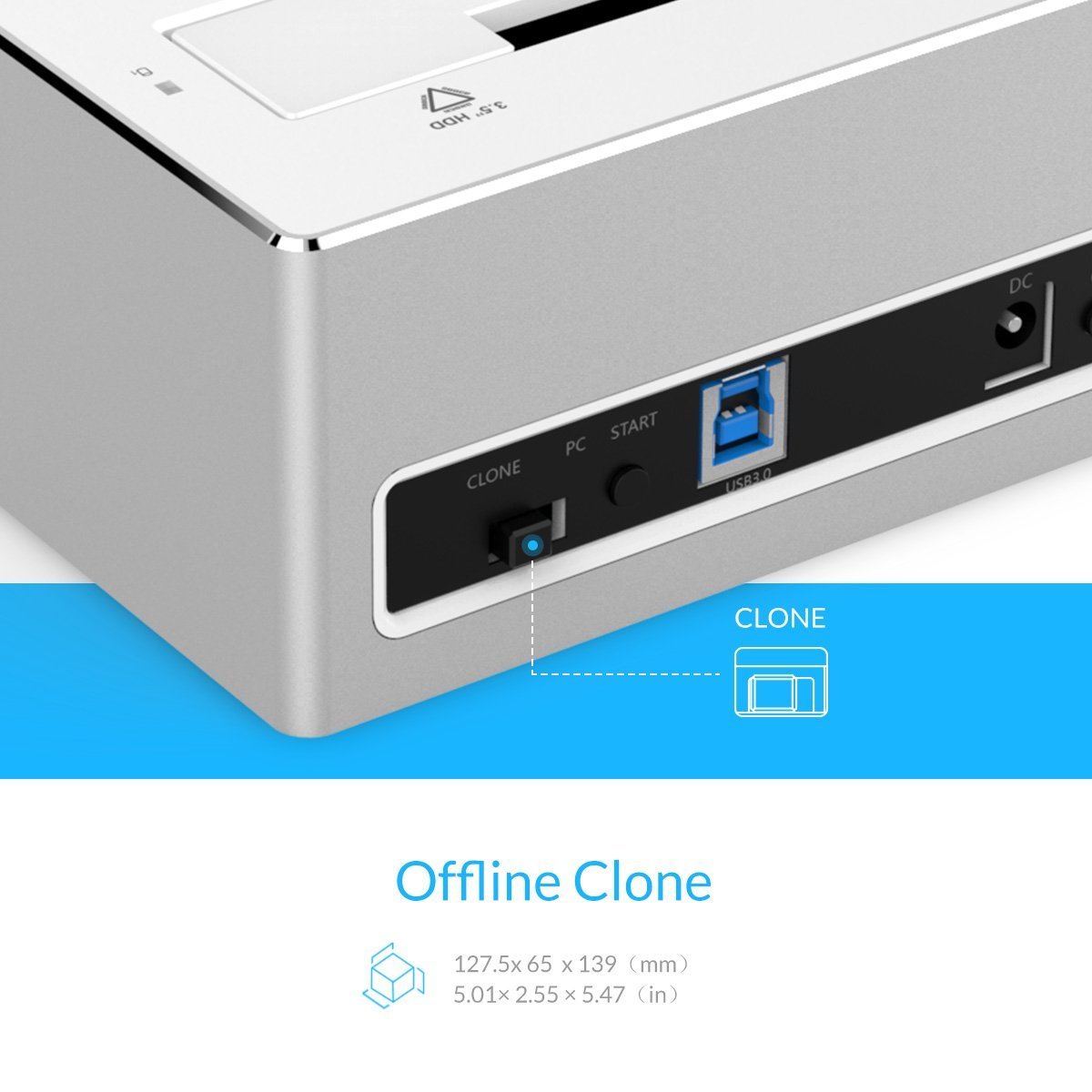
படம் 5.2: நெருக்கமான காட்சி view of the 'Clone' button on the ORICO 6828US3-C docking station, used to initiate the offline cloning process.
6. பராமரிப்பு
To ensure the longevity and optimal performance of your ORICO 6828US3-C docking station, follow these maintenance guidelines:
- சுத்தம்: Use a soft, dry cloth to clean the exterior of the docking station. Avoid using liquid cleaners or solvents, as they may damage the finish or internal components.
- தூசி தடுப்பு: Keep the docking station in a clean, dust-free environment to prevent dust accumulation in the drive slots and ventilation areas.
- சேமிப்பு: When not in use for extended periods, store the docking station in a cool, dry place.
- கையாளுதல்: சாதனத்தை கவனமாகக் கையாளவும். அதை கீழே போடுவதையோ அல்லது வலுவான தாக்கங்களுக்கு ஆளாக்குவதையோ தவிர்க்கவும்.
7. சரிசெய்தல்
If you encounter issues with your ORICO 6828US3-C, refer to the following troubleshooting tips:
- Drive Not Detected by PC:
- Ensure the docking station is powered on and the USB 3.0 cable is securely connected to both the dock and the computer.
- உங்கள் கணினியில் வேறு USB போர்ட்டுடன் இணைக்க முயற்சிக்கவும்.
- Verify that the hard drive is properly seated in the slot.
- Check Disk Management (Windows) or Disk Utility (Mac) to see if the drive is recognized but uninitialized or unformatted.
- டிரைவ் சிக்கலை நிராகரிக்க வேறு ஹார்ட் டிரைவ் மூலம் சோதிக்கவும்.
- மெதுவான தரவு பரிமாற்ற வேகம்:
- உங்கள் கணினியில் USB 3.0 போர்ட்டுடன் இணைக்கப்பட்டுள்ளதை உறுதிசெய்து கொள்ளுங்கள். USB 2.0 போர்ட்கள் வேகத்தைக் குறைக்கும்.
- Check the condition of the USB 3.0 cable. Try a different cable if available.
- The actual speed can be affected by the performance of the hard drive itself and your computer's system resources.
- Offline Clone Fails or Does Not Start:
- Ensure the docking station is disconnected from the computer before starting the clone process.
- Verify that the Target drive's capacity is equal to or greater than the Source drive's capacity.
- Make sure both drives are properly inserted into their respective 'Source' and 'Target' slots.
- Press and hold the 'Clone' button for the required 3-5 seconds until the LEDs start flashing.
- If the issue persists, try using different drives.
- Power LED Not On:
- Ensure the power adapter is securely connected to both the docking station and a working power outlet.
- Press the power switch on the back of the unit.
- மற்றொரு சாதனத்துடன் மின் நிலையத்தை சோதிக்கவும்.
8. விவரக்குறிப்புகள்
| அம்சம் | விவரக்குறிப்பு |
|---|---|
| மாதிரி | 6828US3-C |
| வன் வட்டு வடிவ காரணி | 2.5 அங்குலம், 3.5 அங்குலம் |
| ஆதரிக்கப்படும் சாதனங்களின் அதிகபட்ச எண்ணிக்கை | 2 (Source and Target for clone, or 2 independent drives) |
| இணைப்பு தொழில்நுட்பம் | SATA, USB 3.0 |
| தரவு பரிமாற்ற வீதம் | 5Gbps வரை (USB 3.0) |
| Max Hard Drive Capacity | Up to 8 TB per slot (16 TB total) |
| இணக்கமான இயக்க முறைமைகள் | Windows XP/7/8/8.1/10, Mac OS X 9.1 or above, Linux |
| சிறப்பு அம்சங்கள் | Offline Clone Function, Tool-free installation, Hot-swappable |
| பொருள் | அலுமினியம், ABS (அக்ரிலோனிட்ரைல் பியூட்டாடீன் ஸ்டைரீன்) |
| பொருளின் எடை | 950 கிராம் |
| தொகுப்பு பரிமாணங்கள் | 20.6 x 15 x 10.3 செ.மீ |
9. உத்தரவாதம் மற்றும் ஆதரவு
ORICO provides a 12-month warranty on this product. To register your product for warranty and for service & support, please visit the official ORICO India webதளம் அல்லது வாடிக்கையாளர் சேவையை தொடர்பு கொள்ளவும்.
- உத்தரவாதப் பதிவு: www.oricoindia.in
- வாடிக்கையாளர் பராமரிப்பு எண்: 022-24118805

படம் 9.1: ORICO 1-Year Warranty information, including website and customer care contact details.


