1. அறிமுகம்
This manual provides comprehensive instructions for the installation, operation, and maintenance of your Intel 3168NGW Dual Band Wireless-AC 3168 WiFi Card. Please read this manual thoroughly before installation and use to ensure proper functionality and to prevent damage.
The Intel 3168NGW is a compact M.2 2230 form factor card designed to provide high-speed 802.11ac Wi-Fi and Bluetooth 4.2 connectivity to compatible systems.
2. பாதுகாப்பு தகவல்
- Always disconnect power from your computer before installing or removing any internal components.
- Handle the card by its edges to avoid touching the gold connectors or sensitive components. Electrostatic discharge (ESD) can damage the card.
- Ensure proper grounding when working inside your computer.
- Keep the card away from moisture and extreme temperatures.
- This product is intended for installation by qualified personnel.
3. தொகுப்பு உள்ளடக்கங்கள்
உங்கள் தொகுப்பில் அனைத்து பொருட்களும் உள்ளதா என சரிபார்க்கவும்:
- Intel 3168NGW Dual Band Wireless-AC 3168 WiFi Card
- (Antennas and mounting screw may be included depending on retailer/kit)
4. அமைவு மற்றும் நிறுவல்
This section outlines the general steps for installing the Intel 3168NGW WiFi Card. Specific steps may vary depending on your computer's make and model.
4.1 முன் நிறுவல் சரிபார்ப்பு பட்டியல்
- Compatible M.2 2230 slot (Key E) on your motherboard or laptop.
- சிறிய பிலிப்ஸ் தலை ஸ்க்ரூடிரைவர்.
- ஆன்டி-ஸ்டேடிக் மணிக்கட்டு பட்டை (பரிந்துரைக்கப்படுகிறது).
- Internet access (for driver download).
4.2. நிறுவல் படிகள்
- பவர் ஆஃப் மற்றும் துண்டிக்கவும்: Shut down your computer completely and disconnect the power cord and any other peripherals.
- கணினிப் பெட்டியைத் திற: Open your computer's case or access panel to expose the motherboard. Refer to your computer's manual for specific instructions.
- M.2 ஸ்லாட்டைக் கண்டறியவும்: Identify an available M.2 2230 slot (often labeled "Key E" or "WiFi").
- Insert WiFi Card: Carefully align the Intel 3168NGW card with the M.2 slot. Insert the card at a slight angle (approximately 30 degrees) and gently push it into the slot until it is fully seated.
- அட்டையைப் பாதுகாக்கவும்: Once seated, push the card down towards the motherboard. Secure it with the small screw provided with your computer or the card (if included).
- Attach Antennas (if applicable): If your system uses external antennas, carefully connect the antenna cables to the corresponding connectors on the WiFi card (Main and Aux). Ensure a secure connection.
- கணினி உறையை மூடு: Replace the computer's access panel or close the case.
- சக்தியை மீண்டும் இணைக்கவும்: Reconnect the power cord and other peripherals.
- பவர் ஆன்: உங்கள் கணினியை இயக்கவும்.
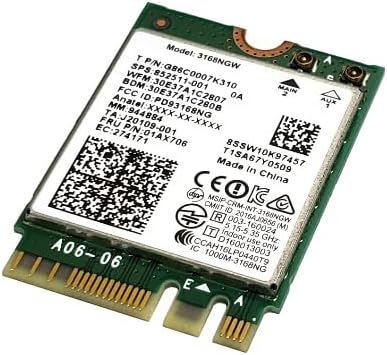
Image 1: Intel 3168NGW Dual Band Wireless-AC 3168 WiFi Card. This image displays the Intel 3168NGW WiFi card, an M.2 2230 form factor component. The card features a green PCB with a white label detailing the model number (3168NGW), part numbers (G86C0007K310, 852511-001), and regulatory information. Two small gold antenna connectors are visible at one end, labeled "MAIN" and "AUX". The M.2 connector pins are visible at the opposite end.
5. இயக்க வழிமுறைகள்
5.1. இயக்கி நிறுவல்
After physical installation, you will need to install the appropriate drivers for the WiFi and Bluetooth functionalities.
- ஆரம்ப துவக்கம்: Upon booting your computer, the operating system may automatically detect the new hardware and attempt to install generic drivers.
- சமீபத்திய இயக்கிகளைப் பதிவிறக்கவும்: For optimal performance and stability, it is highly recommended to download the latest drivers directly from the official Intel support webதளம். தேடுங்கள் "Intel Wireless-AC 3168 drivers" and "Intel Bluetooth 4.2 drivers".
- இயக்கிகளை நிறுவவும்: Run the downloaded driver installation packages and follow the on-screen prompts. You may need to restart your computer after installation.
- நிறுவலைச் சரிபார்க்கவும்: Open Device Manager (Windows) or System Information (macOS/Linux) to confirm that the Intel Wireless-AC 3168 and Bluetooth 4.2 devices are recognized and functioning correctly.
5.2. Wi-Fi நெட்வொர்க்குடன் இணைக்கிறது
- Ensure Wi-Fi is enabled in your operating system settings.
- Click on the Wi-Fi icon in your system tray (Windows) or menu bar (macOS).
- கிடைக்கக்கூடிய நெட்வொர்க்குகளின் பட்டியலிலிருந்து உங்களுக்கு விருப்பமான வைஃபை நெட்வொர்க்கைத் தேர்ந்தெடுக்கவும்.
- Enter the network password (if required) and click "Connect".
5.3. ப்ளூடூத் சாதனங்களை இணைத்தல்
- உங்கள் இயக்க முறைமை அமைப்புகளில் புளூடூத் இயக்கப்பட்டிருப்பதை உறுதிசெய்யவும்.
- உங்கள் ப்ளூடூத் சாதனத்தை இணைத்தல் பயன்முறையில் வைக்கவும் (சாதன கையேட்டைப் பார்க்கவும்).
- Go to your computer's Bluetooth settings and search for new devices.
- பட்டியலிலிருந்து உங்கள் சாதனத்தைத் தேர்ந்தெடுத்து, இணைத்தல் செயல்முறையை முடிக்க திரையில் உள்ள ஏதேனும் அறிவுறுத்தல்களைப் பின்பற்றவும்.
6. பராமரிப்பு
- இயக்கி புதுப்பிப்புகள்: இன்டெல் ஆதரவை தவறாமல் சரிபார்க்கவும் website for updated drivers to ensure optimal performance and security.
- உடல் பரிசோதனை: Periodically inspect the card and antenna connections for any signs of damage or loose connections.
- சுத்தம்: If necessary, gently clean any dust accumulation on the card using compressed air. Ensure the computer is powered off and disconnected before cleaning.
7. சரிசெய்தல்
7.1. Wi-Fi or Bluetooth Not Detected
- உடல் இணைப்பைச் சரிபார்க்கவும்: Ensure the card is properly seated in the M.2 slot and secured.
- ஆண்டெனா இணைப்புகள்: Verify that antenna cables are securely attached to the card.
- சாதன மேலாளர்: Check Device Manager (Windows) for any yellow exclamation marks or unknown devices. Reinstall drivers if necessary.
- பயாஸ்/யுஇஎஃப்ஐ அமைப்புகள்: Some motherboards may have an option to enable/disable M.2 slots or wireless functionality in the BIOS/UEFI settings. Ensure it is enabled.
7.2. Poor Wi-Fi Performance or Disconnections
- இயக்கி புதுப்பிப்பு: Ensure you have the latest drivers installed from Intel.
- திசைவி அருகாமை: Move closer to your Wi-Fi router or access point.
- குறுக்கீடு: Other electronic devices (cordless phones, microwaves) can cause interference. Try changing your router's Wi-Fi channel.
- ஆண்டெனா இடம்: If using external antennas, ensure they are positioned for optimal signal reception.
7.3. புளூடூத் இணைத்தல் சிக்கல்கள்
- சாதன இணக்கத்தன்மை: Ensure the Bluetooth device you are trying to pair is compatible with Bluetooth 4.2.
- இணைத்தல் முறை: Confirm the Bluetooth device is in pairing mode.
- Restart Bluetooth Service: Try disabling and re-enabling Bluetooth in your computer's settings.
- Remove Existing Pairings: If you've previously paired the device, remove it from your computer's Bluetooth list and try pairing again.
8. விவரக்குறிப்புகள்
| அம்சம் | விவரக்குறிப்பு |
|---|---|
| மாதிரி | இன்டெல் 3168NGW |
| பகுதி எண்கள் | G86C0007K310, 852511-001, 01AX706, SW10K97457, J20109-001, 84811-002, 11S01AX706, 8SSW10K97457 |
| வயர்லெஸ் தரநிலை | 802.11a/b/g/n/ac |
| அதிர்வெண் பட்டைகள் | இரட்டை அலைவரிசை (2.4 GHz மற்றும் 5 GHz) |
| தரவு பரிமாற்ற வீதம் | 433 Mbps வரை |
| புளூடூத் தரநிலை | புளூடூத் 4.2 |
| இடைமுகம் | PCI-Express (M.2 2230, Key E) |
| படிவம் காரணி | எம்.2 2230 |
| இணக்கமான சாதனங்கள் | Desktop (with compatible M.2 slot) |
| உற்பத்தியாளர் | இன்டெல் |
| பொருளின் எடை | 2 பவுண்டுகள் (Note: This weight might refer to shipping weight, actual card weight is minimal) |
| UPC | 735899008645 |
9. உத்தரவாதம் மற்றும் ஆதரவு
உத்தரவாதத் தகவல் மற்றும் தொழில்நுட்ப ஆதரவுக்கு, அதிகாரப்பூர்வ இன்டெல்லைப் பார்க்கவும். website or contact your point of purchase. Intel provides comprehensive support resources, including driver downloads, troubleshooting guides, and customer service contacts.
இன்டெல் ஆதரவு Webதளம்: www.intel.com/support


