1. அறிமுகம்
Welcome to the user manual for your Zebra MC9300 MC930P-GSGDG4NA Mobile Computer. This document provides essential information for setting up, operating, maintaining, and troubleshooting your device. Please read this manual carefully to ensure proper use and to maximize the lifespan of your mobile computer.
2. தயாரிப்பு முடிந்துவிட்டதுview
The Zebra MC9300 is a rugged, high-performance handheld mobile computer designed for demanding environments. It features a 4.3-inch display, 2D barcode scanning capabilities, 4GB RAM, 32GB Flash storage, WLAN connectivity, and a 53-key alphanumeric keypad, running on the Android operating system.
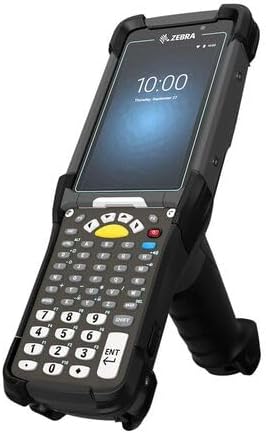
படம் 1: முன் view of the Zebra MC9300 MC930P-GSGDG4NA Mobile Computer, showcasing its display, keypad, and ergonomic handle.
3 அமைவு
3.1 பேக்கிங்
பேக்கேஜிங்கிலிருந்து அனைத்து கூறுகளையும் கவனமாக அகற்றவும். பின்வரும் பொருட்கள் உள்ளனவா என்பதைச் சரிபார்க்கவும்:
- Zebra MC9300 மொபைல் கணினி
- ரிச்சார்ஜபிள் பேட்டரி
- Power Supply Unit (AC Adapter)
- Regulatory Guide and Documentation
3.2 பேட்டரி நிறுவல்
- சாதனம் அணைக்கப்பட்டுள்ளதா என்பதை உறுதிப்படுத்தவும்.
- சாதனத்தின் பின்புறத்தில் பேட்டரி பெட்டியின் அட்டையைக் கண்டறியவும்.
- Open the cover and insert the battery, aligning the contacts correctly.
- பேட்டரி பெட்டியின் அட்டையை பாதுகாப்பாக மூடு.
3.3 ஆரம்ப சார்ஜிங்
Before first use, fully charge the device battery. Connect the power supply unit to the device's charging port and then plug it into a power outlet. The charging indicator will illuminate. A full charge typically takes approximately 4-6 hours.
3.4 பவர் ஆன்/ஆஃப்
- பவர் ஆன் செய்ய: Press and hold the Power button located on the side of the device until the screen illuminates.
- பவர் ஆஃப் செய்ய: Press and hold the Power button until the power options menu appears. Select 'Power Off' and confirm.
4. இயக்க வழிமுறைகள்
4.1 Navigating the Android OS
The MC9300 runs on the Android operating system. Use the touchscreen for navigation, tapping icons to open applications, swiping to scroll, and using standard Android gestures. The physical keypad provides additional input options.
4.2 Using the 2D Barcode Scanner
- Open an application that supports barcode scanning.
- Point the scanner window at the barcode.
- Press one of the scan trigger buttons (typically located on the side or handle) to activate the scanner. A red aiming pattern will appear.
- Align the aiming pattern with the barcode until a successful read is indicated by an audible beep or visual confirmation on the screen.
4.3 விசைப்பலகை செயல்பாடுகள்
The 53-key alphanumeric keypad provides tactile input for data entry. Keys include numeric digits (0-9), alphabetic characters, function keys, and navigation keys. Refer to the on-screen keyboard layout or application-specific instructions for detailed key assignments.
4.4 WLAN Connectivity
- செல்க அமைப்புகள் > நெட்வொர்க் & இணையம் > Wi-Fi.
- Toggle Wi-Fi to the 'On' position.
- கிடைக்கக்கூடிய நெட்வொர்க்குகளின் பட்டியலிலிருந்து உங்களுக்கு விருப்பமான வைஃபை நெட்வொர்க்கைத் தேர்ந்தெடுக்கவும்.
- கேட்கப்பட்டால் நெட்வொர்க் கடவுச்சொல்லை உள்ளிட்டு தட்டவும் இணைக்கவும்.
5. பராமரிப்பு
5.1 சாதனத்தை சுத்தம் செய்தல்
உகந்த செயல்திறன் மற்றும் தோற்றத்தை பராமரிக்க:
- மென்மையான, பஞ்சு இல்லாத துணியைப் பயன்படுத்தவும்ampened with a mild cleaning solution (e.g., isopropyl alcohol or a screen cleaner) to wipe the display and casing.
- Do not use abrasive cleaners or immerse the device in liquids.
- Ensure all ports are dry before connecting any cables.
5.2 பேட்டரி பராமரிப்பு
பேட்டரி ஆயுளை நீட்டிக்க:
- தீவிர வெப்பநிலையைத் தவிர்க்கவும்.
- பேட்டரியை அடிக்கடி முழுமையாக வெளியேற்ற அனுமதிக்காதீர்கள்.
- Store the device with a partial charge if not used for extended periods.
5.3 மென்பொருள் புதுப்பிப்புகள்
Regularly check for and install software updates to ensure your device has the latest features, security patches, and performance improvements. Updates can typically be found in the device's அமைப்புகள் > அமைப்பு > கணினி மேம்படுத்தல் பிரிவு.
6. சரிசெய்தல்
6.1 பொதுவான சிக்கல்கள் மற்றும் தீர்வுகள்
- சாதனம் இயக்கப்படவில்லை: Ensure the battery is properly installed and fully charged. Try a soft reset by holding the power button for 10-15 seconds.
- ஸ்கேனர் பார்கோடுகளைப் படிக்கவில்லை: Check that the scanning application is active. Ensure the barcode is clean and undamaged. Verify scanner settings in the device configuration.
- WLAN connectivity issues: Confirm Wi-Fi is enabled and you are within range of a known network. Verify the network password. Restart the device and the Wi-Fi router if necessary.
- மெதுவான செயல்திறன்: Close unnecessary applications. Clear cache and temporary files. Consider a factory reset as a last resort (back up data first).
6.2 ஆதரவைத் தொடர்புகொள்வது
If you encounter issues that cannot be resolved using the troubleshooting steps above, please contact the vendor from whom you purchased the renewed device for further assistance.
7. விவரக்குறிப்புகள்
| மாதிரி | MC9300 MC930P-GSGDG4NA |
| காட்சி | 4.3-இன்ச் |
| ஸ்கேனர் வகை | 2 டி இமேஜர் |
| ரேம் | 4 ஜிபி |
| ஃபிளாஷ் சேமிப்பு | 32 ஜிபி |
| இணைப்பு | WLAN (வைஃபை) |
| விசைப்பலகை | 53-Key Alphanumeric |
| இயக்க முறைமை | அண்ட்ராய்டு |
| உற்பத்தியாளர் | ஜீப்ரா டெக்னாலஜிஸ் |
8. உத்தரவாதம் மற்றும் ஆதரவு
This Zebra MC9300 mobile computer is offered as a renewed item. Please refer to the specific warranty terms provided by the seller, Breckline Renewed, or Amazon Renewed for details regarding coverage and duration. Warranty terms for renewed products may differ from new products. For technical support or warranty claims, please contact the vendor from whom the device was purchased directly.


