1. அறிமுகம்
This manual provides detailed instructions for the setup, operation, maintenance, and troubleshooting of your Transformers TF-Crystal 85 Keys Mechanical Keyboard. Please read this manual thoroughly before using the product to ensure proper functionality and longevity.
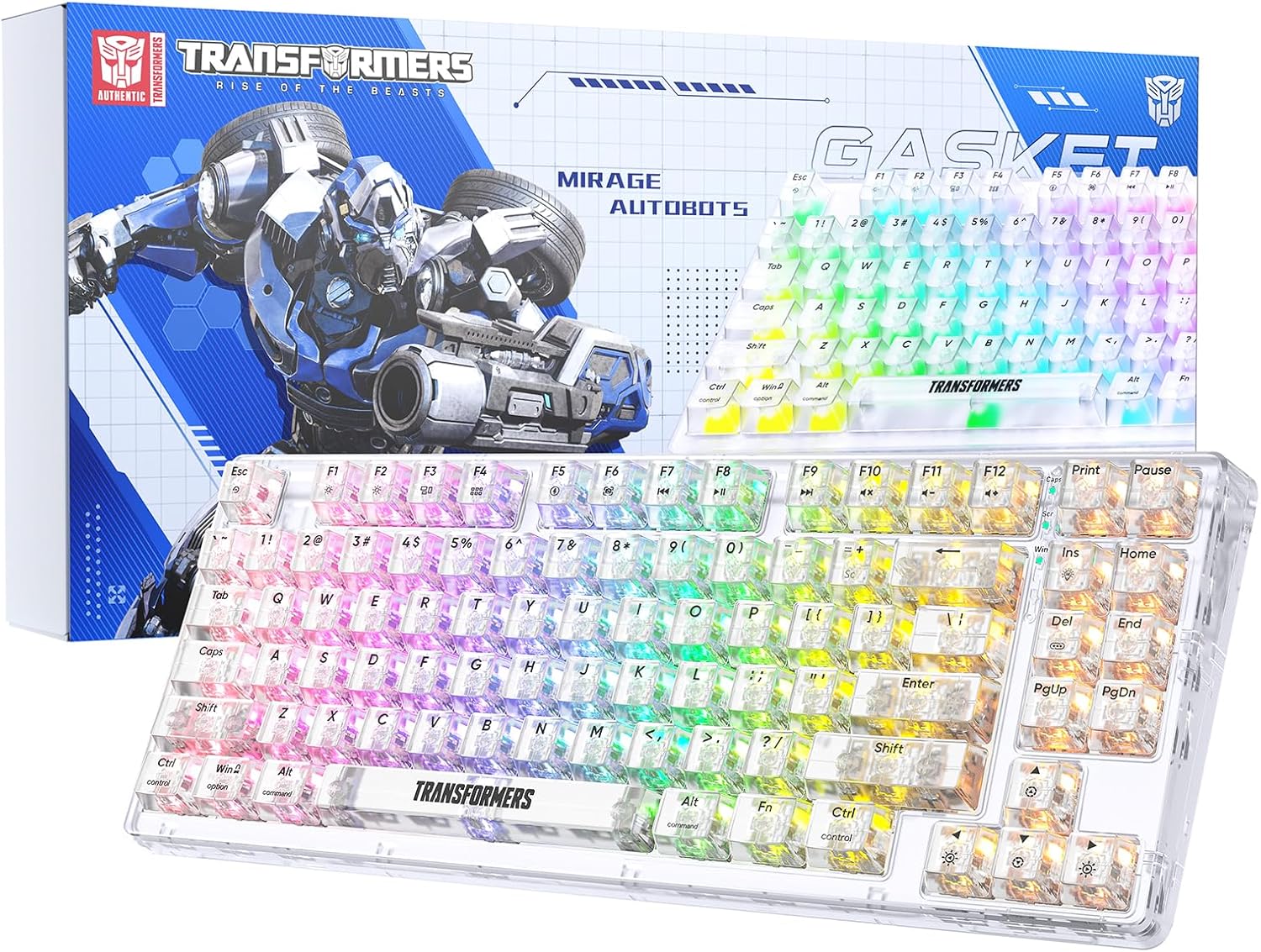
Image 1.1: Transformers TF-Crystal 85 Keys Mechanical Keyboard with its packaging, showcasing the transparent design and RGB lighting.
2. தயாரிப்பு முடிந்துவிட்டதுview
2.1 முக்கிய அம்சங்கள்
- 85-விசை அமைப்பு: Compact 75% design retaining essential functions, arrow, and navigation keys.
- மூன்று-முறை இணைப்பு: புளூடூத் 5.0, 2.4GHz வயர்லெஸ் மற்றும் USB-C வயர்டு இணைப்புகளை ஆதரிக்கிறது.
- சூடாக மாற்றக்கூடிய PCB: Compatible with most 3-pin and 5-pin mechanical switches, allowing for easy customization and replacement.
- Linear Switches: Pre-lubricated switches with a 50 million keystroke lifespan for durability and smooth operation.
- கேஸ்கெட் அமைப்பு: Incorporates high-quality gasket materials and a silicone pad to absorb vibrations and reduce typing noise.
- Customizable RGB Backlight: Features 20 built-in backlight modes, 16.8 million color options, and dynamic music rhythm effects.
- Programmable Driver: Enables macro customization, key function remapping, and advanced lighting control.
- நீண்ட பேட்டரி ஆயுள்: Equipped with a 4000mAh battery, providing up to 240 hours of continuous use in 2.4GHz mode without backlighting.
- பரந்த இணக்கத்தன்மை: Supports Mac, Windows, iOS, Android, PC, Laptop, Smartphone, Tablet, Switch, Xbox, and PlayStation.
- வெளிப்படையான வடிவமைப்பு: Features transparent keycaps and base for enhanced aesthetic appeal.
3 அமைவு
3.1 விசைப்பலகையை சார்ஜ் செய்தல்
Before initial use, fully charge the keyboard. Connect the provided USB-C cable to the keyboard's USB-C port and the other end to a powered USB port (e.g., computer, wall adapter). The charging indicator will show the charging status.
3.2 Connecting via 2.4GHz Wireless Mode
- பொதுவாக விசைப்பலகையில் ஒரு பெட்டியில் சேமிக்கப்படும் 2.4GHz USB ரிசீவரைக் கண்டறியவும்.
- உங்கள் கணினியில் கிடைக்கும் USB போர்ட்டில் USB ரிசீவரைச் செருகவும்.
- Toggle the mode switch on the keyboard to the 2.4ஜி நிலை.
- The keyboard will automatically connect to your device.
3.3 Connecting via Bluetooth 5.0 Mode
- Toggle the mode switch on the keyboard to the BT நிலை.
- அழுத்திப் பிடிக்கவும் FN + 1 (அல்லது FN + 2, FN + 3) for 3-5 seconds until the indicator light flashes rapidly, indicating pairing mode.
- உங்கள் சாதனத்தில் (கணினி, டேப்லெட், ஸ்மார்ட்போன்), புளூடூத்தை இயக்கி புதிய சாதனங்களைத் தேடுங்கள்.
- Select "TF-Crystal 85" from the list of available devices to pair.
- Once paired, the indicator light will stop flashing and remain solid. You can pair up to three Bluetooth devices using FN + 1, FN + 2, மற்றும் FN + 3.
3.4 Connecting via USB-C Wired Mode
- வழங்கப்பட்ட USB-C கேபிளை விசைப்பலகையின் USB-C போர்ட்டுடன் இணைக்கவும்.
- USB-C கேபிளின் மறுமுனையை உங்கள் கணினியில் கிடைக்கும் USB போர்ட்டுடன் இணைக்கவும்.
- The keyboard will automatically switch to wired mode and function without battery power.

Image 3.1: Diagram illustrating the three connection modes: Bluetooth 5.0, 2.4GHz wireless, and USB-C wired, compatible with various devices.
4. இயக்க வழிமுறைகள்
4.1 முறைகளுக்கு இடையில் மாறுதல்
Use the physical switch located on the keyboard to select between BT (புளூடூத்), 2.4ஜி (2.4GHz wireless), and USB-C (wired) modes.
4.2 RGB பின்னொளி கட்டுப்பாடு
The keyboard features customizable RGB backlighting. Use the following key combinations to adjust:
- Fn + Ins: Cycle through 20 different backlight effects.
- Fn + Del: Switch backlight colors within certain modes.
- Fn + ↑ / ↓: பின்னொளி பிரகாசத்தை சரிசெய்யவும் (5 நிலைகள்).
- Fn + ← / →: Adjust backlight effect speed (5 levels).
- Fn + Esc (hold for 3s): Reset backlight settings to default.

Image 4.1: Visual guide for controlling RGB backlight effects, brightness, and speed using Fn key combinations.
4.3 Programmable Driver Usage
The keyboard includes a programmable driver for advanced customization. This driver allows you to:
- மேக்ரோ எடிட்டிங்: Record and edit complex key sequences.
- Key Redefinition: Customize the function of individual keys.
- RGB Effect Customization: Fine-tune lighting modes, colors, and speeds, including music rhythm lighting effects.
Refer to the software's dedicated user interface for detailed instructions on using these features.

Image 4.2: Screenshot of the programmable driver interface, showing options for macro editing, RGB effects, and key redefinition.
4.4 ஹாட்-ஸ்வாப்பிங் சுவிட்சுகள்
The TF-Crystal 85 keyboard features a hot-swappable PCB, allowing you to change mechanical switches without soldering. This supports most 3-pin and 5-pin mechanical switches.
- Power off the keyboard or disconnect it from your device.
- தேவையான கீகேப்பை கவனமாக அகற்ற, வழங்கப்பட்ட கீகேப் இழுப்பானைப் பயன்படுத்தவும்.
- Use the provided switch puller to gently grip the switch from its top and bottom clips, then pull it straight up to remove it.
- புதிய சுவிட்சின் பின்களை PCB-யில் உள்ள துளைகளுடன் சீரமைக்கவும். பின்கள் நேராக இருப்பதை உறுதிசெய்யவும்.
- Gently press the new switch into place until it clicks securely. Do not force it.
- சாவி மூடியை மாற்றவும்.

Image 4.3: Illustration of the hot-swappable feature, showing how to remove and insert 3-pin/5-pin switches and the linear switch specifications.
5. பராமரிப்பு
5.1 விசைப்பலகையை சுத்தம் செய்தல்
- சுத்தம் செய்வதற்கு முன், விசைப்பலகையை அனைத்து மின் மூலங்களிலிருந்தும் துண்டிக்கவும்.
- ஒரு மென்மையான, பஞ்சு இல்லாத துணியை சிறிது டி பயன்படுத்தவும்ampகீகேப்கள் மற்றும் சேசிஸைத் துடைக்க தண்ணீர் அல்லது லேசான துப்புரவு கரைசலால் பூசவும்.
- சாவிகளுக்கு இடையில் தூசி மற்றும் குப்பைகள் இருந்தால், அழுத்தப்பட்ட காற்று அல்லது சிறிய தூரிகையைப் பயன்படுத்தவும்.
- Avoid using harsh chemicals or abrasive materials that could damage the keyboard's surface.
5.2 பேட்டரி பராமரிப்பு
- பேட்டரியை அடிக்கடி முழுமையாக சார்ஜ் செய்வதைத் தவிர்க்கவும்.
- விசைப்பலகை நீண்ட நேரம் பயன்படுத்தப்படாதபோது குளிர்ந்த, உலர்ந்த இடத்தில் சேமிக்கவும்.
- விசைப்பலகை நீண்ட நேரம் பயன்படுத்தப்படாவிட்டால், சேமிப்பதற்கு முன் அதை சுமார் 50% சார்ஜ் செய்யவும்.
6. சரிசெய்தல்
| பிரச்சனை | சாத்தியமான காரணம் | தீர்வு |
|---|---|---|
| வயர்லெஸ் பயன்முறையில் விசைப்பலகை பதிலளிக்கவில்லை. | Low battery, incorrect mode selected, receiver not connected, Bluetooth not paired. | Charge the keyboard. Ensure the mode switch is set correctly (2.4G or BT). Re-insert the 2.4G receiver. Re-pair Bluetooth. |
| விசைகள் பதிவு செய்யப்படவில்லை அல்லது இரட்டை தட்டச்சு செய்யவில்லை. | Faulty switch, debris under keycap, software issue. | Clean under the keycap. Try hot-swapping the switch with a known working one. Restart your computer. |
| RGB backlight not working or incorrect. | Backlight turned off, incorrect settings, software conflict. | இதைப் பயன்படுத்தி பிரகாசத்தை சரிசெய்யவும் Fn + ↑. Cycle modes with Fn + Ins. Reset backlight with Fn + Esc (hold 3s). Check programmable driver settings. |
| Keyboard not charging. | Faulty USB-C cable, power source issue, keyboard port damage. | Try a different USB-C cable. Use a different USB port or power adapter. Ensure the cable is fully inserted. |
7. விவரக்குறிப்புகள்
| அம்சம் | விவரம் |
|---|---|
| மாதிரி எண் | TF-Crystal 85 |
| முக்கிய தளவமைப்பு | 85 சாவிகள் (75% சிறியது) |
| இணைப்பு | புளூடூத் 5.0, 2.4GHz வயர்லெஸ், USB-C வயர்டு |
| சுவிட்ச் வகை | Pre-lubricated Linear Mechanical Switches |
| ஆயுட்காலம் மாறவும் | 50 மில்லியன் கீஸ்ட்ரோக்குகள் |
| சூடான-மாற்றக்கூடியது | ஆம் (3-பின்/5-பின் இணக்கமானது) |
| பின்னொளி | RGB (20 modes, 16.8 million colors) |
| பேட்டரி திறன் | 4000mAh |
| Battery Life (2.4G, no light) | 240 மணி நேரம் வரை |
| Battery Life (Backlit ON) | சுமார் 22 மணி நேரம் |
| பரிமாணங்கள் (L x W x H) | 34.7 செமீ x 14 செமீ x 4.5 செ.மீ |
| இணக்கத்தன்மை | Mac, Windows, iOS, Android, PC, Laptop, Smartphone, Tablet, Switch, Xbox, PlayStation |

Image 7.1: Visual representation of the keyboard's battery life: 240 hours with backlight off, 22 hours with backlight on, powered by a 4000mAh battery.
8. உத்தரவாதம் மற்றும் ஆதரவு
Transformers is committed to providing exceptional customer service. If you encounter any problems with your TF-Crystal 85 Keys Mechanical Keyboard, our after-sales support team is available to assist you. This includes technical support, exchanges, or installation guidance.
Please contact our customer service for assistance. We guarantee a hassle-free service experience.


