1. அறிமுகம் மற்றும் முடிந்துவிட்டதுview
This manual provides detailed instructions for the installation, operation, and maintenance of your Dfuorty Car Stereo Upgrade, Model QA1755X. This unit is specifically designed for Kia Picanto Morning models from 2016 to 2019, featuring an Android 13 system with wireless CarPlay and Android Auto compatibility, a 9-inch touchscreen, GPS navigation, WiFi, and Bluetooth connectivity.
The system is equipped with a 4-core processor, 2GB RAM, and 32GB ROM, ensuring smooth performance and ample storage for applications. It supports online firmware updates for continuous improvement.
2. தயாரிப்பு கூறுகள்
கீழே பட்டியலிடப்பட்டுள்ள அனைத்து கூறுகளும் உங்கள் தொகுப்பில் சேர்க்கப்பட்டுள்ளதா என்பதை சரிபார்க்கவும்:
- 1 x Car Stereo Player
- 2 x பவர் கேபிள்கள்
- 1 x ஜிபிஎஸ் ஆண்டெனா
- 1 x பின்புற கேமரா உள்ளீட்டு கேபிள்
- 1 x ஆர்.சி.ஏ கேபிள்
- 2 x USB கேபிள்கள்
- 1 x AHD Camera
- 1 x மைக்ரோஃபோன்
- 1 x Radio Adapter
- 1 x வழிமுறை கையேடு (இந்த ஆவணம்)

படம் 2.1: சேர்க்கப்பட்ட தயாரிப்பு கூறுகள்
This image displays all the parts you should find in the product box, including the main car stereo unit, various cables for power and connectivity, a GPS antenna, a rear camera, and the user manual.
3. அமைவு மற்றும் நிறுவல்
Professional installation is highly recommended for this car stereo system to ensure proper functionality and avoid damage to your vehicle or the unit. The following sections provide general guidance on connecting key features.
3.1. Initial Power-On and Interface Overview
Upon successful installation and power connection, the unit will boot up to the main interface. This interface provides access to various functions such as navigation, music, radio, and applications.

படம் 3.1: முக்கிய பயனர் இடைமுகம்
This image shows the primary screen of the car stereo, displaying various application icons for common functions like phone calls, music playback, navigation, and messaging.
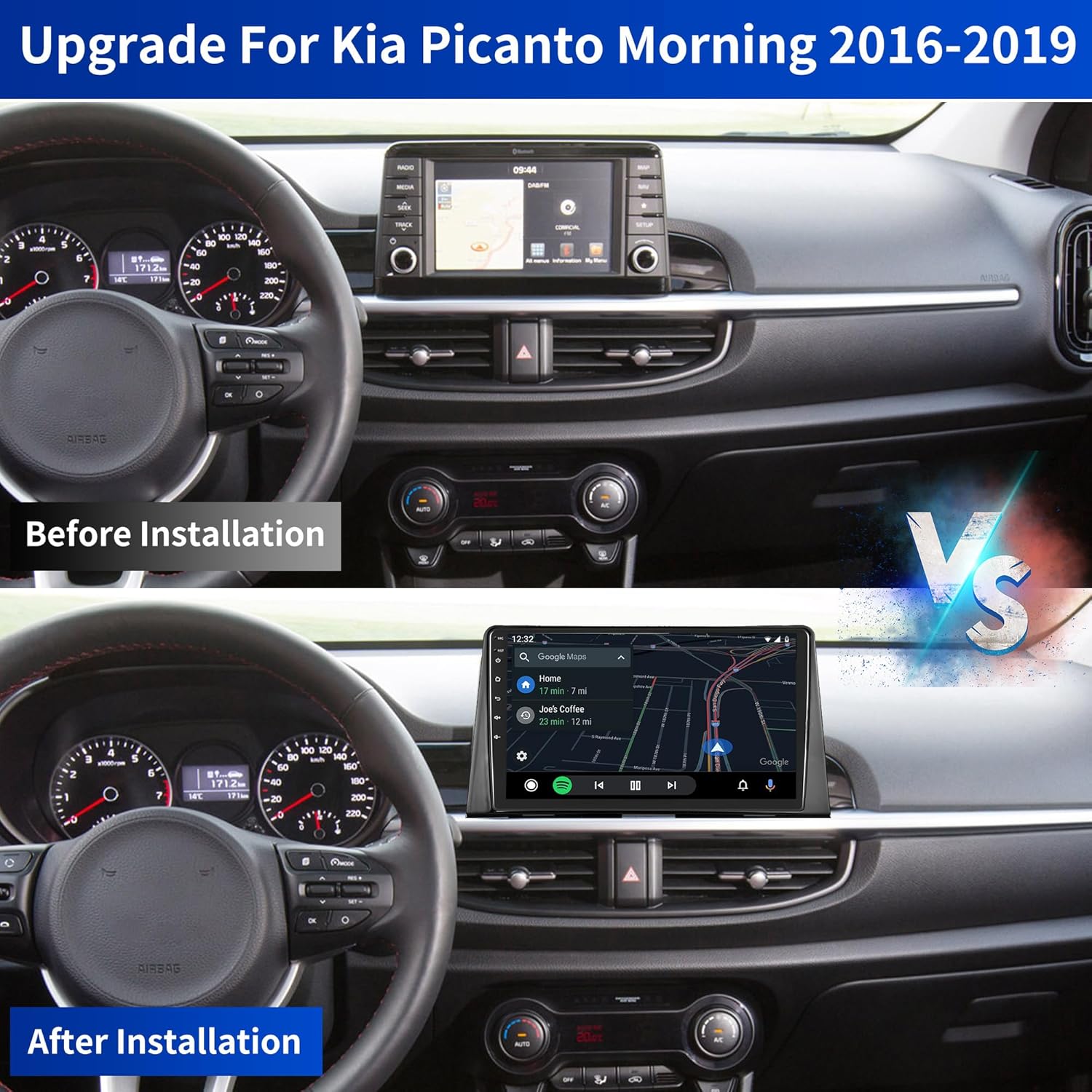
படம் 3.2: நிறுவலுக்கு முன்னும் பின்னும்
This image illustrates the visual upgrade provided by the Dfuorty car stereo, showing the original dashboard setup compared to the new 9-inch touchscreen installed.
3.2. புளூடூத் இணைப்பு
To enable hands-free calling and audio streaming, connect your mobile device via Bluetooth:
- On the car stereo, navigate to the Bluetooth settings.
- உங்கள் மொபைல் சாதனத்தில் புளூடூத் இயக்கப்பட்டுள்ளதை உறுதிசெய்யவும்.
- தேடுங்கள் available devices on your mobile device and select "CarBT".
- Enter the PIN "0000" if prompted.
- Once connected, "Phone audio, music audio" will be displayed, indicating a successful connection. If not, restart Bluetooth on both devices.
Video 3.1: Bluetooth and ZLINK Connection Guide
This video demonstrates the process of connecting your mobile phone to the car stereo via Bluetooth and establishing a ZLINK connection for CarPlay and Android Auto functionality. It also covers troubleshooting steps for connection issues, including manual WiFi setup.
3.3. ZLINK (Wireless CarPlay & Android Auto) Connection
The ZLINK application enables wireless CarPlay and Android Auto for seamless smartphone integration:
- Ensure your phone's Bluetooth is connected to the car stereo (refer to Section 3.2).
- Open the "ZLINK" application on the car stereo.
- The system will attempt to connect to your phone. Follow any prompts on your phone to allow CarPlay or Android Auto.
- If the connection is not successful, manually connect to the car stereo's WiFi hotspot (see Section 3.4). After connecting to WiFi, delete the history record in the ZLINK app and try connecting again.
- For subsequent connections, simply connecting via Bluetooth should automatically establish the ZLINK connection.

படம் 3.3: வயர்லெஸ் கார்ப்ளே & ஆண்ட்ராய்டு ஆட்டோ இடைமுகம்
This image shows the car stereo's capability to display both Apple CarPlay and Android Auto interfaces, highlighting its compatibility with both major smartphone integration systems.

Figure 3.4: Wired & Wireless CarPlay/Android Auto Support
This diagram visually explains how both wired and wireless connections for CarPlay and Android Auto are supported, along with the integration of voice assistants like Siri and Google Assistant.
3.4. WiFi Hotspot Connection
To access online features like real-time navigation and app downloads, connect the stereo to a WiFi hotspot (e.g., from your mobile phone):
- On the car stereo, go to "Settings" then "Android Settings".
- Select "Network & Internet" and then "Hotspot & tethering".
- Enable "Wi-Fi hotspot". Note the network name (e.g., AndroidAP_B442) and password.
- On your mobile phone, enable "Personal Hotspot" (for iOS) or "Wi-Fi hotspot" (for Android).
- Connect your phone to the car stereo's hotspot network using the noted network name and password.
- Once connected, your phone's name will appear under "Connected users" on the car stereo's hotspot settings.
4. இயக்க வழிமுறைகள்
4.1. ஜிபிஎஸ் வழிசெலுத்தல்
The unit features a built-in GPS module supporting both offline and online navigation. With a WiFi connection, you can use real-time navigation apps like Google Maps, Apple Maps, Waze, and Sygic.

Figure 4.1: GPS Navigation and WiFi Hotspot
This image illustrates the simultaneous use of the radio and GPS navigation on the split screen, emphasizing the unit's WiFi hotspot connectivity for online map services.

Figure 4.2: GPS Navigation Options
This image highlights the diverse GPS navigation options available on the car stereo, including popular mapping applications and a full-view வழிசெலுத்தல் முறை.
4.2. Bluetooth Hands-free & DSP
The integrated Bluetooth allows for hands-free calls and direct music streaming from your smartphone. The Digital Sound Processor (DSP) with EQ equalizer offers customizable audio settings, including Vbass, balance, loudness, and filter adjustments, for a high-quality sound experience.

Figure 4.3: Bluetooth and DSP Features
This image illustrates the Bluetooth functionality for hands-free calls and music streaming, alongside the DSP features for audio customization, including a 32-band equalizer and surround sound options.

படம் 4.4: புளூடூத் செயல்பாடு
This image depicts the Bluetooth function in use, showing the car stereo's interface for music playback and phone calls, enhancing driving safety and convenience.
4.3. ஸ்டீயரிங் வீல் கட்டுப்பாடு
The unit supports steering wheel control (SWC) functionality. By connecting the vehicle's SWC cable, you can directly manage calls, adjust volume, or change songs using your steering wheel buttons, promoting safer driving.

படம் 4.5: ஸ்டீயரிங் வீல் கட்டுப்பாட்டு அமைப்பு
This image shows the interface for setting up and customizing steering wheel controls, allowing users to quickly switch functions without taking their hands off the wheel.
4.4. ஸ்கிரீன் மிரரிங்
The screen mirroring feature allows you to display your smartphone's screen directly onto the car stereo's 9-inch capacitive IPS HD touchscreen. This is useful for viewing content or applications not natively supported by the stereo interface.

Figure 4.6: 9-inch Large Touchscreen with Screen Mirroring
This image showcases the large 9-inch capacitive IPS HD touchscreen and its screen mirroring capability, allowing content from a smartphone to be displayed on the car stereo.
4.5. FM/RDS வானொலி
The unit includes an FM/RDS radio tuner. RDS (Radio Data System) provides additional information such as station name, song title, and traffic announcements where available. It also supports DAB (Digital Audio Broadcasting) with an optional DAB+ Subwoofer.

படம் 4.7: FM/RDS ரேடியோ இடைமுகம்
This image displays the radio interface, showing frequency tuning and equalizer settings, confirming support for FM/RDS and DAB radio functionalities.
4.6. கேமரா உள்ளீடு
The system supports both front and backup camera inputs. This enhances safety by providing a clear view of your surroundings when parking or maneuvering. The included AHD camera offers a 120° rear viewing angle and reverse assistance lines.

Figure 4.8: Rear/Front Camera Input
This image demonstrates the car stereo's support for rear and front camera inputs, showing a clear parking assist view with guidelines and highlighting features like night vision and waterproofing.
5. பராமரிப்பு
- திரையை சுத்தம் செய்தல்: தொடுதிரையை மெதுவாகத் துடைக்க மென்மையான, பஞ்சு இல்லாத துணியைப் பயன்படுத்தவும். பிடிவாதமான கறைகளுக்கு, சிறிது dampதுணியை தண்ணீர் அல்லது திரை-பாதுகாப்பான கிளீனருடன் துடைக்கவும். சிராய்ப்பு பொருட்கள் அல்லது கடுமையான இரசாயனங்கள் பயன்படுத்துவதைத் தவிர்க்கவும்.
- மென்பொருள் புதுப்பிப்புகள்: The unit supports convenient online firmware updates. Periodically check for updates in the system settings to ensure optimal performance and access to new features.
- பொது பராமரிப்பு: Keep the unit free from dust and debris. Avoid exposing it to extreme temperatures or direct sunlight for prolonged periods. Ensure all connections are secure.
6. சரிசெய்தல்
If you encounter issues with your Dfuorty Car Stereo, refer to the following common troubleshooting steps:
- சக்தி இல்லை:
- Check all power connections to ensure they are securely fastened.
- Verify the vehicle's fuse related to the stereo is not blown.
- ஒலி இல்லை:
- ஸ்பீக்கர் இணைப்புகளைச் சரிபார்க்கவும்.
- ஒலியளவு குறைக்கப்படவில்லை அல்லது மிகக் குறைவாக அமைக்கப்படவில்லை என்பதை உறுதிப்படுத்தவும்.
- கணினி மெனுவில் ஆடியோ வெளியீட்டு அமைப்புகளைச் சரிபார்க்கவும்.
- புளூடூத்/கார்ப்ளே/ஆண்ட்ராய்டு ஆட்டோ இணைப்புச் சிக்கல்கள்:
- ஸ்டீரியோ மற்றும் உங்கள் தொலைபேசி இரண்டிலும் புளூடூத் இயக்கப்பட்டிருப்பதை உறுதிசெய்யவும்.
- Try restarting Bluetooth on both devices.
- For ZLINK, ensure the car stereo is connected to a WiFi hotspot (refer to Section 3.4) and clear any history records in the ZLINK app before attempting to reconnect.
- Refer to Video 3.1 for detailed connection troubleshooting.
- ஜிபிஎஸ் சிக்னல் இழப்பு:
- ஜிபிஎஸ் ஆண்டெனா சரியாக நிறுவப்பட்டு தெளிவான அமைப்பைக் கொண்டிருப்பதை உறுதிசெய்யவும். view வானத்தின்.
- கணினி மெனுவில் GPS அமைப்புகளைச் சரிபார்க்கவும்.
- தொடுதிரை பதிலளிக்கவில்லை:
- யூனிட்டை மீண்டும் தொடங்க முயற்சிக்கவும்.
- திரை சுத்தமாகவும், குப்பைகள் இல்லாமல் இருப்பதையும் உறுதி செய்யவும்.
இங்கு விவாதிக்கப்படாத தொடர்ச்சியான சிக்கல்களுக்கு, வாடிக்கையாளர் ஆதரவைத் தொடர்பு கொள்ளவும்.
7. விவரக்குறிப்புகள்
| அம்சம் | விவரம் |
|---|---|
| மாதிரி எண் | QA1755X |
| இயக்க முறைமை | ஆண்ட்ராய்டு 13 |
| CPU | 4 Cores, 1.3Ghz |
| ரேம் | 2 ஜிபி |
| ரோம் | 32 ஜிபி |
| திரை அளவு | 9 அங்குலம் |
| காட்சித் தீர்மானம் | 1280*720 IPS HD |
| CarPlay/Android ஆட்டோ | Wireless & Wired Support |
| ஜிபிஎஸ் வழிசெலுத்தல் | Built-in Module, Online/Offline Maps |
| இணைப்பு | ப்ளூடூத், யூ.எஸ்.பி, வைஃபை |
| ஆடியோ வெளியீடு | 4x45W, HiFi, 18-band EQ, DSP |
| கேமரா உள்ளீடு | Front & Backup Camera Support |
| ஸ்டீயரிங் வீல் கட்டுப்பாடு | ஆதரிக்கப்பட்டது |
| தயாரிப்பு பரிமாணங்கள் | 14.2 x 8.7 x 4.7 அங்குலம் |
| பொருளின் எடை | 3.5 பவுண்டுகள் |
8. உத்தரவாதம் மற்றும் ஆதரவு
Your Dfuorty Car Stereo Upgrade is covered by a comprehensive warranty and dedicated customer support.
- உத்தரவாதம்: தயாரிப்பு ஒரு உடன் வருகிறது 1 ஆண்டு உத்தரவாதம் வாங்கிய தேதியிலிருந்து.
- வருமானம்/பரிமாற்றங்கள்: You are eligible for a 30-Day Exchange or Return வாங்கிய தேதியிலிருந்து.
- வாடிக்கையாளர் சேவை: நாங்கள் வழங்குகிறோம் 24/7 வாடிக்கையாளர் சேவை to assist you with any inquiries or issues.
- வாடிக்கையாளர் ஆதரவு மின்னஞ்சல்: For direct assistance, please contact us at Bongagho126.com.

படம் 8.1: உத்தரவாதம் மற்றும் சேவை தகவல்
This image summarizes the warranty and support terms, including return policy, warranty duration, and customer service availability with contact email.